
A weak internet connection or an outdated app version is the reason kodi isn’t working on firestick for most users. You can quickly test this by opening another streaming app on your device to see if it loads content correctly. If other apps work, the issue is likely within the application settings or its cache. If nothing loads, your network is the primary concern and requires a reset of your router.
Why Kodi isn’t working on your Firestick
The following table ranks the most likely causes for your streaming issues. You can check these settings in the Fire TV menu or inside the application itself.
| Cause | How common | How to confirm it | Fix it yourself? |
|---|---|---|---|
| Poor internet speed | Very common | Test other apps | Yes |
| Full cache memory | Common | Check app storage | Yes |
| Outdated app version | Common | Check app store | Yes |
| Corrupt configuration file | Occasional | Reset app data | Yes |
| Server side outage | Rare | Check status site | No |
| Hardware failure | Very rare | Device won’t boot | No |
If your connection speed drops below 5 Mbps, high-definition playback will inevitably stutter or fail. Run a speed test directly within your device settings to confirm your actual throughput rather than relying on your router’s advertised rate.
Most users mistakenly clear their entire device cache when only the specific app experiencing issues needs attention. Clearing the cache for one application clears temporary files without forcing you to log back into every service.
Always check for a firmware update if you see persistent playback errors across multiple platforms.
Distinguish between a local error and a server outage by checking your secondary device. If the content plays on your phone but fails on your television, the issue is local. If both devices fail, stop troubleshooting your hardware and wait for the provider to restore service.
Resolving internet connection issues
A stable network is the foundation for streaming media. If your connection is unstable, the interface may open, but you’ll see buffering icons or error messages when you try to play a video. You can confirm this by running a speed test through the “Network” menu in your Fire TV settings. If your connection speed is below 10 Mbps, you’ll struggle to stream high-definition content.
To fix this, restart your home router by unplugging it from the power for 30 seconds. Plug it back in and wait for the lights to stabilize before testing the connection again. If the Fire TV remains disconnected, forget the Wi-Fi network in the settings menu and reconnect by entering your password again. This forces the device to establish a fresh handshake with your router.
Many users mistakenly leave their router in a cabinet or behind a television. This creates a physical barrier that absorbs signal strength, often costing you 30 to 50 percent of your potential bandwidth. If you see two bars of signal or fewer, relocate the router to an open, elevated surface.
If you’re using a 2.4 GHz band, consider switching to 5 GHz if your router supports it. The 2.4 GHz band is often crowded by other household electronics, which leads to interference and dropped packets. For the best performance, ensure the device is within 20 feet of the router without thick walls in between.
If your signal strength remains poor, moving the router closer or using a signal extender is the only way to improve the data flow. If you have both bands, use 5 GHz for streaming and reserve 2.4 GHz for low-bandwidth smart home devices.
Clearing the application cache
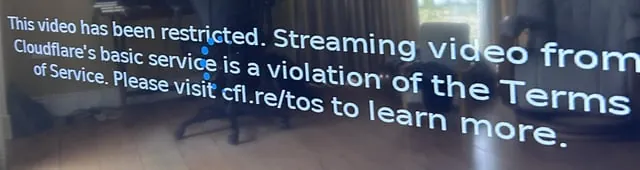
When the app stops responding or crashes during startup, the temporary files stored in the memory are often to blame. These files, known as cache, build up over time and can become corrupted. You can check the current size of the cache by going to Settings, selecting Applications, and choosing Manage Installed Applications. Look for the application in the list to see the storage usage.
To clear the cache, select the option labeled “Clear cache” within that same menu. Never select “Clear data” unless you’re prepared to lose your login information and custom settings, as this resets the app to its original state. Clearing the cache takes less than one minute and doesn’t remove your personal media library or add-ons.
If the app still fails to open after this step, force stop the application and restart the device. A common mistake is clearing the cache for the wrong app when multiple streaming services are installed. Verify the app icon before confirming the action to avoid unnecessary setup time.
Use this rule: if the app is sluggish, clear the cache. If the app refuses to authenticate or displays a persistent error code, clear the data instead.
Always ensure your system software is current to maintain compatibility with modern streaming standards. If your device is running an outdated operating system, certain application functions will fail to trigger because they require newer security protocols that your current version lacks. Check for and install mandatory system updates through the device settings menu to ensure all background services remain active and secure.
Updating your software
An outdated version of the application often creates compatibility gaps that lead to sudden crashes or black screens. Check the Amazon Appstore on your device to see if an update is available for your software. Developers release these updates to patch bugs that cause the program to hang or fail to load external media sources.
If you’re running a version that’s several months old, the application may no longer communicate with the servers it needs to function. Updating usually takes about five minutes, depending on your download speed. If the store doesn’t show an “Update” button, the version you have is the latest one provided by that source.
Many users mistakenly assume that a simple restart fixes a frozen app when the real culprit is a stale cache. If the app remains unresponsive after an update, clear your local data in the device settings before attempting a fresh install. This simple step saves you the time of re-downloading large media assets.
If you see a “Version Mismatch” error, you’re likely running a legacy build. Uninstalling and reinstalling the app is the only way to replace potentially corrupted files that a standard update might miss.
Rare system errors
-
Server outages: The service hosting your content may be down. Confirm this by checking their official status page or social media feeds. If these sources remain silent, try accessing the service from a mobile browser on a different network to rule out a local ISP blockage.
-
Insufficient storage: When Firestick internal memory drops below 500MB, the app can’t create essential temporary cache files. Check your settings under “Manage Installed Applications” to verify available space. If you have less than 1GB free, uninstall at least two unused apps to restore stability.
-
Account restrictions: Regional firewalls or strict network policies often block specific traffic types. Test your connection by toggling a verified VPN. If the content loads immediately, your local network is likely filtering the data stream.
-
Hardware defect: If the device displays a constant boot loop or refuses to power on, the internal flash storage has likely failed. Don’t attempt a factory reset if the device is under warranty, as this often voids the repair path. Contact the manufacturer directly for a replacement unit.
What a typical fix demands
Fixing these issues rarely requires advanced technical skill, but it does demand patience and a systematic approach. Most software-based repairs only require you to navigate the settings menu using your remote. This is similar to clearing the temporary files on a smartphone or tablet, which most users find straightforward after doing it once. If the software remains broken after you have cleared the cache and checked for updates, the next step is a full reset of the application.
A factory reset of the entire Firestick is the final step, but this is a significant task because it erases all apps and personal settings. You should only consider this if other devices on the same network are working fine and you have already tried removing and reinstalling the problematic app.
If you aren’t comfortable navigating these menus, a local electronics repair shop can often assist with device configuration for a fee that’s usually less than the cost of a new streaming device.
Related guides
- How to Hide Office in Living Room: 5 Fast Design Solutions
- 10 Best Wood Workshop Heaters for Reliable Heating Solutions
- 5 Best Light Bulbs for Pump House Lighting Solutions in 2026
Frequently Asked Questions
Why does the app crash on startup?
The app crashes on startup because it can’t access a required file or network resource. This usually happens when the cache is corrupted or the internet connection is too slow to load the initial interface. Clearing the cache in the application manager is the most effective way to resolve this error without losing your personal data.
How long should I wait for the app to load?
You should wait about 30 seconds for the application to fully load its interface. If it remains stuck on a black screen or a logo after 30 seconds, it’s likely frozen and requires a force stop. Use the “Force stop” option in your settings menu and then try opening the application again to trigger a clean start.
Is it safe to clear app data?
It’s safe to clear app data, but you must understand that it will delete your logins and custom preferences. This action returns the app to its factory state, which is a useful last resort for fixing persistent errors. You’ll need to re-enter your account credentials once the process is complete to regain access to your library.
Why does the video buffer constantly?
Video buffers constantly because your network speed is lower than the bitrate of the content you’re trying to stream. You can verify this by running a network speed test in the Fire TV settings. If your speed is below the recommended threshold for high-definition streaming, you’ll experience frequent pauses while the device waits for more data.
Does the app version matter?
The app version matters because older versions may lack the security updates needed to connect to modern streaming servers. If you’re running an outdated version, the app may fail to fetch content or show a connection error. Always keep your apps updated through the official app store to ensure full compatibility with the current network environment.
Can a slow router cause these errors?
A slow or outdated router is a common cause of streaming errors on your device. Older routers may struggle to handle the high-bandwidth traffic required for video streaming, leading to dropped connections. If your router is aging, it may be time to consider an upgrade to a model that supports newer wireless standards like Wi-Fi 6.
Conclusion
If these quick fixes don’t resolve the problem, you shouldn’t hesitate to reach out to the official support forums for extra help. Sometimes a fresh installation is all you need to get things running smoothly again. Don’t worry, you’ll be back to watching your favorite shows in no time at all.
