
If you have recently noticed that your Verizon Fios router blinking white, you’re likely experiencing a state where the device is attempting to establish or re-establish a connection with the Fios network. While a solid white light typically indicates a healthy, functioning internet connection, the blinking variant serves as a visual diagnostic signal from the hardware. Understanding what this behavior signifies is the first step toward restoring your home network to its optimal performance. Most issues related to this status are temporary and can be resolved through simple power cycling or cable verification procedures.
Key Takeaways
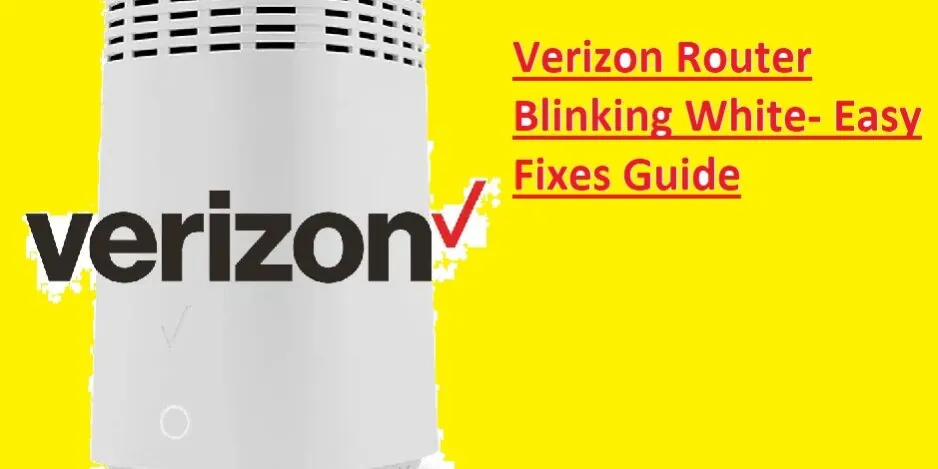
- A blinking white light usually indicates the device is booting up, searching for a signal, or installing a firmware update.
- Don’t unplug the power cord while the router is actively updating, as this can corrupt the internal software.
- Most connectivity issues are resolved by performing a basic power cycle of the Optical Network Terminal and the router.
- Check physical connections between the wall jack, the ONT, and the router to ensure no cables have become loose.
- If the blinking persists for more than thirty minutes, the issue may lie with the external service line or a local outage.
What Causes the Blinking White Light?
The Verizon router uses specific light patterns to communicate its current operational status to the user. When you see the light pulsating or blinking in white, it generally means the router is in a transitional phase. This behavior is common during the initial setup process, after a power interruption, or when the system is fetching new configuration data from the central office.
- Booting Sequence: The router is performing internal self-tests before allowing traffic to pass.
- Firmware Updates: The device is downloading or applying a patch, which is critical for network security.
- Signal Acquisition: The router is failing to handshake with the ONT, often due to a signal interruption.
- Configuration Sync: The router is communicating with Verizon servers to pull down your specific account settings.
How to Power Cycle Your Equipment
A power cycle is the most effective way to clear temporary glitches in your local network hardware. You must address both the router and the Optical Network Terminal (ONT) to ensure the entire chain is refreshed. Always wait for the devices to fully shut down before restoring power to allow the capacitors to discharge fully.
| Step | Action | Expected Outcome |
|---|---|---|
| 1 | Unplug the router power cable | All lights on the router turn off |
| 2 | Unplug the ONT power supply | All lights on the ONT turn off |
| 3 | Wait for 60 to 120 seconds | Devices remain completely powered down |
| 4 | Plug in the ONT power supply | ONT lights begin sequence |
| 5 | Plug in the router power cable | Router begins boot sequence |
Is the Connection Physically Secure?
Before assuming the problem is internal, verify the integrity of your physical cables. A loose ethernet cord or a damaged coaxial cable can cause the router to lose its link to the internet, resulting in the persistent blinking white light. Use a firm touch to ensure every connector is seated correctly in its port.
Check these cables:
- Ethernet Cables: Ensure the CAT6 cable between the ONT and the router is clicked firmly into the WAN port.
- Power Adapters: Verify that the power bricks are pushed all the way into the wall outlet.
- Coaxial Cables: If your setup uses MoCA, ensure the coax connector is tightened manually to prevent signal leakage.
Pro Tip: Always inspect your ethernet cables for signs of physical damage, such as fraying or bent pins, as these can cause intermittent connectivity even if the cable appears to be plugged in.
Troubleshooting the Optical Network Terminal
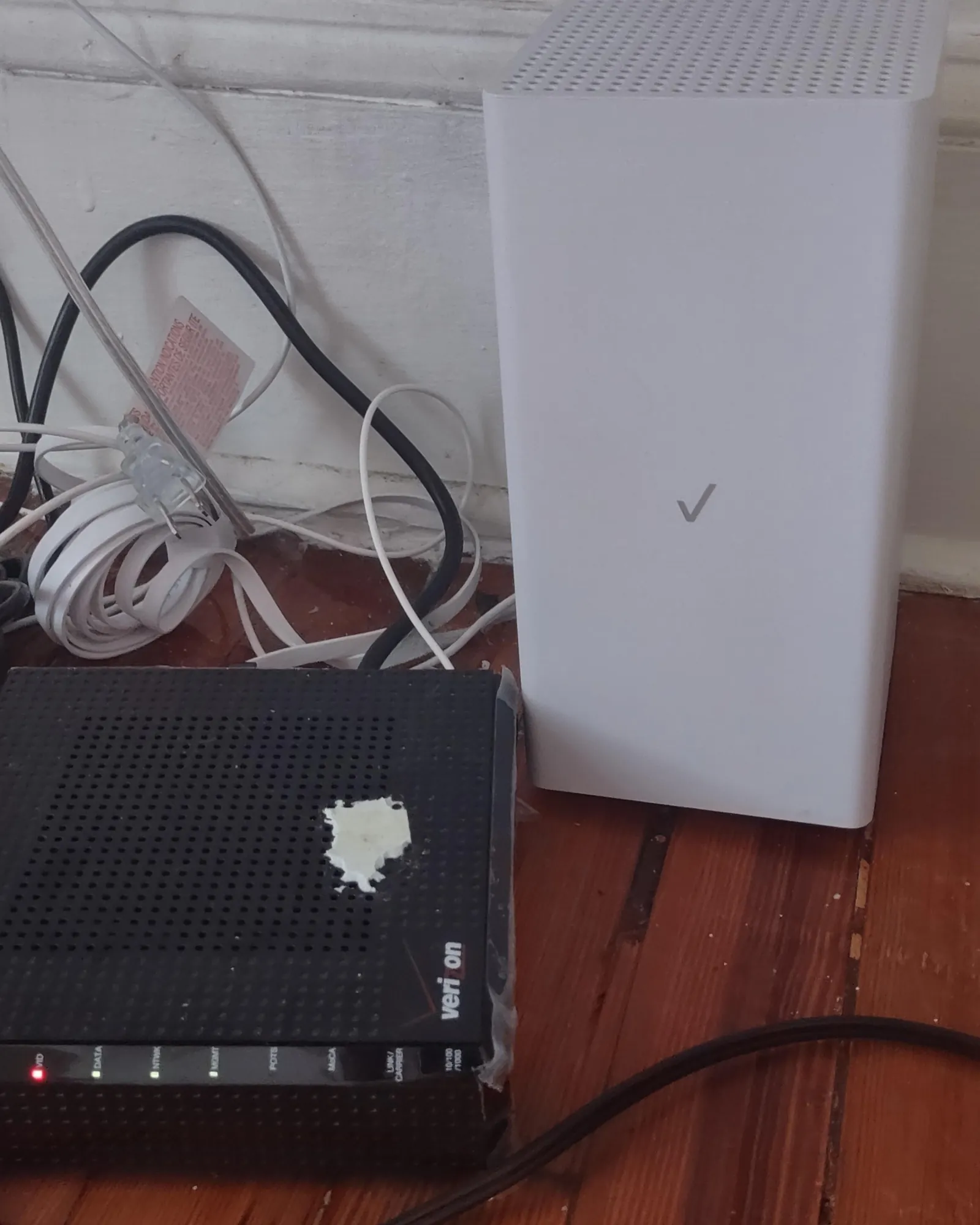
The ONT is the small box, often mounted in a garage or utility closet, that converts the fiber optic signal into a format your router can understand. If the ONT itself is displaying red lights or has no lights at all, the issue isn’t with the router but with the fiber line coming into your home. You can view the Verizon Fios support documentation for guidance on identifying specific status light patterns on your hardware.
- System Light: Should be solid green under normal operating conditions.
- Power Light: Indicates the ONT is receiving electricity from your home or a battery backup unit.
- Optical Light: If this is blinking red or off, there’s a problem with the fiber signal reaching your house.
When Should You Contact Support?
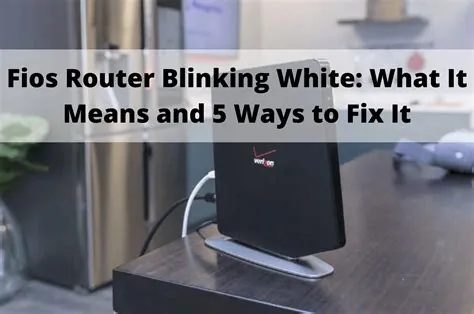
If you have performed a full power cycle and verified all physical cables, yet the router continues to blink white for an extended period, you may need to escalate the issue. Persistent blinking often points to a service outage in your area or a failure of the ONT hardware. Before calling, check your account status via the mobile app to see if there’s a known local outage affecting your neighborhood.
Signs you need professional help:
- A widespread service outage reported in your area.
- The ONT displays a solid red “Fail” light.
- The internet connection drops repeatedly throughout the day.
- The router fails to reach a solid white state after one hour of troubleshooting.
Managing Firmware and Software Updates
Occasionally, the router enters a blinking state because it’s processing an automated update. These updates are essential for maintaining compatibility with the latest network standards and ensuring your connection remains stable. Never interrupt this process, as it can leave the router in an unusable state.
Update best practices:
- Leave it alone: If the light is blinking, wait at least thirty minutes before intervening.
- Avoid resets: Don’t press the small “reset” button on the back during an update.
- Check the app: Use the My Fios app to see if there are any pending updates or maintenance notices.
Is Your Router Overheating?
Electronic devices require proper ventilation to function correctly. If your router is placed inside a closed cabinet, under heavy blankets, or in direct sunlight, it may trigger a thermal protection mode. This can cause the router to restart repeatedly, leading to the blinking white light as it attempts to recover.
- Clearance: Ensure at least three inches of space around all sides of the router.
- Airflow: Place the device on a hard, flat surface rather than on carpet or upholstery.
- Ventilation: Avoid stacking other electronics on top of the router to prevent heat buildup.
Identifying Verizon Fios Router Blinking White Issues
If your router is several years old, the internal components may be reaching the end of their lifespan. Capacitors can fail, or the internal flash memory might become corrupted. If you have tried every troubleshooting step and the device still refuses to show a solid white light, it may be time to request a hardware replacement from your provider.
Signs of hardware aging:
- The router case feels excessively hot to the touch.
- The device emits a faint high-pitched whining sound.
- The router keeps restarting randomly even when the internet is stable.
- The ethernet ports show no activity lights even when cables are connected.
How to Perform a Factory Reset
A factory reset should be your last resort, as it will erase all your custom settings, including your Wi-Fi name (SSID) and password. This returns the router to its out-of-the-box state. Only perform this if you’re comfortable reconfiguring your network settings from scratch.
Reset instructions:
- Locate the small, recessed “Reset” button on the back of the router.
- Use a paperclip or a similar thin tool to press and hold the button for 15-20 seconds.
- Release the button and wait for the router to cycle through its lights.
- Once the light turns solid white, use the default credentials on the sticker to log in.
Warning: Performing a factory reset will disconnect all your smart home devices, printers, and computers, requiring you to manually reconnect each one to the network with the original default credentials provided on the router label.
Are There Any Local Outages?
Sometimes the issue is entirely out of your control. Verizon may be performing maintenance on the fiber lines in your street or a central hub, causing a temporary loss of signal. In these cases, the router will blink white as it vainly searches for a connection that isn’t there.
- Check the app: Log into your Verizon account from your smartphone using cellular data.
- Use the website: Navigate to the support page to view the service map for your zip code.
- Social media: Check official status accounts for updates on major network disruptions.
Related guides
- How to Find IP Address for Camera: Quick Router Method
- 9 Best Router for Xfinity Picks for Every Home Setup in 2026
- Test for Mustard Algae: The White Cloth Method Explained in 2026
Frequently Asked Questions
Why is my router light blinking white?
A blinking white light typically means the router is attempting to connect to the internet, booting up, or downloading a mandatory firmware update. It’s a sign that the device is active but hasn’t yet established a stable, ready-to-use connection with the Verizon network. If it persists, it usually indicates a signal loss or a temporary communication error between the router and the ONT.
How long should the blinking last?
Under normal conditions, a boot-up sequence or an update should take anywhere from five to fifteen minutes. If the router has been blinking white for more than thirty minutes, it’s likely stuck in a loop or unable to find the network signal. At this point, it’s recommended to perform a full power cycle of both your router and the ONT.
Can I stop the firmware update?
You should never stop an active firmware update. Interrupting this process by unplugging the device can corrupt the router’s internal software, potentially rendering the device permanently unresponsive. If the light is blinking, allow the router at least thirty minutes to finish its internal tasks. If it remains in that state for longer, then proceed with troubleshooting steps, as the update has likely failed or hung.
What if the light turns red?
A red light on a Verizon router is a more serious indicator than a white light. It usually signifies a total loss of internet connectivity or a hardware error. If you see a red light, perform a power cycle first. If the light remains red after restarting, it often points to a problem with the fiber line, the ONT, or an account-level service interruption that requires professional assistance.
Do I need a new router?
You only need a new router if your current unit is physically damaged, overheating, or failing to hold a configuration after multiple factory resets. If your internet works perfectly fine once the light turns solid, your hardware is likely functioning normally. Only request a replacement from Verizon if you have exhausted all troubleshooting steps and the device consistently fails to provide a stable connection.
Conclusion
If you find that your router remains in a blinking state after performing all the suggested troubleshooting steps, the best next step is to contact the Verizon technical support line directly. Have your account number and the serial number of your router ready, as the support agent will need these to check the signal status of your specific line and determine if a technician visit is required to restore your service.
