
To find the IP address for camera hardware, check your home router’s connected devices list in a web browser, which shows the address in about two minutes. You’ll find a standard four-part number like 192.168.1.55 next to your camera’s brand name or its physical MAC address.
Network setup decides whether this goes smoothly. Your computer or phone must connect to the exact same local Wi-Fi or Ethernet network as the security camera, or the device won’t show up on your scan.
Looking for the camera while connected to a guest network is the most common mistake. Guest networks deliberately block devices from seeing each other for privacy reasons. This guide isn’t for people using closed, proprietary cloud cameras that completely block local browser access.
Finding your camera address on the network
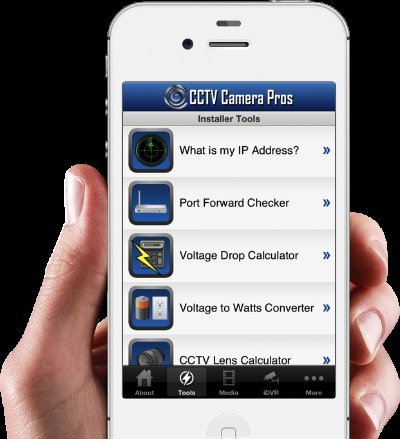 Photo: www.cctvcamerapros.com on Google
- Read the camera’s physical sticker to write down its twelve-character MAC address, which uses pairs of letters and numbers like
00:1A:2B:3C:4D:5E. - Open any web browser on a computer connected to the same router, type your default gateway (often
192.168.1.1or192.168.0.1), and press Enter. - Sign in to your router settings using the admin credentials printed directly on the router’s bottom label. Tip: If X reveals you’re locked out of the router, do A: use a free desktop tool like Angry IP Scanner; if Y keeps your router accessible, do B: check the router’s client table directly.
- Click on the section named DHCP Client List, Connected Devices, or Device Map.
- Match the MAC address you wrote down earlier to find the exact four-part IP address assigned to that hardware slot. Tip: If you can’t locate the physical sticker, turn off the camera’s power for 10 seconds, refresh the client table, and note which address disappears and returns.
- Type that retrieved IP address into your browser’s URL bar to reach the camera’s built-in login interface. For industrial installations, commercial specifications from the ONVIF conformant products directory explain standard discovery ports, but standard home units will respond right away on basic local ports.
How long it takes
Locating your device’s address is fast once your computer sits on the matching local network.
| Situation | How long | What changes it | What to watch for |
|---|---|---|---|
| Router admin list check | 2 to 3 minutes | Model interface design | Hidden menus under advanced wireless settings |
| Dedicated camera finder app | 1 to 2 minutes | Brand software discovery speed | Firewall prompts blocking local UDP scans |
| Full network desktop scan | 3 to 5 minutes | Number of active local devices | Virtual machines creating extra virtual network adapters |
If the process takes longer than 10 minutes, reboot the router and the camera to force a clean address renewal.
How to tell when it’s done
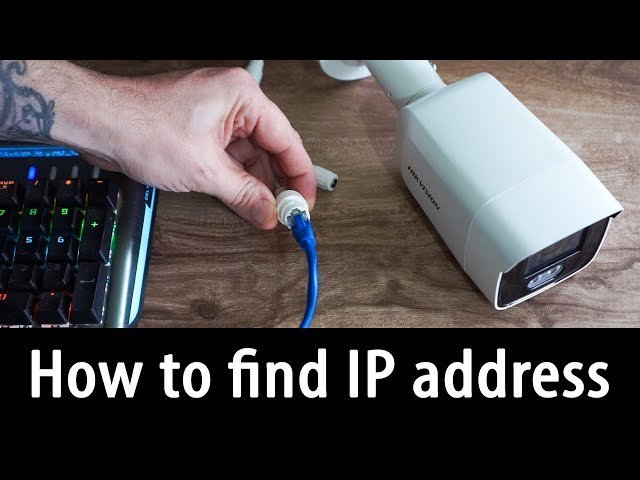 Photo: www.youtube.com on Google
You know you have the correct IP address when you paste it into a web browser and the camera’s private login screen appears. The address will show four numbers separated by periods, like 192.168.1.120. This varies by model — check the label to confirm its default network behavior. The one test that settles it’s a continuous ping command: open your computer’s terminal, type ping followed by the IP address, and confirm you receive replies in under five milliseconds. If you unplug the camera’s power cable and those replies instantly stop, you’ve pinpointed the exact device.
Mistakes that ruin it
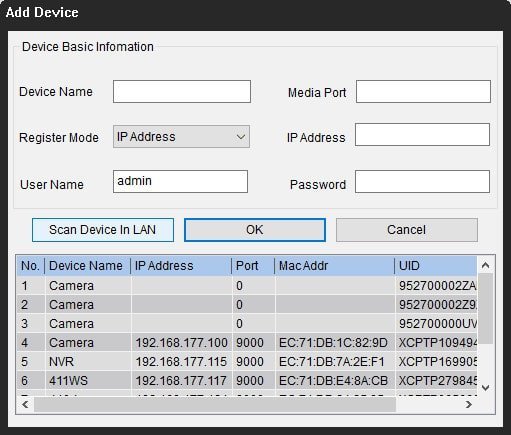 Photo: reolink.com on Google
- Scanning from a guest Wi-Fi network: Your phone can reach the internet, but client isolation rules stop you from viewing local camera feeds. Switch your computer or phone to your primary home network band before scanning.
- Assuming static IP settings match your subnet: Using a second-hand camera with a pre-configured manual address keeps it completely hidden from a router using a different subnet range, costing hours of failed searches. Perform a full 15-second physical pinhole reset to force the camera back into dynamic DHCP mode.
- Mistaking public WAN for private LAN: Grabbing your home’s exterior internet address won’t connect you to an internal camera stream. Only use internal numbers that begin with 192.168, 10, or 172.16.
Frequently asked questions
Can I find the camera address without router access?
Yes. Download the official desktop utility supplied by your camera maker, such as the Amcrest IP Config tool or Hikvision SADP tool. These tools send a direct broadcast signal across the local network switch to discover connected units even when you don’t possess the router’s admin password.
What happens if the camera IP keeps changing?
Your router assigns a fresh temporary address whenever the hardware restarts under standard DHCP rules. Log in to your router dashboard, find the DHCP reservation menu, and lock the camera’s unique MAC address to one permanent IP number so your video streams won’t break later.
Why is the camera not showing on the device list?
The camera isn’t receiving power, or its network cable is loose. Confirm the Ethernet port lights blink steadily, or verify your Wi-Fi credentials haven’t changed recently. If the camera uses Power over Ethernet, verify your PoE switch provides enough wattage to boot the device fully.
Is it safe to expose this IP address to the internet?
No. Exposing your camera directly through router port forwarding allows automated web bots to probe its login portal continuously. Use an encrypted local VPN server or the camera manufacturer’s peer-to-peer cloud relay instead to watch video safely away from home.
Can two cameras share the same IP address?
No. An IP conflict stops both devices from communicating reliably over your local network. When two units claim the same address, your router drops packets, leading to constant disconnects until you assign a unique number to each piece of equipment.

5 thoughts on “How to Find IP Address for Camera: Quick Router Method”