
Finding your nexigo camera not working can be an incredibly frustrating experience, especially when you’re moments away from a critical business meeting or a long-awaited video call with family. Most users encounter this issue due to simple connectivity glitches, outdated software drivers, or privacy settings that have been inadvertently toggled off by an operating system update. Fortunately, the majority of these problems are software-related and can be resolved without needing to purchase replacement hardware or expensive professional assistance.
Key Takeaways
- Ensure the physical USB connection is secure and plugged directly into the motherboard ports.
- Verify that your privacy settings allow applications to access the camera hardware.
- Update your device drivers through the official NexiGo support website to maintain compatibility.
- Check if other background applications are already holding the camera in an active state.
- Toggle the physical privacy shutter to ensure it isn’t obstructing the lens sensor.
Troubleshooting Your Physical Connection
The most common reason for a hardware failure is a loose or faulty connection. Before diving into complex software settings, you must rule out the physical link between your computer and the device. USB cables, especially those that are frequently moved, can suffer from internal fraying or port oxidation.
Physical Connection Steps
- Disconnect the USB cable from your computer.
- Inspect the USB port for dust or debris.
- Plug the cable into a different port, preferably one on the rear of the computer case if you’re using a desktop.
- Avoid using USB hubs or docking stations during the initial troubleshooting phase, as these can restrict power delivery.
Hardware Status Indicators
| Indicator Color | Meaning | Action Required |
|---|---|---|
| Solid Blue | Power Active | Check application software settings |
| Blinking Red | Data Transfer Error | Replug the USB cable |
| No Light | No Power Detected | Try a different USB port |
Hardware Conflict
If you have other peripherals attached to your computer, such as external hard drives or printers, they might be drawing too much power from the bus, causing the camera to drop out. Try disconnecting all other USB devices to see if the camera initializes correctly.
Are Your Privacy Settings Correct?
Modern operating systems place a high priority on security, which often means blocking camera access by default. If your camera is plugged in but the indicator light stays off, the system is likely blocking the software from reaching the hardware.
Windows Privacy Configuration
Navigate to your system settings and locate the “Privacy & Security” section. Look for the “Camera” tab. Ensure the main toggle for “Camera access” is set to “On.” Furthermore, verify that the specific application you’re trying to use—such as Zoom, Microsoft Teams, or Skype—is also toggled to “On” within the list of apps allowed to access the camera.
macOS Security Permissions
On a Mac, navigate to “System Settings,” then “Privacy & Security,” and select “Camera.” You’ll see a list of applications that have requested access to your camera. If your video conferencing app isn’t enabled in this list, the camera will remain dark regardless of your hardware status.
Why Is the Software Driver Missing?
Drivers act as the translator between your hardware and your operating system. If these files become corrupted or outdated, the computer will fail to recognize the device entirely, often listing it as an “Unknown Device” in your system manager.
Updating Device Drivers
- Right-click the Start button and select “Device Manager.”
- Expand the “Cameras” or “Imaging Devices” category.
- Right-click your NexiGo model and choose “Update driver.”
- Select the option to search automatically for updated driver software.
Reinstalling the Hardware
If updating fails, right-click the device again and select “Uninstall device.” Once the process finishes, unplug the camera, restart your computer, and plug the camera back in. Windows or macOS will automatically attempt to locate and install the necessary software fresh from the system repository.
Is Your Privacy Shutter Closed?
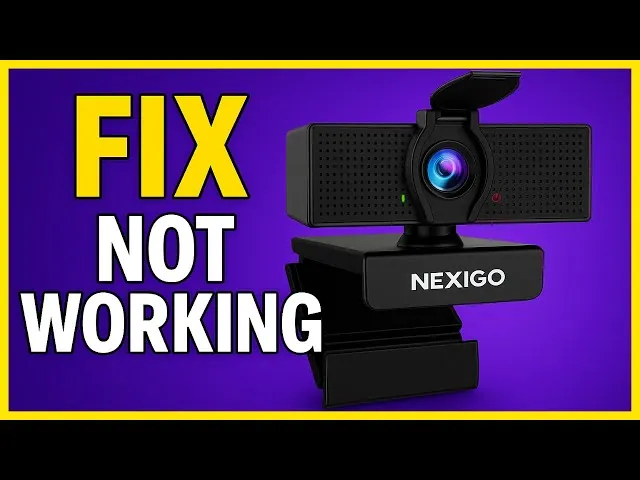
Many models feature a physical privacy cover. It sounds basic, but many users spend hours troubleshooting software issues only to realize the shutter was slid over the lens. Verify that the lens is completely clear and that the physical cover is clicked into the fully open position.
Shutter Maintenance
- Ensure no residue or dust is stuck in the sliding mechanism.
- Verify that the sensor isn’t being blocked by a secondary screen protector or sticker.
- Ensure the camera is mounted at a stable angle so the shutter doesn’t slide down due to gravity.
Lighting Requirements
Even if the camera is functioning, poor lighting can make it appear as if the device isn’t working. The sensor requires a certain amount of ambient light to produce a clear image; in near-total darkness, the camera may output a black screen that can be mistaken for a hardware failure.
Checking Background Application Conflicts
Only one application can access a camera feed at any given time. If you have multiple programs open, they may be fighting for control.
Common Conflict Sources
- Browser tabs running web-based meeting tools.
- Background screen recording software.
- Virtual background applications.
- Antivirus software with integrated webcam protection.
Diagnostic Procedures
Close all applications except for the one you intend to use. If the camera works in isolation, you know the hardware is fine and that a specific piece of software is causing the conflict. Check the settings of your antivirus suite to ensure it isn’t specifically blocking access to the camera as part of its security policy.
Managing Camera Firmware Updates
Some NexiGo models require specific firmware updates to resolve compatibility issues with newer OS versions. While drivers are handled by the computer, firmware is the software living on the camera itself.
Firmware Update Best Practices
- Download only from the official manufacturer portal.
- Ensure your computer is plugged into power during the update to prevent sudden shutdowns.
- Don’t unplug the camera while the firmware update is in progress.
- Restart the software immediately after the firmware update completes.
How to Test the Hardware Independently
If you’re unsure if the camera is working at all, you can use a neutral testing environment that bypasses your primary video conferencing apps.
Testing Methods
- Use a web-based webcam test site to see if the device initializes in a browser window.
- Open your operating system’s native camera app (e.g., the “Camera” app in Windows).
- Check the device list in your video conferencing app’s settings menu to see if the camera is listed as a selectable device.
If the camera appears in the system list but shows no image, the issue is likely the sensor or the software privacy block. If the camera doesn’t appear in the list at all, the issue is almost certainly the USB connection or the device driver.
Comparing Potential Hardware Issues

Understanding the difference between a minor glitch and a failed component can save you time.
| Issue Type | Symptoms | Typical Resolution |
|---|---|---|
| Software Glitch | Camera works intermittently | Update drivers or restart app |
| Privacy Block | Blue light on, black screen | Change system privacy settings |
| Cable Damage | Flickering or connection drops | Replace USB cable |
| Sensor Failure | No image in any software | Contact manufacturer support |
Warning: Don’t attempt to open the camera housing to repair internal components. Doing so will immediately void any manufacturer warranty you may have and risks damaging the delicate internal circuitry, which is usually not user-serviceable.
Related guides
- How to Find IP Address for Camera: Quick Router Method
- Top 10 Best Inspection Cameras for Home Appliance Repair in 2026
- 10 Best Mini Security Cameras for Reliable Home Monitoring in 2026
Frequently Asked Questions
Why is my camera light on but the screen is black?
This is almost always a privacy setting or a software conflict. The light indicates the camera has power and is active, but the operating system is preventing the application from receiving the video feed. Check your “Privacy & Security” settings to ensure your camera app has permission to access the hardware, and close any background programs that might be trying to use the camera simultaneously.
Can a USB hub cause my camera to fail?
Yes, USB hubs often don’t provide enough consistent power to high-definition webcams, leading to connection drops or failure to initialize. Always connect your camera directly to a USB port on your computer tower or laptop. If you’re using a desktop, the ports on the back of the machine are connected directly to the motherboard and provide the most reliable power and data transfer speeds.
How do I know if my camera driver is outdated?
If your camera isn’t appearing in your video conferencing apps, or if the device manager shows a yellow warning triangle next to the camera name, your driver is likely outdated or corrupted. You can check for updates in the Device Manager by right-clicking the camera and selecting “Update driver.” If that fails, download the latest version directly from the manufacturer’s official support page.
What should I do if the camera isn’t detected by my computer at all?
If the device manager doesn’t show the camera even after a restart, try a different USB port. If you have another computer available, plug the camera into that machine to see if it’s recognized. If it’s still not detected on a second computer, the internal cable or the camera sensor itself may be faulty, and you should contact the manufacturer for a warranty claim.
Does the privacy shutter affect the camera’s focus?
No, the privacy shutter is a purely mechanical cover and doesn’t interact with the camera’s autofocus or optical sensors. However, if the shutter isn’t fully retracted, it can partially obstruct the lens, leading to a blurry or dark image. Always ensure the shutter is slid entirely out of the frame so that the lens has a completely unobstructed view of your environment.
Pro Tip: If you frequently switch between different video conferencing platforms, ensure that you manually select the correct camera device in the settings menu of each specific application, as some programs will default to an integrated laptop camera even when a higher-quality external device is connected.
Conclusion
By following these systematic steps, you can identify whether your NexiGo camera issue stems from a simple software setting, a driver conflict, or a physical connection fault. Most users find that checking their privacy permissions and testing the device in a different USB port resolves the vast majority of connectivity problems without further intervention.
If you have exhausted all these troubleshooting steps and the device still fails to initialize on multiple computers, reach out to the manufacturer’s support team to initiate a warranty replacement, as you may have a defective unit.
