
The most effective way to resolve an onn tv not turning on is to perform a full power cycle by unplugging the device from the wall outlet for at least 60 seconds. This simple action often clears temporary software glitches or static electricity buildup that prevents the television from responding to your remote or power button. If the unit remains unresponsive after this, the issue is likely related to the power source, a faulty remote, or an internal hardware failure.
Understanding why your Onn TV is not turning on
When a television refuses to wake up, the cause usually falls into one of three categories: power delivery, signal input, or component failure. The most common reason is a poor connection between the power cable and the wall outlet or the back of the television. Loose cables can happen during cleaning or if the device is bumped, breaking the circuit required to power the internal board.
Another frequent cause involves the remote control rather than the television itself. If the batteries are dead or the infrared sensor is blocked by furniture or dust, the television won’t receive the “power on” command.
You can test this by pressing the physical power button located on the chassis of the unit. If the TV turns on using the button but not the remote, you know the screen and power supply are functional, and the issue is restricted to the remote control unit.
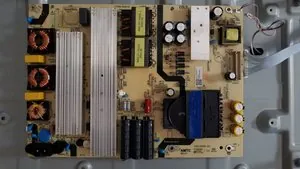
Finally, an internal hardware failure could be the culprit. Televisions rely on complex power boards to convert AC electricity from your home into the DC voltage needed by the screen. If these components fail, the TV can’t complete its startup sequence.
Reset the power connection
This fix is for users whose TV shows no lights at all, indicating a complete lack of power. Begin by unplugging the power cord directly from the wall outlet. Don’t just turn off the power strip; remove the plug completely to ensure the capacitor inside the television drains its stored energy.
Wait for at least 60 seconds before plugging the cord back into a wall outlet. If you have been using a surge protector or extension cord, plug the TV directly into the wall instead. This helps determine if your surge protector has tripped or failed, which is a common occurrence during minor power surges. If the TV turns on after plugging it directly into the wall, your surge protector needs to be replaced.
If the TV still doesn’t respond, check the power cord connection at the back of the set. Sometimes the cord feels tight but isn’t fully seated in the port. Push firmly to ensure it’s secure. If you notice a burning smell or see sparks, stop immediately and disconnect the unit. These signs suggest an electrical fault that requires a professional repair service or a replacement unit, as internal electrical work should never be attempted by a home user.
Troubleshoot the remote control
If the television has a standby light visible but doesn’t respond to the remote, the issue is likely the controller. Start by replacing the batteries with a fresh pair. Even if the batteries seem fine, they may lack the voltage required to send a strong signal to the television’s infrared receiver.
Once you have new batteries, aim the remote directly at the receiver window on the front of the TV. If you have any large items like soundbars or decorations in front of the TV, move them aside. These objects can block the signal path.
If the TV still fails to turn on, try a “hard reset” of the remote by removing the batteries and holding down the power button on the remote for 30 seconds. This drains any residual charge from the remote’s circuit board.
If the remote still fails to work, you can test it using your smartphone camera. Open your camera app, point the top of the remote at the lens, and press the power button. If the remote is working, you’ll see a flickering light on your phone screen that’s invisible to the naked eye. If you see no light, the remote is broken and needs to be replaced.
Check external input devices
Sometimes the TV is actually turned on, but the display remains black because it’s set to the wrong input or the connected device is off. If your TV has a standby light that’s glowing, it’s receiving power. Try pressing the “Menu” or “Input” button on the physical TV chassis. If a menu appears on the screen, the TV is working fine, and the problem lies with your cable box, gaming console, or streaming stick.
Ensure all HDMI cables are pushed firmly into their ports on both the TV and the external device. If you use multiple devices, try switching to a different HDMI port to see if the signal returns. If the screen shows a “No Signal” message, the TV is functioning correctly, and you should focus your troubleshooting on the external device.
This fix is for those who see a standby light but can’t get a picture. If you have tried different cables and ports but the screen remains completely black, the backlight or the internal display panel may have failed. At this point, the cost of replacing the display panel or the main board often exceeds the value of the television. If the device is still under warranty, contact the manufacturer’s support line for a claim.
Avoid common repair mistakes
This often triggers a “stuck” state where the screen remains black despite the unit being fully powered. If the TV fails to respond within ten seconds, wait a full minute before trying again to allow the capacitors to discharge.
Generic power cables are a frequent cause of intermittent shutdowns. Check the label on the back of the TV for the specific voltage and amperage requirements.
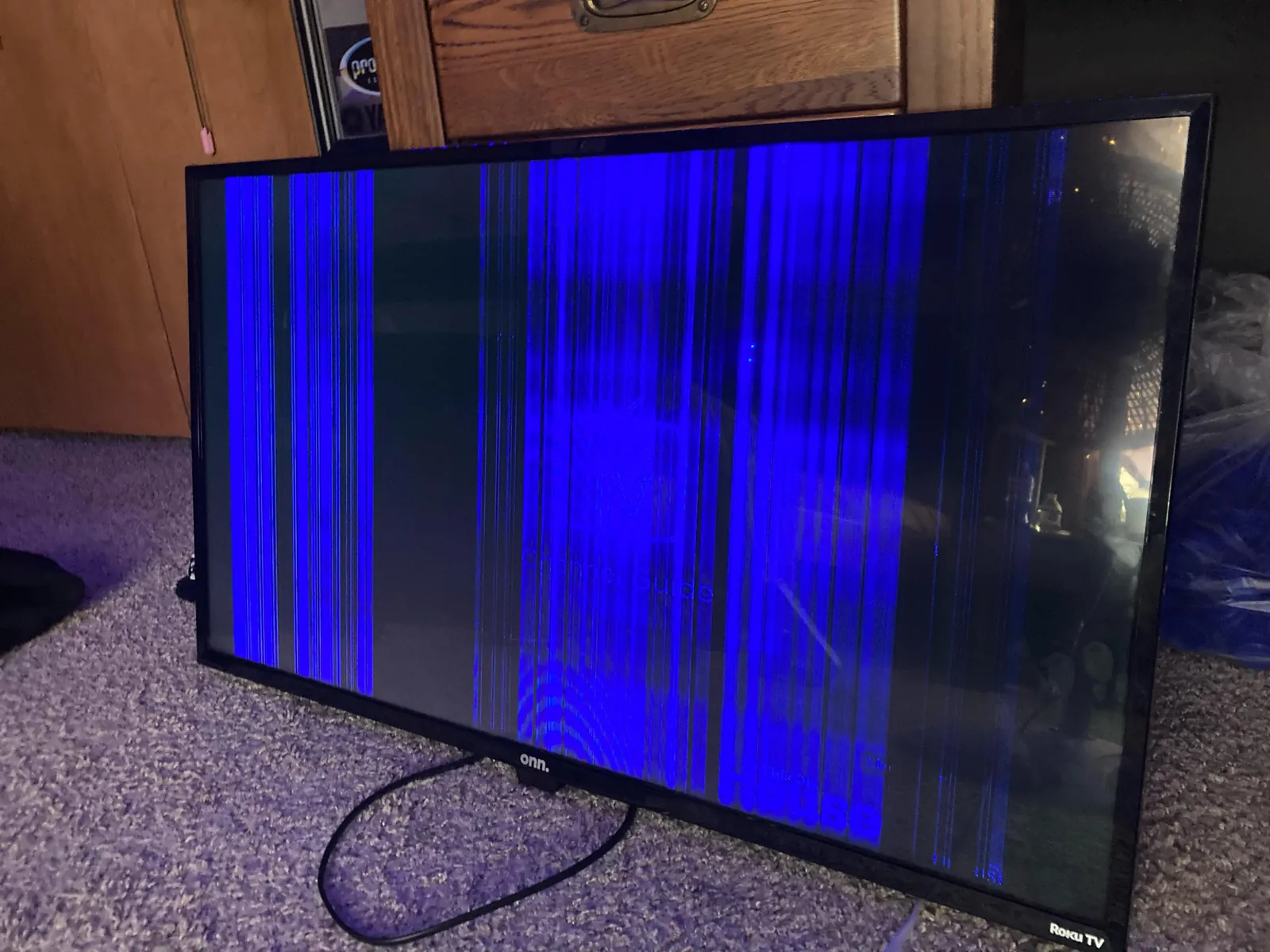
When cleaning, spray your microfiber cloth until it’s merely damp, not wet. Liquid that pools at the bottom bezel will wick into the ribbon cables, causing permanent vertical lines.
Finally, never remove the back panel. Even unplugged, the internal power supply stores a lethal charge for hours. If you see a burnt smell, call a professional.
Prevent future power issues
You can maintain your television’s health by ensuring it has proper airflow and stable power. Electronics generate heat, and if the vents are blocked by dust or wall mounts, the internal components will wear out much faster than intended.
| If you’re doing this | Do this instead | Why |
|---|---|---|
| Leaving the TV on 24/7 | Use the sleep timer | Reduces heat and wear on the backlight |
| Plugging into a cheap strip | Use a quality surge protector | Prevents damage from minor voltage spikes |
| Blocking the TV vents | Keep 4 inches of clearance | Allows hot air to escape safely |
| Using old, leaking batteries | Prevents corrosion inside the remote |
Most owners fail to realize that a surge protector is a consumable item. Once the internal joule rating is exhausted by a major spike, the device stops protecting your hardware even if the power light remains on. Replace your protector based on usage and the manufacturer’s recommendations in the owner’s manual.
If your television is mounted flush against a wall, check the rear temperature after two hours of use. If the casing feels hot to the touch, you must add spacers to the mount.
Related guides
- Endless Pool Complaints: How to Fix the Most Common Issues in 2026
- Hot Tub Jets Turn On by Themselves: Fix and Reset Steps in 2026
- Caldera Spa 4 Dashes on Display: Fix the Sensor in 2026
Frequently asked questions
How long should I leave the TV unplugged to reset it?
Leave your television unplugged for 60 seconds to ensure the internal capacitors fully discharge. This process clears the main board’s temporary memory, which often resolves software freezes. If the TV still doesn’t turn on after one minute, waiting longer provides no additional benefit.
Is it safe to use a different power cord for my TV?
No, you should only use the power cord that matches the exact specifications of your television. Using a cable with the wrong gauge or connector can cause improper voltage, leading to permanent hardware damage. If your cord is lost, contact the manufacturer to order the specific replacement part.
Why does the standby light blink when I try to turn it on?
A blinking standby light is a diagnostic code indicating a specific hardware failure. The number of blinks corresponds to issues like backlight failure or a power board malfunction. Refer to your owner’s manual or the manufacturer’s support page to identify what your specific blink pattern means.
Can a software update cause the TV to stop turning on?
Yes, if a software update is interrupted by a power loss, the operating system can become corrupted. This may cause the TV to get stuck in a boot loop or fail to power up. If the problem persists, check the manufacturer’s website for firmware recovery instructions.
What happens if I keep trying to force the TV on?
Repeatedly forcing the TV on can lead to further damage if there’s an existing electrical short. The surge of electricity during startup can cause struggling components to fail completely or damage surrounding circuits. Perform the power cycle once, and if it fails, stop all attempts to power the unit.
Conclusion
If your television is out of warranty and the basic troubleshooting steps don’t resolve the issue, it’s usually more cost-effective to replace the unit than to pay for a professional technician. Most modern televisions are built with integrated components that are difficult to replace individually.
