
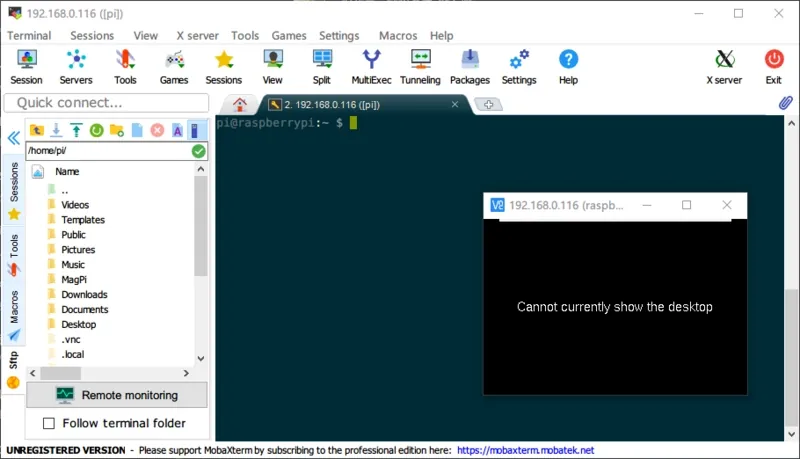
If you have recently attempted to remote into your Raspberry Pi and found that your vnc connect raspberry pi not working, you’re certainly not alone. Remote desktop access is a cornerstone of the Raspberry Pi experience, yet various software updates, configuration changes, or network shifts can cause the connection to drop or refuse to initiate. Whether you’re seeing a “Can’t currently show the desktop” error, a blank screen, or a complete connection time-out, the issue usually stems from a mismatch in screen resolution settings, Wayland versus X11 display server conflicts, or a simple failure of the service to launch at boot. This guide provides a systematic approach to identifying the root cause and restoring your remote control capabilities.
Key Takeaways
- Verify that the VNC service is enabled in the Raspberry Pi configuration menu.
- Check if your Pi is running the newer Wayland display server, which requires specific VNC settings.
- Set a fixed screen resolution if the Pi is running “headless” without a monitor.
- Ensure both the client computer and the Pi are on the same local network subnet.
- Update your system packages to resolve known bugs in the RealVNC or TigerVNC binaries.
Is the VNC Service Actually Running?
Before diving into complex network configurations, you must confirm that the VNC server software is active. Many users assume the service is running because they enabled it months ago, but system updates or configuration resets can disable it. Access your terminal via SSH or a physical keyboard and monitor to check the status.
Pro Tip: Use the command sudo systemctl status vncserver-x11-serviced to see if the service is active or if it has encountered a critical failure. If the status returns “inactive” or “dead,” you should attempt to restart the daemon using sudo systemctl start vncserver-x11-serviced. If it fails to start, the configuration file might be corrupted, necessitating a reinstallation of the RealVNC server package.
Handling Wayland Display Server Issues
A common cause for connection failure on Raspberry Pi OS Bookworm and later versions is the transition from the legacy X11 windowing system to the Wayland display server. RealVNC, which was the standard for years, isn’t fully compatible with the Wayland compositor by default. If your Pi is using the default Wayland environment, your VNC client may connect but present a black screen or refuse to display the desktop environment entirely.
Switching Back to X11
If you rely heavily on VNC, switching your display backend back to X11 is often the fastest way to regain functionality. Follow these steps to revert:
- Open the terminal.
- Run
sudo raspi-config. - Navigate to “Advanced Options.”
- Select “Wayland” and choose “X11” or “X11/Wayland” if available.
- Reboot the device.
Troubleshooting Headless Connection Errors
When you connect to a Raspberry Pi without a monitor (headless), the desktop environment often fails to initialize because it can’t detect a valid display output. The system defaults to a null resolution, causing the VNC client to report that it can’t show the desktop. You must force the Pi to output a specific resolution regardless of what it detects on the HDMI port.
| Resolution Setting | Common Use Case | Recommended Value |
|---|---|---|
| Default (Auto) | Monitor attached | 0 |
| Standard HD | Remote work | 1920×1080 |
| Low Power | Slow network | 1280×720 |
| Legacy Mode | Older screens | 1024×768 |
Setting a Virtual Resolution
To force a resolution, edit the configuration file manually. Access the file using the nano text editor: sudo nano /boot/config.txt. Look for the lines related to hdmi_force_hotplug. Uncomment this line by removing the # symbol. This tells the Pi to treat the HDMI port as if a monitor is always plugged in, forcing the desktop environment to generate a virtual framebuffer for the VNC server to capture.
Network and Firewall Configuration
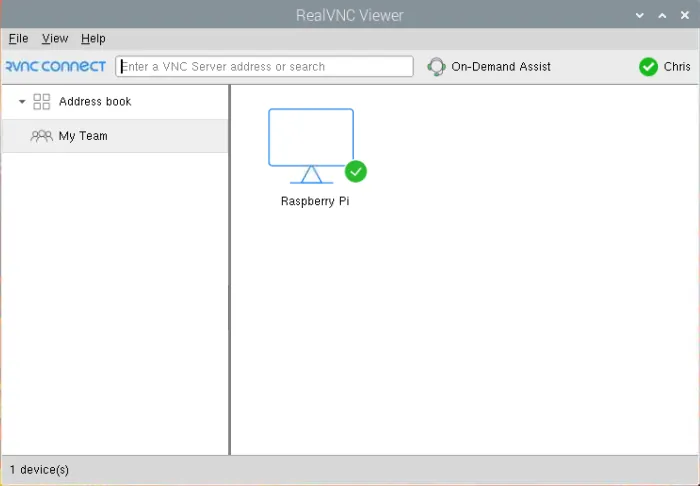
Sometimes the issue isn’t the Pi itself, but the network path between your client and the device. If you’re attempting to connect over a local network, ensure that both devices are on the same subnet. If you’re using a VPN or an enterprise network, traffic on the VNC port (usually 5900) might be blocked by a firewall.
Checking Port Availability
Test connectivity using the telnet or nc (netcat) command from your PC: nc -zv [Raspberry_Pi_IP] 5900. If this command returns a connection refused error, the VNC server is either not listening on that port or a firewall rule is blocking the request. Ensure that your router isn’t performing client isolation, which prevents devices on the same Wi-Fi network from communicating with one another.
Updating System Software Packages
Software packages on the Raspberry Pi require regular maintenance to ensure compatibility with updated VNC clients. If your RealVNC viewer on your Windows or Mac machine has updated recently, it might expect features that the older version on your Pi doesn’t support.
- Run
sudo apt updateto refresh your local package list. - Execute
sudo apt upgradeto install the latest versions of your software. - Use
sudo apt install realvnc-vnc-serverto force an update of the server binary itself.
Comparing VNC Alternatives
If RealVNC continues to fail, you may want to consider alternative remote desktop solutions that offer better stability on newer versions of the Raspberry Pi OS. The following table compares three popular methods for achieving remote access.
| Method | Protocol | Resource Usage | Ease of Setup |
|---|---|---|---|
| RealVNC | VNC | Moderate | High |
| TigerVNC | VNC | Low | Medium |
| Remmina | RDP | High | Medium |
| SSH (X11) | SSH | Very Low | Low |
The Role of Screen Locking
A frequently overlooked factor is the desktop screen lock. If your Pi is set to lock the screen after a period of inactivity, the VNC server may be unable to “unlock” the session remotely. This is particularly common if you’re using an automated script to launch the VNC server. If you find the connection works intermittently, try disabling the screen saver and power management settings in the desktop preferences menu.
Warning: Disabling the screen lock reduces the physical security of your device; only do this if the Pi is located in a secure, private environment where unauthorized physical access is impossible.
Security Considerations for Remote Access
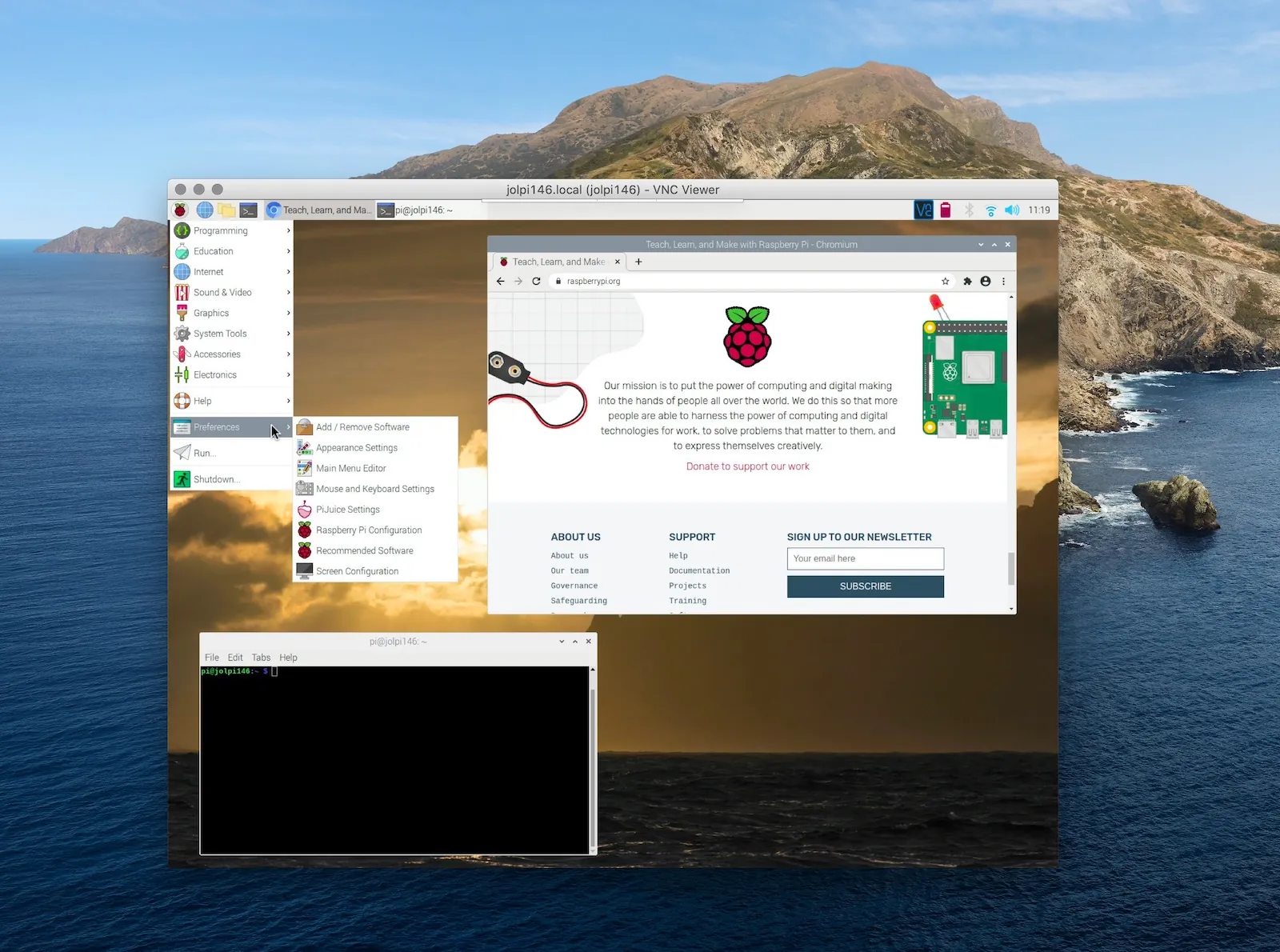
Remote access opens a window into your device. If you’re exposing your VNC connection to the wider internet, you’re putting your system at risk of brute-force attacks. Always ensure that your VNC server is protected by a strong, unique password.
The official Raspberry Pi documentation specifies that the VNC server should be configured with encrypted authentication to prevent credential sniffing on local networks. If you require remote access from outside your home, use a secure VPN tunnel rather than opening ports on your router.
Related guides
- Push to Connect vs Crimp Fittings: Which Plumbing Fix to Use in 2026
- Pentair ScreenLogic Will Not Connect Locally Remotely: The Fix in 2026
Frequently Asked Questions
Why do I see a black screen?
A black screen usually indicates that the VNC server is running but can’t access a display buffer. This happens when the Pi is headless or using a Wayland compositor. Ensure that you have forced a display resolution in your configuration files or switched your display backend to X11 to ensure the desktop environment has a canvas to render upon.
Can I use VNC over the internet?
Technically yes, but it’s highly discouraged unless you use a secure tunnel. Opening port 5900 to the public internet makes your Pi a target for scanners and botnets. Instead, set up a WireGuard or OpenVPN server on your network. This allows you to connect to your home network securely before initiating a VNC session, keeping your device safe from external threats.
Does VNC work on Raspberry Pi Zero?
Yes, VNC works on the Raspberry Pi Zero, but performance will be significantly slower than on a Raspberry Pi 4 or 5. The limited CPU and RAM mean that screen refreshes will be laggy. To improve performance, reduce the color depth in your VNC server settings and lower the desktop resolution to 720p or lower to minimize the amount of data being transmitted.
Why is the connection timing out?
A time-out error suggests that the VNC client can’t find the Pi on the network. This can be caused by an incorrect IP address, a firewall blocking the connection, or the Pi entering a low-power sleep state. Ensure your Pi has a static IP address assigned via your router to prevent the address from changing unexpectedly after a reboot or lease renewal.
Is RealVNC free for Raspberry Pi?
RealVNC provides a free license for non-commercial use on Raspberry Pi devices, known as the “Home” subscription. You must register an account on the RealVNC website and sign in on both your Pi and your client device to activate this license. Once registered, you can use the cloud-based “Connect” feature, which helps bypass complex router port-forwarding configurations for a smoother experience.
Conclusion
The most effective way to resolve your connectivity issues is to verify your display server settings first, as the shift to Wayland is the primary cause of recent connection failures. Once you have confirmed your server is running and the display is configured for a virtual output, perform a full system update to ensure all libraries are synchronized.
If you continue to experience intermittent drops, consider switching to an RDP-based solution, which is often more robust for modern desktop environments. Start by checking your raspi-config settings today to see if a simple display backend switch solves the problem.
