
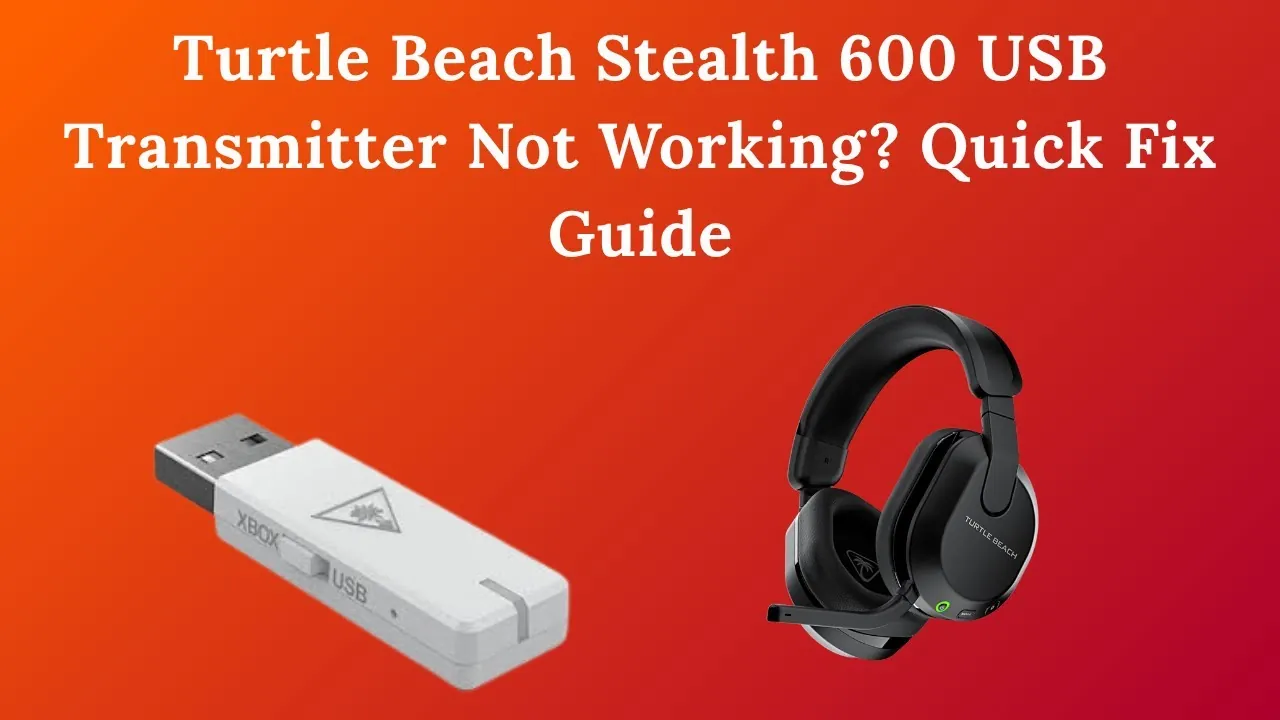
Finding that your Turtle Beach transmitter not working is a frustrating experience, especially when you’re halfway through a competitive gaming session. Wireless headsets rely on a seamless handshake between the USB transmitter and the headset itself, and any disruption in this link results in silence, connectivity drops, or total power failure. Whether you’re using a Stealth 600, 700, or a legacy model, troubleshooting requires a systematic approach to isolate the hardware, the software, and the physical connection. By systematically checking your power sources, firmware status, and signal interference, you can often restore your audio without needing to replace your expensive equipment.
Key Takeaways
- Always perform a hard reset on both the headset and the transmitter before assuming hardware failure.
- Ensure your USB ports are providing enough power, as front-panel ports often cause intermittent connectivity.
- Check for firmware updates via the official Turtle Beach Audio Hub software on a computer.
- Verify that your console or PC recognizes the transmitter as the primary output device in audio settings.
- Clear wireless interference by moving routers or other 2.4GHz devices away from your gaming console.
Fixing Turtle Beach Transmitter Not Working Issues
Before diving into complex technical fixes, start with the basics. A common reason for a transmitter failing to pair is a simple power cycle issue. Ensure that the transmitter is fully seated in the USB port. If you’re using a console, move the transmitter to a rear USB port, as these are connected directly to the motherboard rather than through an internal hub or front-panel connector.
Hard reset procedures are the first line of defense for most modern headsets. To reset your headset, hold down the power and mode buttons simultaneously for at least 20 seconds. While the headset is off, unplug the transmitter from your device. Wait for 30 seconds, plug the transmitter back in, and then power on the headset. This forces the device to renegotiate the wireless link. If the LED on the transmitter continues to blink rapidly, it indicates that it’s still searching for a pairing signal.
How to identify power issues?
If your transmitter shows no lights at all, it’s likely not receiving power. This could be due to a faulty USB port or a damaged internal component. To rule out the USB port, try plugging the transmitter into a different device, such as a laptop or a different USB port on your PC. If it still shows no activity, the transmitter itself may have suffered a power surge or electrical failure.
| Component | Symptom | Action Required |
|---|---|---|
| USB Port | No light on transmitter | Switch to rear motherboard port |
| Wireless Link | Rapid flashing LED | Re-pair transmitter and headset |
| Firmware | Device not recognized | Update via Audio Hub |
| Battery | Headset turns off quickly | Charge for 4 hours minimum |
Power delivery settings on consoles can also cause issues. Some consoles enter a deep sleep mode that cuts power to USB ports, preventing the transmitter from waking up properly. Go into your console’s power management settings and ensure that “Stay Connected” or “Allow USB Power in Standby” is enabled.
When to perform a firmware update?
Outdated firmware is a frequent culprit for connectivity bugs. Turtle Beach provides the Turtle Beach Audio Hub support tool, which allows you to force a re-installation of the firmware. When your transmitter is plugged into a PC, the software should detect the device and prompt you to update if a newer version is available. Even if the software says your firmware is up to date, try the “Restore” or “Force Update” option if it’s available.
Firmware corruption can occur if a previous update was interrupted by a power loss or a disconnected USB cable. If the transmitter isn’t showing up in the Audio Hub, try a different USB cable if your transmitter uses a detachable one, or use a different USB port on your computer. If the computer doesn’t recognize the device as a “Turtle Beach” product at all, the internal hardware of the transmitter may have failed.
Is wireless interference the cause?
Wireless headsets operate on the 2.4GHz frequency band, which is the same band used by Wi-Fi routers, microwaves, and Bluetooth devices. If you have your transmitter plugged into a console that’s sitting directly on top of a powerful Wi-Fi router, you’ll experience signal drops and pairing failures. This signal congestion prevents the transmitter from maintaining a stable handshake with the headset.
To test this, move your router away from the console or switch your router to the 5GHz frequency band. You should also move other wireless peripherals, such as wireless mice or keyboards, away from the immediate area of the USB transmitter. If the audio cuts out only when you’re in a specific room, it’s almost certainly a case of environmental interference rather than a broken transmitter.
How to force a manual pair?
Most Turtle Beach transmitters have a small pinhole or a specific button combination used to force the pairing process. If the LED on your transmitter is blinking, locate the pairing button on the transmitter. Press and hold it until the light begins to flash in a different pattern, usually a faster, double-blink. Then, perform the pairing action on your headset, which usually involves holding the power button or a specific “Pairing” button until the headset LED also flashes.
Successful pairing is confirmed when both the transmitter and the headset LEDs turn solid. If they continue to flash, they’re still failing to complete the handshake. This often happens if the hardware IDs have become desynced. In this case, you must ensure the headset and transmitter are as close as possible—within a few inches—during the pairing process to ensure the strongest signal strength.
Comparing common connection methods
Not all headsets use the same connection logic. Some rely on a direct USB-to-USB connection, while others require optical cables or 3.5mm auxiliary jacks. Understanding your specific model’s requirements is vital when troubleshooting.
| Connection Type | Common Models | Troubleshooting Focus |
|---|---|---|
| USB Wireless | Stealth 600/700 | Firmware and USB port power |
| Optical/USB | Elite 800/Stealth 500 | Optical cable seating |
| Bluetooth | Stealth 700 Gen 2 | Smartphone pairing reset |
If your model uses an optical cable for audio, ensure the cable is pushed all the way into the “Digital In” port. A loose optical cable will result in a transmitter that appears to be working (the lights are on) but produces absolutely no sound. Always check that the red light is visible at the end of the optical cable before plugging it into the transmitter.
Why does the headset lose connection?
If your headset connects initially but drops out after twenty minutes, you’re likely dealing with a battery or power saving issue. When the battery level of the headset drops below a certain threshold, the wireless link becomes unstable. This battery degradation is common in older headsets that have been through hundreds of charge cycles.
Another possibility is the “Auto-Shutdown” feature. Many Turtle Beach headsets are programmed to turn off automatically if they don’t detect audio for a certain period. If you’re playing a game with long periods of silence, the headset might think it’s idle and power down. Check your settings in the Audio Hub to see if you can adjust or disable the auto-shutdown timer.
What to do if hardware is broken?
If you have tried every software fix, firmware update, and hardware reset, and the transmitter still fails to function, you may have a hardware defect. Inspect the USB connector on the transmitter for bent pins or debris. If the transmitter is physically damaged, the internal antenna or the USB interface board may be broken.
Warranty support from Turtle Beach is usually available if the device was purchased within the last year. Before buying a replacement, gather your proof of purchase and the serial number located on the headset or the original packaging. Contacting the manufacturer directly is often more effective than trying to repair the internal circuitry yourself, as the components are surface-mounted and difficult to solder without specialized equipment.
Related guides
- 7 Best Sealant for Drop In Sink Options for Every Connection in 2026
- Septic Tank vs Sewer Connection: Which System Is Right for You in 2026
- Best Brands of Slow Cookers: Crock-Pot, Hamilton Beach, Instant Pot in 2026
Frequently Asked Questions
Why is my transmitter light blinking?
A blinking light on your Turtle Beach transmitter indicates that it’s in pairing mode and searching for the headset. If it continues to blink indefinitely, it has failed to establish a wireless link. You should attempt to re-pair the devices by holding the pairing button on the transmitter and the headset simultaneously while they’re in close proximity to each other.
Can I use a third-party transmitter?
No, you can’t use a transmitter from a different model or brand. Each Turtle Beach transmitter is factory-paired to communicate with a specific headset model using a unique wireless protocol. Even if two headsets look identical, their internal hardware IDs are different. You must purchase a replacement transmitter specifically designed for your exact model and generation of headset.
Why does my audio sound distorted?
Audio distortion often occurs due to signal interference from nearby Wi-Fi routers or other 2.4GHz wireless devices. It can also be caused by a low battery level in the headset or a firmware version that’s incompatible with your current console update. Try moving your router away from the console and ensuring both the headset and the transmitter are running the latest available firmware.
Should I update my console firmware?
Yes, console firmware updates can sometimes break compatibility with older wireless audio drivers. If you notice your transmitter failing immediately after a system update for your Xbox or PlayStation, check the Turtle Beach support website for any known issues or patches. Often, the manufacturer will release a corresponding update for the Audio Hub to restore functionality.
Is the transmitter port damaged?
If the transmitter feels loose in the USB port or if the light only turns on when you wiggle the device, the USB port on your console or the connector on the transmitter is likely physically worn. Try using a different USB port on your console to confirm if the issue is with the port or the transmitter’s internal connector.
Conclusion
If you have exhausted these troubleshooting steps and the transmitter remains unresponsive, your final step should be to visit the official Turtle Beach support portal to initiate a warranty claim or purchase a replacement part. Don’t attempt to open the plastic housing of the transmitter, as this will void any remaining warranty and likely cause permanent damage to the delicate internal antenna.
