
You need to pay for a myq cameras subscription if you want to save video clips to the cloud for later viewing. While the app allows you to watch a live stream for free, the storage of recorded events requires an active Premium Video Storage plan. This applies to all users who own compatible Chamberlain or LiftMaster smart cameras connected through the platform. If you don’t have this paid plan, you can only see live video but can’t review past motion events.
Scanning MyQ camera subscription requirements
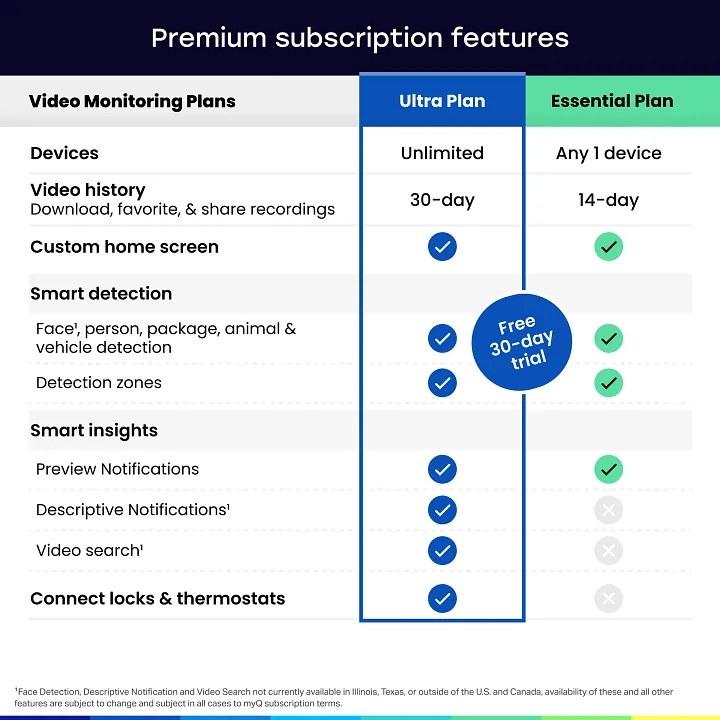
Live video streaming is available to all users without any monthly fees. This includes real-time access to your camera feed whenever you need to check your property.
Cloud video storage for recorded events requires a paid Premium Video Storage plan. Without this subscription, your camera acts only as a live monitor rather than a security recorder.
Plans are priced per camera if you own a single unit, but they shift to a flat household rate once you exceed three active devices. If you plan to scale your security system, check your account tier before buying additional hardware to avoid redundant per-camera costs.
You can manage your billing cycle directly within the app settings under the subscription tab. If you notice your storage is failing to save, verify that your payment method hasn’t expired, as the system often defaults to live-view only when a payment lapses.
Free trials are occasionally offered for new devices to test cloud recording features before purchase. These trials typically last thirty days. If you don’t cancel before the trial ends, the system automatically charges your linked card for the next cycle.
Notifications for motion detection work without a subscription, but you can’t view the associated video clip. If you receive an alert, you must open the app immediately to see the live feed. If you miss the notification, the event history remains blank.
Why cloud storage carries a cost
The requirement for a paid plan exists because of the massive infrastructure needed to process and store high-definition video data securely. Every time your camera detects motion, it records a clip and uploads it to a remote server. Maintaining these servers, protecting your data with end-to-end encryption, and ensuring the video is ready for you to stream on demand creates significant, ongoing operational expenses for the manufacturer.
You’re essentially paying for the convenience of remote access and long-term file retention. Without this service, the camera would need local storage, such as an SD card, which isn’t supported by these specific models.
The company manages the entire pipeline, from the moment the camera captures the light to the moment you hit play on your phone. This ensures that you can see who was at your door even if your home loses power or your local internet connection is briefly interrupted.
Most users underestimate the bandwidth costs associated with constant cloud syncing. A single high-definition camera can consume upwards of 50 gigabytes of data per month depending on traffic. If you have four or more cameras, this volume forces the manufacturer to prioritize your traffic on their private network to prevent lag. If you notice your playback stuttering, check your upload speed; if it’s below 5 Mbps, the cloud service will struggle to buffer the footage regardless of your subscription tier.
You should also watch for the “event-based” versus “continuous” distinction. If your plan only covers event-based recording, the camera ignores motion that lasts less than three seconds. This saves the company server space but means you might miss the moment a package is actually dropped off. If you need a complete record of your property, you must ensure your plan explicitly includes continuous recording.
If you have multiple cameras, you might find that the cost per unit decreases if you opt for a bundled plan. Always check the official app dashboard to see the current pricing tiers available for your specific region, as these figures vary by market.
Differences in camera access
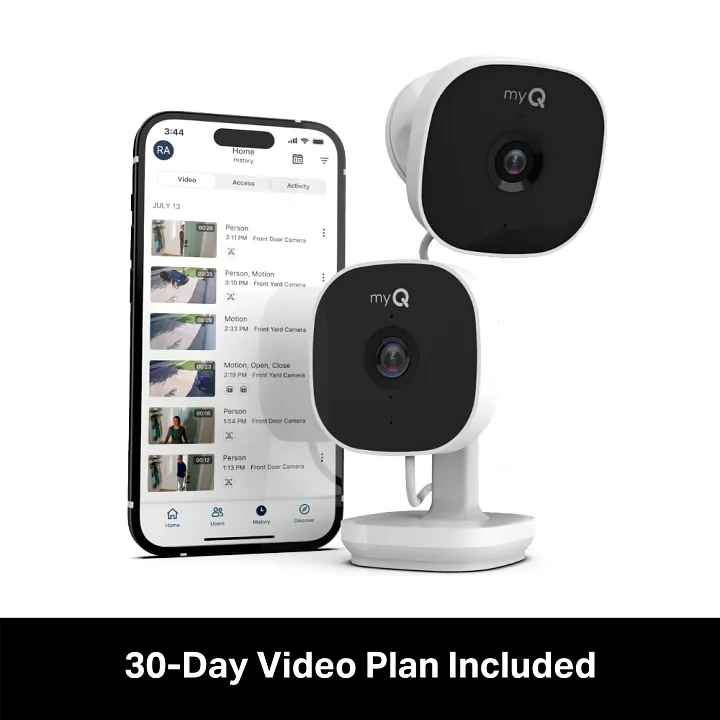
The following table outlines how your camera functions based on your subscription status.
| Situation | What changes | What to do instead |
|---|---|---|
| No active plan | Cloud storage disabled | Use live view only |
| Trial period active | Full features enabled | Monitor expiration date |
| Multiple cameras | Storage cost increases | Check bundle pricing |
| Internet connection down | Recording stops | Use local security systems |
| App update | Feature access may shift | Check account settings |
If you operate without a subscription, your camera becomes a monitoring tool rather than a security device. You lose the ability to review past events, meaning you must catch an incident in real-time to act on it. If your primary goal is evidence collection, this limitation renders the hardware ineffective.
When managing multiple cameras, don’t pay for individual plans. Most providers offer a flat-rate tier once you exceed three devices. Calculate your total monthly spend; if it exceeds the cost of an annual unlimited plan, switch immediately to avoid overpaying by 30% or more.
Internet outages remain the most common point of failure. If your router loses power, the camera ceases all cloud communication. If you live in an area with unstable connectivity, prioritize cameras that support local SD card storage. This ensures that footage writes directly to the device, bypassing the need for a constant handshake with the cloud.
Finally, check your app settings after every major software update. Developers often toggle new privacy features to “off” by default. If your motion alerts stop firing after an update, verify that your notification permissions weren’t reset during the installation process.
Setting up your camera and storage
Download the official app and sign into your account to begin the setup process. Use a secondary device to verify your login credentials before you climb a ladder or mount the unit.
Follow the on-screen prompts to connect your camera to your home Wi-Fi network. If your router broadcasts both 2.4GHz and 5GHz signals, force your phone onto the 2.4GHz band during this step. Most cameras fail to pair if the phone and camera are on different frequencies.
Test the live stream to ensure the camera angle covers your desired area. Aim for a position that captures entry points rather than high-traffic streets, which trigger false alerts and drain battery life.
Navigate to the subscription or “Premium Video Storage” section in the app menu. Select the plan that covers the total number of cameras installed at your home. Choosing a single-device plan when you have three cameras will result in two units recording locally with no cloud backup.
Enter your payment details to activate the cloud recording service immediately. If you prefer local storage, insert a high-endurance microSD card before mounting the camera. Standard cards often corrupt within months due to the constant rewrite cycles of 24/7 video surveillance. Always format the card through the app settings to ensure the file system is compatible with your specific hardware.
Mistakes that ruin your camera experience
- Failing to update the app firmware often leads to connectivity issues with the cloud servers.
- Setting motion sensitivity too high causes unnecessary recordings, which can clutter your history feed.
- Ignoring notification settings means you might miss important alerts even if you have a subscription.
- Using a weak Wi-Fi signal at the camera location makes the live stream lag or drop out entirely.
Related guides
Frequently Asked Questions
Can I use my camera without a subscription?
Yes, you can use your camera without a subscription to view a live video feed at any time. The device will remain connected to your network and allow you to see what is happening in real time through the app. However, you won’t be able to save or review any video clips once the motion event ends. This is the main limit for non-subscribers who want to maintain home security.
How much does the subscription cost?
The monthly cost depends on your specific region and the number of cameras you need to cover. You should check the official account portal inside the app to see the exact price for your area, as these rates aren’t universal. If you have more than one camera, look for multi-camera plans that offer a lower rate per device compared to purchasing individual subscriptions for each unit.
Is my data safe with this service?
Yes, your data is protected using standard encryption protocols applied during both the transmission and storage of your video clips. The company follows strict privacy guidelines to ensure that only authorized users can access the footage linked to their accounts. You can review the specifics of their data handling and security measures on the official support website to see how they protect your personal information.
What happens if I cancel my subscription?
If you cancel your subscription, you’ll lose access to all your stored video clips once the current billing period ends. Your camera will continue to work for live streaming, but the historical recordings will be deleted from the cloud servers. Make sure to download any important clips to your phone before you finalize the cancellation of your service plan to avoid losing them.
Does the camera record 24/7?
No, the camera typically records only when it detects motion, depending on your specific settings and subscription model. It doesn’t provide continuous, round-the-clock recording like some professional security systems. You can adjust the motion sensitivity in your app settings to control how often the camera triggers a recording event, which helps you manage your storage space and the length of your clip history.
Can I add more cameras later?
Yes, you can add more cameras to your account at any time and update your subscription plan to include them. Most plans allow you to scale your coverage as you add devices to your home network. When you add a new camera, simply go to your account settings to verify if your current plan covers the additional hardware or if you need to upgrade to a higher tier.
Conclusion
Deciding whether to pay for extra features depends on how much you value peace of mind. If you’d like to keep a history of your home’s activity, check the settings menu in your app to explore the available plans. It’s a simple way to ensure you don’t miss any important moments.
