
Connecting to a Siemens PLC requires establishing a physical link between your workstation and the controller, followed by configuring the communication parameters within the TIA Portal or Step 7 environment. This process typically involves identifying the specific hardware interface, such as PROFINET or PROFIBUS, and ensuring your computer’s network adapter is synchronized with the controller’s IP address range. Once the physical layer is verified, you must utilize the Siemens communication drivers to scan for reachable nodes, allowing the programming software to establish a stable online connection for monitoring, debugging, or downloading code.
Key Takeaways
- Always verify that your computer’s local network adapter is on the same subnet as the PLC to ensure successful discovery.
- Use a high-quality, shielded Ethernet cable to prevent electromagnetic interference during the connection process.
- Disable local firewalls temporarily if the TIA Portal fails to detect the PLC on the network.
- Ensure the PG/PC interface settings in the Control Panel match your physical connection method.
- Always perform a “Go Online” check to confirm the firmware versions match before attempting to download project changes.
How Do I Connect To A Siemens PLC?
Connecting to a Siemens controller is a systematic process that relies on identifying the communication protocol used by the device. Most modern S7-1200 or S7-1500 units communicate via standard Ethernet, while older S7-300 or S7-400 models may require specialized MPI or PROFIBUS adapters.
To begin, connect your PC to the PLC’s RJ45 port using a standard Cat6 Ethernet cable. If the controller is new or in a factory-reset state, you may need to use the “Accessible Devices” feature in the TIA Portal to find the unit without a pre-assigned IP address.
Required Hardware Components
To successfully bridge your workstation and the controller, you need specific interface hardware and cabling. Without these, the software can’t initiate the handshake required to establish a secure link.
| Component | Function | Typical Use Case |
|---|---|---|
| RJ45 Ethernet Cable | Physical link | S7-1200, S7-1500, S7-300 PN |
| PC Adapter USB | Protocol conversion | S7-300/400 MPI or PROFIBUS |
| Industrial Switch | Network expansion | Multi-node communication setups |
| NetLink Gateway | Ethernet-to-MPI bridge | Remote access for legacy systems |
Preparing Your Computer Network
Before opening your programming software, you must configure your computer’s network adapter. If your PC is set to “Obtain an IP address automatically” (DHCP) and the PLC has a static IP, you’ll fail to reach the device. Manually assign your computer an IP address that’s in the same range as the PLC, such as 192.168.0.10, with a subnet mask of 255.255.255.0.
Warning: Always double-check your network adapter settings before connecting to a live production machine, as assigning a duplicate IP address can crash existing network communications.
Using The TIA Portal Environment
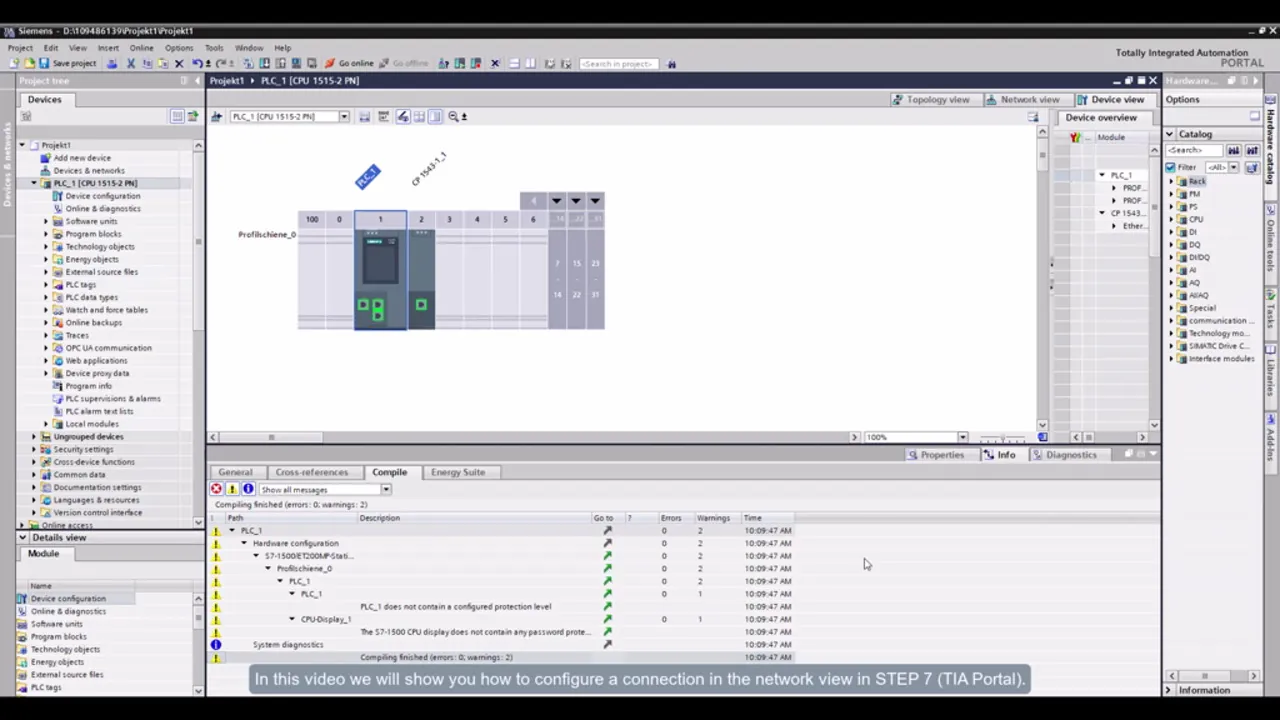
The TIA Portal is the primary software suite for modern Siemens hardware. To connect, launch the project, navigate to the “Online” menu, and select “Extended Go Online.” From here, you must select the correct PG/PC interface. If you’re using a standard Ethernet connection, ensure you select the “PN/IE” interface that corresponds to your computer’s local network card. The software will then perform a broadcast scan to identify the PLC by its MAC address or current IP.
Troubleshooting Common Connection Failures
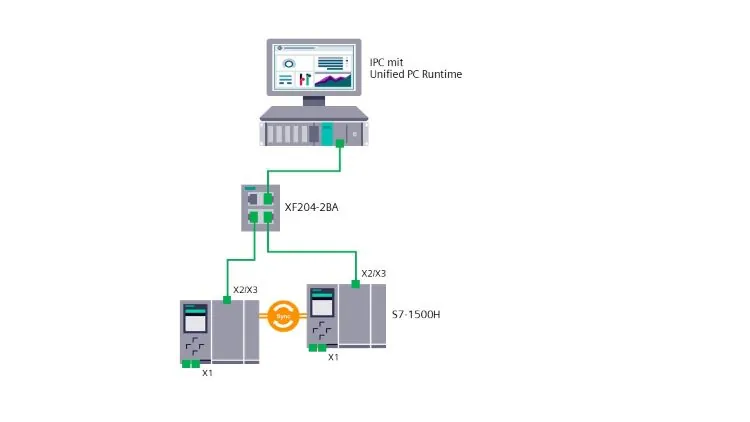
If the scan returns no results, the issue is often a mismatch in network configuration or physical layer failure. Check the link lights on the PLC’s Ethernet port; a steady green light indicates a physical connection, while a blinking yellow light indicates active data transfer. If the lights are dark, replace the cable or test the port with another device to rule out hardware failure.
Software And Driver Issues
Often, the software may be unable to see the PLC due to outdated drivers or blocked ports. Ensure that your TIA Portal is updated to the latest service pack. You can manage your hardware drivers through the Siemens Industry Online Support portal, which provides the necessary firmware and communication drivers for all current controller models.
| Error Symptom | Potential Cause | Recommended Action |
|---|---|---|
| Timeout Error | Firewall interference | Disable Windows Firewall temporarily |
| No Device Found | Subnet mismatch | Match PC IP to PLC subnet |
| Incompatible Device | Firmware version gap | Update TIA Portal or PLC firmware |
| Link Light Off | Bad cable | Swap to a verified Cat6 cable |
Configuring The PG/PC Interface
The PG/PC interface acts as the translation layer between your software and the physical port. If you’re using an older device or a specialized adapter, you must configure this in the Windows Control Panel. Selecting the wrong interface—such as choosing an MPI driver while trying to connect via Ethernet—will result in an immediate communication error. Always ensure the “Access Point” is set to “S7ONLINE” to allow the software to route traffic correctly.
Managing Security And Passwords
Modern Siemens PLCs include built-in security features that may prevent you from connecting or editing the program. If the PLC is protected by a password, you’ll be prompted to enter it when you attempt to go online. If you don’t have the credentials, you may be restricted to read-only access. Always document controller passwords in a secure location, as losing access to a locked PLC often requires a factory reset that wipes the entire program.
Understanding Communication Protocols
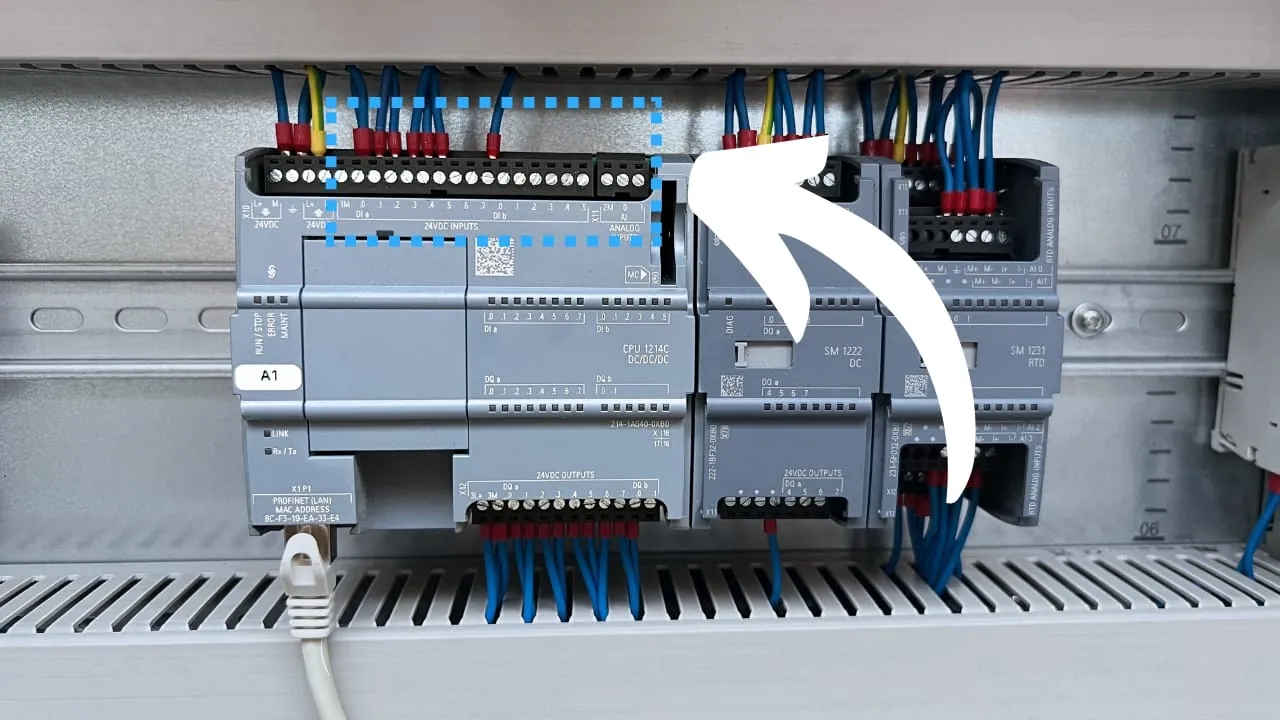
Siemens utilizes several proprietary and open protocols, including PROFINET, PROFIBUS, and MPI. Understanding which protocol your specific PLC uses is essential for selecting the right hardware. PROFINET is the current standard for high-speed Ethernet communication, while PROFIBUS remains common in legacy industrial environments. If you’re connecting to a remote site, you might also encounter industrial VPNs, which require additional network routing steps to permit the TIA Portal to reach the PLC across different subnets.
Related guides
Frequently Asked Questions
Why does my TIA Portal fail to find the PLC?
This is usually caused by an IP address mismatch or a firewall blocking the discovery broadcast. Ensure your computer’s network adapter is on the same subnet as the PLC. If you’re using a virtual machine, ensure the network adapter is set to “Bridged” mode rather than “NAT” so the VM can see the local network traffic directly.
Can I connect to a PLC over Wi-Fi?
While technically possible, it’s strongly discouraged for programming tasks. Wi-Fi connections are susceptible to packet loss and latency, which can lead to unstable connections or corrupted project downloads. Always use a hardwired Ethernet connection for reliability. If you must use Wi-Fi, use a high-quality industrial wireless bridge to ensure a stable, low-latency link to the controller’s Ethernet port.
How do I reset a locked Siemens PLC?
If you have lost the password, you must perform a factory reset using a memory card or the TIA Portal “Accessible Devices” menu. Note that this action permanently deletes all code, data blocks, and configuration settings currently stored on the device. Ensure you have a recent, verified backup of the project before initiating a factory reset, as the lost data can’t be recovered.
What is the difference between MPI and PROFINET?
MPI (Multi-Point Interface) is an older, serial-based protocol used for programming and basic communication between Siemens devices. PROFINET is the modern, Ethernet-based standard that supports high-speed data exchange and standard network infrastructure. Most modern PLCs use PROFINET, whereas legacy S7-300 or S7-400 systems frequently rely on MPI or PROFIBUS. You’ll need a specialized converter to connect a PC to an MPI-only device.
Do I need a special cable for S7-1200 PLCs?
No, the S7-1200 series features a standard RJ45 Ethernet port, meaning you can use a standard, off-the-shelf Cat6 Ethernet cable to connect directly to your laptop. You don’t need proprietary Siemens cabling for these units, though using high-quality, shielded industrial cables is recommended to prevent electromagnetic interference in harsh factory environments. Always verify the cable integrity if you experience intermittent connection drops during the programming process.
Conclusion
Once you have established a stable link, the most effective next step is to perform an “Upload” from the device to verify that your local project file matches the version currently running on the controller. This ensures that any last-minute modifications made by other engineers are captured, preventing you from accidentally overwriting critical logic during your next download session.
