
Connecting to an Omron PLC involves establishing a physical communication link between your programming workstation and the controller, followed by configuring the software drivers to recognize the hardware interface. Most modern Omron systems utilize Ethernet/IP, USB, or serial protocols to facilitate this data exchange, requiring specific cable types and software suites like CX-Programmer or Sysmac Studio. Success depends on aligning the communication settings within your project file with the physical port parameters of the target PLC unit.
Key Takeaways
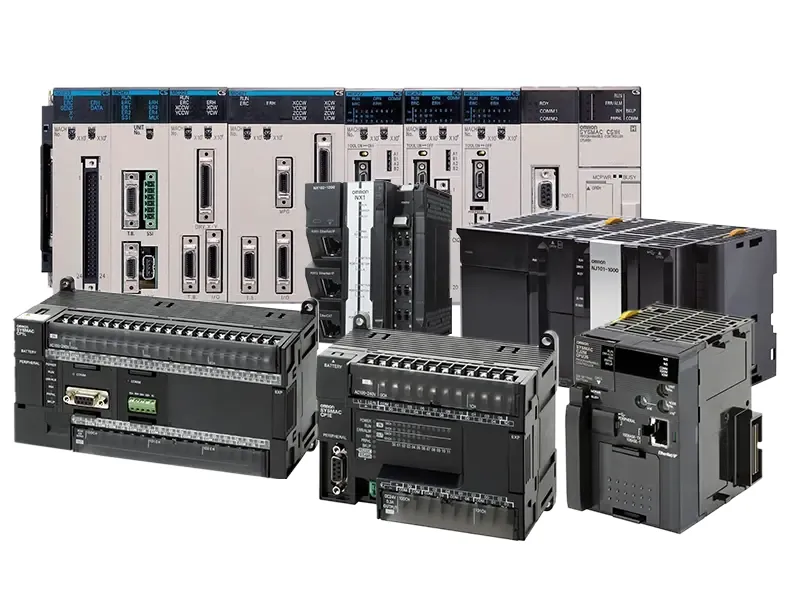
- Verify the specific communication port on your PLC (USB, Ethernet, or Serial) before selecting your cable.
- Install the latest version of the Omron Automation CX-One software to ensure all necessary hardware drivers are included.
- Assign a static IP address to your computer that resides on the same subnet as your PLC for Ethernet connections.
- Use the “Auto Online” feature in your software to allow the interface to scan for connected controllers automatically.
- Check your PC’s firewall settings, as they frequently block the proprietary communication ports used by PLC programming software.
How Do I Connect To A Omron PLC?
The primary method for establishing a connection depends on the generation of the controller. For newer models, such as the NJ or NX series, you’ll typically use an Ethernet connection. For legacy controllers like the CJ1 or CP1 series, you might rely on a USB-to-serial adapter or a specialized USB Type-B cable. Regardless of the method, the physical layer must be established before the software can perform a handshake.
Preparing Your Hardware and Drivers
Before attempting to go online, ensure your computer recognizes the physical device. If you’re using a USB connection, check the Windows Device Manager to ensure the driver is installed and the device appears under “Ports (COM & LPT)” or “Universal Serial Bus devices.” If the device shows a yellow warning icon, you must reinstall the Omron drivers provided within the CX-One installation directory.
| Connection Type | Required Cable | Typical Use Case |
|---|---|---|
| USB | USB Type-A to Type-B | Local maintenance of CP1/CJ2 |
| Ethernet | RJ45 Cat6 | Remote access/NJ/NX series |
| RS-232 | DB9 Serial Cable | Legacy PLC communication |
| RS-422/485 | Shielded Twisted Pair | Multi-drop serial networks |
Configuring The Software Interface
Once the hardware is physically linked, you must configure the software environment. In CX-Programmer, navigate to the “Change PLC” dialog and select the specific series and CPU type matching your physical hardware. Failure to match the exact CPU model will prevent the software from establishing a valid session, even if the physical cable is connected correctly.
Setting Up Ethernet Communications
When connecting via Ethernet, your computer must be part of the same network segment as the PLC. If the PLC is set to a default IP address, such as 192.168.250.1, your computer must have an IP address like 192.168.250.10. Use a subnet mask of 255.255.255.0. Disable your wireless network adapter temporarily to prevent the software from attempting to communicate through the wrong interface.
Troubleshooting Common Connection Failures
If you can’t establish a link, start by testing the physical layer. Swap the cable with a known-good unit to rule out internal breaks in the wire. Next, verify the communication settings in the software. Ensure the “Network Type” matches the physical connection (e.g., Ethernet vs. Sysmac Way). If the software reports a “Timeout” error, the most likely culprit is an incorrect IP address or a blocked port in your computer’s firewall.
Warning: Always ensure your PLC is in “Program” or “Monitor” mode before attempting to go online for modification, as “Run” mode may restrict certain programming changes or cause unexpected logic execution.
Is My Cable Wired Correctly?
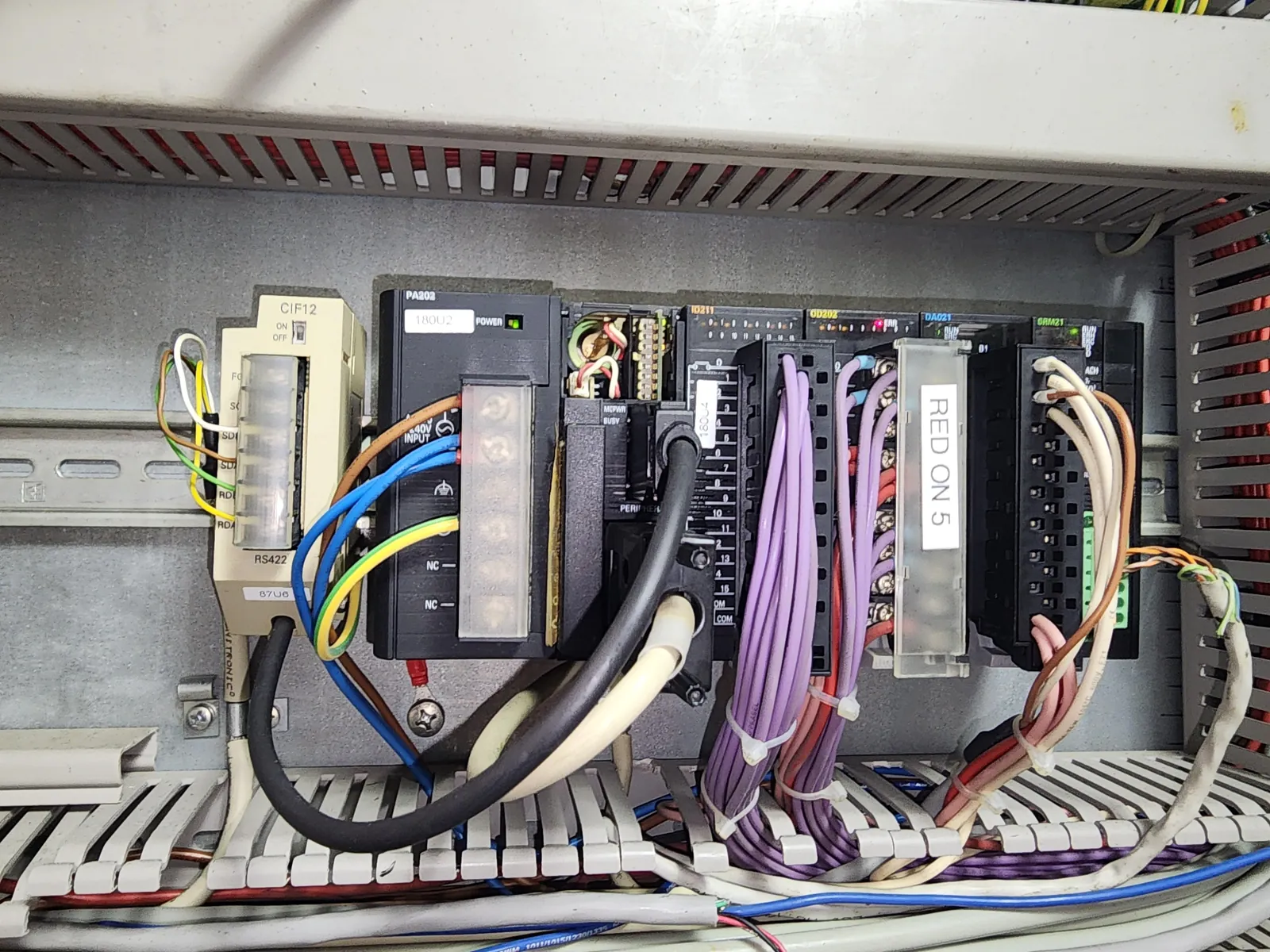
Cable integrity is the most frequent point of failure in industrial environments. For serial connections, ensure you’re using a null-modem cable if required by the specific Omron module. Many Omron serial ports use a specific pinout that differs from standard RS-232 computer cables. Check the hardware manual for your specific CPU unit to confirm the pinout before attempting to build or purchase a custom cable.
Testing The Physical Communication Link
Use a ping test to verify Ethernet connectivity. Open the Windows Command Prompt and type ping followed by the IP address of your PLC. If you receive a “Request Timed Out” message, the issue is network-layer connectivity. If you receive a reply, the hardware is communicating, and the issue is likely within the PLC programming software settings or the specific PLC protocol driver.
Selecting The Right Programming Suite
Omron provides two primary platforms: CX-One for legacy and mid-range controllers, and Sysmac Studio for high-end automation controllers like the NJ/NX series. Ensure you’re using the correct software for your hardware, as these suites aren’t interchangeable. Using the wrong software will result in an “Incompatible Device” error during the initial handshake process.
| Software Suite | Target Hardware | Primary Interface |
|---|---|---|
| CX-Programmer | CJ, CS, CP Series | Serial/USB/Ethernet |
| Sysmac Studio | NJ, NX, NY Series | Ethernet/USB |
| Network Configurator | Fieldbus Devices | Ethernet/DeviceNet |
How To Use The Auto Online Feature
Most Omron software packages include an “Auto Online” tool that automatically detects the connected controller. This tool scans the available communication ports and attempts to identify the PLC model and network settings. This is often the most efficient way to connect if you’re unsure of the specific communication parameters, such as baud rate or network node ID.
Pro Tip: Always save a copy of the existing PLC program to your local hard drive before making any changes, as uploading the program from the device is the only way to recover the current logic state if you lose your local file.
Managing Firewall And Security Settings
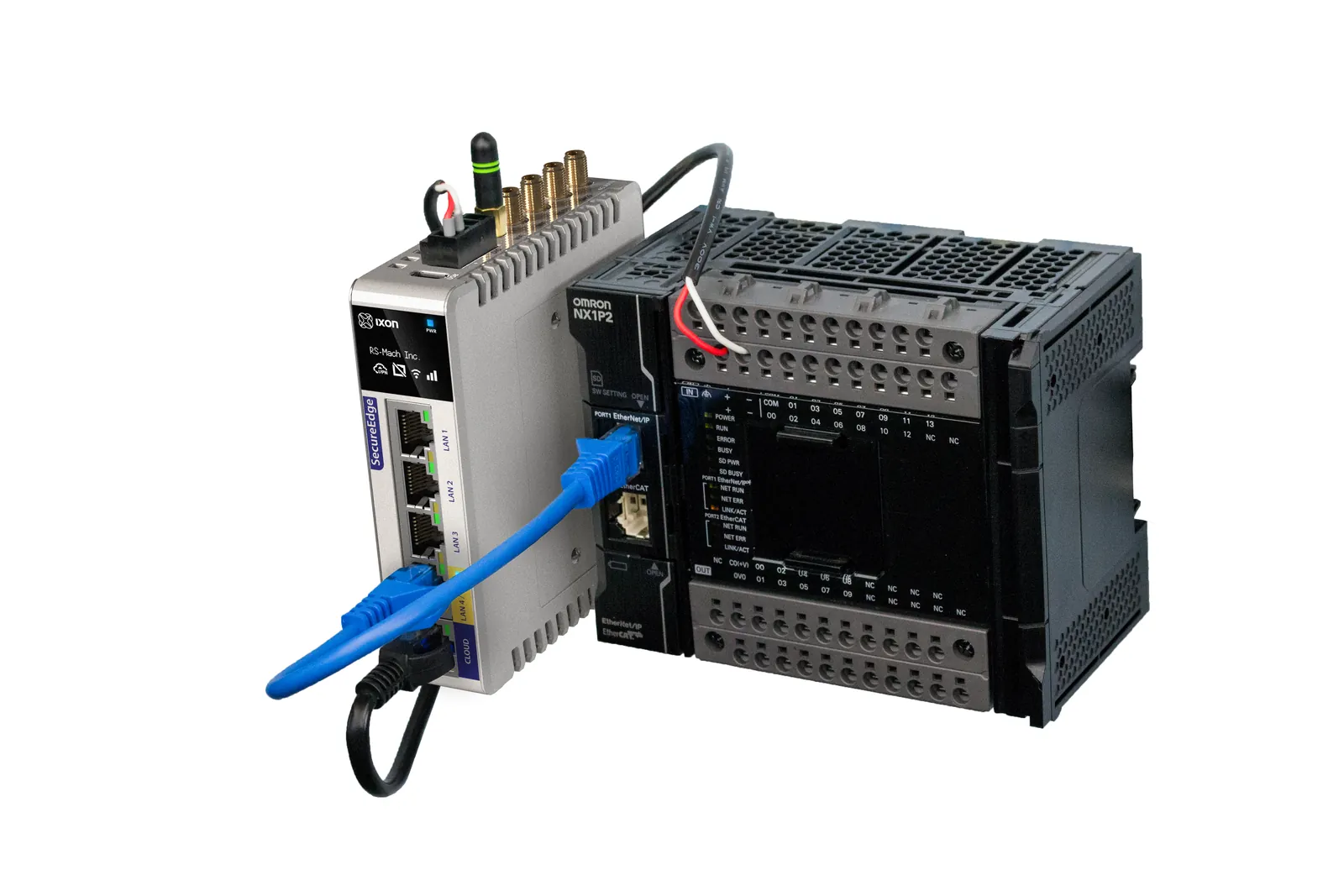
Modern IT security policies often restrict access to Ethernet ports on industrial hardware. If you’re working on a managed corporate network, ensure that the ports required by Omron software are open. If you’re using a VPN or a routed connection, you may need to configure port forwarding or use a gateway device to bridge the connection between your workstation and the PLC network.
Related guides
- VNC Connect Raspberry Pi Not Working: 5 Fixes for Remote Access
- Best Push to Connect Fittings: How to Install Them Properly in 2026
Frequently Asked Questions
Why does my software report a timeout error?
A timeout error indicates that the computer sent a request but received no response from the PLC. This is usually caused by an incorrect IP address, a loose cable, or a mismatched baud rate in serial connections. Verify your network settings and ensure that the PLC is powered on and not in a faulted state. Check your firewall settings to ensure they aren’t blocking the communication port.
Can I connect via Wi-Fi?
Connecting directly to a PLC via Wi-Fi is generally not recommended due to latency and packet loss. However, you can connect to a wireless access point that’s physically wired to the PLC’s Ethernet port. Ensure that the wireless network is on the same subnet as the PLC to maintain stable communication. Avoid using high-latency or unstable wireless links for critical programming tasks.
What do I do if the PLC is password protected?
If the PLC is password protected, you can’t access the program without the correct credentials. Omron controllers use a security function to prevent unauthorized changes. You must obtain the password from the original integrator or the facility manager. If the password is lost, you may be required to perform a factory reset, which will result in the total loss of the existing PLC program.
Is a special driver required for USB?
Yes, a specific USB driver is required for most Omron PLCs to communicate with a PC. This driver is typically included in the CX-One or Sysmac Studio installation packages. If your computer doesn’t detect the PLC when you plug in the USB cable, you should manually reinstall the driver from the Omron software directory or the official Omron website to resolve the hardware recognition issue.
How do I reset communication settings?
If you have configured the PLC with incorrect communication parameters, you can often reset them to factory defaults using the DIP switches located on the front of the CPU module. Consult your specific PLC hardware manual to identify the correct switch settings for a “Peripheral Port Reset.” This will typically revert the port to its default baud rate and communication protocol, allowing you to re-establish a connection.
Conclusion
To begin the process, verify your PLC model number located on the front casing, then download the corresponding software trial if you don’t already possess the full suite. Ensure your laptop is equipped with the necessary physical ports or a reliable USB-to-Ethernet adapter before your next site visit to prevent unnecessary delays during the critical commissioning phase.
