
A muted microphone or incorrect software settings are the most common reasons for a corsair void wireless v2 mic not working, accounting for the issue in most cases. You can verify this quickly by checking the physical mute button on the headset and confirming the input device selection within your system sound settings. If the hardware appears intact, the problem is usually a simple driver conflict or a change in the default audio device configuration rather than a permanent hardware failure.
Getting your Corsair Void Wireless working again

Identifying the root cause of your audio problem is the first step toward a fix. The table below ranks the most common issues based on how often they occur and how you can verify them.
| Cause | How common | How to confirm it | Fix it yourself? |
|---|---|---|---|
| Muted microphone | Very common | Check the LED status | Yes |
| Wrong input device | Common | Check system sound settings | Yes |
| Outdated drivers | Common | Check device manager status | Yes |
| Battery depletion | Occasional | Check charge level | Yes |
| Firmware mismatch | Rare | Use management software | Yes |
| Hardware damage | Very rare | Inspect cable and port | No |
Most users mistake a software glitch for hardware failure. If you hear static or intermittent cutting, toggle your device’s sample rate in your sound control panel from 48kHz to 44.1kHz. This simple adjustment often resolves sync issues between the headset and your motherboard.
If the audio remains silent despite correct settings, check your physical connection. A loose USB port or a frayed 3.5mm jack creates high-resistance paths that kill signal clarity. If you see a physical tear in the cable shielding, stop using the headset immediately to prevent shorting your computer’s audio controller.
When troubleshooting, always test the headset on a second device like a smartphone or laptop. If the audio works there, your issue is strictly local to your primary computer’s configuration. If the silence persists on both devices, the internal drivers have likely suffered a permanent mechanical failure.
Physical mute and connection status
The most frequent cause for a silent microphone is the physical mute state of the device. The headset features a toggle button on the left ear cup that cuts the signal entirely when active. If the microphone has a red light glowing at the tip, it’s physically muted by the hardware. Simply press the button once to disengage the mute feature. You should hear a short audible tone or see the light turn off, indicating the signal is now live.
If the light is off but the mic remains silent, check the wireless USB receiver. Ensure it’s plugged directly into a USB 2.0 or 3.0 port on your computer rather than a separate USB hub. Hubs often fail to provide enough power for consistent data transmission, which can cause the microphone to drop out or fail to initialize. Try moving the receiver to a different port on the back of your desktop tower to rule out a faulty port.
Finally, verify the battery level of your headset. When the battery drops below 5%, the device may enter a power-saving mode that prioritizes playback and disables the microphone to preserve energy. Plug the headset into a powered USB port using the provided charging cable for at least 30 minutes. Once the charge reaches a sufficient level, the microphone functionality typically resumes automatically. If the headset refuses to hold a charge, contact the manufacturer for a potential warranty claim.
System sound input configuration

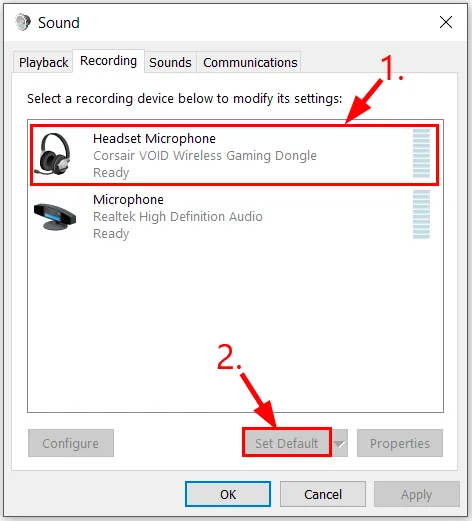
Another frequent cause is your operating system selecting the wrong device as the primary microphone. Even if the headset is connected, your computer might still be looking for audio input from a built-in webcam or a secondary monitor. You can check this by opening your sound settings menu and looking at the “Input” section to see which device is currently active.
Select your headset from the list to ensure the system is receiving a signal from the correct hardware. If you see the volume bar moving when you speak, the connection is working, and the issue is likely within your specific application.
Many communication programs, such as Discord or Zoom, have their own internal audio settings that override the system defaults. You must manually select the headset as the “Input Device” inside those apps to ensure they communicate with the correct hardware.
Drivers also play a vital role in how your PC recognizes the device. You can verify your driver status by visiting the Corsair support download page to ensure you have the latest software installed for your specific model.
If the computer shows the device as “Unknown” or “Driver Error” in the device manager, it can’t process the audio signal correctly. Reinstalling the official management software often forces the system to refresh the connection and assign the correct drivers to the headset.
Software conflicts and firmware issues
Sometimes the software used to manage your peripherals conflicts with the operating system’s audio processing. This often happens after a major system update that changes how audio devices are handled. If you notice the microphone stops working only when a specific game or app is running, that program is likely hijacking the audio input. Try closing all other background applications to see if the microphone functionality returns to normal.
Another potential issue is the firmware version installed on the wireless receiver. If the receiver and the headset are running mismatched firmware versions, the handshake process between them will fail. Use the manufacturer’s official software to check for any pending updates. If an update is available, keep the headset connected via the charging cable throughout the entire process. Interrupting a firmware update can permanently disable the device, so ensure your computer remains powered on until the progress bar reaches 100%.
If the firmware is up to date and the software settings are correct, you may need to reset the headset. Most models include a small reset pinhole located near the charging port or under the ear cushion.
Use a paperclip to gently press the button inside for 5 to 10 seconds while the headset is powered on. This clears the temporary memory and forces the headset to re-pair with the USB receiver. After the reset, you’ll need to re-select the device in your sound settings.
Rare hardware and environmental factors
High-frequency devices like routers or cordless phones placed within three feet of your USB receiver often cause signal interference. If your audio crackles, move the receiver to a front-facing port or use a short USB extension cable to clear the path.
Check for physical port damage by gently touching the receiver. If it wiggles, the solder joints on your motherboard are likely failing. Switch to an alternative port immediately to prevent a total short circuit, which could fry your USB controller.
Internal wire breakage often stems from repeated tension on the boom arm. If you hear audio only when the mic is at a specific angle, the ribbon cable is frayed. Don’t attempt a DIY repair, as the delicate soldering requires specialized equipment.
When the Windows audio service crashes, the mic disappears from your device list entirely. If a restart fails, run the command “services.msc” to manually toggle the Windows Audio service. This restores functionality without a full system wipe.
What a fix usually involves
Fixing a microphone issue typically involves a mix of software adjustments and basic hardware troubleshooting. Most of these steps require nothing more than your time and a few clicks within your system settings. If you need to reinstall drivers or update firmware, you should expect to spend about 15 to 20 minutes following the prompts in the official management software. This is a standard process that doesn’t require any special tools or technical knowledge.
If the issue stems from a faulty USB port, the cost is nothing, as you simply need to move the receiver to a different slot. However, if the hardware itself is damaged, the cost depends entirely on your warranty status.
You can check your current warranty coverage by looking at the serial number printed on the inside of the headband and entering it on the manufacturer’s official portal. If the unit is out of warranty, you may need to replace the headset entirely, as professional repair for wireless audio components often exceeds the value of the device.
Frequently asked questions
Can I use the headset while it’s charging?
Yes, you can continue to use the headset while it’s plugged into a power source. The device is designed to function as a wired headset during the charging process, which helps if your battery is low during a long session. Keep in mind that the cable must be connected to a data-capable USB port on your computer for the microphone to remain active.
How long does the battery last on a full charge?
The battery typically lasts between 12 to 16 hours on a single charge, depending on your volume levels and whether the lighting effects are turned on. If you notice your headset is dying much faster than this range, the battery might be reaching the end of its natural lifespan. You can check the current charge percentage through the official management software installed on your computer.
Is it safe to update the firmware?
Yes, it’s perfectly safe to update the firmware provided you follow the instructions on the screen. The most important rule is to never disconnect the headset or the USB receiver while the update is in progress. If the power fails during the update, the device could become unusable, so ensure your computer is plugged into a stable power source before you begin the process.
Why does my microphone sound robotic?
A robotic sound usually indicates that the wireless signal is weak or is experiencing heavy interference from other nearby electronics. Try moving the USB receiver away from other wireless devices, such as routers or external hard drives, to see if the quality improves. If the issue persists, ensure the headset is within 10 to 15 feet of the receiver for the best possible audio clarity and signal strength.
What happens if the reset button doesn’t work?
If the reset button fails to restore the microphone, the issue is likely a deeper software conflict or a hardware failure. Try uninstalling the headset drivers from your device manager and restarting your computer to force a clean installation. If the computer still fails to recognize the microphone after a full driver refresh, you should contact the manufacturer’s support team to discuss a potential replacement or repair.
Does it matter which USB port I use?
Yes, it matters because the USB receiver requires a stable power supply and consistent data throughput to maintain a clear microphone connection. Always use a high-speed USB 2.0 or 3.0 port located directly on your computer’s motherboard rather than an unpowered external hub. Ports on the front of a computer case are often connected via internal cables that can introduce signal noise or power drops.
Conclusion
The most effective way to resolve these issues is to rule out software settings first, as these account for the vast majority of cases. By verifying your input devices and checking for driver updates, you can usually restore your microphone without needing any professional help. If you have exhausted these steps and the microphone still doesn’t work, it’s time to check your warranty status and contact the manufacturer for further assistance.
