
You can fix a nordictrack treadmill stuck on ifit screen by performing a hard power cycle to reset the console’s internal software. This issue usually occurs because the Android-based operating system has encountered a temporary conflict during the boot process or while attempting to connect to the network. By cutting the power completely, you allow the volatile memory to clear, which often forces the system to reload the interface correctly once you restore the electricity.
Why your NordicTrack treadmill gets stuck on iFit
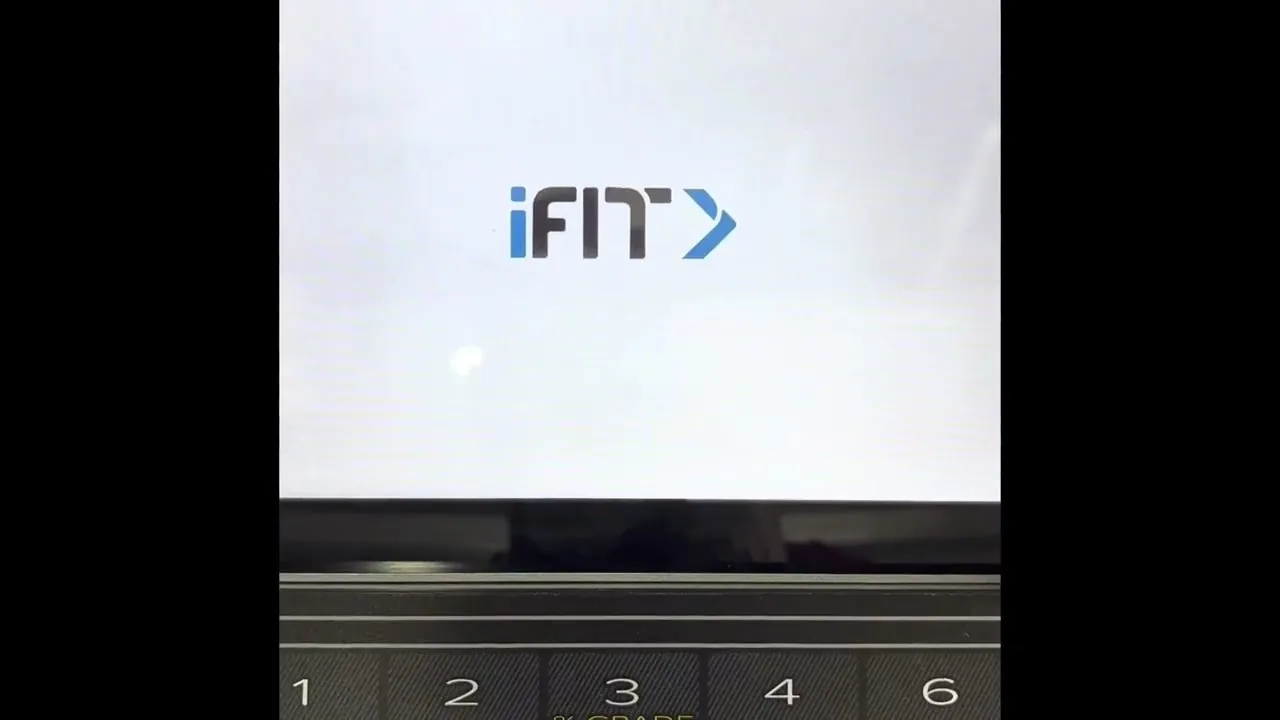
The primary reason your console hangs on the startup logo is a software glitch within the embedded Android interface. These machines act like tablets, and just like a smartphone, they can experience frozen states when background processes fail to launch. If the console tries to pull an update from the iFit servers but loses connection midway, it may get trapped in a loop.
Another common cause is corrupted cache data. Over months of use, the system builds up temporary files that help the interface load faster. If one of these files becomes damaged, the machine might struggle to read it during startup, leading to a permanent display of the loading screen. You can usually identify this by a screen that flickers or displays a partial error code before locking up.
Hardware failure, while rarer, happens if the internal power supply board fails to send a consistent signal to the console. If the screen remains completely black or shows vertical lines rather than a logo, the issue is likely electrical rather than software-based. In these cases, you must inspect the internal ribbon cables for loose connections.
If you have tried a basic restart and the screen remains frozen, the internal storage might be full. A machine with less than 500MB of free space will often fail to initialize the boot partition.
If your console is older than three years, consider performing a factory reset to clear these partitions. Check your internet connection stability before assuming the unit is broken. You can verify if your local router is the culprit by checking if other devices in your home are connecting without issues.
Perform a Hard Power Reset
If your machine is unresponsive, you need to force a full power drain to clear the system memory. Start by turning off the main power switch located near the power cord on the base of the machine. Once you flip it to the “off” position, unplug the power cord from the wall outlet entirely.
Wait for at least 60 seconds before plugging the cord back into the wall. Flip the power switch back to the “on” position and watch the screen. If the machine begins its normal boot sequence, you have successfully cleared the error.
Many users mistakenly assume that turning the power switch off is sufficient. You lose nothing by waiting longer, but cutting the process short at 30 seconds often fails to clear the volatile memory.
This process is ideal for users who have a frozen screen but still see the console lights glowing. If you have a model with a pinhole reset button on the back of the console, you may need to press it with a paperclip while the power is off. If the screen remains blank or stays stuck after 3 minutes of waiting, the internal firmware may require a factory reset, which involves a specific button sequence unique to your console model.
Reconnect Your Network Hardware
Sometimes the screen hangs because the machine is stuck in a “searching for network” loop. If your router has a strict firewall or uses a 5GHz-only signal, the treadmill might be failing to establish a connection, causing the software to wait indefinitely. Most of these machines require a 2.4GHz Wi-Fi signal to communicate properly with the iFit servers.
Log into your router settings to ensure that your 2.4GHz band is active and not hidden. If you have recently changed your Wi-Fi password, the treadmill may be trying to log in with old credentials and failing silently.
You can temporarily move your router closer to the treadmill to rule out signal strength issues. If the unit boots up fine once you move it or disconnect the Wi-Fi, you know the problem is your home network configuration rather than the treadmill itself.
If you’re using a mesh network, try disabling the “band steering” feature temporarily. This feature often confuses older smart devices by forcing them to switch between 2.4GHz and 5GHz bands, which can drop the connection during the boot sequence. Once the console connects successfully, you can re-enable your standard network settings. If it still fails to load, you might need to use a mobile hotspot to test if the treadmill can connect to a different network entirely.
Perform a Factory Reset
When a standard power cycle fails, a factory reset is the next logical step to restore the operating system. This will erase your saved user data and settings, so perform this only if you have exhausted all other troubleshooting options. Locate the reset pinhole on the back or side of the console housing. With the power turned off, insert a small, straightened paperclip into the hole and hold the button down.
While holding the button, flip the power switch to the “on” position. Keep holding the pinhole button for 10 to 15 seconds until the screen changes or you hear a distinct beep from the console. This triggers the Android recovery menu. From here, you can select the “wipe data/factory reset” option using the volume or channel buttons if your screen isn’t touch-sensitive.
Many users mistakenly release the button the moment the power light flickers, which only initiates a standard reboot. You must hold the pin until the recovery menu appears on the display to ensure the command is registered. If the screen remains black, wait at least 30 seconds before trying again.
If you don’t see a pinhole, your model may require holding the “Start” and “Stop” buttons simultaneously while powering on the unit. Check the chassis for a physical “Reset” button near the power port if no pinhole exists. Always consult your specific manual for the exact button combination, as selecting the wrong command in a service menu can lock the interface further, requiring professional intervention to restore the bootloader.
Avoid Common Troubleshooting Myths
Don’t hold the power button for hours
People often think holding the power button for a long time will force a shutdown, but on these units, the power button is often just a software trigger. If the software is frozen, the button won’t register your input, so you’re just wasting your time. Always use the physical power switch or unplug the unit to ensure the power is cut.
Don’t open the console housing
Many assume that because it’s a computer, they should open the plastic casing to check the wires. Opening the console housing risks breaking the plastic clips and can void your warranty, and you’ll likely find nothing you can fix without specialized tools. Stick to external resets and network adjustments to keep your machine safe.
Don’t ignore the screen status
Some users think they should wait for the machine to “fix itself” by leaving it on for days. This doesn’t work and can actually overheat the console components because the cooling fans may not engage if the OS is frozen. If it’s stuck for more than 15 minutes, it isn’t going to fix itself on its own.
Maintaining a Healthy Connection
To prevent this from happening again, keep your treadmill software updated whenever a prompt appears on the screen. A stable, consistent internet connection is the best way to ensure the machine doesn’t hang during a background update.
If your router sits more than twenty feet from the treadmill, use a Wi-Fi extender. Signal dropouts during a firmware download often trigger a “bricked” state that requires a technician visit.
Always check the status light on the console before you step away. If the light blinks amber, the system is actively writing data to the drive. Cutting power during this cycle will corrupt the bootloader, rendering the machine unresponsive.
If you notice the interface lagging, perform a hard reset by unplugging the unit from the wall. This clears the volatile memory cache. If the screen remains frozen after a reboot, don’t attempt to force a manual override. Contact support immediately to avoid voiding your warranty.
Related guides
- How to Repair a Foosball Table: Fix Stuck Rods in 2026
- How to Fix Power Recliner Stuck in Open Position: Easy Steps
Frequently asked questions
How long should I wait for the screen to load?
You should wait no more than 10 minutes for the screen to load after powering it on. If the iFit logo or the loading circle is still spinning after this time, the software is likely caught in a loop. Waiting longer won’t help and may cause unnecessary wear on the screen’s backlight. Perform the hard power cycle mentioned earlier to force the system to attempt a fresh boot.
Is it safe to leave the treadmill unplugged?
Yes, it’s perfectly safe to leave your treadmill unplugged for an extended period. In fact, if you’re going to be away from home for more than a week, unplugging the machine is recommended to protect the internal electronics from power surges. There’s no internal battery that requires constant power to maintain your account settings, as these are stored securely on the iFit cloud servers.
What happens if the screen stays black?
If the screen remains black even after you flip the power switch, check the power cord connection at the base of the treadmill. Ensure the wall outlet has power by plugging in a lamp or another device. If the outlet is fine and the treadmill still shows no signs of life, the internal fuse or the power supply board may have failed, which requires a professional technician to replace.
Can I use the treadmill without the screen?
You can use the treadmill in a manual mode on most models even if the screen isn’t functioning. Most machines have a “manual” or “quick start” button that allows you to control the belt speed and incline without needing the iFit interface. However, if the console is completely dead, the motor control board might not receive the signal to start, meaning the machine will remain stationary.
Why does my screen freeze during updates?
Your screen freezes during updates usually because the Wi-Fi signal is too weak or the connection is unstable. If the update file is partially downloaded, the system can’t verify the file’s integrity and gets stuck trying to re-download or install the bad data.
Conclusion
If the display remains unresponsive after you’ve tried these steps, don’t worry. You should reach out to the manufacturer’s support team to check if there’s a deeper hardware fault. They’ll help you determine if a part needs replacing so you can get back to your daily workouts as soon as possible.
