
If your modem not working spectrum service is interrupted, the fastest fix is to unplug the power cord from the back of the device, wait 60 seconds, and plug it back in. This simple power cycle often clears temporary software glitches that prevent the hardware from communicating with the local node. If the lights on your device remain dark or blink red after a few minutes, the issue likely sits with the incoming signal or a service outage in your local area.
Fixing your Spectrum modem connection

When you lose internet access, the cause is usually a breakdown in the signal path between your home and the provider’s network. Most connection failures occur because the modem has lost its “handshake” with the provider’s server or because of a physical interruption in the line.
A loose coaxial cable is a common culprit, as even a slight vibration can cause a connection to fail. If the cable is tight but you still have no signal, the problem could be an external service outage or a faulty wall jack.
You can check for local service disruptions by visiting the Spectrum official support portal to see if there’s a known outage in your neighborhood. If the company confirms an outage, no amount of equipment resetting will restore your connection until their crews repair the line.
If there’s no outage, check if the coaxial cable is screwed tightly into both the wall plate and the back of the device. A cable that feels secure but looks frayed or bent may still prevent data from traveling correctly. If you have checked these points and the device remains offline, the issue may require a technician to test the signal strength at your home.
Perform a hard power cycle
A hard reset is the most reliable way to force the modem to re-establish a fresh connection to the provider’s network. Begin by locating the power cable on the back of the unit. Pull the plug directly out of the port and leave it disconnected for at least one full minute. This duration is important because it allows the internal capacitors to drain completely, which clears the device’s temporary memory.
Once the 60 seconds have passed, plug the power cord back in securely. You’ll see the indicator lights start to flash as the device boots up. It often takes 5 to 10 minutes for the device to cycle through its startup sequence and lock onto the signal. Don’t press the reset button located on the back or bottom of the unit during this time, as that can sometimes trigger a factory reset that wipes your custom settings.
If the status light turns solid white or blue, the connection is restored. If the light remains a solid red or continues to blink indefinitely, the unit is failing to communicate with the network. In this case, you should contact their support line to have them perform a remote signal test on your line.
Check your physical cable connections
If a power cycle doesn’t solve the issue, inspect the coaxial cable that runs from the wall to your device. Coaxial cables carry the data signal, and they must be perfectly threaded to work. Check that the connector is screwed onto the wall jack and the device port until it’s finger-tight. If you notice the connector can be turned easily, it was likely loose enough to cause signal noise or total packet loss.
If the cable feels tight, look at the wire itself for any signs of damage. A kinked, pinched, or chewed cable will block the signal even if the connection at the end looks correct. If you have a spare coaxial cable, try swapping the old one for the new one to rule out a broken internal wire.
If the connection remains dead after trying a different cable, the wall jack itself might be faulty. Never attempt to open the wall plate or unscrew the internal wiring, as this can damage the infrastructure and potentially lead to charges for repairs. If you suspect the wall jack is the problem, call your service provider to request a technician visit. They have the testing equipment to determine if the signal reaches your home correctly.
Verify the status of your account
Sometimes the issue isn’t with the hardware but with the status of your billing or service plan. If your account has a pending payment or a service suspension, the provider may disable the modem remotely. This is often the case if you have recently moved or changed your service tier, as the old hardware might not be provisioned for your new setup.
Check your online account dashboard to ensure your billing is up to date and your equipment is listed as active. If the account shows as suspended, you’ll need to settle the balance before the signal is reactivated. If the account is active but the device is still not working, it’s possible the hardware has reached its end of life.
Older models may not support modern network requirements, leading to frequent drops or slow speeds. If you’re using a device provided by the company, they will typically swap it for a newer unit at no extra cost if it’s proven to be defective. If you own your own modem, ensure it’s still on the provider’s approved list, as they may occasionally stop supporting older hardware versions.
Common mistakes during setup
Many people make the mistake of pressing the small, recessed reset button on the back of the unit when they lose service. This button performs a factory reset, which returns the hardware to its default settings and can cause it to lose the specific configuration files needed to talk to the provider’s network. Avoid this button unless a support agent specifically instructs you to use it, as it creates extra work to get the device back online.
- Moving the cable while the power is on: This can cause a small electrical spark that might damage the sensitive ports on the back of your device.
- Using a power strip with a surge protector: Some older surge protectors restrict the power flow needed for the modem to function properly, so plug the power cable directly into a wall outlet.
- Assuming the router is the modem: If you have separate devices, ensure you’re power cycling the modem, not just the Wi-Fi router.
- Ignoring the light patterns: Each light color on your device has a specific meaning; ignoring the manual’s description of these colors makes it harder to identify the real problem.
- Overheating the device: Placing the unit in a closed cabinet prevents airflow and causes it to shut down to protect its internal components.
Prevent future connection drops
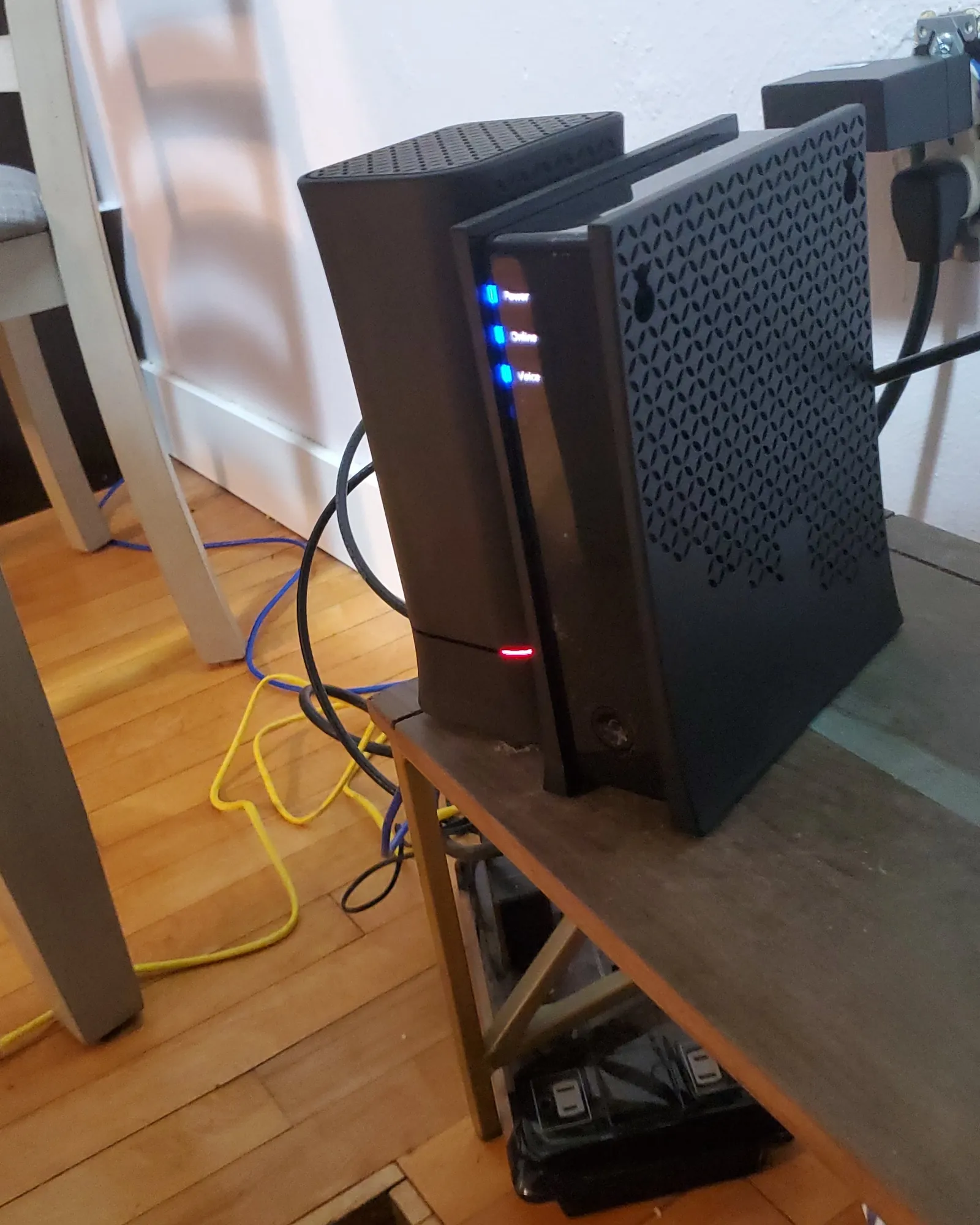
To keep your connection stable, ensure the device has plenty of room for air to circulate around it. Electronics generate heat, and if the vents are blocked by books or dust, the system will throttle its speed or shut down to prevent damage. Place the device on a hard, flat surface rather than on carpet, which can trap heat and block airflow.
| If you’re doing this | Do this instead | Why |
|---|---|---|
| Keeping it in a cupboard | Place it on an open shelf | Prevents overheating |
| Using a long, old cable | Use a short, new cable | Reduces signal loss |
| Plugging into a power strip | Plug into the wall outlet | Ensures stable voltage |
| Leaving dust on the vents | Wipe with a dry cloth | Keeps vents clear |
Most users mistakenly place routers near microwave ovens or cordless phones. These devices share the 2.4GHz frequency band, causing significant interference that mimics a failing connection. If your speeds drop only when the kitchen is busy, move the router at least ten feet away from those appliances.
If you live in a multi-story home, place the router on the middle floor, ideally on a high shelf. Signals travel downward more effectively than they climb through floor joists. If you must choose between a central location and a hidden one, always choose the central spot. A visible router is a faster one.
Frequently asked questions
Can I fix a modem not working spectrum by resetting it?
You can fix connectivity issues by power cycling your device for 60 seconds to clear its temporary memory. This forces the device to re-register with the network. However, this won’t resolve physical hardware faults or regional service outages.
Why is my modem light blinking red?
A blinking red light indicates that your device can’t establish a connection with the provider’s network. This often results from loose cables or local service disruptions. If tightening your connections and power cycling fails, contact support to verify your signal.
How long does a modem take to reboot?
A reboot typically takes 5 to 10 minutes to complete once power is restored. The device must perform diagnostics and sync with the provider’s server to enable internet access. If lights remain unstable after 15 minutes, the device may be stuck in a boot loop.
Is it safe to use a third-party modem?
Yes, you can use a third-party modem if it appears on the company’s list of approved devices. Using your own hardware can save on monthly rental fees. Note that you’re responsible for all repair or replacement costs if your equipment fails.
What happens if I press the reset button?
Pressing the reset button restores factory settings and deletes all custom configurations. This often prevents the device from connecting because it loses necessary network handshake data. Only use this button if guided by a support agent to avoid troubleshooting complications.
How do I know if my modem is broken?
A modem is likely broken if the power light fails to turn on when plugged into a working outlet. Persistent light cycling or loud internal noises also indicate the device has reached its end of life. Contact your provider for a replacement if you’re renting.
Conclusion
If these quick attempts don’t restore your connection, it’s time to reach out to their support team for a deeper look. They’ll check for local outages or signal problems you can’t fix from home. Don’t worry, they’re usually happy to help you get back online as soon as possible.
