
To perform a factory data reset on your device, you should navigate to the settings menu, select “System,” then “About,” and finally choose “Factory reset.” This action erases all user data, including account information and installed applications, returning the unit to its original out-of-box state. Most users perform this task to clear persistent software glitches or prepare the set for a new owner. If your TV doesn’t respond to the remote, you can force a manual restart using the physical buttons.
Tools Required for Troubleshooting
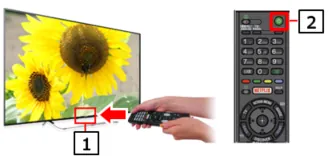
Before you begin, ensure you have the following items ready to avoid interruptions during the process. Having these items on hand ensures you can complete the task without needing to hunt for cables or information midway through.
- Original Remote Control: You need this to navigate the system menus reliably.
- Stable Power Supply: Keep the power cord plugged into a wall outlet during the entire reset.
- Google Account Details: You’ll need your login credentials to set up the TV again after the reset is finished.
- Wi-Fi Network Name and Password: These are required to reconnect your device to the internet once the startup screen appears.
- USB Flash Drive (Optional): Used only if you’re performing a forced firmware update as part of a deeper troubleshooting effort.
- Screen Cleaning Cloth: Useful for clearing debris if you need to access hidden physical buttons on the frame.
If you have lost your original remote, a standard universal remote may work, but it often lacks the “Home” or “Menu” buttons required for deep system access. If the remote is completely broken, you may need to use a USB keyboard plugged into the TV’s port to navigate the menus.
Steps to Perform a Factory Reset
Power on your television and wait for the home screen to load completely. If the interface remains sluggish or unresponsive, wait an additional two minutes for background processes to finish.
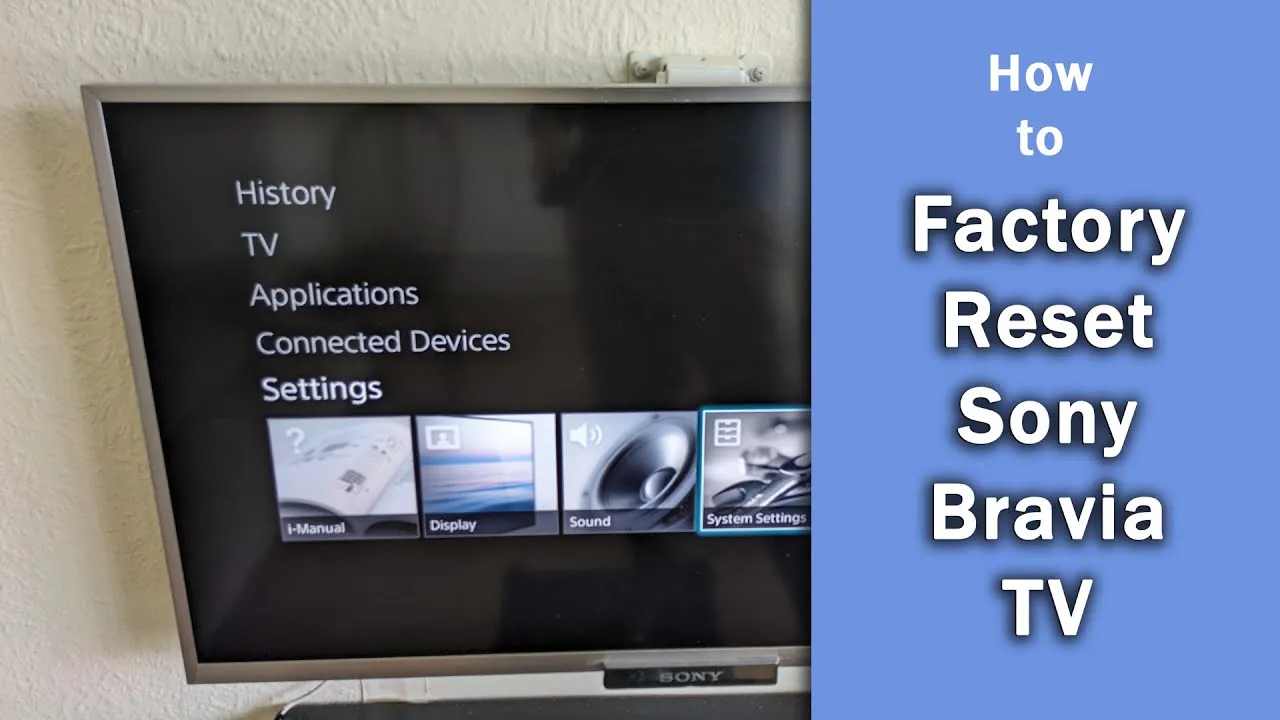
Press the “Settings” button on your remote, which usually looks like a small gear icon. If your remote lacks this button, press the “Home” button and navigate to the gear icon located in the top-right corner of the display.
Select “System” from the list of options, then scroll down to find “About.” If you see “Device Preferences” instead of “System,” select that menu first.
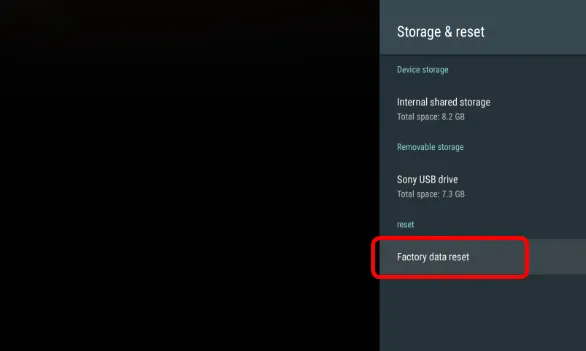
Choose “Factory reset” or “Erase everything” from the menu that appears on your screen. If the system prompts you for a PIN, try the default code “0000” or “1234.” If you previously set a custom parental control PIN, you must enter that specific code to proceed.
Confirm your choice by selecting “Factory reset” one more time when the system asks for final approval. This action is irreversible and deletes all downloaded apps, saved login credentials, and personalized display settings.
Wait for the TV to shut down and reboot automatically, which can take between 5 and 10 minutes depending on the model. Don’t unplug the power cord during this cycle. Interruption at this stage can corrupt the firmware, often resulting in a “boot loop” where the TV never reaches the home screen.
Follow the on-screen prompts to complete the initial setup process, including connecting to your network and signing into your Google account. If your TV fails to detect your Wi-Fi network after the reset, restart your home router before attempting to input your credentials again.
If the TV is frozen and you can’t use the remote, unplug the power cord from the wall, wait 60 seconds, and plug it back in. This “power cycle” clears minor cache errors. Use this method first if your only goal is to fix a temporary glitch, as it preserves your data and saves you the time of reconfiguring your entire account.
How Reset Time and Effort Varies
The time needed to finish a reset depends on the amount of stored data and the age of your hardware. Starting with a basic reset is always safer than a forced hardware wipe, as it allows the software to close background tasks properly.
| Situation | Time Required | Effort Level | What to Monitor |
|---|---|---|---|
| Standard Settings Reset | 5–10 Minutes | Low | Progress bar on screen |
| Full Data Wipe | 15–20 Minutes | Medium | Network stability |
| Forced Firmware Reset | 30+ Minutes | High | USB read status |
If your device contains more than 50 gigabytes of cached media, add ten minutes to your estimate for a full wipe. Ignoring this extra time often leads users to pull the power cable prematurely, which can corrupt the boot sector.
Apply the rule of thumb based on your current goal. If you’re troubleshooting a minor software glitch, stick to the standard reset. If you’re preparing the device for resale, the full wipe is mandatory to ensure your private keys are overwritten.
Never attempt a forced firmware reset unless the device is unresponsive to all other inputs. This process bypasses the standard safety checks that prevent data corruption. If the screen remains black after that window, the hardware has likely reached its end-of-life cycle.
Confirming a Successful Reset
A successful reset will result in the television displaying the “Welcome” or “Initial Setup” screen, just as it did when you first bought it. If you see your old apps or your custom background wallpaper, the reset didn’t finish correctly. This often happens if the system was interrupted during the process or if the internal storage is failing.
Watch the power indicator light during the entire procedure. If the light stops blinking or turns solid before the setup screen appears, the process stalled. You must restart the sequence immediately. Don’t unplug the power cable while the screen is black, as this can corrupt the boot partition and permanently brick the mainboard.
To prevent failure, ensure your TV isn’t performing background updates while you initiate the reset. Check the network status menu first; if an update is pending, wait for it to install completely before proceeding.
You must instead perform a forced firmware installation using a FAT32-formatted USB drive. Download the specific firmware file for your model from the manufacturer support portal and follow the manual flashing instructions precisely.
Rules and Aftercare
After the reset, you must re-enter all personalized settings and re-download your preferred streaming applications. The device will be in its factory configuration, meaning features like parental controls, picture calibration, and sound settings will return to their default values. If you’re selling or giving away the TV, ensure you have removed all external devices like gaming consoles or soundbars before initiating the wipe.
Most users forget to sign out of individual app accounts before the reset. While the factory wipe clears the system, some server-side accounts remain linked to the hardware’s unique ID. Manually deactivate your TV from your Netflix or Hulu account settings on a separate computer first. Failing to do this can lock you out of your device limit, forcing you to contact customer support to clear the ghost device.
The reset process is a standard procedure for most modern smart TVs, but if you have a very old model, check the manual to see if a physical button combination is required instead of an on-screen menu. If you’re uncomfortable navigating these technical menus, you can contact a professional technician to perform the service for you, though this usually involves a service fee.
If the TV remains stuck on the logo screen after a reset, don’t attempt a second wipe immediately. Unplug the power cord for exactly sixty seconds to discharge the capacitors. If the screen remains frozen after the power cycle, the issue is likely a corrupted firmware chip rather than a software glitch. In this case, a factory reset won’t resolve the problem and you should seek a hardware repair technician.
Alternative Reset Methods
Power Cycle
Power off the television and unplug it from the wall outlet. Wait for at least 60 seconds before plugging it back in. This clears the temporary memory cache without erasing your apps or login data.
Soft Reboot
Hold down the power button on the remote control for 10 seconds until the TV turns off and restarts on its own. This is useful for clearing minor interface bugs.
Manual Hardware Reset
If the remote doesn’t work, locate the physical power button on the TV frame. Hold it down while plugging the TV back into the power outlet until the light turns green or the logo appears.
Frequently Asked Questions
Is it safe to reset my Sony TV?
Yes, it’s perfectly safe to perform a factory reset as long as you don’t unplug the power cord during the process. This is a standard software procedure designed to clear errors.
How long does a Sony TV reset take?
A standard factory reset usually takes between 5 and 10 minutes to complete. If your TV is older or has a lot of data, it might take a few minutes longer to finish.
What happens to my apps after a reset?
All installed applications will be deleted during a factory reset. You’ll need to sign in to the Google Play Store and reinstall them after the initial setup.
Will a reset fix a black screen?
It might fix a black screen if the issue is software-related. However, if the screen remains black after a power cycle, it could be a hardware failure that requires a technician.
Do I need internet for a reset?
You don’t need internet to start the reset, but you’ll need it to complete the setup process afterward. You must be able to connect to Wi-Fi to sign in to your accounts.
Can I undo a factory reset?
No, you can’t undo a factory reset once it has started. All data removed during the process is permanently erased from the device’s internal memory.
Conclusion
Resetting your television is a simple way to resolve most software issues. Follow the steps above carefully to ensure your device returns to its best working condition without any data errors.
