
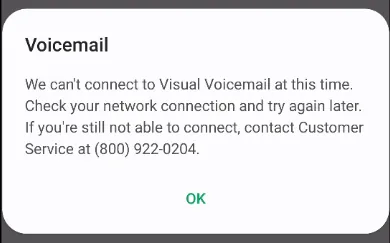
Verizon Wireless visual voicemail usually fails due to poor network connections or outdated app versions, which you can fix by toggling cellular data or updating your software. If your signal is weak, the app can’t sync with the server; ensure your data is active, as visual voicemail requires a stable connection to function.
Troubleshooting Common Voicemail Errors
This table helps you identify why your messages aren’t appearing and whether you can solve the problem yourself.
| Cause | How common | How to confirm it | Fix it yourself? |
|---|---|---|---|
| Weak cellular signal | Very common | Check signal bars | Yes |
| Outdated app version | Common | Check app store | Yes |
| Data plan restrictions | Common | Check account portal | Yes |
| Server-side outage | Occasional | Visit carrier status | No |
| Blocked background data | Rare | Check phone settings | Yes |
| Account suspension | Rare | Call customer support | No |
If you see fewer than two bars of signal, move to an open area or step outside. Signal strength below -110 dBm often prevents voicemail syncing entirely.
If your app is current, check if you have inadvertently toggled off “Background Data” in your system settings. This setting prevents the app from fetching new messages while the phone is locked.
Distinguish between a server outage and a local error by checking your carrier’s official status page. If the site shows green, toggle your Airplane Mode on for ten seconds to force a fresh handshake with the nearest tower.
Never assume the issue is your hardware if you can still send text messages. If texts go through but voicemails fail, the problem is almost always a provisioning error on your carrier’s end. In that case, only a support representative can reset your mailbox server profile.
Poor Cellular Network Connectivity
A weak signal prevents your device from communicating with the voicemail server. Visual voicemail isn’t a local feature; it relies on data packets sent over the air to display your inbox. If you’re in an area with one or no bars of reception, the app will fail to refresh or show new alerts. You can test this by toggling Airplane Mode on for 10 seconds and then off again to force a fresh handshake with the nearest tower.
If the signal is strong but the problem remains, ensure your mobile data is turned on. Visual voicemail doesn’t work over standard Wi-Fi alone; it needs a direct cellular data connection to the Verizon Wireless official support page to verify your account status.
If you have a data-only plan or your monthly allotment is exhausted, the service may be throttled or blocked entirely. You can verify your current data usage by logging into your account through your provider’s official application or website.
Outdated Application Software
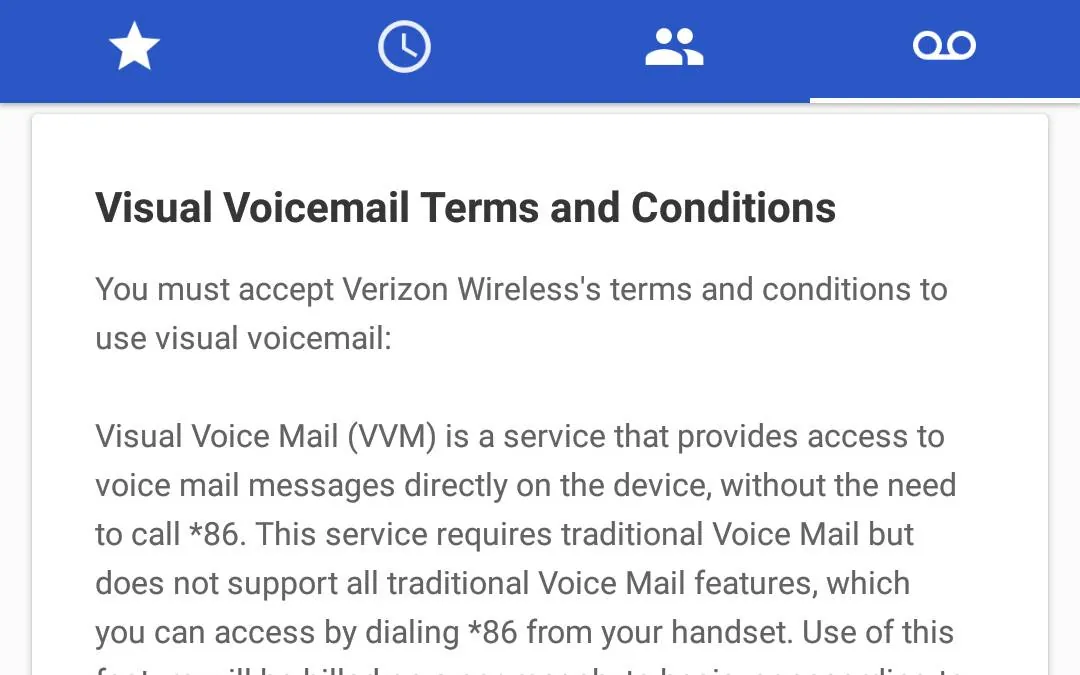
Apps that aren’t updated often lose the ability to talk to the carrier’s changing network infrastructure. Developers release patches to keep security tight and ensure the communication protocols remain compatible with newer phone operating systems. If you haven’t updated your voicemail app in several months, it might be stuck on an old version that the server no longer recognizes or supports.
Most users mistakenly assume that apps update automatically in the background. If your phone is set to “Wi-Fi Only” for updates, you may be running software that’s three or four versions behind while on cellular data. Check your app store settings to ensure automatic updates are enabled for both cellular and Wi-Fi connections.
To check for an update, open the app store on your smartphone and look at your list of installed applications. If you see an update button next to the voicemail app, install it immediately. After the update finishes, restart your phone to clear the temporary memory cache. This process usually takes about 5 minutes.
If the app still fails to load after a restart, uninstall the app, wait 30 seconds, and reinstall it from the same store. This forces the device to pull a fresh configuration profile from the network. If the app icon remains grayed out after reinstallation, your carrier account may require a manual provisioning refresh.
Incorrect Data and Sync Settings
Sometimes the phone’s internal settings block the background data that the voicemail app needs to run. If you have “Low Data Mode” or “Data Saver” enabled, your phone might be stopping the voicemail app from reaching the server when the screen is locked. This results in missing notifications until you manually open the app. You should look at your phone’s cellular settings menu to ensure background data is permitted for the voicemail service.
Check your battery optimization settings as well. If the operating system puts the voicemail app into “Deep Sleep” or “Restricted” mode to save power, it kills the sync process entirely. You must manually set the app to “Unrestricted” to ensure it remains active in the background.
If you have a dual-SIM phone, the voicemail service might be trying to sync through the wrong line. Ensure the primary line associated with your phone number is the one designated for data. If you recently changed your SIM card or moved to an eSIM, the network settings might need a reset.
You can perform a network settings reset in your phone’s general settings menu. Note that this will also remove saved Wi-Fi passwords and paired Bluetooth devices, so keep those credentials ready before you confirm the reset.
Rare Issues and System Limits
Account provisioning errors often stem from a carrier-side feature block. If your voicemail fails to initialize despite correct settings, check your account portal for a “Voicemail Provisioning” toggle. If it remains grayed out, call your carrier and specifically request a “re-provisioning of the mailbox feature” rather than general support.
Storage capacity limits trigger silent failures. The app requires a minimum of 500MB of free space to cache incoming audio files. If your system storage shows less than 1GB remaining, the app will stop fetching new messages entirely. Clear cache files from high-usage social media apps first to reclaim this space quickly.
Third-party security software frequently misidentifies cellular messaging ports as malicious traffic. If you use a VPN or an aggressive firewall, disable them during the initial setup. If the service connects immediately after, whitelist the carrier’s specific server domain in your security app settings.
Hardware damage is the final variable. Test your connection by attempting a standard voice call in a known strong-signal area. If the call drops or shows “No Service” while others have bars, your internal antenna is likely compromised, necessitating a professional hardware inspection.
Professional Support Requirements
Fixing these issues usually demands simple software adjustments or account checks you can perform from your home. If the problem is a software conflict, you might need a few minutes to clear your cache or reinstall the application. If the issue is with your account provisioning or a damaged antenna, you’ll need to contact your carrier’s technical support team or visit a local service store.
The cost of a repair depends on whether the issue is a simple account switch or physical hardware failure. Account-based issues are typically handled for free as part of your service agreement. If your phone requires a hardware repair, the cost varies significantly based on your remaining warranty period and your current insurance coverage. You can find your specific device warranty status by checking the settings menu under “About Phone” or by viewing your original purchase receipt from your carrier.
Most users mistakenly assume all hardware repairs require a fee. In reality, if your device is less than twelve months old, the manufacturer often covers defects under the standard limited warranty. Check your receipt for the exact purchase date before scheduling an appointment. If the screen is cracked or the device shows liquid damage, warranties rarely apply, and you should prepare for out-of-pocket costs that are inexpensive compared to buying a new device.
If you’re unsure whether the fault is internal or external, check your signal bars in a different location. If the signal remains absent in a new area, the issue is likely hardware-related. If the signal returns, your local cell tower is the culprit, and no repair is necessary.
Frequently asked questions
How long does it take for voicemail to sync?
It takes about 10 to 30 seconds for your inbox to sync when you have a strong 4G or 5G signal. If the app takes longer than a minute to refresh, it usually means your cellular connection is unstable or the app is struggling to reach the server. Moving to an area with better reception often resolves this delay instantly.
Is it safe to reset my network settings?
It’s safe to reset your network settings, but you’ll need to reconnect to your Wi-Fi networks and re-pair your Bluetooth devices afterward. This process doesn’t delete your personal photos, contacts, or apps. It only clears the saved network configurations that can sometimes become corrupted and block the voicemail service from connecting to the tower.
Why do I keep getting notification errors?
You keep getting errors because the app can’t reach the server to verify if a new message exists. This often happens if you have recently changed your plan, swapped your SIM card, or moved into a building with thick concrete walls that block cellular signals. Check your data connection first, then restart your phone to clear the notification queue.
Can Wi-Fi calling interfere with voicemail?
Wi-Fi calling doesn’t interfere with visual voicemail, but it can sometimes cause issues if your signal is switching rapidly between Wi-Fi and cellular. If you’re having trouble, try turning off Wi-Fi temporarily to see if the voicemail app syncs over cellular data. If it works on cellular, the issue is with the transition between your home internet and the carrier network.
What happens if I delete the app?
Deleting the app removes the local interface, but your messages stay stored on the carrier’s server. Once you reinstall the application from your official app store, your voicemails should download again automatically. If they don’t appear, it means the app needs to re-authenticate with your account, which usually happens as soon as you sign in with your phone number.
Does my data plan affect voicemail?
Your data plan affects voicemail because the service requires an active cellular data connection to download and display your messages. If you’re on a restricted plan or have used all your high-speed data, the carrier may block the background traffic the app needs. Check your data balance in your account portal to ensure you have enough allowance for the app to function.
Conclusion
If you have tried all the steps above and your voicemail is still not working, contact your carrier’s technical support to confirm that the feature is active on your specific line. They can perform a remote refresh of your account settings, which is often the final step needed to resolve persistent sync failures.
