
Dealing with hisense tv volume problems can be an incredibly frustrating experience when you’re trying to enjoy your favorite programs or movies. Whether the audio is cutting out, the volume is stuck at a certain level, or the sound is distorted, these issues often stem from simple settings conflicts, outdated software, or hardware communication errors. By systematically working through the audio path from the television’s internal settings to your external connections, you can usually restore your sound without needing a professional technician.
Key Takeaways
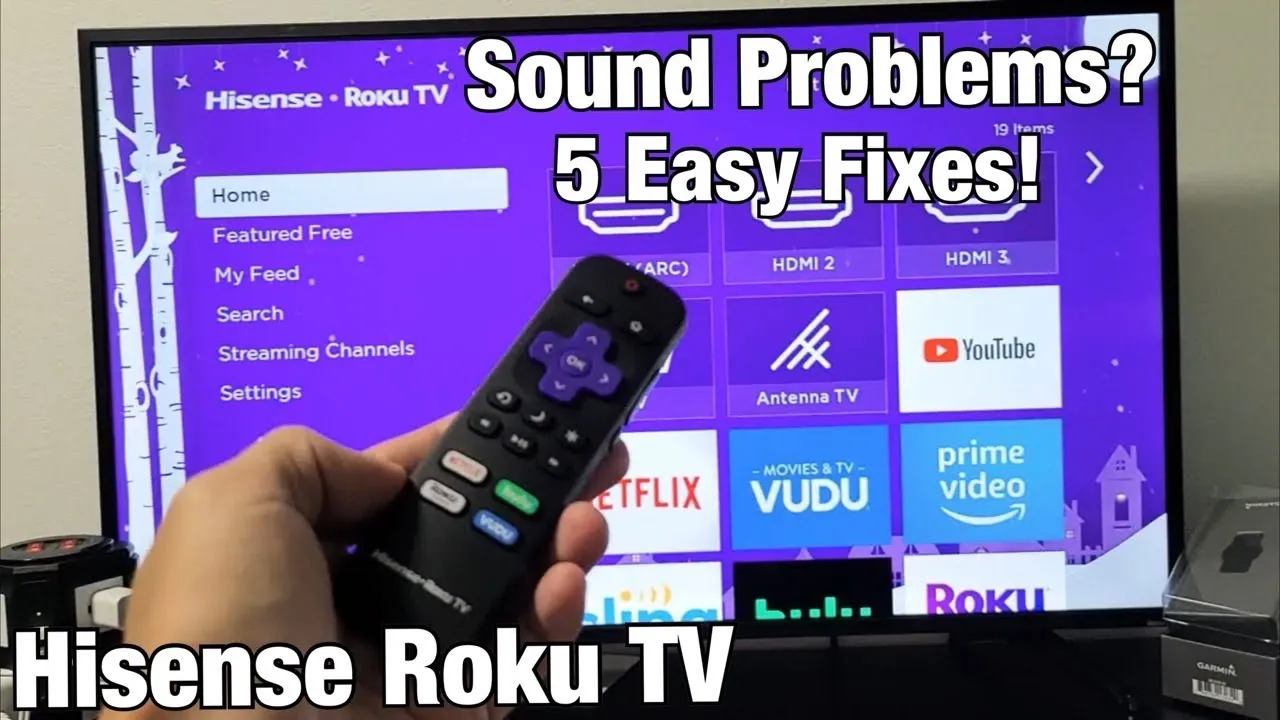
- Power cycling the television clears temporary memory glitches that often cause audio output issues.
- Checking the physical integrity of HDMI cables prevents signal drops that degrade sound quality.
- Updating the firmware ensures compatibility with modern streaming apps and external audio equipment.
- Resetting audio settings to factory defaults frequently resolves hidden configuration errors.
- Verifying your audio output path confirms whether the television is sending sound to the correct destination.
Troubleshooting Hisense Volume Problems
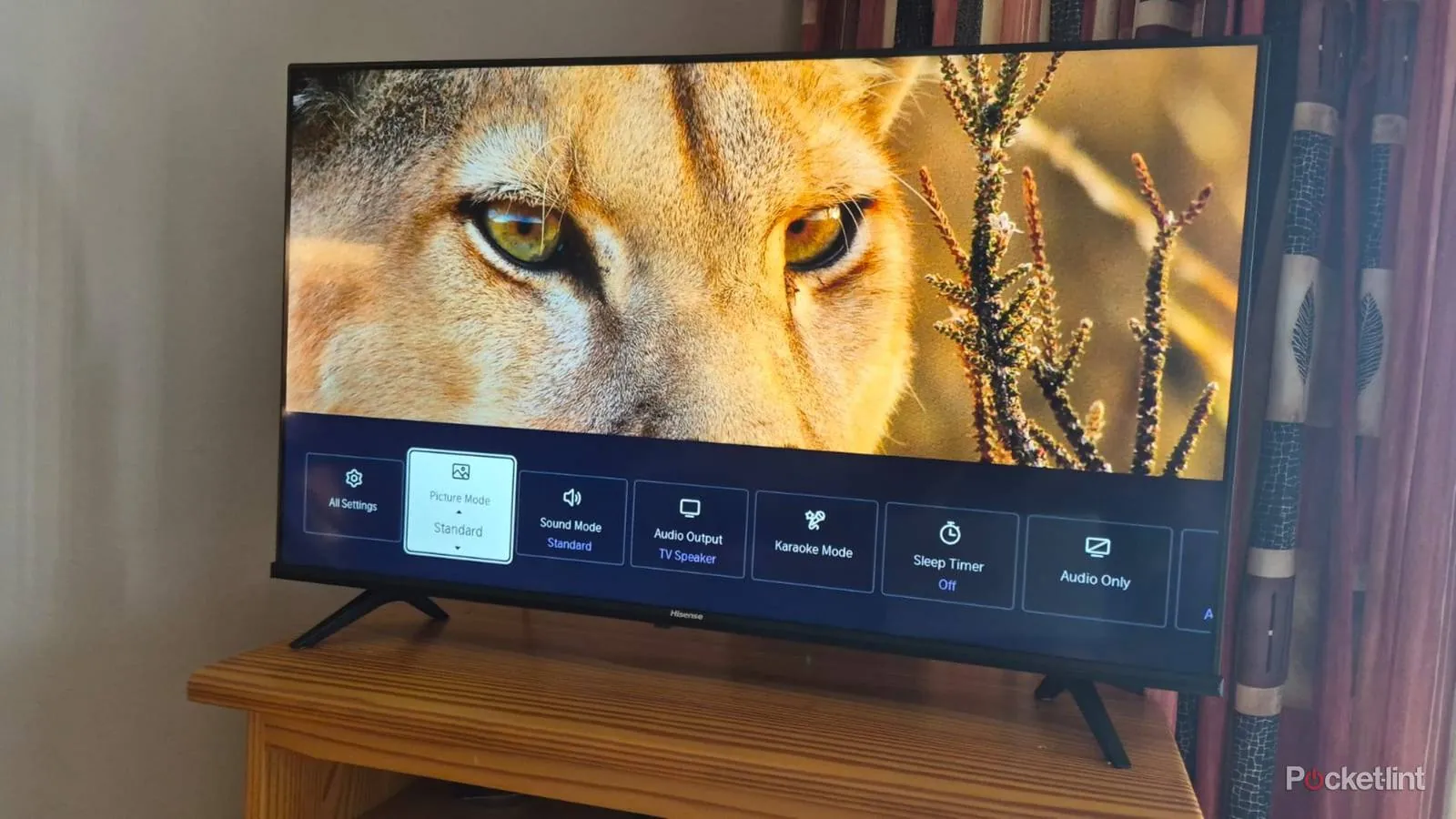
The most common cause for sound issues involves the television’s internal configuration. Before assuming the hardware is broken, navigate through the settings menu to ensure everything is toggled correctly. Start by checking the “Audio” or “Sound” menu on your Hisense interface. Ensure the output is set to “Internal Speakers” if you aren’t using a soundbar.
If the volume appears to be up but no sound comes out, toggle the “Mute” button on your remote control twice, as sometimes the software gets stuck in a silent state. Additionally, look for “Audio Output” modes like PCM, Auto, or Passthrough. Switching from Auto to PCM often resolves compatibility problems with older sound systems.
| Audio Setting | Purpose | Recommended Action |
|---|---|---|
| Audio Output | Selects speaker destination | Set to Internal Speakers |
| Digital Audio Out | Determines audio format | Change to PCM if silent |
| Balance | Adjusts left/right channel | Center at 0 |
| Lip Sync | Aligns audio with video | Set to 0 or Auto |
Is Your External Equipment Working?
If you’re using a soundbar or home theater receiver, the problem might not reside in the television at all. External devices rely on consistent signals, and if the HDMI or optical connection is loose, the handshake between the devices may fail.
First, unplug the HDMI cable from both the television and the soundbar, then firmly plug them back in. If you’re using an HDMI ARC or eARC port, ensure that the cable is rated for high-speed data transmission. You can find official guidance on HDMI ARC and eARC specifications to verify that your hardware meets the requirements for your specific audio setup.
Warning: Always power off and unplug your television and external audio devices before disconnecting or reconnecting high-definition multimedia interface cables to prevent electrical shorts.
How to Power Cycle Properly
A power cycle is more than just turning the television off and on again. It involves flushing the capacitors of stored electricity, which forces the operating system to perform a clean boot. To do this, turn off the television and unplug it from the wall outlet. Wait for at least sixty seconds to allow the internal components to discharge completely.
While the television is unplugged, press and hold the physical power button on the television chassis for thirty seconds. Plug the television back into the power source and turn it on using the remote. This simple hardware reset procedure solves approximately half of all persistent software-related audio glitches.
Checking for Firmware Updates
Hisense televisions run on operating systems like Google TV, Vidaa, or Roku, and these platforms require frequent updates to maintain functionality. If your firmware is outdated, it may struggle to communicate with newer streaming applications or external hardware. To check for updates, go to the “Settings” menu, select “System,” and look for “About” or “Software Update.”
If an update is available, install it immediately. Sometimes, an update will fail if the internet connection is unstable, so ensure your television has a strong Wi-Fi signal or is connected via an Ethernet cable before starting the process. Keeping your system software current is vital for long-term reliability.
Resolving HDMI Handshake Issues
An HDMI handshake occurs when the television and an external device agree on the audio format and signal strength. If this process fails, you might experience intermittent audio or no sound at all. To fix this, turn on your external device first, wait ten seconds, and then turn on the television.
This sequence allows the external device to establish its presence before the television begins polling its ports. If the problem persists, try swapping the HDMI cable with a known working spare. Even if a cable looks fine on the outside, internal shielding damage can cause significant signal transmission loss.
Why Is the Sound Distorted?
Distorted audio usually points to an equalization setting or a failing speaker diaphragm. If the sound is crackling or buzzing, enter the sound settings and look for an “Equalizer” or “EQ” menu. If you have customized the bass or treble levels, reset them to the flat or “Standard” position.
If the distortion persists, test the sound using a different source, such as a gaming console or a different streaming app. If the distortion only happens on one app, the issue is likely with the app itself or the content provider, rather than your hardware. If it happens everywhere, the internal speaker drivers may be physically damaged.
Managing Streaming App Volume
Sometimes, the issue isn’t the television, but a specific application. Apps like Netflix, YouTube, or Hulu have their own internal volume controls or audio settings that can conflict with the television’s master volume. If you notice that volume is low on one app but fine on others, navigate to that app’s settings menu within the television interface.
Check for “Audio Description” or “Night Mode” settings, which can significantly lower the dynamic range and volume of the audio. Disabling these features often restores the dynamic sound output to a normal, robust level.
Factory Resetting Your Television
If all else fails, a factory reset will return the television to its out-of-the-box state. This process deletes all user data, saved passwords, and customized settings, so perform it only as a last resort. To initiate this, navigate to the “Settings” menu, select “Support” or “System,” and look for “Reset to Factory Default.”
Once the process completes, you’ll need to set up your Wi-Fi and accounts again. This step is highly effective because it wipes out any corrupted system files that might be causing the audio controller to malfunction.
| Reset Type | Data Loss | Primary Benefit |
|---|---|---|
| Power Cycle | None | Clears temporary cache |
| Network Reset | Wi-Fi settings | Fixes connectivity drops |
| Factory Reset | All user data | Clears deep software bugs |
Inspecting Physical Connections
Physical ports can accumulate dust, lint, or debris over time, which prevents a clean electrical connection. Use a flashlight to inspect the HDMI, Optical, and RCA ports on the back of your television. If you see debris, use a can of compressed air to gently blow out the ports.
Never insert metal objects like paperclips or needles into these ports, as you could permanently damage the internal pins. Additionally, ensure that your RCA cables—if you’re using analog audio—are pushed firmly into the color-coded input jacks.
How Much Does Professional Repair Cost?
If you have tried all the troubleshooting steps and the sound is still not working, you may need a professional repair. The cost for a technician to diagnose and repair a Hisense television generally ranges between $150 and $450, depending on whether a main board or a speaker component requires replacement.
If the television is still under warranty, contact the manufacturer directly to avoid out-of-pocket expenses. Always ask for a written estimate before authorizing any work to ensure the repair service costs align with your expectations for the device’s remaining lifespan.
Pro Tip: If you suspect the internal speakers are blown, try connecting a pair of wired headphones to the headphone jack; if the audio is clear through the headphones, the problem is definitely limited to the television’s internal speakers.
Related guides
- High pH and Low Alkalinity in Hot Tub: How to Help and Fix It in 2026
- Push to Connect vs Crimp Fittings: Which Plumbing Fix to Use in 2026
Frequently Asked Questions
Why does my volume change by itself?
This is often caused by a feature called “Auto Volume” or “Night Mode” in your sound settings, which attempts to normalize volume levels between loud action scenes and quiet dialogue. It can also be triggered by a faulty remote control sending phantom signals. Try removing the batteries from your remote to see if the problem stops; if it does, the remote is likely the culprit.
Can a bad HDMI cable cause audio loss?
Yes, a damaged or low-quality HDMI cable is a frequent cause of audio loss. HDMI cables carry both video and audio data simultaneously. If the shielding is compromised or the pins are bent, the audio data packets may fail to reach the television, resulting in silence or intermittent clipping. Always use high-speed certified cables to ensure consistent data transfer between your devices.
What should I do if the volume bar is stuck?
If the volume bar appears on the screen and refuses to move, it usually indicates a software freeze or a stuck button on the remote. Perform a hard power cycle by unplugging the television for sixty seconds. If the issue remains, test the television using the physical buttons located on the side or bottom of the chassis to see if the volume responds to manual input.
Why is there no sound on Netflix?
Lack of sound on a specific streaming app is often due to a mismatch between the app’s audio output settings and the television’s capabilities. Ensure the app is set to “Stereo” or “Auto” rather than a format your television might not support, such as high-bitrate surround sound. Clearing the cache for that specific app in the “Applications” menu can also resolve internal software conflicts.
Does updating my TV fix sound issues?
Yes, firmware updates are designed to resolve bugs that affect hardware communication, including audio drivers. Manufacturers frequently release patches that fix compatibility issues with newer streaming services or external soundbars. If you’re experiencing persistent audio problems, checking for and installing the latest firmware update is one of the most effective ways to restore full functionality to your television’s audio system.
Conclusion
If the steps above don’t resolve your specific audio issues, your next step should be to visit the official Hisense support website to enter your television’s serial number. This will allow you to access model-specific documentation and determine if your device qualifies for a warranty claim or a localized technician visit.
