
A mechanical keyboard pays for itself when you type or game more than two hours a day, because the switches last 50 million keystrokes while a standard rubber-dome board wears out around 5 million, making the extra cost worth it provided your hands spend real time on them every week.
Three things change that math for you: how many hours you actually type, whether you share a room with someone who needs quiet, and which switch color you pick. The rest of this page walks through each one so you can check your own situation against it.
Who finds mechanical keyboards worth the extra cost
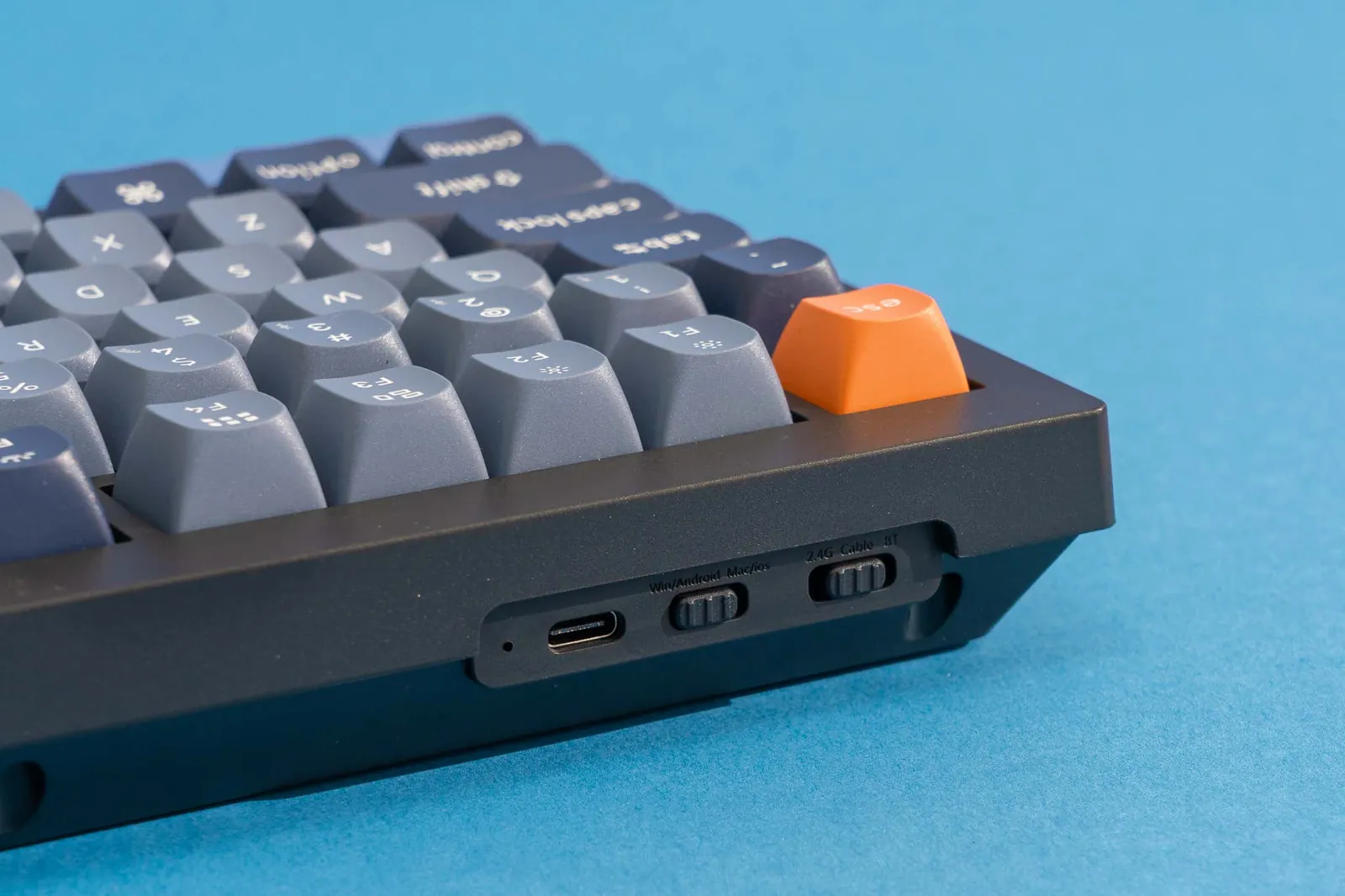
Three different people type this question into a search bar. The first works at a desk eight hours a day, already owns a basic membrane board, and feels wrist fatigue by noon. They need to know if spending $60–$120 stops that ache. The second plays games four nights a week, wants faster response times, and doesn’t care about noise. The third types maybe thirty minutes daily, mostly browsing, and just saw a glowing board online.
This page serves the first two readers. If you’re the third person, a $20 membrane keyboard does everything you need, and the money goes better elsewhere. A mechanical board only earns its price when your fingers hit keys thousands of times an hour.
The assumption here is that you’ll buy a standard full-size or tenkeyless board in the $50–$150 range, not a custom-built kit that runs past $300. Custom boards follow their own rules, and their cost has little to do with typing comfort. If your budget sits below $40, stick with a good membrane model instead. Trying to buy a mechanical board at that price usually means getting stuck with bad switches that feel worse than rubber domes.
What changes the value for you
Five things decide if the extra money comes back to you. We’ll start with the one people get wrong most often: the switch type. Pick a clicky blue switch for a shared office, and you’ll annoy everyone around you before lunch. If you work near others, choose brown or red switches; if you work alone and love feedback, blue is fine.
Typing volume moves the math next. At under one hour a day, a membrane board’s shorter lifespan doesn’t matter because it’ll still take years to wear out. Past three hours daily, the 50-million-keystroke rating of a Cherry MX or Gateron switch spreads the higher price across far more use. Count your active typing hours honestly — don’t guess.
Desk setup decides whether you even feel the benefit. A board that sits too high relative to your desk forces your wrists upward, canceling out the lighter actuation force. Check if your current desk height lets your forearms sit parallel to the floor before buying anything new.
Budget sets a hard line. Below $50, you’re paying for lights instead of good switches. Between $70 and $120, you get reliable brands like Keychron, Ducky, or Corsair. Above that, you’re paying for materials like aluminum cases or hot-swap sockets, which are nice but don’t make you type faster.
Software support matters if you want custom shortcuts. Some boards let you remap keys through QMK firmware documentation, while cheaper ones lock you into whatever the box gives you. If you rely on macros for work, check the manufacturer’s page for software compatibility before you buy.
How to pick the right mechanical keyboard
Follow these steps in order. Skipping ahead to step five because a board looks good online is the mistake that leaves people with a heavy, loud keyboard they hate using.
- Measure your desk width between your monitor stand and the edge. Subtract two inches. If the result is under 14 inches, you need a tenkeyless or 75% layout; a full-size board won’t fit without pushing your mouse off the pad.
- Decide your switch type based on noise tolerance. If you share a room, order a board with brown or red switches. If you work alone and want audible confirmation, blue switches are your match. Don’t compromise here — the wrong switch ruins the whole experience.
- Set your budget between $70 and $120 for a reliable daily driver. Go to the manufacturer’s official page and confirm the switch brand listed. Avoid any listing that says “mechanical-feel” instead of naming a real switch maker.
- Check the keycap material on the product specs. ABS plastic shines and gets slippery after six months of daily use. PBT plastic costs slightly more but stays textured. If the spec sheet doesn’t say PBT, assume it’s ABS.
- Look for a detachable USB-C cable. A fixed cable means the whole board becomes trash if the wire frays inside. Detachable cables cost nothing to replace.
- Read the return policy before clicking buy. You can’t judge a switch’s feel from a video. You need to type on it for at least three days. If the seller charges a restocking fee over 10%, find another store.
- Once it arrives, type a 500-word document immediately. Pay attention to whether your fingers bottom out hard or land softly. If every keystroke sends a shock up your wrist, the switches are too heavy for your typing style.
The judgment call that separates a good purchase from a regrettable one happens in step seven. Specs tell you the actuation force in grams, but they don’t tell you if your specific finger strength matches it. If your wrists ache after that first test document, swap the board before the return window closes. Don’t try to “get used to it.”
Situations and what they demand
Different setups need different boards, and buying the wrong layout wastes money just as fast as buying cheap switches. Here’s how the common situations break down.
| Your setup | Best layout | What it takes | Watch out for |
|---|---|---|---|
| Shared office desk | Tenkeyless, brown switches | $80–$100, five minutes setup | Loud clicky switches anger coworkers |
| Small apartment gaming | 65 percent, red switches | $70–$90, software install needed | Missing function row slows some games |
| Full spreadsheet work | Full size, tactile switches | $90–$130, needs wide desk | Heavy boards slide on smooth desks |
| Travel and laptop use | Low profile, scissor-mechanical | $100–$150, pairs via Bluetooth | Battery dies mid-flight without charging |
| Programming all day | 75 percent, custom mapped | $80–$120, requires remapping time | No number pad slows data entry |
| Streaming and recording | Silent linear switches | $90–$140, foam dampening added | Microphones pick up loud key clicks |
If your situation isn’t here, look at the column that matches your loudest constraint — space, noise, or missing keys — and follow that row’s advice.
Details that separate good boards from bad ones
Switch mounting and plate material
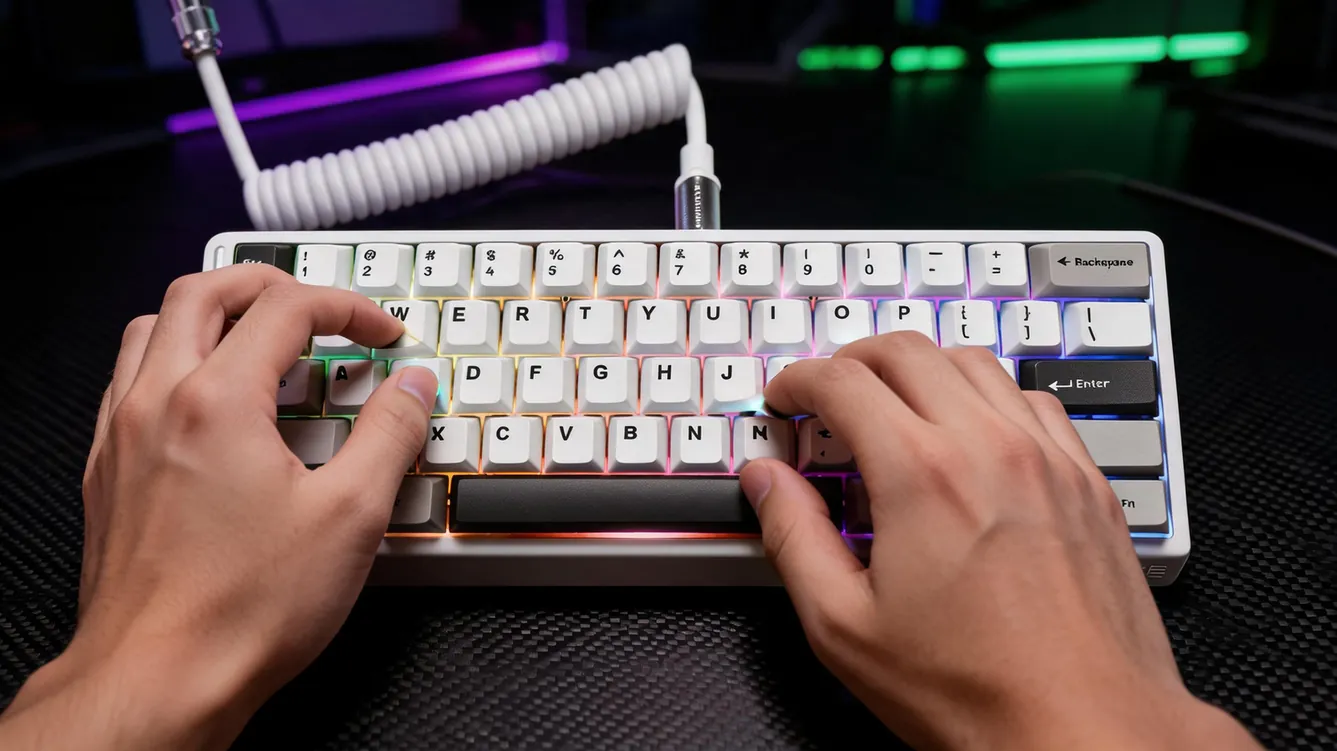
A switch soldered directly to the circuit board stays put, but replacing one broken switch means desoldering iron work most people can’t do safely. Hot-swap sockets let you pull a switch out with a small tool and push a new one in. The trade-off is that hot-swap boards cost $15–$30 more upfront. If you plan to keep the same board for five years, pay the extra now. If you upgrade every two years, soldered is fine.
The metal plate sitting under the switches changes the sound and feel. Steel plates make the keystroke feel rigid and produce a higher-pitched ping. Aluminum flexes slightly, giving a softer landing. Brass is heaviest and quietest. You can check the plate material in the manufacturer’s teardown specs or product manual. If it just says “metal,” expect steel.
Stabilizers on long keys
The spacebar, shift, and enter keys are wider than letter keys, so they use metal wires called stabilizers to stay level. Bad stabilizers rattle when you press the edge of the spacebar. Good ones have lubricant applied at the factory to stop that metal-on-plastic ticking.
Press the far left corner of the spacebar when you unbox the board. If it rattles louder than the center, the stabilizers are cheap. Fixing them yourself requires pulling keycaps, removing the stabilizer wire, and applying dielectric grease — a job that voids warranties on sealed boards. Leave that repair to a technician if the board is still covered.
Mechanical keyboard problems and fixes
Problems with mechanical boards usually show up in the first week. Match what you hear or feel to the cause below before assuming the board is broken.
| What you notice | What it usually means | What to do first | How to stop it again |
|---|---|---|---|
| Key chatters, double types | Dust inside switch housing | Blow compressed air into switch | Keep cover on when unused |
| Spacebar rattles loudly | Dry or loose stabilizer wire | Press center of spacebar instead | Apply dielectric grease to wire |
| Board disconnects randomly | Loose USB-C port or bad cable | Swap the detachable cable first | Don’t yank cable sideways |
| Keys feel scratchy, rough | Unlubricated factory switch stems | Type for a week to break in | Buy pre-lubed switches next time |
| Backlight flickers on one key | LED solder joint cracked underneath | Turn off RGB lighting entirely | Contact manufacturer for repair |
| Wrong characters appear | Keyboard set to wrong OS layout | Toggle the physical Mac/Windows switch | Label the switch position clearly |
If compressed air and a cable swap don’t fix a problem, the fault is inside the circuit board. Opening the case to resolder joints requires electronics training. Take it to a repair shop that handles PCB work rather than risking a short circuit.
Rules and standards that apply
Mechanical keyboards fall under general consumer electronics regulations, not specialized safety laws. In the United States, the Federal Communications Commission requires any board with wireless Bluetooth or radio-frequency features to carry an FCC ID, proving it doesn’t interfere with other signals. You’ll find this ID printed on the sticker underneath the board. Wired-only USB boards skip this requirement.
For electrical safety, look for a UL or ETL mark on the power specifications if the board plugs directly into a wall outlet — though almost all mechanical keyboards draw 5 volts through USB and don’t need this. The USB Implementers Forum sets the standard for USB-C connections, ensuring the cable delivers the correct voltage without frying the controller chip.
Warranty terms vary entirely by manufacturer. Companies like Corsair, Razer, and Logitech typically offer two-year limited warranties covering switch failure and dead LEDs. Smaller enthusiast brands might offer one year. Read the warranty card inside the box before throwing it away. Modifying the firmware, opening the case, or desoldering switches usually voids that coverage instantly. If your country has mandatory consumer protection laws beyond the manufacturer’s warranty, check your local consumer rights agency’s website for the exact duration.
What you actually spend
The price tag on the box isn’t the final number. A reliable mechanical keyboard with genuine PBT keycaps and branded switches costs between $70 and $120 today. Anything advertised as “mechanical” under $40 almost always uses clone switches with inconsistent springs, meaning one key feels heavier than the next. That inconsistency forces your fingers to adjust constantly, causing the very fatigue you bought the board to avoid.
Beyond the board itself, budget $15 for a wrist rest if the keyboard sits higher than your membrane board did. Mechanical cases are thicker, often adding half an inch of height. Without a rest, your wrists bend upward.
Replacement parts are where the long-term math lives. A single replacement switch costs about $0.50 to $1.00 if your board has hot-swap sockets. A new detachable USB-C cable runs $8 to $15. Compare that to a membrane board where one failed key means trashing the entire $25 unit. Over five years of daily typing, replacing three switches and one cable keeps a mechanical board running for under $20 in maintenance.
The honest limit is that prices shift with supply chain costs for copper and plastics. Check the manufacturer’s official store page for today’s actual figure rather than trusting a review written two years ago.
Keeping your mechanical keyboard working
Dust is the main enemy of mechanical switches. When debris falls past the keycap into the switch housing, it blocks the metal contact leaf from closing cleanly, causing missed inputs or double-typing.
Pull the keycaps off once every three months using a wire keycap puller — never pry them with a screwdriver, which snaps the plastic stem underneath. With the caps off, turn the board upside down and tap it gently. Follow that with short bursts of compressed air held two inches away. Don’t hold the can upside down, or liquid propellant will spray onto the circuit board.
If you spill water or coffee, unplug the USB cable within seconds. Don’t plug it back in to “test” it. Remove all keycaps, stand the board vertically on its edge, and leave it in a dry room for 48 hours. Rice doesn’t help here; airflow does.
Signs it needs attention again: if a key requires noticeably more force to press than its neighbors, dirt is building up inside that specific switch. Clean it before the debris causes the switch to fail completely.
When a mechanical keyboard is the wrong choice
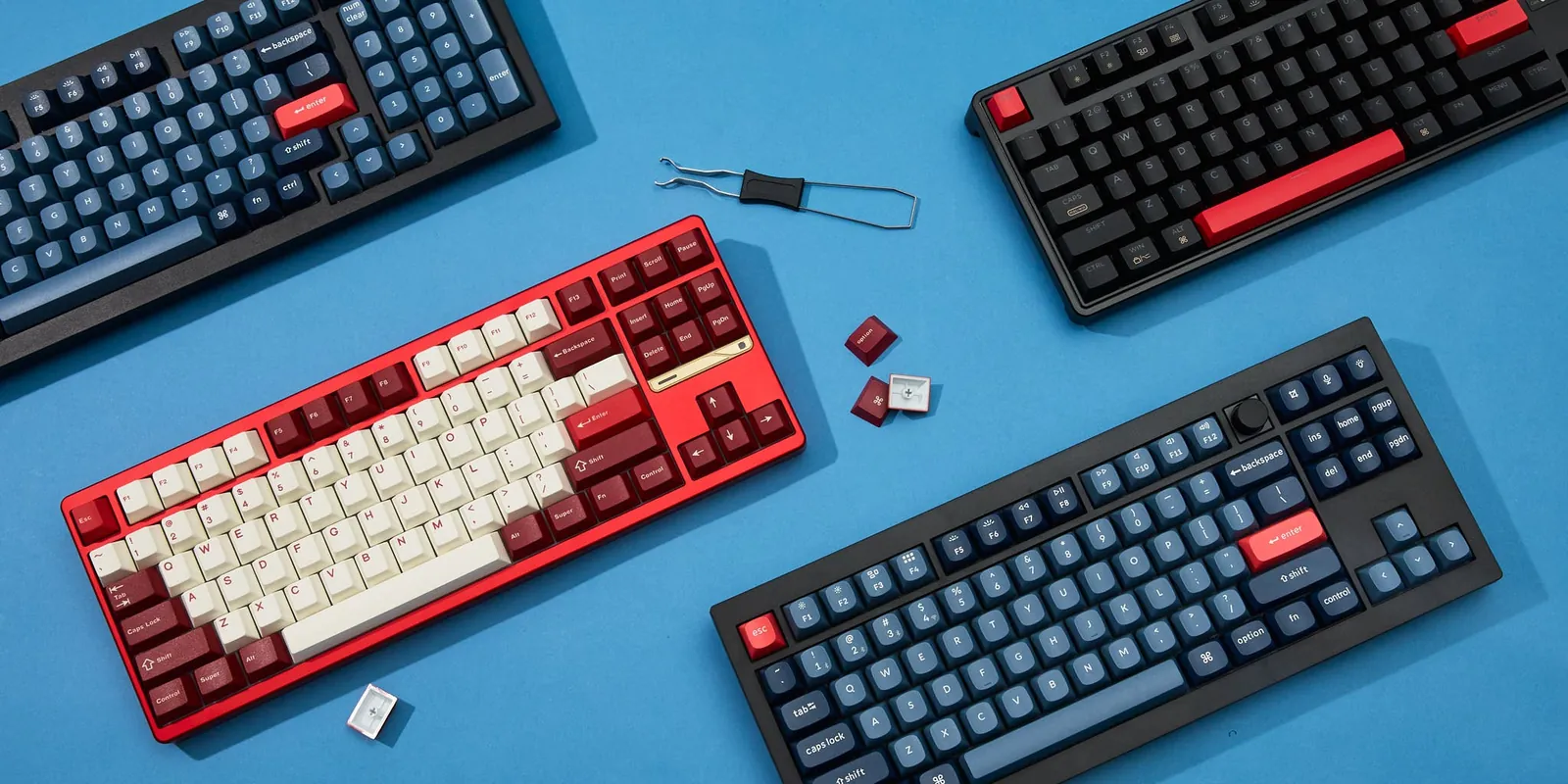
This advice assumes you type or game heavily at a stationary desk. If that’s not you, a mechanical board is the wrong tool.
If you travel daily and work from coffee shops or airplane trays, the weight kills the idea. A standard mechanical board weighs 2 to 3 pounds, compared to a laptop’s built-in keys or a thin membrane board under half a pound. Buy a low-profile scissor-switch keyboard designed for travel instead.
If you record audio or voice calls at your desk, even “silent” mechanical switches produce a bottom-out thump that condenser microphones pick up clearly. Membrane keyboards absorb that impact in their rubber dome layer. Stick to a high-quality membrane board for recording setups.
If your budget is strictly under $40, don’t buy the cheapest mechanical option. You’ll get inconsistent key weights and wobbly keycaps that feel worse than a $20 membrane board. Save the money until you can afford the $70 baseline where quality starts. Attempting to solder or rewire a failing cheap board risks electrical shorts — take hardware repairs to a certified electronics technician.
Frequently asked questions
How long do mechanical keyboards last?
Fifty million keystrokes per switch is the standard rating for Cherry MX and equivalent clones, which translates to roughly 10 to 15 years of typing eight hours daily. You can verify your specific switch’s rated lifespan on the manufacturer’s specification sheet.
Can I use a mechanical keyboard with a laptop?
Yes, any laptop with a USB-A or USB-C port accepts a mechanical keyboard immediately without drivers. Wireless models pair via Bluetooth the same way headphones do. The laptop accepts input from both keyboards simultaneously unless you manually disable the built-in one in settings.
Why are mechanical keyboards so heavy?
They contain a steel or aluminum mounting plate beneath the switches to prevent the circuit board from flexing during hard typing. That metal plate adds 1 to 2 pounds. Plastic-cased mechanical boards exist but flex uncomfortably under fast typists.
Is it safe to wash mechanical keyboard keycaps?
Yes, if you remove them from the board first. Soak the plastic keycaps in warm water with dish soap for 30 minutes, then rinse and air-dry completely. Never submerge the keyboard base itself, as water destroys the electronic circuit board permanently.
What happens if a mechanical switch breaks?
On a hot-swap board, you pull the dead switch out with a removal tool and push a new one in without soldering. On a soldered board, the key stops registering entirely until a technician desolders the broken switch and solders in a replacement.
Does switch color actually matter?
Yes, the color dictates the physical behavior of the spring inside. Blue switches click audibly and resist slightly at the actuation point. Red switches push straight down smoothly with no click. Brown switches offer a tactile bump without the loud noise.
How long does it take to get used to one?
Three to seven days of continuous typing is the typical adjustment period for muscle memory. Your fingers must learn the exact point where the switch activates so you stop slamming keys to the bottom. Typing speed usually drops 10 percent on day one before recovering.
Are mechanical keyboards better for your wrists?
They can be, because mechanical switches actuate with 45 to 60 grams of force, meaning you don’t need to press the key fully down to register a letter. However, the taller case height requires a wrist rest to maintain a neutral angle.
Getting started with your mechanical keyboard
Measure your desk space today and pick the layout size that fits without crowding your mouse. Order a board with brown or red switches in the $70 to $120 range, and type a full page the moment it arrives to test the feel. If your wrists ache or the spacebar rattles loudly out of the box, start the return process immediately rather than hoping it improves with time.
Related guides