
Is your Pentair Intellicenter app not working when you need it most? You rely on this app to control your pool settings easily, but now it’s causing frustration instead.
Don’t worry—you’re not alone, and there are clear steps you can take to fix the problem fast. Keep reading to discover simple solutions that will get your app back up and running smoothly, so you can enjoy your pool without any hassle.
Common Issues With Pentair Intellicenter App
The Pentair Intellicenter app helps control your pool equipment easily. Sometimes, users face problems that stop the app from working properly. These common issues can cause frustration and disrupt your pool management.
Understanding these problems can help you fix them faster. The app might not connect to the controller, or it could be slow and unresponsive. Error messages may appear, confusing users. Software updates can also cause new problems.
App Won’t Connect To Controller
The app may fail to link with the pool controller. This issue often happens due to Wi-Fi problems or incorrect login details. The controller might be offline or too far from the router. Restarting the controller and checking the network can help.
Slow Or Unresponsive Interface
The app can become slow or freeze during use. This usually occurs if the phone’s memory is low or the app needs an update. Clearing the app cache or restarting your device often improves speed. A weak internet connection can also cause delays.
Error Messages And Codes
Users sometimes see error codes on the app screen. These codes signal specific issues like connection failures or system errors. Checking the Pentair support site helps identify these errors. Following recommended steps can resolve most errors quickly.
Problems After Software Updates
Updates aim to improve the app but can cause new bugs. Some features might stop working or behave oddly after updating. Rolling back to the previous version or reinstalling the app may fix these issues. Waiting for a patch from Pentair is also an option.
Basic Troubleshooting Steps
Basic troubleshooting helps fix many app problems quickly. Start with easy checks. These steps solve most issues without technical help. Follow each step carefully for best results.
Try these basic fixes before contacting support. They save time and often restore app function fast.
Restarting The App And Device
Close the Pentair Intellicenter app completely. Remove it from your device’s recent apps list. Wait a few seconds. Then open the app again. This refreshes the app and clears minor errors.
Restart your phone or tablet next. Power off the device fully. Wait about 10 seconds. Turn it back on. This resets network connections and app performance.
Checking Wi-fi And Network Settings
Check your device’s Wi-Fi connection. Make sure it is connected to the correct network. The Intellicenter app needs a stable Wi-Fi link to work well.
Try toggling Wi-Fi off and on. Restart your router if needed. Confirm no firewall or VPN blocks app access. Use a strong signal area to avoid interruptions.
Verifying Controller Power And Status
Ensure the Intellicenter controller is powered on. Check all cables and power sources. The controller must be running for the app to connect.
Look for status lights on the controller. Green lights usually mean normal operation. Red or blinking lights can signal errors. Consult your manual for specific light codes.
Advanced Fixes For Connectivity
Fixing connectivity problems with the Pentair Intellicenter app sometimes requires advanced steps. Basic troubleshooting may not solve deeper issues. These fixes focus on network settings, device pairing, and software updates. They help restore a smooth connection between the app and your pool controller.
Resetting Network Settings
Start by resetting your device’s network settings. This clears old connections and possible errors. On your phone or tablet, go to the settings menu. Find the option to reset network settings and confirm the action. After the reset, reconnect to your Wi-Fi network. Try opening the Intellicenter app again to check if it works.
Re-pairing The Controller
Sometimes the app loses connection with the controller. Re-pairing the devices can fix this. Open the Intellicenter app and go to the device list. Remove the existing controller if it appears. Follow the app’s instructions to add a new controller. This creates a fresh connection between your phone and the pool system.
Updating Firmware And App Versions
Outdated software often causes connectivity issues. Check for updates on both the app and the controller’s firmware. In the app store, find the Intellicenter app and update it if needed. For firmware, access the controller’s settings menu. Download and install the latest firmware version. After updating, restart the app and controller to apply changes.

Credit: www.reddit.com
Preventive Tips For Smooth Operation
Keeping the Pentair Intellicenter app running smoothly helps avoid frustration. Simple steps can prevent most problems. Regular care keeps your system reliable and easy to use.
Follow these tips to maintain your app and controller. Protect your setup from common issues and enjoy consistent performance.
Keeping Software Up To Date
Check for app updates often. Updates fix bugs and add new features. Running the latest version improves stability and security. Set your device to update apps automatically. Avoid using outdated software that causes errors.
Regular Controller Maintenance
Clean the controller and check connections regularly. Dust and moisture can damage parts. Inspect wires for wear and tear. Replace any damaged cables promptly. Restart the controller occasionally to refresh the system.
Optimizing Network Environment
Use a strong Wi-Fi signal near the controller. Weak signals cause connection drops. Place your router close or use a Wi-Fi extender. Limit devices that use the same network. Avoid placing the controller near metal objects or thick walls.
When To Contact Pentair Support
Knowing when to contact Pentair support is key to fixing Intellicenter app issues fast. Some problems can be solved at home. Others need expert help. Recognizing these situations saves time and avoids frustration.
Identifying Hardware Failures
Hardware problems often cause app malfunctions. Look for signs like no power, broken buttons, or strange noises. If the controller does not respond, hardware failure might be the cause. Resetting the device will not help in this case. These problems need professional checks to avoid damage.
Accessing Professional Assistance
Pentair support offers expert advice for complex issues. Contact them when software fixes do not work. They guide you through troubleshooting steps. Sometimes, remote diagnostics can find the problem quickly. Support is also necessary for updates and advanced settings help.
Warranty And Service Options
Check your product warranty before contacting support. Many repairs or replacements may be covered. Pentair provides service options under warranty terms. Knowing this can reduce repair costs. Keep your purchase information ready to speed up the process.

Credit: www.reddit.com
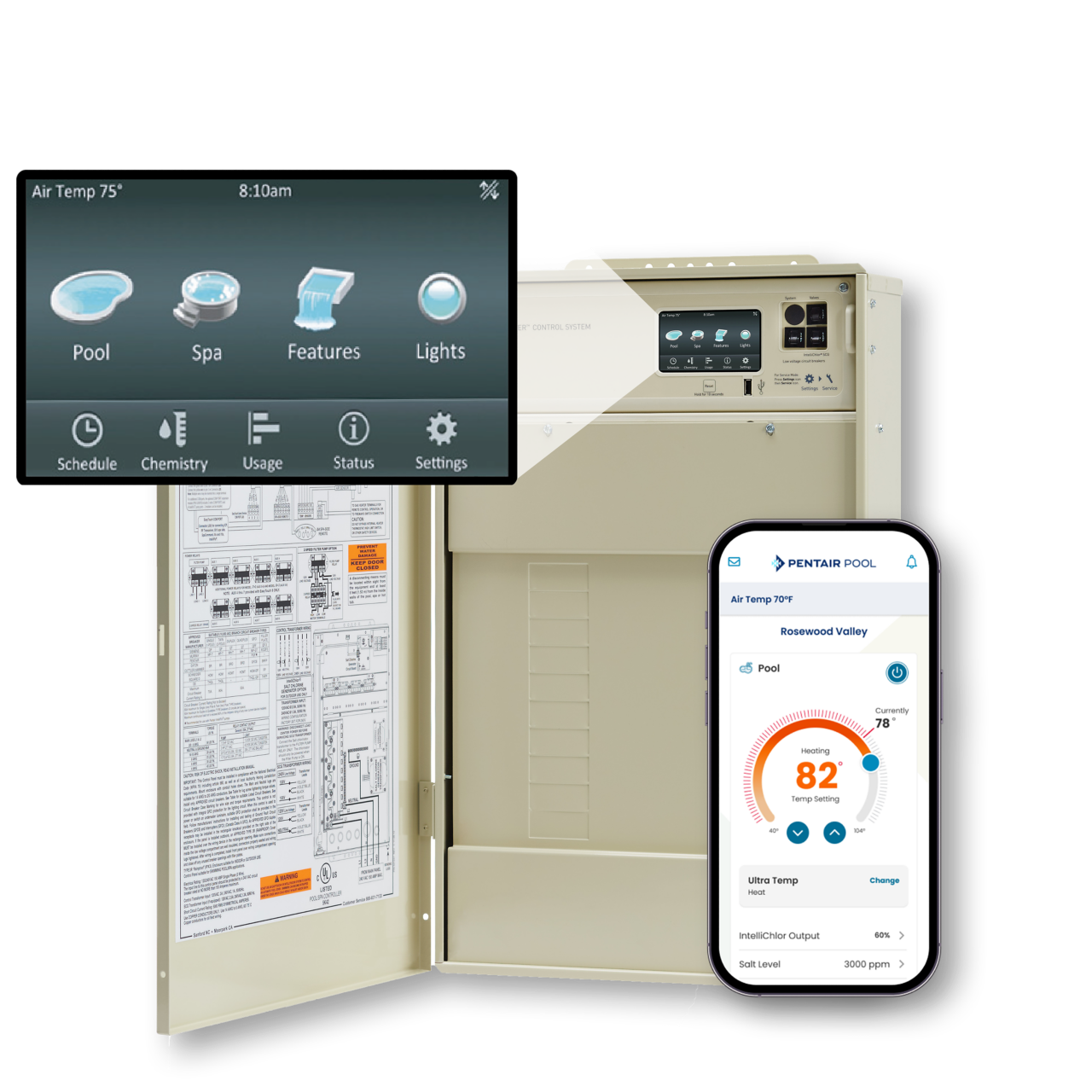
Credit: www.pentair.com
Frequently Asked Questions
Why Is My Pentair Intellicenter App Not Connecting?
The app may not connect due to Wi-Fi issues or server downtime. Check your internet and Pentair’s status page for updates.
How Do I Fix Pentair Intellicenter App Login Problems?
Ensure your username and password are correct. Reset your password if needed and update the app to the latest version.
Can App Updates Cause Pentair Intellicenter App Failures?
Yes, outdated or buggy updates can cause problems. Always install the latest stable app version from official stores.
What To Do If Pentair Intellicenter App Shows No Data?
This can happen if the controller is offline or disconnected. Verify your device’s power and network connections.
How To Reset The Pentair Intellicenter App Settings?
You can reset app settings in the app menu or reinstall the app. This often fixes minor glitches.
Why Does The Pentair Intellicenter App Freeze Or Crash?
Freezing may result from low device memory or app conflicts. Restart your phone and close other apps before use.
How To Improve Pentair Intellicenter App Performance?
Use a strong Wi-Fi signal and keep your phone updated. Clear the app cache regularly to help it run smoothly.
Conclusion
Pentair Intellicenter app issues can disrupt pool management. Try restarting your device and checking your internet connection. Make sure the app is updated to the latest version. Sometimes, reinstalling the app fixes many problems. If problems persist, contact Pentair support for help.
Staying patient and following these steps usually solves the issue. Your pool system will work smoothly again soon. Keep these tips handy for future troubleshooting.