
To reset your device, press and hold both the volume up and volume down buttons simultaneously for 10 seconds until you see a factory reset prompt on the screen. Resetting your Lenovo Smart Clock is a helpful solution when the device stops responding or if you need to clear your personal data before selling it.
Preparing your Lenovo Smart Clock
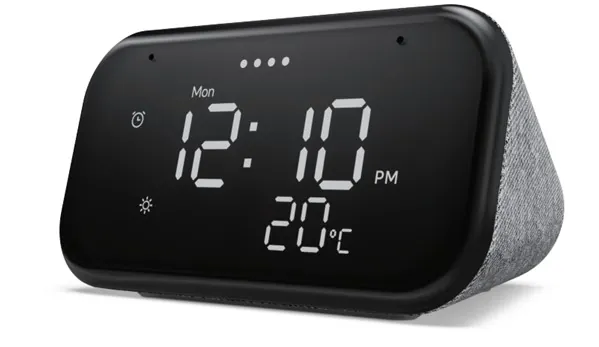
Before you start the reset process, ensure you have the following items ready to avoid interruptions. Don’t attempt to reset your device if it’s currently installing a firmware update, as this can cause software corruption. If the screen displays a progress bar or a spinning icon, wait until the device returns to its idle clock face before proceeding.
-
Power adapter: Use the original cable provided in the box to ensure the device receives steady voltage. If you have lost your original adapter, only use a replacement that matches the exact voltage and amperage specifications listed on the back of your unit. Using a replacement adapter that doesn’t meet the device’s voltage requirements can damage the unit, so ensure the replacement matches the original specifications.
-
Stable Wi-Fi connection: You need this later to reconfigure the device after the reset finishes. Ensure your smartphone is connected to the same 2.4GHz network you intend to use for the clock, as many smart devices struggle to pair when the phone is on a 5GHz band.
-
Google Home app: Ensure the latest version is installed on your smartphone or tablet. If you haven’t updated the app in over a month, perform a manual update through your app store to prevent connectivity errors during the handshake phase.
-
Google account credentials: You’ll need your login email and password to set up the device again. If you use two-factor authentication, keep your secondary device nearby to approve the login request immediately.
-
Time: Set aside at least 10 minutes to complete both the reset and the follow-up setup. If you’re setting up the device in a new home, allow an extra five minutes to update the location settings and sync your local weather preferences. If the device fails to connect after three attempts, unplug it for 60 seconds to clear the cache before trying again.
Steps to Perform a Factory Reset
Follow these steps carefully to return your device to its original factory state. This action deletes all saved alarms, Wi-Fi passwords, and linked Google accounts from the hardware.
- Keep the clock plugged into a working wall outlet.
- Locate the two volume buttons on the top of the clock.
- Press and hold both the volume up and volume down buttons at the same time.
- Maintain this pressure for 10 full seconds until the screen changes.
- Release the buttons when you see the factory reset confirmation message appear on the display.
- Wait for the device to restart, which usually takes between two and five minutes.
- Open the Google Home app on your phone once the screen shows “Set me up” to begin the re-pairing process.
Careful: Don’t unplug the power cord while the device is restarting. If the power cuts out during this process, the operating system may fail to load correctly.
Tip: If the buttons feel stuck or don’t respond, clean the area around them with a dry microfiber cloth to remove dust or sticky residue that might prevent a firm contact.
Situations Affecting Reset Time
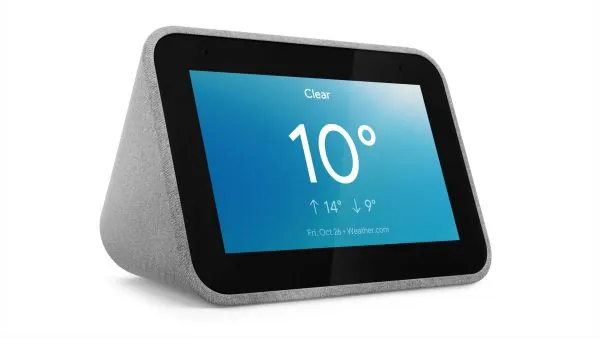
The time required to complete a reset depends on the model version and your internet speed during the re-setup phase. Starting with a clean state is always safer than trying to force a software update on a device that’s already failing.
| Situation | Time Needed | What is Different | Watch For |
|---|---|---|---|
| Standard Reset | 5 Minutes | Default settings apply | Screen prompts |
| Firmware Update | 10 Minutes | Downloads new software | Progress bar |
| Network Re-sync | 15 Minutes | Requires Wi-Fi login | App connectivity |
| Account Login | 5 Minutes | Links Google services | App verification |
If your download speed drops below 5 Mbps, add ten minutes to the firmware update estimate to account for packet loss. Most users mistakenly interrupt the process when the progress bar stalls at 99 percent. This pause is normal as the system verifies file integrity; pulling the power cord here often corrupts the boot sector.
Apply this rule: if the status light pulses white, the device is writing data and must remain plugged in. If the light turns solid red, the process has failed and you should initiate a hard reboot. Always start with a simple factory reset before attempting more complex troubleshooting steps like changing router settings or updating your home network.
Confirming a Successful Reset
You’ll know the process was successful when the device greets you with a welcome message in multiple languages. The screen should show a prompt to open the Google Home app on your phone. If you see your old alarms or weather settings still active, the reset didn’t finish correctly.
Most users fail because they release the buttons too early. You must hold them firmly for the full 10 seconds until the specific reset text appears on the display panel. If you release early, the device simply reboots into its previous state, wasting your time.
If the device remains stuck on a logo screen, check that your power outlet is delivering constant electricity. A loose connection during the firmware wipe can corrupt the boot sequence. If the logo persists for more than five minutes, unplug the power cable, wait thirty seconds, and restart the sequence from the beginning. If the device still fails to boot after three attempts, contact the manufacturer for further support.
Regulatory Standards and Aftercare
The device must be managed according to the guidelines set by Google regarding smart home hardware and data privacy. Once the reset is complete, you should record the new device ID if you’re using it in a business environment or for inventory tracking. The device will remain in a “ready to pair” state indefinitely until you link it to a new Google account.
If you’re experiencing persistent hardware failures or if the device fails to reset after three attempts, you should contact the manufacturer. Don’t attempt to open the casing or repair the internal components yourself, as this voids your warranty and poses a risk of electrical shock. Only authorized service centers should handle internal hardware repairs or battery replacements.
If the status LED flashes orange for more than ten minutes during a setup attempt, the internal firmware has likely corrupted. In this specific case, you must perform a hard power cycle by disconnecting the power cable for sixty seconds before trying the reset sequence again. If the light remains solid red after the cycle, contact the manufacturer for further support. Always keep your original purchase receipt to verify the warranty status during these service requests.
Alternative Reset Methods
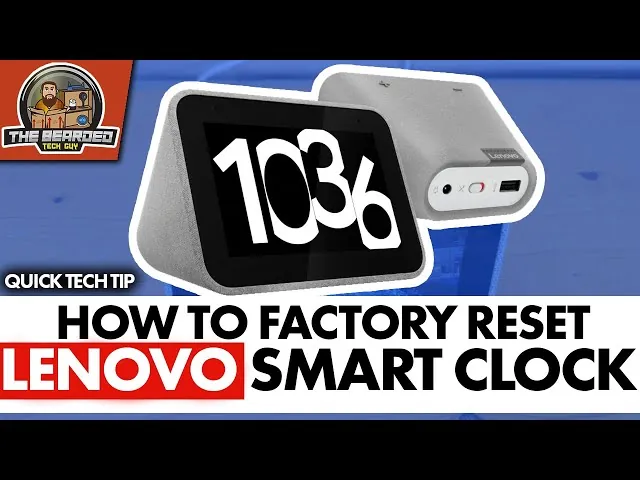
Using the Google Home App
If you still have access to your device through the app, you can trigger a reset remotely. Open the device settings in the app, select “Remove device,” and then perform a factory reset from the menu. This is the easiest way to clear your data if the physical buttons are difficult to press or are unresponsive.
Power Cycling the Hardware
Sometimes a simple power cycle fixes minor glitches without losing data. Unplug the clock from the wall, wait 60 seconds, and plug it back in. This doesn’t perform a factory reset, but it forces the software to reload from the last saved state, which often resolves temporary freezing or audio issues.
Router Network Refresh
If your clock can’t connect to the internet, the problem might be your Wi-Fi rather than the device. Restart your router and wait for the network to fully stabilize before trying to connect the clock. If the device still fails to sync, only then should you proceed with a full factory reset to clear old network credentials.
Frequently asked questions
How long does a factory reset take?
A factory reset typically takes 5 to 10 minutes to complete. This duration covers the time required for the device to wipe its internal memory and reboot to the setup screen. If a firmware update is required immediately after the reset, please allow an additional 5 minutes for the installation to finish.
Is it safe to reset my clock?
Yes, it’s perfectly safe to reset your clock as it’s a standard procedure designed by the manufacturer. Resetting the device won’t damage the hardware, though it will erase all your personal data, such as linked accounts and custom alarms. Ensure you have your Google account login information ready, as you’ll need it to reconnect the device to your home network after the process is finished.
What happens if the reset fails?
If the reset fails, the device will likely stay on the boot logo or show a blank screen. This usually happens if the power supply is unstable or if the buttons weren’t held for the full 10 seconds. Try unplugging the power for one minute, then attempt the button combination again. If it still fails, you should contact official support to see if your unit requires a professional hardware inspection.
How do I know if the reset worked?
You’ll know the reset worked when the device displays a “Set me up” message or begins speaking a welcome prompt in multiple languages. If you see the original clock face or your old settings, the reset didn’t trigger. You must see the specific “Factory Reset” confirmation on the screen to be certain that the internal storage has been wiped and the device is ready for a new user.
Can I reset the clock without the app?
Yes, you can perform a full factory reset using only the physical volume buttons on the device. This method is the primary way to clear all data, which is particularly useful if you have lost access to the Google Home app. Note that the app is still required afterward to reconnect your device.
Conclusion
Once the process finishes, your device will restart just like it did when it was brand new. You’ll need to go through the initial setup in the Google Home app again to connect your Wi-Fi. It’s a fresh start, so you’re ready to enjoy your clock’s features exactly how you like them.
