
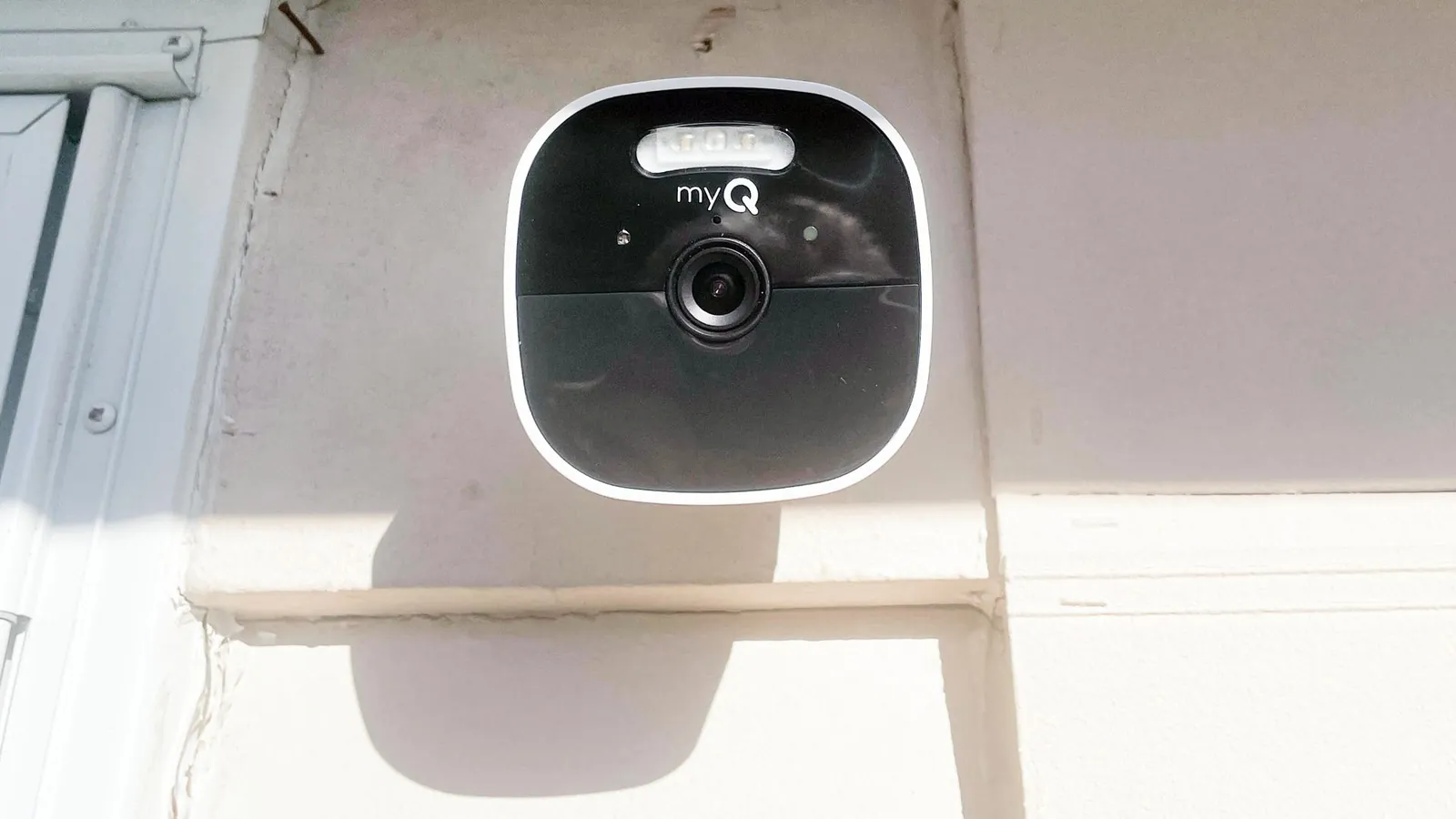
A myQ camera doesn’t require a subscription to function for basic live monitoring and motion alerts. While many smart home devices lock features behind paywalls, you can view your camera’s live stream and receive push notifications when motion is detected using the standard myQ app features without paying any monthly fees. This setup is perfect for users who only want to see what is happening in real-time.
Does your camera require a subscription
Live video streaming is always free for all compatible myQ camera models. You can view your feed in real-time through the app without any recurring costs.
Motion-triggered push notifications are included with the free version of the app. If you find your phone is overwhelmed by alerts, navigate to the device settings to adjust motion sensitivity. Setting this to “low” prevents false triggers from swaying tree branches or passing shadows.
Two-way audio communication works without an active paid subscription plan. This feature remains fully functional even if you choose not to store your footage.
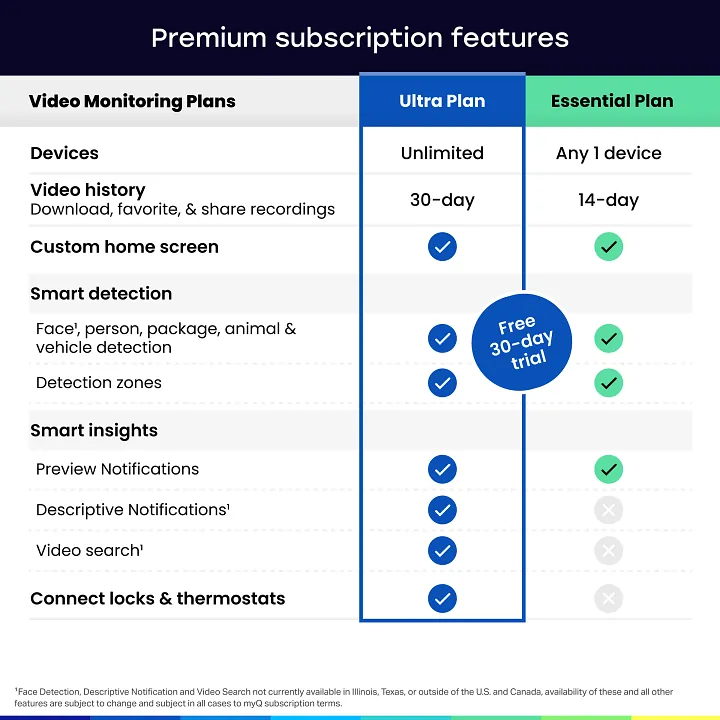
Video recording and cloud storage require a paid monthly or annual subscription. Without this plan, your camera acts only as a live monitor. If you need to review an incident after it happens, you must have an active storage plan before the event occurs.
Subscription plans are per camera, not per household, for most account tiers. If you install three cameras, you’ll pay for three separate storage subscriptions. Calculate your total annual cost based on the number of devices to avoid unexpected billing.
Free trials for video storage are often available when you first set up the device. If you activate the trial, check your account dashboard for the expiration date. Once the trial ends, all stored clips are deleted immediately unless you transition to a paid plan.
Why Video Storage Needs a Paid Plan
The primary reason a subscription is necessary for specific features is the cost of cloud infrastructure. When a camera records video, that data must be uploaded, encrypted, and stored on secure servers where you can access it later. This process consumes significant bandwidth and server space, which the manufacturer maintains through recurring service fees rather than a one-time hardware purchase.
Storing video history isn’t just about keeping files; it’s about providing a reliable, searchable timeline of events. Without a paid plan, your camera functions only as a “live eye.” It can show you the present moment, but it can’t save evidence of what happened five minutes ago. If you need to review an event that occurred while you were away, the camera can’t retrieve that footage because it was never saved to the cloud.
Most users underestimate the sheer volume of data generated by high-definition streams. A single 1080p camera recording motion events can easily consume 30 to 50 gigabytes of server space per month. If you have four cameras, that requirement jumps to 200 gigabytes, which is equivalent to storing roughly 40,000 high-resolution photos. Manufacturers pass these specific storage costs to the end user because the hardware price would otherwise need to be significantly more expensive to cover the lifetime cloud overhead.
If you value privacy, check if your camera supports local storage via an SD card. If the device has a slot, you can bypass subscription fees entirely by recording directly to the hardware. However, this carries a major risk: if a thief steals the camera, they also steal your only copy of the evidence.
Use a paid cloud plan if you need off-site protection that survives a break-in. If you only need to monitor a pet or a quiet room, local storage is the smarter financial choice. Companies use this tiered model so you only pay for the security level you actually require.
When the Answer Is Different
| Situation | What changes | What to do instead |
|---|---|---|
| Need event history | Live view isn’t enough | Purchase the video storage plan |
| Multiple camera homes | Cost scales per device | Bundle plans if offered |
| Local recording needs | Cloud isn’t required | Use a camera with SD card |
| Security requirements | Basic features are limited | Consider a professional monitoring setup |
| Short-term review | No long-term storage needed | Use free trial for events |
Most users assume a single subscription covers every camera in their house, but manufacturers typically charge per device. If you monitor more than three entry points, the monthly fees often exceed the cost of a dedicated local network recorder within six months. Check your manufacturer’s fine print for multi-camera discounts before you commit to individual plans.
If you prioritize privacy over convenience, skip the cloud entirely. Cameras that support high-endurance microSD cards allow you to bypass subscription fees while keeping footage inside your home. However, remember that if a thief steals the camera, your evidence vanishes with it. Use local storage only if your cameras are mounted high and out of reach.
Many beginners mistake motion alerts for actual security. If you need a rapid response during a break-in, basic push notifications are insufficient because they rely on your phone’s cellular connection. If you’re often in meetings or areas with poor reception, invest in professional monitoring. This service provides a human dispatcher who can verify the threat and contact local police on your behalf.
Finally, distinguish between “event-based” and “continuous” recording. If you only need to see who left a package, a standard event-based plan is sufficient. If you need to monitor a pet or a high-traffic area, you must choose a plan that supports 24/7 continuous recording to avoid missing the gaps between motion triggers.
How to Set Up Your Camera Properly
Download the latest version of the myQ app from your mobile device’s app store. Creating your account and verifying your email address ensures you receive critical security alerts immediately.
Power on your camera and hold the setup button until the LED light blinks blue. If the light remains solid or turns red, hold the button for a full ten seconds to trigger a hard reset.
Follow the in-app prompts to connect the device to your 2.4GHz Wi-Fi network. Most modern routers broadcast both 2.4GHz and 5GHz signals; if the app fails to find the camera, toggle your phone’s Wi-Fi off and back on to force a connection to the 2.4GHz band.
Test the live stream to confirm the video feed loads within five seconds of opening the app. If the feed stutters, move the camera closer to your router or install a signal booster.
Adjust the motion sensitivity settings in the camera menu to reduce false alerts from wind or shadows. Set sensitivity to “low” if your camera faces a busy street or a tree line. If you’re monitoring a private, enclosed porch, “high” sensitivity is appropriate. Ignoring these settings often results in battery drain and notification fatigue, causing users to eventually disable alerts entirely.
The Mistakes That Ruin It
Connecting the camera to a 5GHz Wi-Fi network creates constant connection drops because these high-frequency signals struggle to penetrate interior walls. If your router is more than 30 feet away or separated by two or more barriers, the signal strength will plummet. You should always prioritize a 2.4GHz connection for stability, as it travels through obstructions far more effectively than its faster counterpart.
Installing the camera too far from the router results in laggy, stuttering video that renders the feed useless during an emergency. If your live stream takes longer than three seconds to load, move the camera closer or install a dedicated Wi-Fi extender midway between the devices.
Ignoring firmware updates often causes the camera to lose its handshake with the manufacturer’s server permanently. These patches fix critical security vulnerabilities that hackers exploit to brick devices. Check your app settings monthly to ensure auto-update is toggled on.
Blocking the motion sensor with debris or nearby foliage prevents the camera from triggering alerts when someone is present. If you notice a drop in notification frequency, clear the lens area of spiderwebs or overgrown branches. Test the sensor by walking across the frame at night; if the status light doesn’t flicker, your detection zone is likely obstructed.
Frequently asked questions
Does myQ camera record without a subscription?
No, a myQ camera doesn’t record video clips to the cloud without an active subscription plan. You can watch the live feed at any time for free, but the device lacks the ability to save or store historical footage once the event has passed. If you need to view past events, you must select and pay for a video storage plan through the app settings.
How long does the free trial for myQ storage last?
The duration of the free trial typically lasts 30 days, starting from the moment you activate your first camera. You can verify the exact length of your trial by checking the subscription section within your account settings in the myQ app. Once this period ends, you must transition to a paid plan to keep the video recording and playback features active on your account.
Can I use a local SD card for storage?
No, myQ cameras don’t feature a slot for local SD card storage. All video recording and storage must occur through the company’s cloud service, which requires a subscription. If your goal is to avoid monthly fees entirely, you may need to look for alternative security camera brands that support local storage via a microSD card or a local network video recorder.
What happens if I stop paying for the subscription?
Your access to recorded video clips will stop immediately when the billing cycle ends. You’ll still be able to use the app for live viewing, receiving motion notifications, and using two-way audio, but all previously saved video history will be deleted from the cloud. Always download any important clips you wish to keep before your subscription expires to avoid losing them.
Is the subscription per camera or per account?
The subscription is per camera, meaning you must purchase a separate plan for each device you want to use for video recording. If you have three cameras, you need three separate storage plans to record footage from all of them simultaneously. Check the official pricing page for your specific region to see if there are any discounted bundle options for households with multiple cameras.
Does the camera work during a power outage?
No, the camera stops working entirely if your home power or internet connection is lost. Since the device relies on a constant Wi-Fi connection and wall power to stream video to the cloud, it can’t record or notify you of events while offline. You should ensure your router is on a battery backup if you need the camera to remain operational during short power flickers.
Conclusion
If you decide you need to save video clips for later, you can always sign up for a storage plan directly through the app. It’s a simple process if your needs change down the road. For now, enjoy the peace of mind that comes with keeping an eye on your home for free.
