
To find the right power protection, you calculate your total hardware wattage and choose a unit that provides at least 20% more capacity to safely handle how to choose ups battery backup for desk pc setups. If you have a high-end gaming machine with a dedicated graphics card, you must prioritize units with pure sine wave output to prevent hardware damage. For basic office computers, a standard simulated sine wave model is usually enough.
Choose the right battery backup for your desk
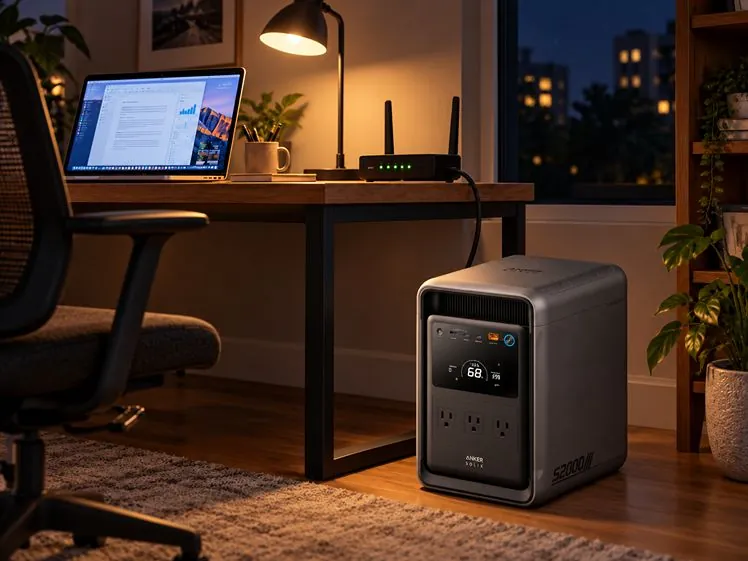
Choosing the right equipment depends on your specific hardware needs and how much runtime you require during a power failure. Most users find that a consumer-grade unit meets their needs, but high-performance workstations require more robust power management.
| Method | How long | Effort | Cost | Best for |
|---|---|---|---|---|
| Standby UPS | 5-10 mins | Low | Low | Basic PCs |
| Line-Interactive | 10-20 mins | Medium | Medium | Home offices |
| Online Double-Conversion | 15+ mins | High | High | Gaming/Servers |
If you have a budget system, a standby unit is fine; if you run expensive components, always choose line-interactive or better. The cost increases as you gain cleaner power delivery and faster switching speeds.
Calculate your total wattage by adding the peak power draw of your monitor, tower, and external drives. If your total exceeds 600 watts, avoid entry-level standby units, as they often lack the capacity to handle the initial surge during a transition.
A common mistake is assuming runtime scales linearly with battery size. If you need more than 20 minutes of power, invest in a unit that supports external battery packs rather than buying a larger single unit.
Use this rule: if your hardware uses an Active PFC power supply, you must use a pure sine wave UPS. Using a simulated sine wave unit with these components can cause the power supply to buzz, overheat, or fail entirely during a blackout. Check your power supply manual to confirm your hardware’s compatibility before purchasing.
Using a standby unit for office PCs
A standby unit stays in sleep mode and only switches to battery power when it detects an outage. This is the most affordable way to protect a basic office computer from sudden shutdowns.
Plug your computer and monitor into the battery-backed outlets on the back of the device. Never plug a laser printer or a space heater into these ports. These high-draw devices can trigger an instant overload, causing the battery to shut down the entire system the moment the power flickers.
Connect the USB cable from the unit to your PC to enable automatic shutdown software. This link allows your computer to save your open files and power down gracefully when the battery hits 20% capacity. Without this connection, your machine will simply crash once the runtime expires.
This initial cycle ensures the internal cells reach full capacity.
These units are great for saving documents and closing programs safely. They aren’t built for long-term use during extended outages. If your office experiences frequent brownouts, switch to a line-interactive unit instead to avoid constant battery wear.
Choosing a line-interactive model

Line-interactive units use an internal transformer to fix voltage issues before they reach your computer. This protects your power supply from brownouts, which are dips in power that often cause system crashes.
Calculate your PC’s total power draw in watts by adding the CPU and GPU maximum values. If your components draw 500 watts, select a unit with a volt-ampere (VA) rating of at least 625 VA. A 25% buffer prevents the unit from shutting down during brief, high-intensity spikes.
Plug the unit into a grounded wall outlet to ensure the internal voltage regulation functions. Without a proper ground, the surge protection circuitry will fail to dissipate excess energy. Install the manufacturer’s monitoring software to track battery health and load percentages.
These models are ideal for areas where the lights flicker often. One common mistake people make is plugging a laser printer into the battery side, which can instantly overload the unit and trip the breaker. Laser printers pull massive current during their warm-up cycle, far exceeding the capacity of standard home units. Always use the surge-only outlets for printers and peripherals, reserving the battery-backed ports strictly for your tower and monitor.
Picking an online double-conversion system
Online double-conversion systems provide the cleanest power by converting AC to DC and then back to AC constantly. This removes all electrical noise and provides zero-millisecond transfer time during an outage.
Ensure you have a dedicated 20-amp circuit if your unit is rated over 1500VA. Without this, you risk tripping your breaker during peak power draws, which defeats the purpose of your backup.
Configure the unit via the digital display to match your local voltage standards. If your utility power frequently fluctuates between 110V and 120V, set the input sensitivity to “wide” to prevent unnecessary battery cycling.
Test the battery capacity by running a self-diagnostic check through the control panel monthly. If the runtime estimate drops by more than 20% compared to your initial baseline, the internal cells are likely failing.
Replace the internal battery packs every 3 to 5 years as the chemistry degrades. Waiting until the system triggers a “replace battery” alarm often means you’re already running on a dead cell.
This is the best choice for expensive gaming rigs or professional workstations that can’t tolerate any voltage fluctuations. The main weakness is the constant fan noise, which can be distracting in a quiet bedroom or office.
Selecting the right backup for your needs
When you’re in a hurry, a standby unit is the quickest to set up and start using immediately. If you’re doing this for the first time, a line-interactive unit is the best balance of safety and ease of use for a home office. When you want the best possible result whatever it takes, an online double-conversion unit provides the most reliable protection for your expensive components.
This choice involves a clear trade-off between the price of the unit and the level of electrical noise filtering you receive. If your budget is tight, prioritize a higher VA rating over fancy features. If your equipment is high-end, prioritize clean, pure sine wave power to protect your sensitive internal power supply units.
Most users make the mistake of ignoring the load capacity. If your total draw exceeds 70 percent of the unit’s rated capacity, the battery will fail prematurely during a surge. Calculate your total wattage by adding the labels on the back of every device plugged into the unit.
If you live in an area with frequent brownouts, avoid standby units entirely. They switch to battery power only when voltage drops below a threshold, causing constant wear. In these locations, choose a line-interactive model with automatic voltage regulation to stabilize power without draining the battery.
Rules for safe power management
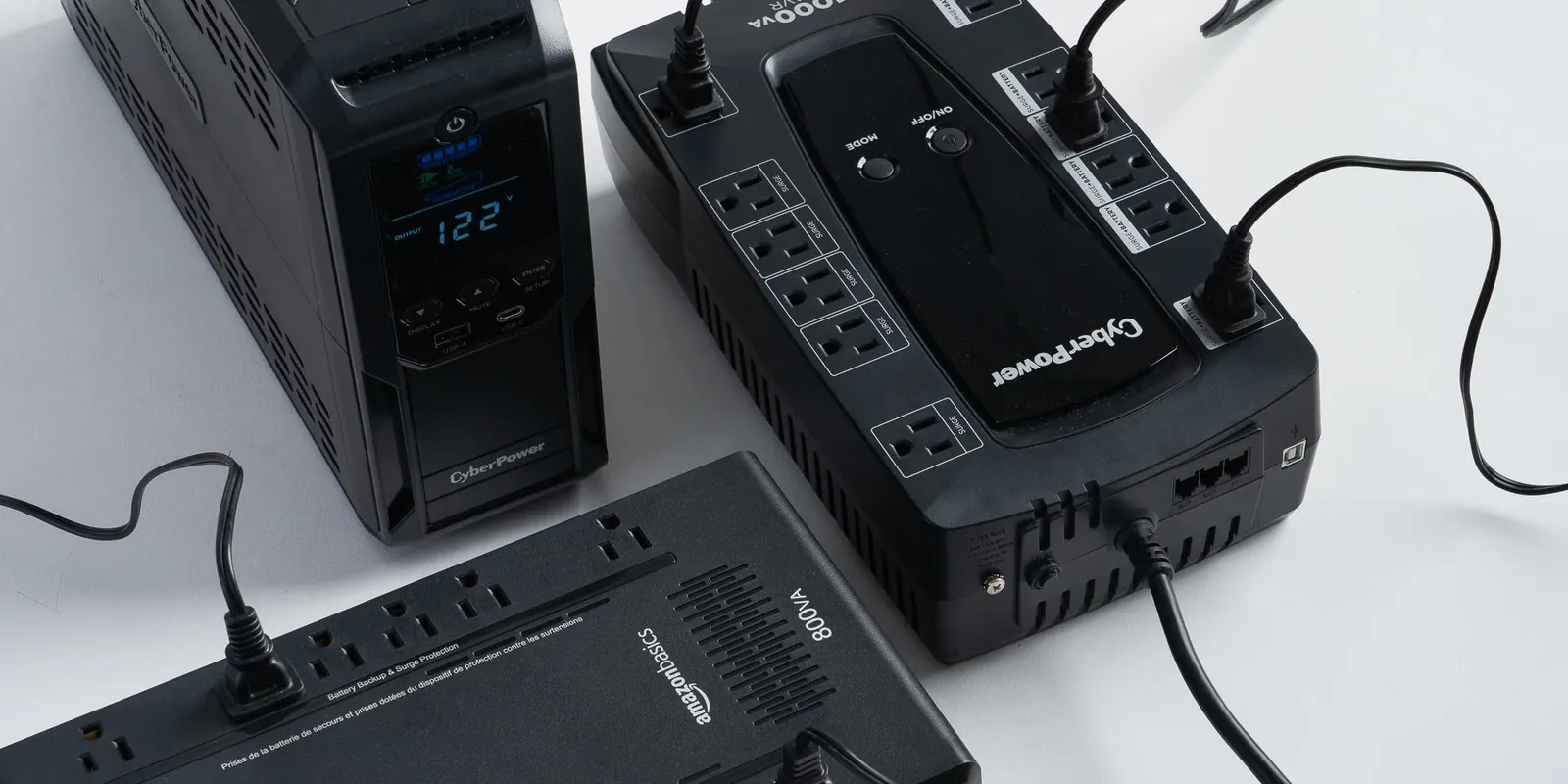
Regardless of the model you select, you must follow basic safety rules to keep your equipment running well. Always ensure the device is placed in a well-ventilated area to prevent heat buildup, which significantly shortens the lifespan of lead-acid batteries. Never cover the air vents on the unit, as this can lead to overheating and potential fire hazards.
Check the battery status lights periodically to ensure the unit is still holding a charge, though you should consult your owner’s manual for specific maintenance guidance based on your usage. If the unit beeps or shows a replace-battery warning, stop using it for critical backups immediately.
If you need to replace the battery, always use the exact model specified by the manufacturer to avoid safety risks. Any repair work involving the internal circuitry should only be handled by a certified technician, as capacitors can hold a lethal charge even when the unit is unplugged.
Frequently Asked Questions
Is it safe to leave my PC plugged into a UPS all the time?
Yes, it’s designed to stay plugged in constantly to keep the battery topped off and ready for an outage. The unit manages the charging process to prevent overcharging. You should check the unit’s display or software interface occasionally to ensure the battery health remains at 100%. If the unit feels very hot to the touch, move it to a more open area to allow for better airflow.
How long does a UPS battery backup last?
Most batteries have a limited lifespan depending on how often they’re used and the ambient temperature of your room. You’ll know it’s time to replace the battery when the unit starts beeping frequently or fails to keep your computer running during a short test. You can check your owner’s manual to find the specific replacement part number for your model.
Can I plug a power strip into my UPS?
No, you should never plug a power strip into the battery-backed outlets of your unit. This makes it too easy to overload the system by plugging in too many devices at once, which could cause the unit to shut down or fail during a power surge. Always plug your equipment directly into the outlets provided on the back of the unit itself.
Why does my UPS make a clicking sound?
The clicking sound is the internal relay switching between line power and battery power to correct voltage fluctuations. This is normal behavior for line-interactive units when they detect a brownout or a spike in your home’s electrical grid. If the clicking happens constantly throughout the day, your home’s power might be unstable, and you should consider having an electrician inspect your wall outlets.
What happens if I overload my UPS?
If you plug in too many devices, the unit will likely sound a continuous alarm and cut power to the outlets to protect itself from damage. When this happens, immediately disconnect the extra devices and restart the unit to see if it clears the error. Always check the total wattage of your connected devices against the maximum wattage limit printed on the back of the unit.
How do I know if my UPS is working?
You can test the unit by unplugging it from the wall while your computer is running to see if it takes over the power load. Most modern units also include a self-test feature in their software that runs this check automatically without needing to pull the plug. If the computer shuts down during this test, your battery is likely dead or the unit is failing.
Conclusion
Choosing the right unit comes down to balancing your total hardware load with the level of protection you need for your specific PC components. Taking the time to calculate your wattage needs now will save you from hardware failures and lost work in the future.
