
You can perform a factory reset on your device by navigating to the General settings menu and selecting the option to reset to initial settings. This process clears all personal data and restores the television to its original out-of-box state. If you’re experiencing persistent software glitches or screen flickering, correctly resetting your lg tv will resolve most minor issues. This method is suitable for users who want to clear their accounts or prepare the unit for a new owner.
Tools and Information You Need
To successfully clear your television, you should have the following items ready. Having these prepared ensures that you don’t get stuck halfway through the process.
Original Remote Control: You need the physical navigation buttons to move through the software menus. If you lack the original remote, you can use the LG ThinQ mobile app as a substitute. However, this app often fails if the television loses its network connection during the reset, leaving you stranded on a setup screen.
Stable Power Supply: Ensure the unit is plugged directly into a wall outlet. Extension cords or power strips often cause voltage drops during the intensive firmware rewrite process. A sudden power loss mid-reset can brick the television’s main board, requiring a professional repair.
Wi-Fi Network Name and Password: You’ll need these to reconnect your apps and streaming services immediately after the process finishes. If you use a hidden SSID, ensure you have the security protocol type handy, as the TV may not automatically detect it.
LG Account Credentials: You must sign back into your LG account to access the store and personalized recommendations. If you have forgotten your password, reset it on a secondary device before you wipe the TV.
Software Update Status: Knowing the current webOS version helps if the reset fails to fix a persistent bug. You can find your current software version by navigating to Settings, then Support, and finally Software Update.
If you’re performing this reset to fix a screen flickering issue, check your HDMI cables first. If the flicker persists after swapping cables and ports, the panel itself is likely failing, and a factory reset won’t resolve the hardware defect. For complex menu layouts, consult the official LG support documentation for your specific series. Always document your custom picture settings before starting, as these are permanently erased once the reset command is executed.
Steps for a Full System Reset
Follow these steps carefully to clear your television’s memory. If the unit turns off or loses power during this process, the internal software could become corrupted.
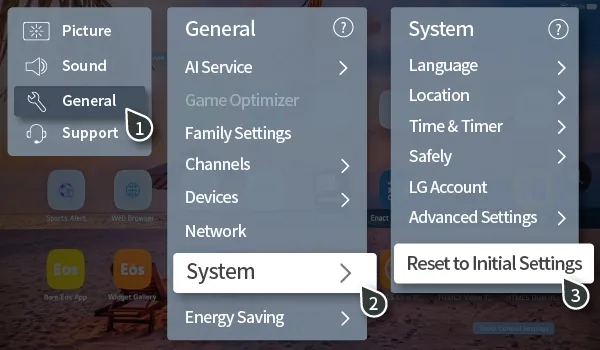
- Press the Settings button on your remote control.
- Select All Settings from the bottom of the menu bar.
- Choose General from the list of options on the left side.
- Scroll down until you find System or Reset to Initial Settings.
- Select Reset to Initial Settings and confirm your choice by selecting Confirm or OK.
- Wait for the television to restart automatically, which usually takes 2 to 5 minutes depending on your model.
- Follow the on-screen prompts to set up your language, region, and network connection again.
Tip: If you’re selling the device, perform this reset while the unit is still connected to the internet so it can properly de-register your account from LG’s servers. Careful: Don’t unplug the power cable while the progress bar is moving, as this can force the system into a recovery loop that requires professional repair. If you’re unable to access the settings menu because the screen is frozen, you may need to contact official support for a hard-reset service code.
Time and Effort Variations
The time required for a reset depends on the age of your hardware and the number of apps you have installed. Newer models generally finish faster than older units.
| Situation | Time Required | Effort Level | What to Watch |
|---|---|---|---|
| Standard Reset | 3-5 minutes | Low | Progress bar status |
| Full App Re-sync | 10-15 minutes | Medium | Network stability |
| Account Sign-in | 5-10 minutes | High | Password accuracy |
Always start with a simple power cycle by unplugging the device for 60 seconds before choosing a full factory reset. This clears temporary cache files without wiping your personal data. If the device remains sluggish after a reboot, the factory reset is likely necessary.
Avoid resetting more than twice in a single week. You can tell if you have hit this limit if the system displays an “Authorization Failed” error during the final setup stage.
If you have over 50 third-party applications installed, allow an extra 20 minutes for the background indexing process to complete. If the screen remains black for longer than 30 minutes, perform a hard restart by holding the power button for ten seconds.
This forces the firmware to bypass the stalled installation process and resume from the last stable checkpoint. Always keep the device plugged into a power source during this time. A sudden loss of power during a reset can corrupt the core operating system files.
How to Verify Success
A successful reset is marked by the appearance of the initial “Welcome” or “Language Selection” screen. If you see your old apps or your login name still displayed, the reset didn’t complete. This usually happens if you exited the menu before the final confirmation step or if the system encountered a write-protection error.
If the device fails to reset after three attempts, the internal flash memory might be failing. In this case, you should stop trying to force the software and consult a professional technician to avoid damaging the main board.
You can verify the integrity of the process by checking the system logs immediately after the reboot. When the device hangs on a black screen for more than ten minutes, don’t pull the power cord. That action often triggers a permanent boot-loop. Instead, hold the power button for a full thirty seconds to trigger a hard interrupt. If the interface remains unresponsive after this, the hardware has reached its end of life.
Standards and Post-Reset Care
LG provides these reset functions as part of their standard software lifecycle management to ensure user privacy and performance. After the process, you must re-enter your preferences, including picture modes, sound settings, and wireless keys. Record your preferred picture settings on paper before you begin to make the setup faster afterward.
If you’re a heavy user, you should check for a new firmware update immediately after the reset. This ensures the operating system is running the latest security patches provided by the manufacturer. If you encounter errors during the setup, don’t attempt to open the device casing, as this voids your warranty and poses an electrical shock risk; contact the manufacturer’s authorized repair center instead.
Most users make the mistake of reconnecting to the internet before adjusting their privacy settings. This allows the television to begin data collection protocols before you have restricted them. To prevent this, keep the unit offline until you have navigated through the initial setup menus and manually toggled off interest-based advertising and usage tracking.
If your picture settings don’t return to your desired brightness after the reset, check the Energy Saving mode. This feature often defaults to “Auto” after a system wipe, which artificially dims the panel to meet power regulations. If you prefer a vibrant display, manually set this to “Off” rather than relying on the factory-calibrated defaults.
Finally, verify your HDMI Deep Color settings for every port. A reset often reverts these to a legacy mode. If you see a black screen or flickering when using a gaming console, toggle this setting back to “On” to restore full bandwidth support for high-resolution signals.
Alternative Reset Methods
Power Cycle Method
Unplug the power cord from the wall outlet for 60 seconds. This clears the temporary cache without deleting your apps or personal settings. It’s the best first step for minor connectivity issues.
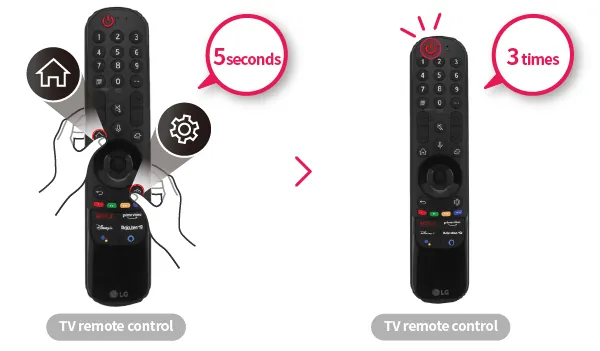
Remote Key Combination
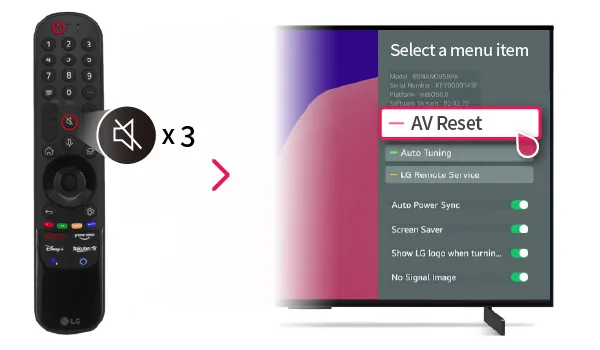
Some older models allow a reset using specific button sequences on the remote. Check your user manual for the “In-Stop” or “Factory” mode codes. This is risky and should only be used if the main menu is inaccessible.
Network Reset
If only your streaming apps are failing, try resetting the network settings under the General menu. This deletes your Wi-Fi history and DNS configurations, which often fixes connection-related errors without wiping your entire profile.
Frequently asked questions
How long does it take to reset an LG TV?
It takes between 3 and 5 minutes to complete the internal software reset. This assumes the unit is connected to a stable power source and isn’t currently performing a background firmware update. If the television takes longer than 10 minutes to reach the setup screen, the software may have hung, and you should wait another 5 minutes before checking the power status.
Will a factory reset fix a black screen?
Yes, a factory reset can fix a black screen if the issue is caused by a software crash or an incorrect display setting. However, if the screen remains black after the reset, the problem is likely a hardware failure, such as a burnt-out backlight or a faulty T-Con board. If you don’t see the LG logo during the reboot, it’s almost certainly a hardware defect that requires repair.
Does resetting clear my Netflix login?
Yes, a factory reset removes all saved login information, including Netflix, YouTube, and Amazon Prime credentials. You’ll need to re-download these applications and sign in to each one individually after the system restarts. This is why you should keep a list of your streaming passwords handy before you begin the reset process.
Is it safe to reset my TV?
Yes, it’s safe to perform a factory reset as it’s a built-in function designed by the manufacturer. The only danger is cutting the power while the system is writing data to the memory. As long as the unit stays plugged in and you don’t interrupt the process, the hardware remains perfectly safe.
Why is my LG TV asking for a password?
The television asks for a password during the reset if you previously enabled the Child Lock or Safety settings. The default password for most LG models is either 0000 or 1234. If you have forgotten the PIN you set, you must contact LG support to receive a master reset code for your specific model number.
Conclusion
Once the screen restarts, you’ll need to reconnect your Wi-Fi and sign back into your favorite streaming apps. It’s a bit of a chore, but it’s the best way to ensure everything runs smoothly again. Don’t worry if it takes a few minutes; your television will feel brand new in no time.
