
You can reset a dyson air purifier by holding the standby button on the remote control for 20 seconds. This action clears the filter life indicator and resets the machine’s internal monitoring system. Most models show a progress bar on the display to confirm the reset is complete. This method works for the majority of current tower and desktop units, regardless of the specific model or the age of the filter inside.
Preparing your Dyson purifier for reset
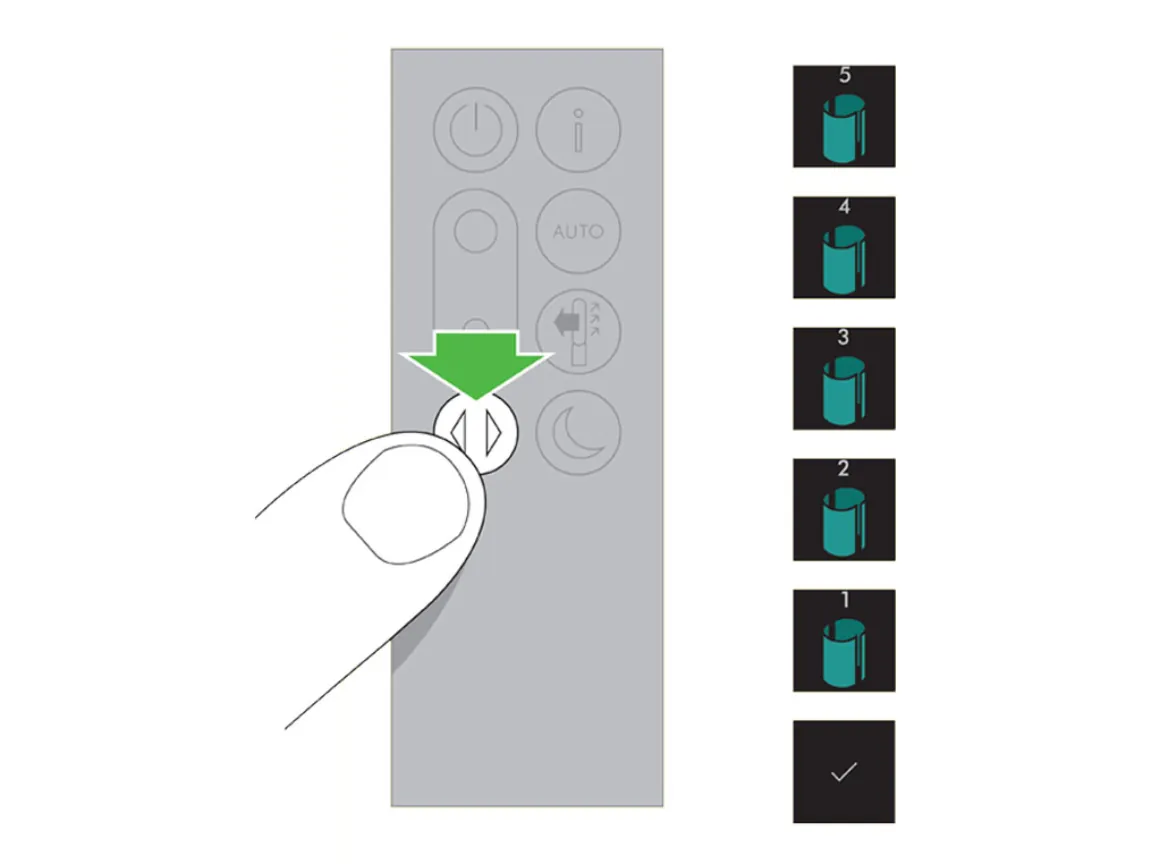
To perform this task, you don’t need special tools or technical training. You only need the components that came in the original box. If you have lost the remote, you can use the Dyson Link app to manage your machine, but the physical remote is the only way to perform a hard reset on the unit’s local memory.
- Original Remote Control: Ensure it has fresh batteries, as a weak signal may fail to trigger the 20-second timer.
- Power Cord: The machine must be plugged into a wall outlet to accept the reset command.
- Dyson Link App: Useful for checking filter status if the screen isn’t responding.
- Stable Wi-Fi Connection: Required if you need to update the firmware after a reset.
- Clean Cloth: Used to wipe the sensors if the machine keeps showing a filter error.
If your remote is broken, you can buy a replacement from the official store, but universal remotes won’t work with these units. If you’re unsure about your model’s specific power requirements, you can check the official user support guides provided by the manufacturer.
Steps to perform a machine reset
-
Plug the power cord firmly into a wall outlet and ensure the machine is in standby mode. Confirm the power indicator is solid red; if it’s pulsing, the unit is still cycling through its initial boot sequence.
-
Locate the standby button on your remote control; it’s the button featuring the standard circle-and-line icon. Point the infrared emitter directly at the receiver lens on the front of the air purifier.
-
Press and hold the standby button for exactly 20 seconds. If you release the button at 18 seconds, the internal logic board will ignore the command entirely.
-
Watch the circular display for a rapid blinking light sequence. This pulsing pattern confirms the processor has entered the factory reset mode.
-
Release the button once the display flashes or shows the filter life bar resetting to 100%. If the lights remain steady, the reset failed to trigger.
-
Wait 30 seconds for the machine to return to its standard operating mode before changing any settings. Attempting to input commands while the unit is still recalibrating can cause a software hang.
If the light doesn’t flash after 20 seconds, unplug the unit from the wall for 60 seconds to drain the capacitors. This clears the volatile memory that may be blocking the reset signal.
Don’t hold the power button on the machine itself. Doing so only toggles the device on or off, which prevents the system from entering the diagnostic reset state.
Adjustments for different units
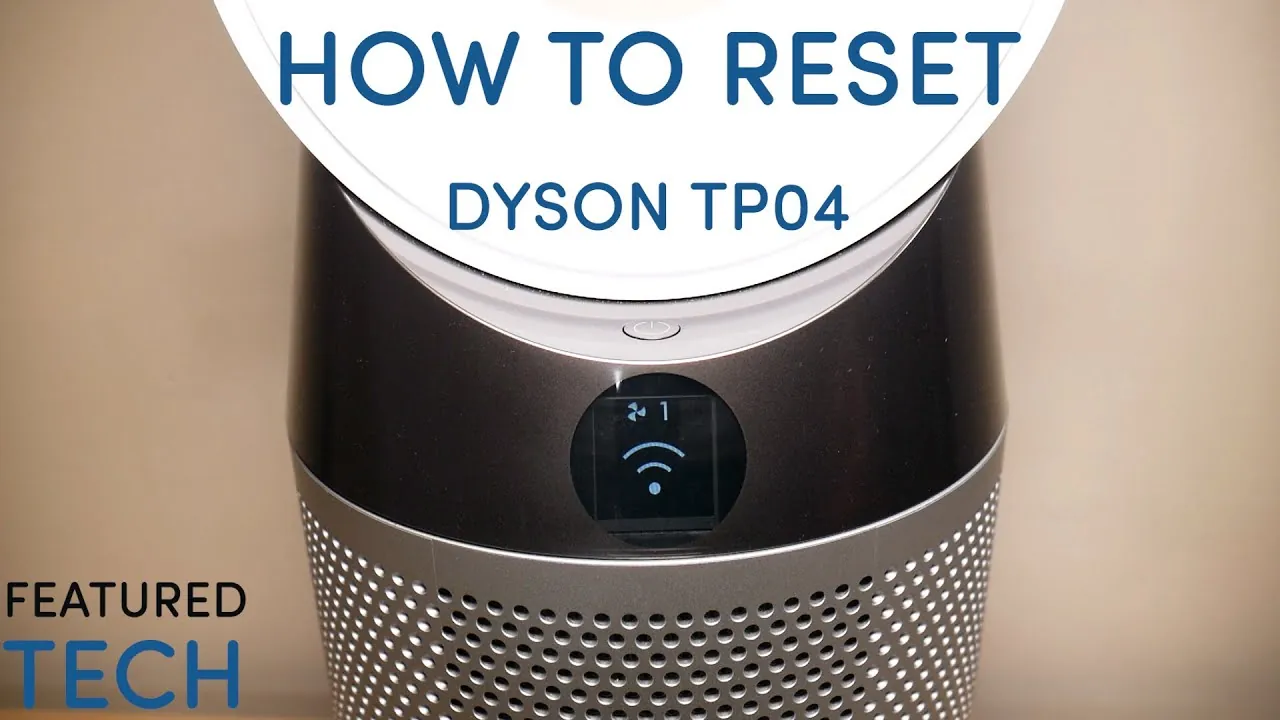
The time and effort required to reset your machine vary based on whether you’re using a basic tower unit or a connected smart model. Most units follow the same 20-second rule, but models with advanced displays may offer extra options in the settings menu.
| Machine Type | Reset Time | Complexity | Watch For |
|---|---|---|---|
| Basic Tower | 20 Seconds | Low | Flashing light |
| Smart Purifier | 20 Seconds | Medium | App notification |
| Desktop Unit | 20 Seconds | Low | Display icon |
| Fan/Purifier Combo | 20 Seconds | Medium | Beep sound |
If your unit features a physical power button on the top panel, hold it until the indicator light blinks three times. For units controlled via touchscreens, navigate to the “Maintenance” tab to trigger the reset sequence. If the screen remains unresponsive, unplug the device for exactly sixty seconds to force a cache clear.
It’s always safer to start with a simple power cycle before attempting a full system reset. Over-resetting the machine often causes it to lose saved Wi-Fi preferences or custom scheduling rules. If the device fails to reconnect to your network after a reset, check if the firmware version is outdated.
When your unit is part of a multi-room setup, reset only the primary hub first. If you reset every unit simultaneously, the network handshake will fail. You’ll know the reset is complete when the status light shifts from amber to solid white. If it stays red, the internal sensor is likely blocked by debris.
Verifying a successful reset
A successful reset is indicated by the filter life percentage returning to 100% on the LCD screen. If you see this number, the machine has successfully cleared the old data. If the error message remains, it usually means the sensors are still detecting dust or debris inside the filter housing.
This issue often happens because the filter is physically clogged or the sensor is blocked by dust. You can prevent this by vacuuming the outer mesh of the filter every month. Always ensure the filter is clicked into place securely, as even a small gap can trigger a persistent error light.
If the display fails to update after two attempts, pull the power plug for sixty seconds to force a hard memory clear. This cycle drains the capacitor, which often holds onto old fault codes that a standard reset can’t reach.
If the light persists after a hard reset, inspect the intake port for fine particulate buildup. Use a dry, soft-bristled brush to clear the optical sensor window located near the filter seat. If the sensor remains obscured, the system will default to an error state regardless of the filter’s actual condition.
Standards and maintenance rules
Dyson recommends checking your filter life based on your specific usage and local air quality, so consult your owner’s manual for guidance. If you live in an area with high pollution or smoke, you may need to replace the filter sooner than the machine suggests. Always use genuine parts to ensure the internal sensors provide accurate air quality readings.
Generic filters often lack the specific density required for the machine’s airflow sensors to calibrate correctly. Using an off-brand filter can cause the unit to report false air quality levels or trigger the fan to run at maximum speed unnecessarily. This wastes electricity and prematurely wears out the motor bearings.
If you’re replacing the filter, ensure the unit is unplugged to prevent accidental operation. Check the mesh screen for heavy dust buildup during every swap. If you see gray, matted fibers covering the intake, vacuum the exterior housing to prevent the internal sensors from choking on trapped debris.
If your machine stops working entirely or displays a persistent “F” code that doesn’t clear after a reset, it may require professional inspection. You should contact the manufacturer or an authorized service center for help with internal hardware faults. If the code persists after a full power cycle, stop attempting to force a reset to avoid damaging the main circuit board.
Alternative ways to manage settings
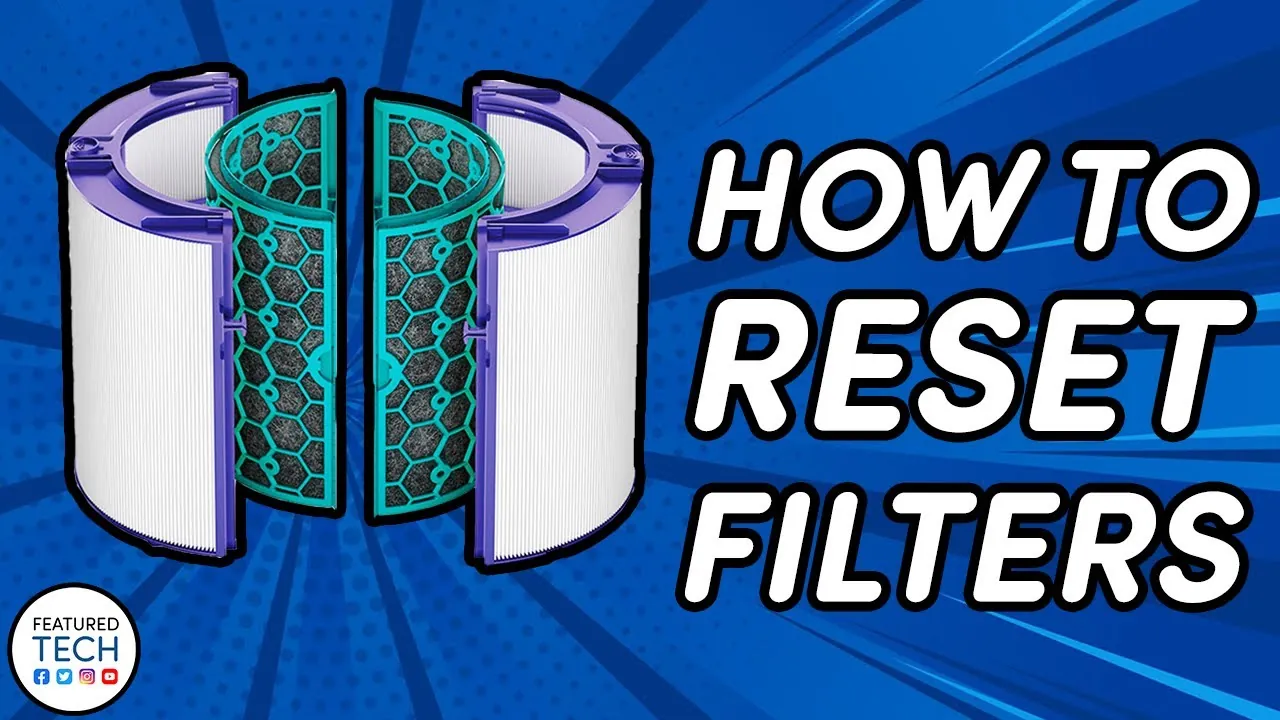
Using the mobile app
The Dyson Link app allows you to reset the filter life remotely. Open the app, select your machine, and navigate to the settings menu. You’ll find an option to reset the filter status there. This is often faster than using the remote and provides a visual confirmation on your smartphone screen.
Performing a factory reset
If you’re selling your unit or moving to a new home, you may want to perform a full factory reset. This clears all Wi-Fi settings and paired accounts. Hold the standby button on the machine base for 30 seconds until the light rings flash green. This returns the device to its original out-of-box state.
Cleaning the sensors
Sometimes the purifier thinks the filter is dirty when it’s actually just a dusty sensor. Use a vacuum with a soft brush attachment to clean the small inlet holes on the side of the machine. This often clears error codes without needing a full system reset, keeping your air quality data accurate.
Related guides
Frequently asked questions
Can I reset the filter without the remote?
Yes, you can reset the filter status through the Dyson Link app on your smartphone. If your model doesn’t have app support, you may need to purchase a replacement remote, as there’s no manual reset button on the machine body that clears the filter life indicator.
How long does a reset take?
The reset process takes exactly 20 seconds of holding the standby button on the remote. Once the light flashes or the screen updates, the process is complete. If the unit doesn’t respond within this time, ensure the remote batteries are charged and the unit is connected to power.
Is it safe to reset the purifier often?
Yes, it’s safe to reset the machine as often as needed. However, you should only reset the filter indicator after you have physically cleaned or replaced the filter. Resetting it without a new filter will cause the machine to provide inaccurate air quality data, as it will think the old, dirty filter is new.
What happens if the error light stays on?
If the error light remains after a reset, the machine likely detects a physical obstruction or a damaged sensor. Check that the filter is seated correctly in the housing and that no debris is blocking the air inlet. If the error persists after these checks, contact customer support for further diagnostic help.
How often should I reset the system?
You should only reset the system when you install a new filter or after performing a deep clean of the machine. Under normal conditions, the machine will alert you when a filter change is required. Doing it more often than necessary won’t improve performance and may lead to confusion regarding your filter’s actual lifespan.
Will a reset delete my Wi-Fi settings?
No, a standard filter reset via the remote doesn’t delete your Wi-Fi settings. Only a full factory reset, performed by holding the standby button on the unit for 30 seconds, will remove your network configuration and account data. Use caution if you only want to clear the filter warning.
Conclusion
Once your device is back to normal, keep an eye on the air quality readings over the next few days. It shouldn’t take long for the sensors to recalibrate and give you accurate data again. If you’re still seeing odd alerts, don’t hesitate to check the app for any pending firmware updates.
