
If you find that your lg sound bar not working hdmi arc connection is the problem, you should first unplug both the sound bar and the television from the power outlet for 60 seconds to reset their communication handshake. This simple power cycle often clears temporary software glitches that prevent the devices from recognizing each other. If the issue persists, the most frequent cause is a faulty HDMI cable or an incorrect setting within the TV’s audio output menu.
Why your HDMI sound connection isn’t working
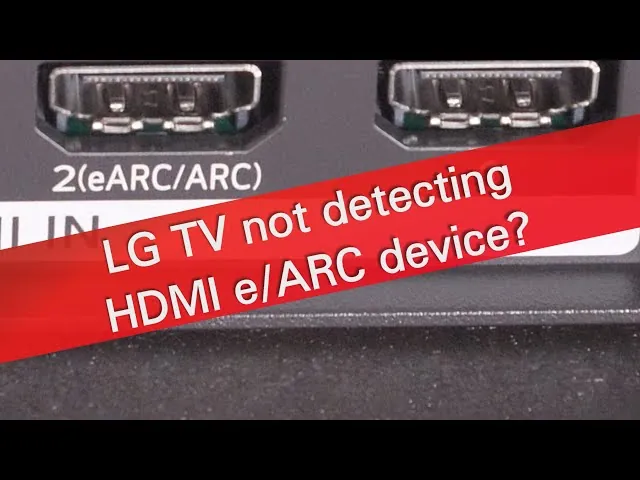
The most common reason for a connection failure is a mismatch in the HDMI-CEC settings. HDMI-CEC, which LG calls SimpLink, is the protocol that allows your TV remote to control the sound bar volume and powers the ARC signal. If this feature is disabled on either the TV or the sound bar, the audio won’t route through the cable. You should check the settings menu on your TV to ensure that SimpLink or CEC is toggled to “On.”
Another frequent cause is physical damage to the HDMI cable itself. HDMI ARC requires a specific high-speed cable to transmit audio data effectively. If the cable is bent, pinched, or simply an older version that doesn’t support the ARC standard, the handshake will fail. You can verify if your cable is the issue by testing it with another device or by trying a known-working HDMI cable.
Finally, firmware conflicts can cause a breakdown in communication. If either the television or the sound bar is running outdated software, it may not be able to process the ARC signal correctly. According to the LG official support center, keeping your television firmware updated is essential for maintaining compatibility with external audio devices. If you haven’t checked for updates in a while, doing so can often restore the missing connection.
Reset the handshake and connection
This fix is intended for users who have confirmed that their devices are powered on but are receiving no sound. Begin by disconnecting the HDMI cable from both the TV and the sound bar. While they’re disconnected, turn off the “Auto Power Sync” or “SimpLink” settings in your TV menu. Leave both devices unplugged from the wall for at least one full minute to drain the internal capacitors.
After the minute has passed, plug the power cords back in and turn on the TV first. Once the TV is fully booted, connect the HDMI cable to the port labeled “ARC” or “eARC” on the television and the corresponding port on the sound bar. Navigate to the sound settings on your TV and select “HDMI ARC” as the primary audio output. Finally, turn on SimpLink again.
If the sound bar displays “ARC” or “TV” on its front panel, you have successfully established the link. If you have limited technical experience or are uncomfortable navigating complex TV menus, ask a family member to assist you, as some TV interfaces differ significantly between models. If you encounter a message saying “Device not connected” even after these steps, the hardware port on the TV or the sound bar may have suffered a failure that requires professional repair.
Update your device firmware
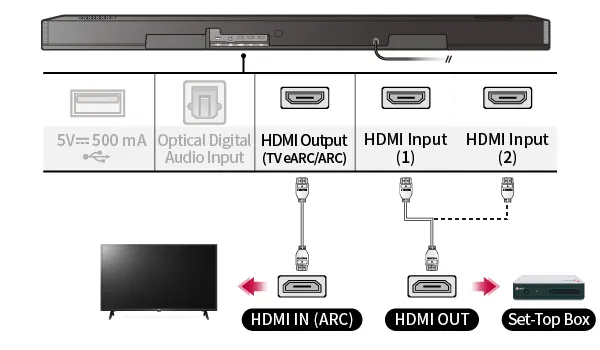
Firmware updates are necessary when the TV software no longer recognizes the communication protocols used by the sound bar. This is common if you have recently moved the sound bar to a newer TV or if the TV received a major system update. To perform the update, connect your TV to the internet via Wi-Fi or an Ethernet cable and navigate to the “General” or “Support” section in your settings menu.
Select “Software Update” and choose “Check for Updates.” If an update is available, follow the on-screen prompts to install it. Don’t turn off the TV during this process, as a power interruption can corrupt the system files. Once the TV update is complete, repeat the process for the sound bar if it’s a Wi-Fi-enabled model, or check the manufacturer’s website for a USB update file.
This fix isn’t for users who don’t have an active internet connection, as it requires a stable network to pull the necessary files. If your TV doesn’t have an internet connection, you’ll need to download the firmware to a USB drive from a computer and plug it into the TV’s service port. If you’re unsure about the firmware version, consult your user manual to find the specific menu path for your model year.
Test with alternative audio settings
If the ARC connection remains unstable, you may need to adjust the digital audio output format to match what your sound bar can process. Many TVs default to “Auto” or “Bitstream,” which can sometimes cause a conflict if the sound bar expects a specific PCM signal. Navigate to your TV’s advanced audio settings and manually toggle the output format between “PCM,” “Auto,” and “Pass-through.”
When changing these settings, wait five seconds after each change to see if the sound bar acknowledges the signal. If you switch to “PCM” and the sound returns, it suggests that the sound bar is struggling to decode the more complex “Bitstream” or “Dolby” signals from the TV. This is a common trade-off; while “PCM” provides sound, it may not offer the surround sound quality of “Bitstream.”
If you have tried all three formats and still hear nothing, the internal processor of the sound bar might be frozen. In this case, use the remote control for the sound bar to perform a factory reset. Note that a factory reset will erase any custom equalizer settings you have saved, so you’ll need to reconfigure your sound preferences afterward. If the unit still fails to output audio after a reset, the internal audio board may be damaged.
Common mistakes to avoid
Plug your HDMI cable exclusively into the port labeled ARC or eARC. If you use a standard input, the television will never route audio back to your soundbar. You can verify this by checking the physical port label on the back of the panel; if the label is missing, that port is strictly for incoming video signals.
Many users assume any HDMI cable will suffice, but high-bandwidth audio formats like Dolby Atmos require a cable labeled “High Speed” or “Ultra High Speed.” If your audio drops out during intense scenes, your cable lacks the necessary bandwidth to carry the data. Replace any cable older than five years to ensure compatibility.
Simply connecting the hardware is rarely enough. You must enter the TV’s audio settings and manually toggle the output from “Internal Speakers” to “HDMI ARC.” If the soundbar remains silent, perform a full power cycle by unplugging both devices from the wall for sixty seconds. This forces the TV and soundbar to perform a fresh digital handshake, resolving most persistent connection failures.
Prevent connection drops
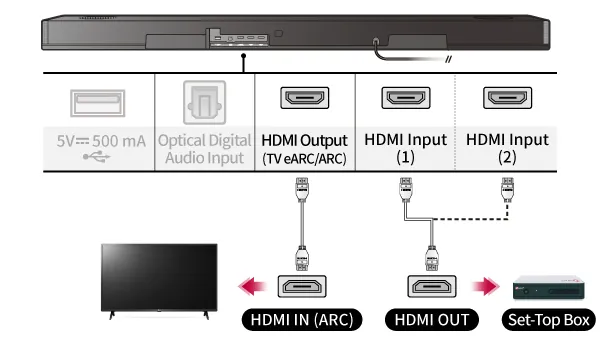
If you’re currently experiencing issues, compare your setup to the table below to find the better way to manage your hardware.
| If you’re doing this | Do this instead | Why |
|---|---|---|
| Leaving the TV on standby | Power cycle the TV fully | Clears cache and resets port logic |
| Using an old HDMI cable | Use a High-Speed HDMI cable | ARC needs specific data bandwidth |
| Plugging into any HDMI port | Use the port marked ARC/eARC | Only this port supports audio return |
| Ignoring TV audio updates | Check for firmware updates | Fixes compatibility bugs with audio |
| Keeping CEC/SimpLink off | Turn CEC/SimpLink to “On” | Allows the TV to control the bar |
Unplug your television from the wall outlet for at least sixty seconds to force a deep reset of the HDMI handshake process. Most users mistakenly assume a remote control power-off is sufficient, but this leaves the internal processor running in a low-power state.
If you notice audio drops only during high-definition streaming, your cable is likely the bottleneck. Swap any lead older than three years for a certified 48Gbps cable to ensure consistent data throughput.
Check your TV’s audio output settings if the connection remains intermittent. If the output is set to “Auto,” manually lock it to “Pass-through” to prevent the television from trying to re-encode the signal, which often triggers a momentary drop in the connection.
Related guides
Frequently asked questions
Can I use a standard HDMI cable for ARC?
No, standard HDMI cables often lack the internal wiring required for Audio Return Channel functionality. You should use a “High-Speed” HDMI cable, ideally labeled 2.0 or 2.1, to ensure the audio signal passes through correctly. Note that older cables are frequently the cause of connection issues.
Why does my sound bar disconnect after a few hours?
This usually happens because the TV and sound bar lose their “handshake” due to aggressive power-saving settings. Check your TV’s “Energy Saving” or “Auto Power Off” settings to ensure they aren’t cutting power to the ARC port. Note that standard power modes often keep the HDMI communication path open.
How long does a firmware update take?
A typical firmware update takes 10 to 20 minutes, depending on your internet speed and file size. Don’t turn off your television while the progress bar is moving, as this can cause the device to become unresponsive. If the progress bar stalls for over 30 minutes, the update has likely failed.
Is it safe to leave my sound bar on all the time?
Yes, it’s safe to leave your sound bar in standby mode, as it consumes very little electricity when idle. Modern sound bars automatically enter a low-power state when they don’t detect an audio signal. You don’t need to unplug the device, as standby mode allows for quick startup.
What happens if I use an optical cable instead?
Using an optical cable is a reliable backup, though you’ll lose the ability to control volume with your TV remote. Optical connections provide excellent audio quality but don’t support the CEC commands required for single-remote setups. You’ll need to manage two separate remotes for your daily viewing.
Conclusion
If these quick fixes don’t restore your sound, it’s worth checking your TV’s firmware for any pending updates. Sometimes a simple software refresh is all it takes to get everything talking properly again. If you’re still having trouble, don’t hesitate to reach out to LG’s support team for more technical help.
