
You can restore your device to factory settings when it stops responding or fails to connect to Wi-Fi by performing a hard reset on the hardware. To perform a how to reset eufy robovac procedure, you simply need to hold the power button for 10 seconds while the unit is on its charging base. This quick action clears temporary software errors and forces the system to reboot, which is usually enough for most common connectivity or navigation issues.
Items needed to reset your Eufy RoboVac
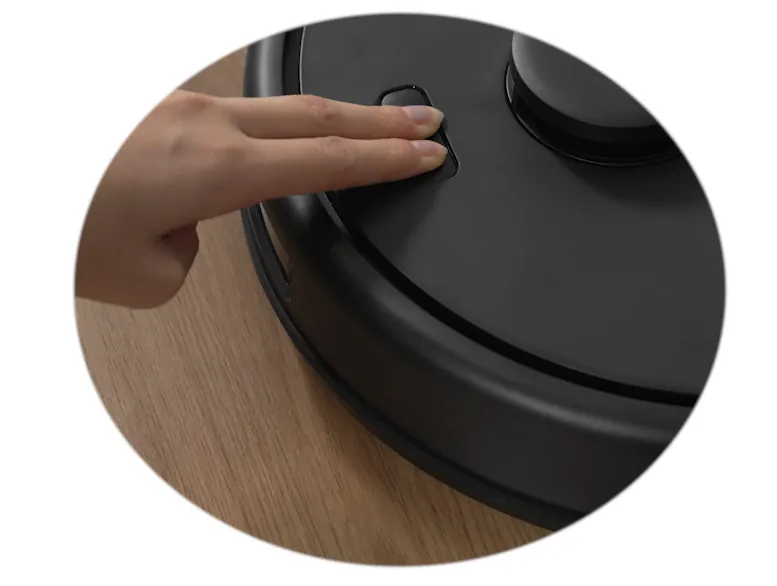
Before you start the reset process, gather these items to ensure you have full control over the hardware and network settings. Having the right tools makes the process faster and prevents you from needing to repeat steps because of a simple oversight.
-
Original Charging Base: The vacuum must be docked and connected to power to ensure it receives a steady current during the system refresh. If the unit loses power mid-cycle, the firmware can corrupt, rendering the device unresponsive.
-
Smartphone with EufyHome App: You need the app installed and logged into your account to re-link the device after the reset is complete. Ensure your phone’s Bluetooth is enabled, as the app uses it to detect the vacuum during the initial handshake.
-
Stable 2.4GHz Wi-Fi Network: Ensure your router is broadcasting on the 2.4GHz band. Most models can’t connect to 5GHz networks during the initial setup. If your router uses a combined SSID, disable the 5GHz band in your router settings temporarily to force the vacuum to latch onto the 2.4GHz signal.
-
Paperclip or Reset Pin: Some older models feature a recessed physical reset button instead of a power button interaction. Check your model’s underside or the area behind the dust bin. If you feel a “click” when pressing the pin, you have found the correct switch.
-
Original Power Adapter: Only use the adapter provided by the manufacturer. Using a generic or mismatched power supply is a common mistake that often leads to permanent circuit board failure.
If you’re missing the original power adapter, source a replacement with the exact voltage and amperage ratings specified on the device label. If the replacement adapter has a higher amperage than the original, it’s safe, provided the voltage matches exactly. However, if the voltage is higher, don’t use it. A voltage mismatch will fry the internal battery management system within seconds.
Always verify the polarity symbol on the adapter matches your unit. If the symbols are reversed, the vacuum will fail to charge and may suffer internal damage. When in doubt, compare the output specifications on the back of the adapter against the technical manual for your specific vacuum model.
Steps to Perform the Reset
Follow these steps carefully to ensure the device clears its cache and enters pairing mode correctly. If you skip the charging requirement, the internal memory may not fully discharge, leaving the previous error in place.
- Place the vacuum onto the charging base and ensure the power indicator light is solid or pulsing, confirming it’s receiving power.
- Locate the power button on the top cover of the unit; if your model has a recessed hole instead, use your paperclip to press the button inside.
- Press and hold the power button for 10 to 15 seconds until you hear a voice prompt or see the indicator lights flash.
- Release the button and wait for the robot to restart, which typically takes about 30 to 60 seconds.
- Open the EufyHome app on your mobile device and remove the old device entry from your dashboard to prevent synchronization conflicts.
- Select the “Add Device” option in the app and follow the on-screen prompts to reconnect your vacuum to your local network.
Careful: Don’t turn off the power at your wall outlet while the robot is restarting, as an interruption during the firmware handshake can corrupt the internal settings.
Tip: If the robot fails to show up in the app after the reset, ensure your phone’s Bluetooth is turned on, as this is required for the initial handshake between the app and the vacuum.
Situations Affecting Reset Time
The time and effort required to get your vacuum back online depend on the state of your home network and the specific model you own. Starting with a basic power cycle is always safer than a full factory reset, as it preserves your saved maps and cleaning schedules.
| Situation | Estimated Time | What is Different | What to Watch |
|---|---|---|---|
| Simple Glitch | 2 Minutes | No data loss | Indicator lights |
| Network Change | 5-10 Minutes | Re-pairing needed | Wi-Fi signal strength |
| Factory Reset | 10-15 Minutes | Map data cleared | App connectivity |
| Firmware Update | 20+ Minutes | Software migration | Battery level |
If your vacuum fails to connect after a power cycle, check your router’s frequency. Most older models require a 2.4GHz band, while newer ones handle 5GHz. If your phone is connected to 5GHz, the pairing process will stall indefinitely. Switch your phone to the 2.4GHz network before attempting the handshake.
A common mistake is triggering a factory reset when the issue is merely a server-side outage. Check the manufacturer’s status page first. If the servers are down, a reset will leave you unable to re-register the device, effectively bricking the vacuum until the service returns.
If you must perform a factory reset, ensure the battery is above 50 percent. A sudden power loss during a firmware rewrite can corrupt the internal bootloader. If the unit remains unresponsive after a reset, wait a moment before trying again.
How to Verify a Successful Reset
A successful reset is confirmed when the device emits a distinct tone or voice prompt, and the Wi-Fi indicator light begins to blink slowly. This blinking state indicates that the robot is actively broadcasting its own temporary network, waiting for your smartphone to provide the credentials for your home router. If the lights remain solid or don’t change at all, the processor likely didn’t receive the command to reboot.
Wait at least thirty seconds after the indicator light changes before attempting to open your app. If the light blinks rapidly rather than slowly, the device is in a firmware recovery mode; you must power cycle the unit by turning the master power switch off for ten seconds to force a standard reboot.
The most common quality issue after a reset is a failure to complete the handshake with the app. This often happens because your phone is connected to a 5GHz network while the robot only accepts 2.4GHz. To prevent this, ensure your smartphone is connected to the slower band before you start the re-pairing process.
If the device still refuses to connect, check your router’s firewall settings. High-security settings often block the robot’s initial communication request. If you see a “Device Not Found” error at 90% completion, toggle your phone’s cellular data off entirely. This forces the app to rely solely on the local Wi-Fi connection during the final credential transfer.
Standard Rules and Maintenance
You should only perform a factory reset as a last resort, as the process follows the manufacturer’s standard for clearing non-volatile memory. After the reset, ensure you record your previous preferences, such as “No-Go” zones or restricted areas, because the device won’t remember these once the internal storage is cleared. The result of a successful reset should last until a significant firmware update or a major change in your home network architecture occurs.
If you find that your robot requires frequent resets, this could indicate a failing internal battery or a hardware fault. If your device loses its map or connection, the hardware may be degrading depending on your usage; consult your owner’s manual for specific service guidance. Don’t mistake a recurring software glitch for a permanent failure. If the robot resets itself during a cleaning cycle, the battery is likely dropping below the minimum voltage threshold under load.
If you’re uncomfortable opening the casing to inspect for loose internal ribbons or battery connections, contact a certified service center. Attempting to repair internal components yourself can void your warranty and pose a risk of electrical shorting.
Alternative Methods for Troubleshooting
Power Cycling the Unit
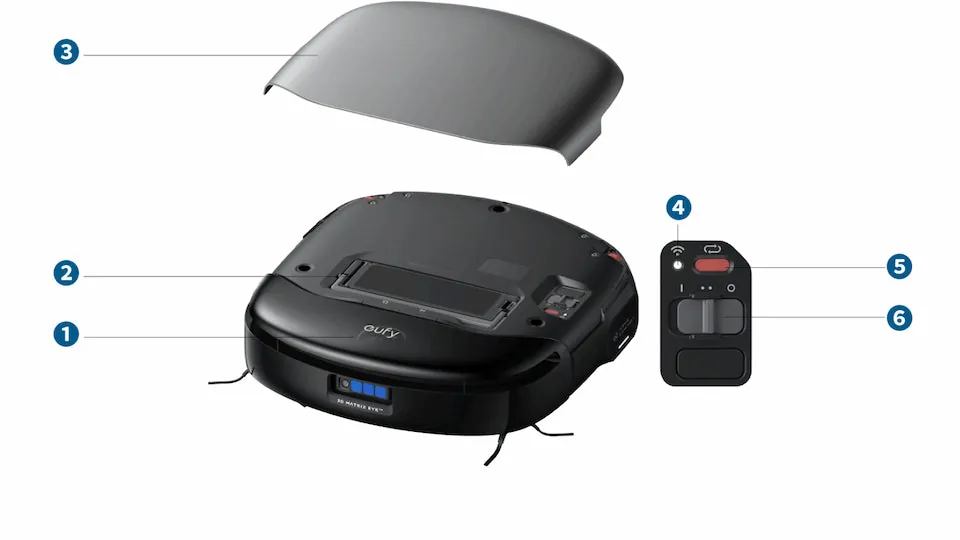
If the robot is merely sluggish, turn the master power switch on the side of the unit to the “Off” position. Leave it off for 60 seconds, then toggle it back to “On.” This clears the RAM without deleting your saved maps or Wi-Fi settings, saving you the time of re-configuring the entire device.
Router Reboot
Sometimes the vacuum is fine, but the router’s DHCP table is full. Restart your home router by unplugging it for 30 seconds, then plugging it back in. Wait for the internet to return before trying to control the robot through the app again.
App Reinstallation
If the vacuum responds to physical buttons but not the app, delete the EufyHome app entirely. Clear your phone’s cache, reinstall the latest version from the app store, and log back in. This fixes issues caused by corrupted cache files on your phone.
Frequently asked questions
How long does a reset take?
A standard reset takes about 10 to 15 minutes, including the time required to re-pair the device with your home network. The physical reboot of the hardware happens in under one minute, but the software configuration in the app adds the remaining time.
Is it safe to reset my Eufy?
Yes, it’s perfectly safe to reset your unit, as this is a standard troubleshooting step provided by the manufacturer. You won’t damage the hardware, though you’ll lose any custom maps or schedules you previously saved.
Why is my Eufy not resetting?
If your Eufy doesn’t reset, the battery may be too low to complete the operation or the physical button might be blocked. Ensure the robot is sitting firmly on the charging pins and that the power indicator light is visible before holding the reset button again.
What happens if I reset it?
A reset returns the robot to its out-of-the-box state, meaning all stored Wi-Fi credentials, cleaning maps, and custom schedules are permanently deleted. You’ll need to perform the initial setup process as if the device were brand new.
How often should I reset it?
You should only reset your device when you encounter persistent connectivity errors or software bugs that can’t be fixed by a simple power cycle. There’s no set schedule for resetting, and doing it too often provides no benefit to the hardware.
Conclusion
Once the device restarts, check your app to ensure it’s syncing properly. If you’re still having trouble, don’t hesitate to reach out to customer support for extra help. They’ve got the tools to troubleshoot deeper technical glitches, so you’ll be back to enjoying a clean home in no time at all.
