
No, your myQ garage door opener doesn’t require a subscription for basic remote control and status monitoring. You can open, close, and check the status of your garage door through the myQ app without paying any monthly fees. This free access is the standard experience for most users who own compatible Chamberlain or LiftMaster hardware.
Quick facts about myQ access
Basic remote control and real-time status monitoring remain free for all compatible devices. You never need a paid plan to receive push notifications regarding your door’s activity. These alerts provide immediate confirmation that your garage is closed, regardless of your location.
Advanced features, such as IFTTT integration or specific smart home platform syncing, often require a paid subscription. If you rely on complex automation sequences to trigger your door based on GPS location or arrival times, expect to pay a monthly fee. Users who simply want to open their door from the app will never face these charges.
Verify your model’s compatibility on the official myQ support website to confirm if your hardware supports free app connectivity. If your opener lacks built-in Wi-Fi, you must purchase a separate myQ Smart Garage Hub. This device acts as a bridge, translating your home’s internet signal into the radio frequency your opener understands.
A common mistake is assuming every opener made in the last decade is compatible. Check the serial number on your unit’s motor head before buying any accessories. If the unit was manufactured before 1993, no hub will bridge the connection. In those cases, you must replace the entire motor assembly to gain modern smart access.
Why myQ features require a subscription
The core function of myQ is to bridge the gap between your physical garage door opener and your smartphone. When you set up the app, the system uses your home Wi-Fi to send commands to the opener’s internal radio or the external hub.
This direct communication is a basic utility provided by the manufacturer to enhance the value of their hardware. Because this process relies on local network traffic and basic cloud signaling, the company doesn’t charge a recurring fee for the standard remote operation.
However, the landscape changes when you want to link your garage door with third-party automation services. Integrations with platforms that allow your garage to trigger other smart home actions—like turning on lights when you arrive—often involve API access. Maintaining these secure, high-frequency data connections between different companies requires significant backend infrastructure. If you choose to use these advanced “connected home” features, the company may charge a subscription to cover the costs of managing those specific service partnerships.
The most common mistake users make is assuming that all “smart” features are bundled in the base hardware purchase. If you require your garage door to act as a trigger for IFTTT or other automation routines, you’re paying for the ongoing maintenance of the data handshake between two distinct corporate servers. If you only need to open and close the door, avoid the premium tiers entirely; the standard app handles these basic commands without a monthly bill.
You should also consider the hardware requirements for your specific setup. If you own an older opener that lacks built-in Wi-Fi, you must buy a hardware bridge, such as the Smart Garage Control. This is a one-time purchase, not a subscription.
Once the device is installed and registered to your account, you own the capability to control your door remotely. The decision to pay for any service only arises if you decide to opt into premium smart home ecosystem features that go beyond simple door operation.
Situations where costs might arise
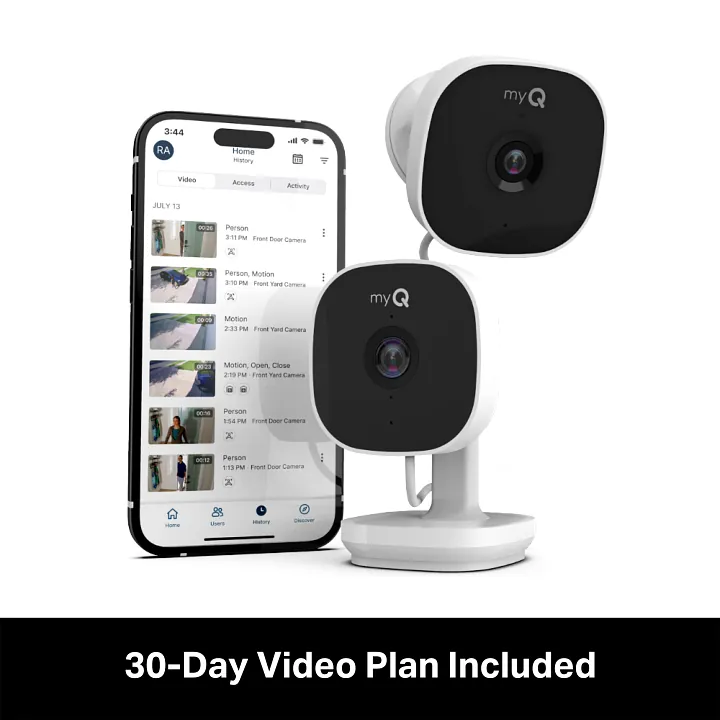
While the app is free, specific usage patterns or hardware needs can change the cost structure.
| Situation | What changes | What to do instead |
|---|---|---|
| Using IFTTT integrations | Requires premium plan | Use native app schedules |
| Older non-Wi-Fi openers | Requires hardware hub | Purchase one-time bridge |
| Commercial facility use | Requires enterprise license | Use standard residential app |
| Managing multiple homes | No fee for basic | Use one login account |
| Smart home syncing | May require subscription | Use simple timer settings |
If you operate more than three distinct properties, the system defaults to a commercial tier. You can avoid this monthly fee by consolidating all properties under a single master account profile.
Many users mistakenly purchase a dedicated hub for every individual door. You only need one bridge per local network, provided the devices are within 50 feet of the signal source. If your garage is detached, a single hub will fail to maintain a stable connection. In that case, prioritize a Wi-Fi range extender before buying additional hardware.
Check your opener’s serial number against the compatibility list before committing to a bridge. If your model predates 2012, the internal radio frequency is likely incompatible with modern smart bridges. Attempting to force a connection here usually results in intermittent signal drops that trigger false alarms. If your unit lacks a “Learn” button, skip the bridge entirely and upgrade the motor unit instead.
How to set up your opener properly
Download the myQ app from the Apple App Store or Google Play Store. Before you begin, confirm your router broadcasts a 2.4GHz signal. Most modern mesh systems combine bands, but the hub will fail to connect if it attempts to handshake with a 5GHz frequency.
Plug in your smart hub or power on the opener. If the LED indicator flashes blue, the device is ready for pairing. If it shows a solid green light, it’s already tethered to another network; hold the settings button for ten seconds to perform a factory reset.
Create an account using a valid email address. Verify your identity via the link sent to your inbox before attempting to add hardware. Skipping this step often results in a “server error” during the final handshake.
Select “Add Device” in the menu and choose your specific hardware. Follow the prompts to input your Wi-Fi credentials. If the app stalls at 90 percent, move your smartphone closer to the hub; the signal strength during setup must be higher than the signal required for daily operation.
Test the connection by tapping the button in the app. The door should respond within three seconds. If the app reports a “door state unknown” error, the safety sensors are misaligned. Adjust the sensors until the LED on the unit turns solid, then cycle the door manually once.
Mount the hub within six feet of the opener motor for optimal range. Avoid placing the hub behind thick concrete walls or metal shelving, as these materials will degrade signal reliability and cause intermittent connection drops.
The mistakes that ruin the experience

Connecting to a 5GHz Wi-Fi network causes the device to fail the pairing process entirely. Most smart controllers only recognize 2.4GHz bands due to their superior range through walls. If your router combines these bands, temporarily disable the 5GHz radio in your settings to force the device onto the correct frequency.
Mounting the door sensor on a metal surface without the provided spacer leads to signal interference and constant false status readings. Metal acts as a shield, dampening the magnetic field the sensor relies on to detect the door’s position. Always use the included plastic riser to create a buffer between the sensor housing and the steel door frame.
Sharing your main login credentials with family members creates a security vulnerability and prevents you from tracking individual user logs. Use the app’s internal guest sharing feature instead. This allows you to revoke access instantly if a visitor leaves or a phone is lost.
Ignoring firmware update prompts causes the app to lose connection to the controller. These updates often include critical security patches for your home network. If the device becomes unresponsive, perform a hard reset by holding the pairing button for ten seconds before attempting a re-sync.
Related guides
- Are Salt Water Pools Warmer? The Truth Explained in 2026
- Best Free Calorie Counter Apps for Every User Type in 2026
- Does Chamberlain Own LiftMaster? The Corporate Truth Explained
Frequently asked questions
Can I use the app without a Wi-Fi connection?
No, the app requires an active internet connection on both your smartphone and the garage door opener to function. You must have a stable 2.4GHz Wi-Fi signal in your garage to allow the device to communicate with the cloud servers. If your garage is too far from your router, you’ll need to install a Wi-Fi range extender to ensure the device stays online for consistent remote access.
Does myQ charge a fee for multiple users?
No, you can invite multiple users to your account for free using the “Manage Users” section within the app settings. Each person you invite will create their own login, allowing you to track who operates the door and when. This feature is included in the standard, free version of the service and doesn’t require any paid subscription or premium account level to access.
What happens if my internet goes down?
If your home internet goes down, you won’t be able to operate the door through the app until the connection returns. The physical wall-mounted button inside your garage and your standard handheld remotes will continue to function normally during an internet outage. The app’s inability to connect is limited only to remote features, as the mechanical operation of the door remains independent of the cloud service.
Is it safe to use the app for garage access?
Yes, the app uses encrypted data transmission to ensure that your commands are secure and only authorized users can access the door. The company employs standard security protocols to protect your login and device information from unauthorized access. You should always enable two-factor authentication in your account settings to add an extra layer of protection against potential account compromises and ensure your home remains secure.
How long does the battery in the door sensor last?
The battery in the door sensor typically lasts for a significant duration under normal, daily usage conditions. You can check the battery level at any time by navigating to the device settings menu within the app. When the battery is low, the app will send a notification to your phone, alerting you that it’s time to replace the coin cell battery with a new one.
Does it matter which smartphone I use?
No, the app works on both iOS and Android devices, and it doesn’t matter which brand of phone you use. The functionality remains identical across both platforms, provided your phone meets the minimum operating system requirements listed on the app store page. You can switch between different phones or tablets without losing your settings, as your data is tied to your account, not the specific physical device.
Conclusion
If you want to explore more advanced features, check the settings menu in your app to see which integrations are available for your home. You’ll find that connecting your opener to other smart devices makes your daily routine even easier. It’s a great way to get the most out of your hardware.
