
To hide wires in home office setups, start by mounting a power strip beneath your desktop and bundling loose cords into reusable hook-and-loop ties or raceways. A basic desk cleanup takes about 60 to 90 minutes and eliminates floor tangles completely. This guide shows you how to route standing desks safely, isolate sensitive data cables, and pick the right organizers so you don’t ruin your walls or pinch vital equipment.
What it takes to hide office wires
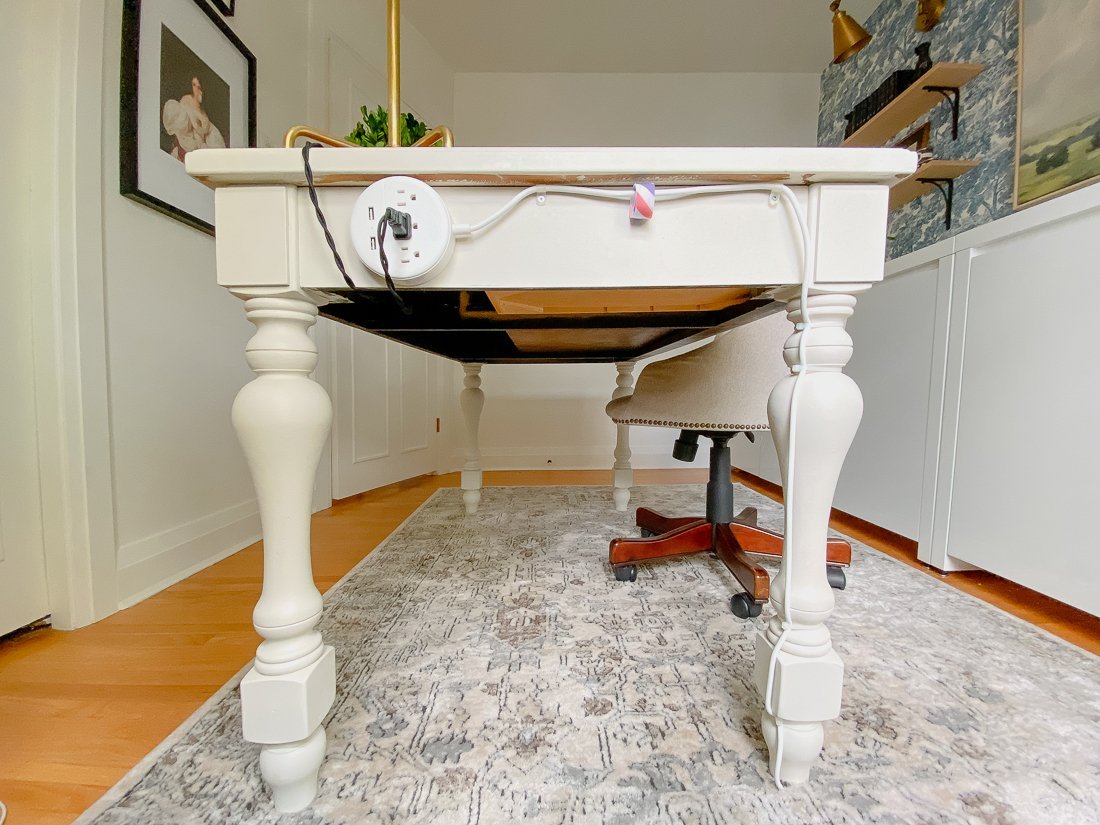 Photo: www.ramblingrenovators.ca on Google
Desk cable management is the process of routing, grouping, and concealing electrical and data cords between your wall outlet and desktop devices. It serves anyone working with monitors, computers, chargers, and lamps who wants a clean workspace without trip hazards.
The most common misconception is that hiding wires means cramming them tightly into closed boxes. Trapping high-draw power bricks together builds up heat because standard electrical resistance naturally produces warmth during continuous operation. A clean setup organizes cables along open raceways or under-desk trays that let air circulate freely.
This guide isn’t for people running permanent electrical wiring inside hollow walls to mount hardwired fixtures. Doing that requires specialized tools and strict building permits. Instead, this system focuses on external surface routing using trays, sleeves, clips, and adhesive channels designed for standard home office electronics.
The basic method
Gather one under-desk wire basket, 10 to 15 hook-and-loop cable ties, a pack of adhesive cable clips, and your surge protector.
- Turn off your computer, unplug all cables from the wall outlet, and pull your desk 2 feet away from the wall so you can move behind it.
- Fasten a heavy-duty surge protector to the underside of the desk surface using two wood screws or industrial mounting tape.
- Screw an open wire-mesh tray beneath the desktop, roughly 4 inches in front of the back edge, leaving enough hand clearance to plug in bulky transformer blocks.
- Route the power cords from your monitors, computer tower, and desk lamp directly into the under-desk surge protector, securing the excess line of each cord with a single reusable tie.
- Snap hard data lines, such as monitor display cables and Ethernet wires, into small adhesive clips along the desk frame, keeping them at least 2 inches away from parallel AC power bricks.
- Gather the cables coming from your desktop accessories (keyboard, mouse, webcam) into a split-tubing cable sleeve, working from the top down.
- Run the single main power cord from your mounted surge protector down the least visible desk leg, securing it every 8 inches with cable clips before plugging it into the wall.
The main judgment call involves deciding how much tension to leave in each wire. Pulling lines drum-tight looks clean, but it strains connection ports and leads to intermittent signal drops. Leaving an extra 2 to 3 inches of gentle slack at every connection port protects your equipment’s internal circuit boards from bending strain.
Key numbers and settings at a glance
The table below shows the common cord setups and what materials handle them best.
| Situation | What to use | How long | What to watch for |
|---|---|---|---|
| Sit-stand motorized desk | Articulated cable spine | 45–60 minutes | Cord tension when desk is fully raised |
| Wall-mounted display | Paintable surface raceway | 30–45 minutes | Weak drywall anchors pulling free |
| Glass-top executive desk | Floor cord protector rail | 20–30 minutes | Tape residue visible through clear glass |
| Multi-monitor setup | Split woven wire loom | 40–50 minutes | Heavy weight bending thin plastic clips |
| Desk against baseboard | Self-adhesive J-channel | 15–25 minutes | Paint peeling off wood during removal |
| Dense charging hub | Perforated steel under-tray | 30–40 minutes | Heat buildup from grouped power adapters |
What separates good results from bad ones
Planning the path of each cord before sticking anything down separates a lasting setup from a messy failure. Rushing into the job usually means sticking adhesive tracks on dirty surfaces, only to have the weight of heavy cords pull the entire assembly off the wall three days later. Clean every mounting area with isopropyl alcohol first, and map which cables must travel together.
Route Power and Data on Separate Paths
Audio buzzing, flickering screens, and dropped network packets often happen because unshielded signal lines sit right against high-current AC lines. Route your standard AC power lines along the left side of the desk frame, and run your monitor, audio, and network cables along the right side. If a power cord and a display cable must cross, cross them at a 90-degree angle rather than running them parallel to reduce electromagnetic interference.
Manage the Drop Point
The single cord running from the desk down to the wall outlet makes or breaks the appearance of the workspace. Wrap this main feed inside a fabric zip sleeve that matches the color of your desk frame or wall paint. If you use an adjustable sit-stand desk, remember the trade-off: a rigid plastic channel looks sharper than a flexible fabric spine, but it will snap or bind when the desk changes heights. Always raise the desk to its maximum height setting before securing this vertical drop.
Common problems and quick fixes
 Photo: www.velcro.com on Google
When cords work loose or devices fail to power on, use these checks to resolve the issue quickly.
| What you notice | What it usually means | What to do first |
|---|---|---|
| Monitor screen flickers | Signal cord pulled too tight | Add 2 inches of slack near the display port |
| Adhesive channel drops | Dust on desk wood prevented bond | Clean desk with alcohol and apply fresh foam tape |
| Humming sound from speakers | Audio wire runs parallel to power brick | Move the audio lead 3 inches away from the power block |
| Sit-stand desk stops midway | Cable caught in the lifting column | Unplug the desk and free the trapped wire immediately |
| Wall paint chips upon removal | Adhesive bonded directly to drywall paper | Warm the plastic strip with a hairdryer before peeling |
Electrical Safety and Placement Limits
Permanent cord concealment inside finished walls is strictly regulated. The US Consumer Product Safety Commission home electrical safety guide warns that running standard flexible appliance cords or extension lines through holes in walls, ceilings, or floors creates hidden fire risks because trapped heat can’t escape.
Standard power cords connected to monitors and PC towers are classified as flexible cords, not permanent building wiring. If you want completely invisible lines behind drywall, you must hire a licensed electrician to install a recessed outlet box behind your desk or TV. If a job involves cutting into drywall near existing electrical circuits, stop immediately and contact a licensed professional to avoid electrocution or code violations.
Inspecting and Refreshing Your Setup
Once your cables are tied and placed into trays, leave them undisturbed until you change your hardware. A proper setup holds up for years without maintenance, but you should check the connections whenever you notice dust gathering heavily along the channels.
Regularly inspect the under-desk tray to clear out lint and ensure no heavy power bricks have shifted out of place. Unclipping a single wire tie lets you swap a failed monitor cable or charging lead without dismantling the rest of the run. When sticky clips lose their hold over time, avoid layering new tape on old residue; scrape off the dry foam with a plastic scraper and mount a fresh pad.
When to use a different approach
 Photo: www.ramblingrenovators.ca on Google
Using under-desk trays and adhesive raceways is the wrong choice for mobile setups. If you take your laptop charger and mouse with you regularly, tying those cables into permanent under-desk channels wastes time each morning. Use weighted desktop cord notches instead so you can unplug and leave in seconds.
This approach also fails in rental units with delicate wallpaper or unsealed historic plaster. Standard adhesive foam strips will strip wallpaper or pull down lime plaster chunks. If you can’t mount hardware to the wall, skip wall tracks entirely and route cables down the back of your desk legs using hook-and-loop straps, then run a heavy rubber floor runner across the baseboard.
Frequently asked questions
Can I run desk power cords behind drywall?
No. Standard appliance cords, monitor cables, and surge protector leads aren’t rated for in-wall use. Running flexible cords through walls violates residential fire codes because heat builds up and damaged insulation remains hidden from view.
What happens if I tie all my wires together?
Bundling power cords tightly against video or audio wires causes electromagnetic interference. This leads to flickering monitors, slow data transfers, or speaker hums. Standard AC power lines should always run slightly apart from sensitive signal cables.
Is double-sided foam tape safe for wood desks?
Yes, but heavy-duty foam tape can pull the finish or veneer off cheap particle board when removed. If you use it, peel it off slowly while warming the plastic track with a low-heat hair dryer to soften the glue.
How much slack does a standing desk need?
Measure your desk at its highest position, then add 6 to 8 inches of extra cable length. This safety margin stops the lines from snapping your computer ports or toppling your desktop tower when the motor lifts the frame.
Why do my power bricks get hot in the tray?
Transformers naturally generate heat while converting AC current to DC power. If you pack them together in an enclosed plastic bin without ventilation, heat builds rapidly. Switch to an open-wire steel basket to let air circulate freely.

1 thought on “How to Hide Wires in Home Office Setups: A Step-by-Step Guide”