
Are you staring at your Pentair ScreenLogic app, frustrated because it’s stuck on “Waiting for WiFi”? You’re not alone.
When your pool system won’t connect, it can feel like your whole setup is frozen—leaving you stuck and unsure what to do next. But don’t worry, this isn’t a problem you have to face forever. You’ll discover simple, clear steps to get your ScreenLogic back online fast.
Keep reading, and you’ll be able to enjoy full control over your pool again without the headache.

Credit: www.troublefreepool.com
Why Screenlogic Waits For Wifi
Pentair ScreenLogic waits for WiFi to connect properly before it starts working. This pause is necessary to ensure the system can communicate with your pool equipment. Without a stable WiFi connection, commands might not reach the pool system. This waiting period helps avoid errors and keeps the system running smoothly.
Common Causes Of Connection Delays
WiFi signal strength is a major cause of delays. Weak signals make it hard for ScreenLogic to connect quickly. Network interference from other devices can also slow down the connection. Sometimes, router settings or firmware updates cause delays. Distance from the router plays a big role too. The farther the device, the longer it takes to connect.
Impact On Pool System Control
While waiting for WiFi, you cannot control your pool remotely. This delay might stop you from adjusting temperature or lights on time. Automated schedules may not run as planned. The system may lose sync with your app or voice assistants. A stable connection is key to full control of your pool system.
Checking Your Wifi Network
Checking your WiFi network is a key step when Pentair ScreenLogic shows “Waiting for WiFi.” A weak or unstable WiFi connection can cause delays or stop the system from connecting. Understanding your network’s strength and settings helps you fix connection problems quickly.
Signal Strength And Coverage
Signal strength affects how well your device connects to WiFi. Walls and distance reduce the signal. Check your WiFi signal near the Pentair ScreenLogic controller. Move closer to the router if the signal is weak. Use a WiFi analyzer app to see signal strength around your home. Stronger signals mean faster and more stable connections.
Router Settings To Review
Router settings may block or slow down your device. Check if the router’s firmware is updated. Old firmware can cause connection issues. Confirm that the router’s 2.4 GHz band is enabled. Pentair ScreenLogic often works best on 2.4 GHz, not 5 GHz. Look for MAC address filtering on your router. If enabled, add your device’s MAC address to the allowed list. Also, check the DHCP settings. Make sure your device can get an IP address automatically.
Screenlogic Device Setup Tips
Setting up your Pentair ScreenLogic device correctly ensures smooth operation and fast connection. Simple steps during setup can prevent the “Waiting for WiFi” issue. Follow these tips to get your device online quickly and maintain a strong connection.
Proper Placement For Best Signal
Place the ScreenLogic device close to your WiFi router. Walls and furniture can block the signal. Avoid metal objects and microwaves nearby. Higher locations often improve signal strength. Keep the device away from other electronics that cause interference. A strong signal reduces connection delays and errors.
Firmware And Software Updates
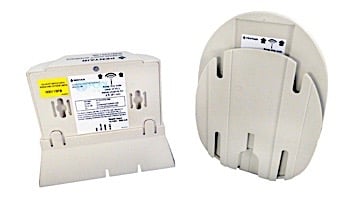
Check for the latest firmware on your ScreenLogic device. Updates fix bugs and improve performance. Use the official Pentair app or website to download updates. Keep the controlling app on your phone updated too. Regular updates help your device connect faster and work better.
Credit: www.poolsupplyunlimited.com
Troubleshooting Steps To Fix Connectivity
Fixing Pentair ScreenLogic WiFi connection problems starts with basic troubleshooting. Small steps often solve the issue fast. Checking your devices and network settings can restore connection.
Follow these clear steps to get your ScreenLogic system back online. These methods work for many common connectivity problems.
Restarting Devices
Turn off the Pentair ScreenLogic controller. Unplug the power from the device. Wait about 30 seconds to clear any temporary faults. Then plug it back in and power it on. This simple step refreshes the connection and often resolves issues.
Also, restart your WiFi router. Unplug the router’s power cord. Wait 30 seconds before plugging it back in. This can fix problems caused by the router itself.
Resetting Network Settings
On the ScreenLogic controller, find the network settings menu. Select the option to reset or clear network settings. This removes any incorrect or outdated WiFi data. After resetting, the controller will need to reconnect to your WiFi network.
Resetting network settings can remove hidden errors that block connection. It gives the device a fresh start to connect properly.
Reconnecting To Wifi
After restarting and resetting, reconnect ScreenLogic to your WiFi. Open the WiFi setup on the controller. Choose your home network from the list. Enter the correct WiFi password carefully. Make sure the password matches exactly, including uppercase and lowercase letters.
Check that your WiFi signal is strong near the controller. Weak signals cause connection failures. Moving the router closer or using a WiFi extender may help.
Advanced Solutions For Persistent Issues
Sometimes, simple fixes do not solve the Pentair ScreenLogic waiting for WiFi problem. Advanced solutions help in these tough cases. These steps improve your connection and reduce waiting times. Follow these easy methods to enhance your pool system’s performance.
Using Wifi Extenders Or Mesh Networks
WiFi extenders boost your signal range. They bring the WiFi closer to your Pentair device. Mesh networks create a strong, seamless signal throughout your home. Both options reduce dead zones and improve connection stability. Choose one based on your home size and layout.
Checking For Interference
Interference can block or weaken WiFi signals. Common sources include microwaves, cordless phones, and other electronics. Move these devices away from your router and ScreenLogic. Also, check walls and furniture that might block signals. Clear paths help your device connect faster.
Contacting Pentair Support
When problems persist, ask Pentair support for help. They offer expert advice and troubleshooting steps. Provide details about your WiFi setup and ScreenLogic model. Support can guide you to fix issues or recommend repairs. Don’t hesitate to get professional help.
Preventing Future Connectivity Problems
Preventing future connectivity problems with Pentair Screenlogic helps keep your pool system running smoothly. A stable connection avoids frustrating delays and errors. Simple steps can improve your network’s reliability. Regular care and attention reduce the chances of losing WiFi signals.
Regular Maintenance Tips
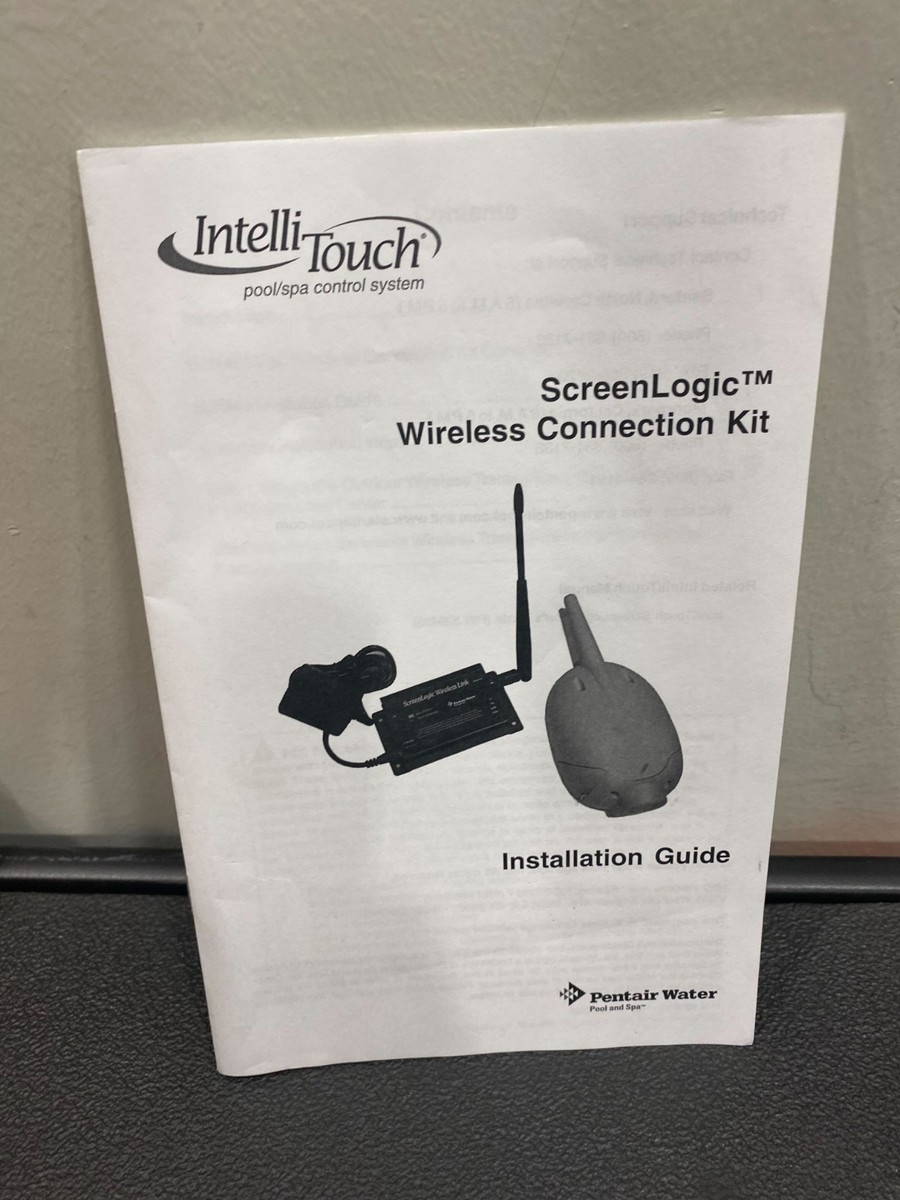
Check your Pentair device often for updates. Installing the latest software fixes bugs that cause connection issues. Keep the device clean and dry to avoid damage. Restart your Screenlogic system regularly to refresh the connection. Inspect cables and power sources to ensure they work well. Replace worn or broken parts promptly. A well-maintained system stays connected longer and runs better.
Monitoring Network Performance
Watch your WiFi signal strength near the pool area. Use apps or tools to measure network speed and stability. Identify weak spots that cause slow or dropped connections. Move your router closer or add a WiFi extender if needed. Keep other devices from overcrowding the network. Monitor the number of devices connected at the same time. Knowing your network’s health helps you act before problems start.
Credit: www.ebay.com
Frequently Asked Questions
What Does “pentair Screenlogic Waiting For Wifi” Mean?
It means the ScreenLogic system is trying to connect to your WiFi network. The device waits until it finds a stable WiFi signal. This message shows before full connection is made.
Why Does Screenlogic Take Time To Connect To Wifi?
ScreenLogic may take time if the WiFi signal is weak or unstable. Network interference can also slow the connection process. Patience helps while the system searches for a strong signal.
How Can I Fix Screenlogic Stuck On “waiting For Wifi”?
Try restarting your WiFi router and ScreenLogic device. Move the device closer to the router to improve signal. Check your WiFi password is correct in the settings.
Can Wifi Issues Cause Screenlogic Connection Problems?
Yes, WiFi problems like low signal or router faults can stop ScreenLogic from connecting. Make sure your internet works well on other devices. Fixing WiFi issues usually solves ScreenLogic connection delays.
Does Screenlogic Support All Wifi Networks?
ScreenLogic works with most home WiFi networks using standard settings. It may not connect to public or enterprise networks with extra security. Use simple home WiFi for best results.
How Do I Know If Screenlogic Is Connected To Wifi?
The system will show a confirmation message or icon once connected. You can also check your router’s connected devices list. A stable connection means you can control your pool remotely.
What Should I Do If Screenlogic Never Connects To Wifi?
Check your internet and router settings for problems or blocks. Reset the ScreenLogic device and try setup again. Contact Pentair support if issues continue after these steps.
Conclusion
Pentair ScreenLogic waiting for WiFi can feel frustrating. Your pool system needs a strong connection to work well. Check your router and signal strength first. Restart your devices to fix common issues quickly. Make sure your app and firmware stay updated.
Small steps often solve connection problems fast. Stay patient and try these simple tips. Your pool control will be back online soon. Enjoy easy pool management once the connection is stable.