
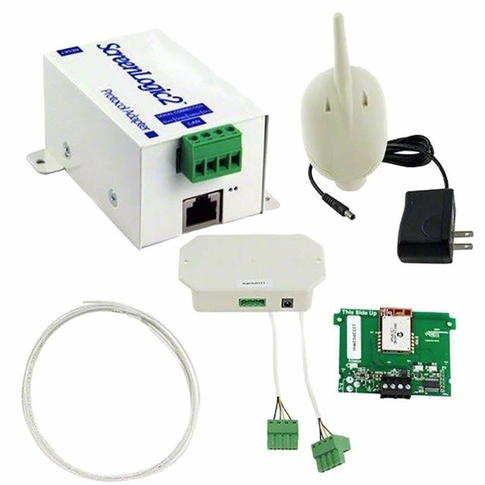
Are you having trouble finding the right system controller for your Pentair ScreenLogic Connect? You’re not alone.
Many pool owners face this challenge when trying to get their smart pool system up and running smoothly. But don’t worry—this guide will help you understand exactly what to look for and how to find the perfect controller for your setup.
Keep reading to unlock the secrets to seamless pool automation and take full control of your pool with ease.
Credit: www.hydropool.com
Common Causes Of Connection Issues
Connection issues with the Pentair Screenlogic Connect System Controller can cause frustration. Many users face problems that stop their system from working correctly. Understanding the common causes helps fix these issues faster. Below are some frequent reasons why the system may not connect properly.
Network Configuration Problems
Incorrect network settings often block the controller from connecting. The device needs the right IP address and gateway to communicate. A wrong password or network name also stops connection. Ensure the controller matches your home network settings exactly.
Wi-fi Signal Interference
Wi-Fi signals can weaken or drop due to interference. Walls, appliances, and other devices cause this problem. A weak signal means the controller cannot stay connected. Place the controller closer to the router or remove obstacles for better signal strength.
Outdated Firmware
Firmware controls how the system works. Old firmware may have bugs or miss new features. This can cause the system to lose connection or behave oddly. Check for updates regularly and install the latest firmware to keep the controller running smoothly.
Power Supply Interruptions
Power issues can disrupt the controller’s connection. A sudden power cut or unstable power source causes resets or shutdowns. Use a reliable power supply and avoid frequent power interruptions to maintain a steady connection.
Credit: www.pentair.com
Steps To Reset Screenlogic Connect
Resetting the ScreenLogic Connect system controller can fix many common issues. It helps restore proper communication between devices. There are two main reset methods: soft reset and factory reset. Choose the right one for your situation.
Follow these steps carefully to reset your ScreenLogic Connect and keep your pool system running smoothly.
Soft Reset Procedures
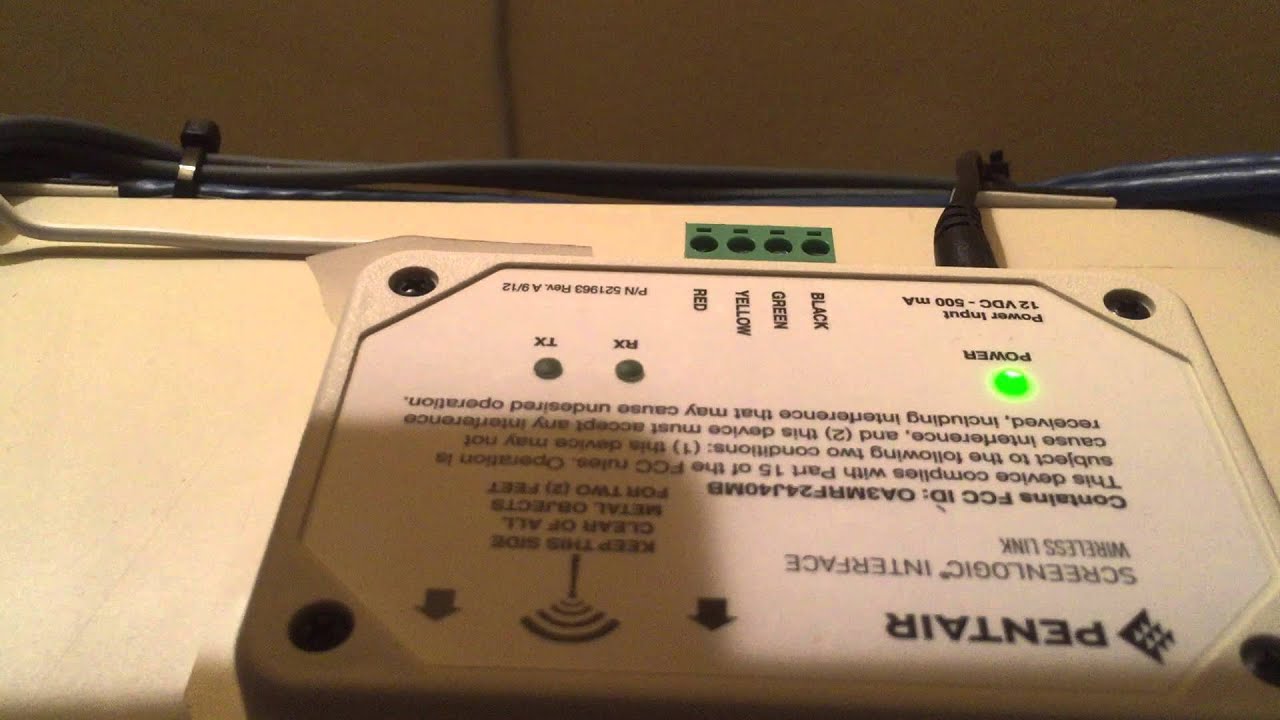
Start with a soft reset to clear minor glitches. Unplug the system controller from power. Wait 30 seconds to allow it to fully power down. Plug it back in and power up. Check if the connection improves. This reset does not erase your settings.
Factory Reset Instructions
Use factory reset if problems continue after a soft reset. Locate the reset button on the system controller. Press and hold it for 10 seconds. Release the button when the lights blink. The system will restart and erase all settings. You must reconfigure your device afterward.
When To Reset The System Controller
Reset the system controller if it stops responding. Try a soft reset first to fix small errors. Use a factory reset if issues persist or settings become corrupted. Resetting can resolve connection or control problems quickly.
Verifying Network Settings
Verifying network settings is essential for the Pentair Screenlogic Connect to find the system controller. Network issues often cause connection problems. Checking these settings ensures smooth communication between devices. This process involves examining IP addresses, router configurations, and firewall rules. Each step helps identify any network blockages or errors.
Checking Ip Address Assignments
Each device on your network needs a unique IP address. Conflicts or wrong assignments can stop the controller from being found. Use your router’s admin page to view all connected devices. Confirm that the Screenlogic controller has a valid IP address. Static IP addresses work best for stable connections. Avoid IP conflicts by assigning addresses outside the DHCP range.
Ensuring Proper Router Settings
The router acts as the gatekeeper for network traffic. Certain settings can block devices from communicating. Check that UPnP (Universal Plug and Play) is enabled. This allows the controller and Screenlogic Connect to find each other. Port forwarding may be needed if you access the controller remotely. Make sure the router firmware is up to date for best performance.
Confirming Firewall And Security Settings
Firewalls protect your network but can block the controller’s signals. Review firewall rules on your router and PC. Allow connections for Screenlogic Connect and the system controller apps. Disable any strict security settings temporarily to test connectivity. Use trusted networks to reduce security conflicts during setup. After confirming connection, restore your preferred firewall settings.
Improving Wi-fi Connectivity
Improving Wi-Fi connectivity is essential for a smooth Pentair Screenlogic Connect experience. The system controller depends on a strong and stable Wi-Fi signal. Weak signals cause delays and errors during operation. Small changes in your network setup can make a big difference. Focus on key factors to enhance your Wi-Fi connection effectively.
Optimizing Router Placement
Place your router in a central, open area. Avoid corners, walls, or metal objects that block signals. Keep the router higher, like on a shelf or table. This helps signals reach the system controller better. The closer the controller is to the router, the stronger the connection. Test different spots for the best signal strength.
Using Wi-fi Extenders
Wi-Fi extenders boost signals in larger spaces. They repeat the router’s signal to reach farther areas. Install extenders halfway between the router and the system controller. Use extenders compatible with your router for better performance. This reduces dead zones and keeps the connection stable.
Reducing Signal Interference
Other devices can interfere with Wi-Fi signals. Microwaves, cordless phones, and baby monitors cause disruptions. Keep the router away from these devices. Use different Wi-Fi channels to avoid overlap with neighbors. Turn off unused devices that might cause interference. Clear signals improve system controller responsiveness.
Firmware Updates And Compatibility
Firmware updates keep your Pentair ScreenLogic Connect running smoothly. They fix bugs, add features, and improve performance. Checking and installing updates ensures your system controller works well with the latest technology. Compatibility between your device and controller prevents errors and connection problems.
Checking For Latest Firmware
Access the ScreenLogic Connect app or website to find firmware updates. The system notifies you when a new update is available. Check the update section regularly to avoid missing important upgrades. Keeping firmware current helps maintain system stability and security.
Updating Screenlogic Connect Firmware
Download the update through the app or your computer. Follow on-screen instructions carefully during installation. Do not turn off or disconnect the device while updating. The process usually takes a few minutes. After updating, restart your system controller to apply changes.
Compatibility With System Controllers
ScreenLogic Connect firmware must match your system controller model. Each controller has specific firmware requirements. Using incompatible firmware can cause connection issues or device failure. Verify compatibility before updating to avoid problems. Check Pentair’s support resources for controller and firmware compatibility lists.
Credit: www.youtube.com
Advanced Troubleshooting Techniques
Advanced troubleshooting techniques help fix issues with Pentair Screenlogic Connect. These methods go beyond basic checks. They provide deeper insight into connection problems and system errors. Using these techniques can save time and avoid frustration.
Understanding how to use diagnostic tools, analyze connection logs, and consult support resources is key. Each step gives valuable information to solve the problem faster. Let’s explore these methods in detail.
Using Diagnostic Tools
Diagnostic tools scan the system for errors. They check hardware and software components. These tools highlight connection issues and device malfunctions. Running diagnostics regularly helps catch problems early. Some tools offer detailed reports to guide repairs.
Analyzing Connection Logs
Connection logs record all communication events. They show when and where errors happen. Reviewing logs can reveal patterns and recurring problems. Logs also help identify network interruptions or device failures. Clear understanding of logs speeds up troubleshooting.
Consulting Pentair Support Resources
Pentair provides manuals, guides, and FAQs online. These resources cover common issues and solutions. Support forums allow users to share experiences and fixes. Accessing official help ensures accurate and safe advice. Contacting support is an option for complex problems.
Frequently Asked Questions
What Is Pentair Screenlogic Connect System Controller?
Pentair ScreenLogic Connect controls pool and spa equipment remotely. It links your devices to an app for easy management. This helps you adjust settings without being near the system.
How Do I Find The Pentair System Controller Model?
Look on the device label or user manual for the model number. It usually starts with “SL” or “Intelli. ” You can also check the app for connected device info.
Can I Use Screenlogic Connect Without A Controller?
No, the controller is necessary to connect your pool equipment to the app. It acts as a bridge between your devices and your phone or tablet.
What Devices Are Compatible With Screenlogic Connect?
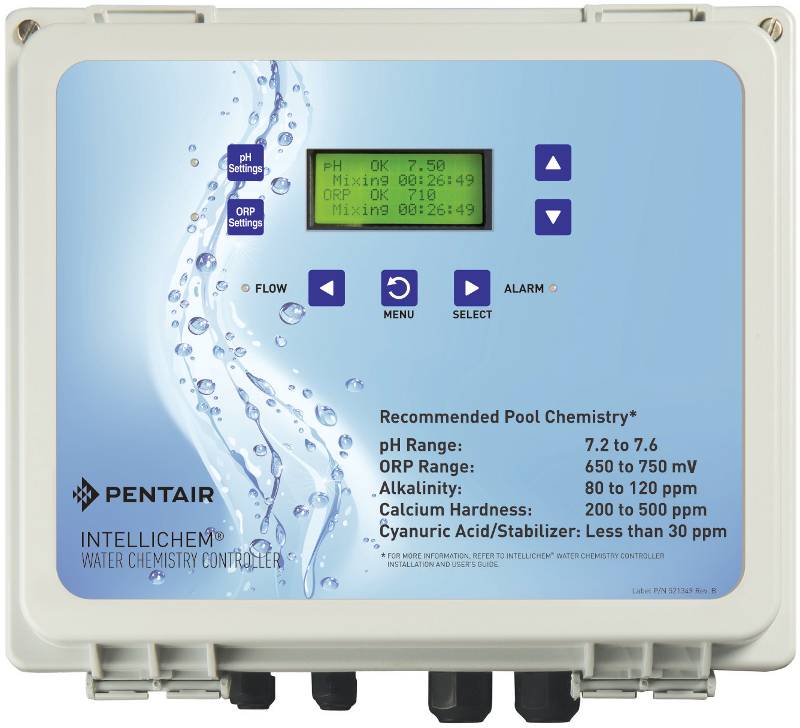
ScreenLogic Connect works with Pentair IntelliTouch, EasyTouch, and IntelliChem systems. These controllers manage pumps, heaters, lights, and more.
How To Troubleshoot When Screenlogic Connect Cannot Find Controller?
Check Wi-Fi connection and ensure the controller is powered on. Restart the controller and app, then try reconnecting. Also, verify the controller firmware is updated.
Does Screenlogic Connect Support Multiple Controllers?
Yes, you can connect and control multiple system controllers from one app. This is useful for managing several pools or spas at different locations.
Is Screenlogic Connect Secure For Remote Pool Control?
ScreenLogic Connect uses encryption to protect your data and control signals. Regular software updates help maintain security and fix vulnerabilities.
Conclusion
Pentair ScreenLogic Connect makes managing your pool easier. Finding the right system controller matters for smooth operation. Check your device compatibility before connecting. Always update the app for the best experience. A stable Wi-Fi connection helps avoid connection issues. Simple steps can save time and frustration.
Enjoy controlling your pool with confidence and ease. Keep your pool system running without hassle. This guide helps you get started quickly.