
You can fix an arteck keyboard not working by charging the battery fully or resetting the Bluetooth connection between your device and the keyboard. The most common cause for this issue is a drained battery that no longer holds enough power to maintain a wireless signal. If your keyboard is unresponsive, start by plugging it into a reliable power source using the provided USB cable. Always check that the charging light turns on, as this confirms the unit is drawing power.
Why your Arteck keyboard stopped working
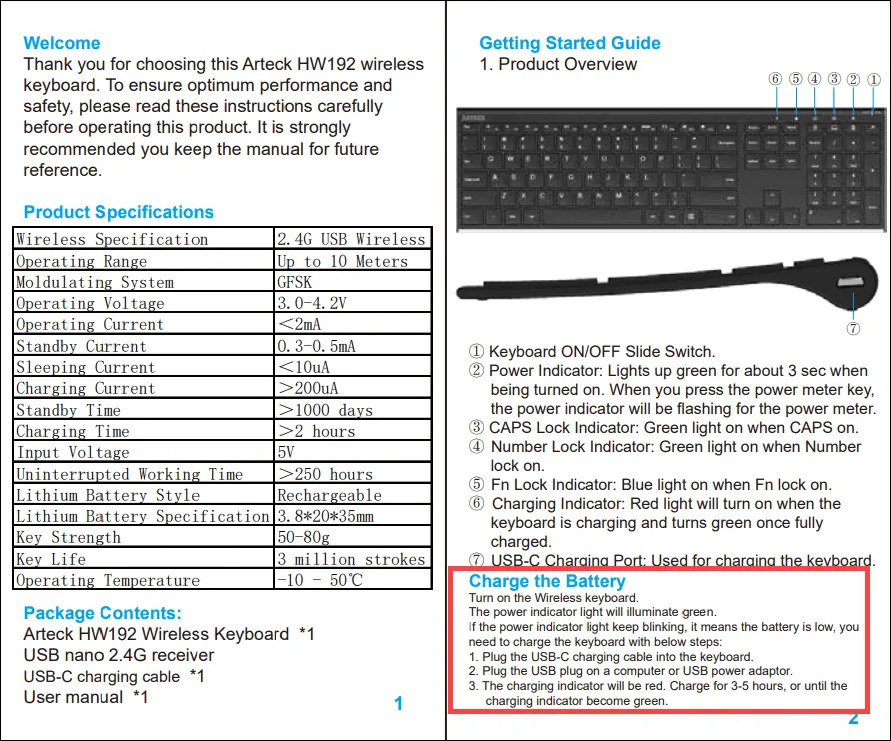
Wireless keyboards often fail because of simple power or connection errors rather than hardware damage. When your device stops typing, the first thing to check is the battery level. Rechargeable lithium batteries eventually lose their ability to charge after hundreds of cycles, which is a normal part of their lifespan. You can find the specific charging requirements and battery life estimates for your model by checking the official product support pages provided by the manufacturer.
Another frequent cause involves signal interference or a lost pairing link. Bluetooth connections can drop if your computer undergoes a major system update or if the keyboard enters a deep sleep mode to save energy. If the keyboard shows no signs of life, the internal controller might be stuck in a non-responsive state. Performing a power cycle by turning the switch off and on again often clears these minor software glitches.
Finally, consider the physical environment. Metal surfaces or other wireless devices nearby can block the 2.4GHz signal if you’re using a USB dongle. Moving your keyboard closer to the receiver often resolves intermittent typing or lagging keys. If the keyboard still fails to respond after these checks, the issue might be a broken internal switch or a failed circuit board.
Charge the internal battery fully
If your keyboard is dead, plug it into a wall adapter or a powered USB port for at least two hours. Many users make the mistake of using a low-power port, such as a keyboard pass-through on a monitor, which may not provide enough current.
Use a dedicated wall charger if possible, as these consistently deliver the required voltage to revive a depleted cell. If the status light stays red after several hours, the battery may have reached its end of life.
When the keyboard is charging, avoid pressing multiple keys at once, as this can confuse the system during its initial startup. Once the light indicates a full charge, disconnect the cable and toggle the power switch. If the device pairs automatically, you’re ready to go.
If not, you’ll need to trigger the manual pairing mode by holding the Bluetooth button until the light flashes. This fix is designed for users who have a power cord but are currently facing a “dead” device. If you lack the original cable, ensure your replacement cable supports data transfer, as some cheap cables are for charging only.
Reset the bluetooth connection settings
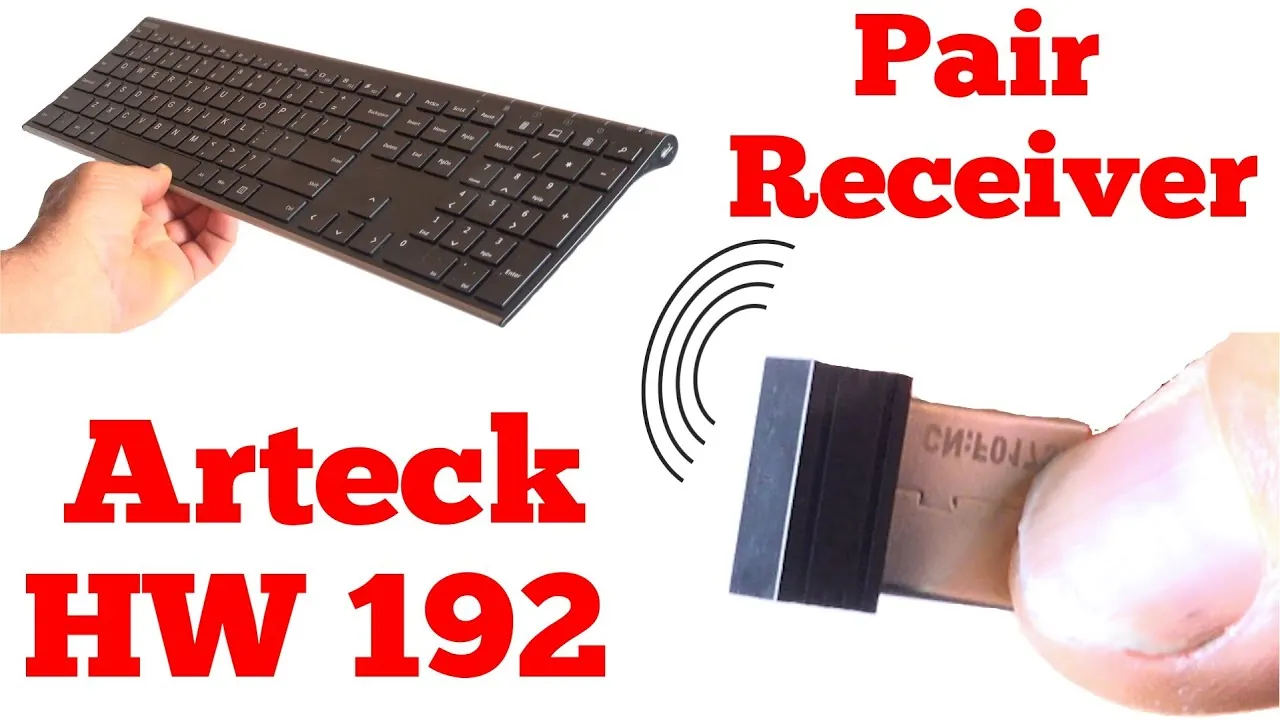
To force a fresh connection, you must remove the keyboard from your computer’s list of known Bluetooth devices. Go to your settings menu, find the list of paired devices, and select “Forget” or “Remove” for the keyboard. This clears old configuration data that might be preventing a stable handshake.
If you skip this, your computer may attempt to use cached security keys that no longer match the keyboard’s current state. This often causes the device to show as “Paired” but remain unresponsive.
Once the computer no longer sees the keyboard, turn the keyboard off and back on to enter pairing mode. Hold the connection button until you see a blinking light, which signals it’s searching for a host. Open your Bluetooth settings and start a new search. When the keyboard appears, select it to pair.
If your computer asks for a PIN, type the code shown on the screen using the keyboard and press Enter. If the keyboard fails to type the numbers correctly, wait ten seconds and try again; the device may be in a low-power sleep state.
This process works for most modern laptops and tablets. If you use a device that doesn’t support standard Bluetooth, you must plug in the dedicated USB receiver instead. Always keep the receiver at least six inches away from large metal objects or external hard drives. Interference from these items often drops the signal intermittently, forcing you to repeat this reset process unnecessarily.
Use a wired connection if available
Some models allow you to bypass the wireless function by connecting the keyboard directly to your computer with a USB cable. This is the best way to verify if the keyboard’s internal switches are still functioning. If the keyboard types correctly while plugged in, the problem is definitely with the wireless transmitter or the Bluetooth signal.
This method isn’t for everyone, as some models are designed to charge only through the cable and won’t transmit keystrokes. Check your manual for a “data mode” indicator; if the light stays amber or red while plugged in, the device is likely drawing power but refusing to send data packets.
If the keyboard doesn’t work even when wired, the issue is likely a hardware failure of the main board. At this point, avoid trying to disassemble the plastic casing, as the internal clips are fragile and often break upon removal. If you’re within the warranty period, contact the seller or manufacturer for a replacement unit. Attempting to repair the internal electronics yourself can lead to permanent damage or electrical shorts.
If you’re outside the warranty period, buying a new unit is usually more cost-effective than paying for professional repair services. Repair fees often exceed the retail value of a standard membrane keyboard. Only attempt a manual repair if the device is a high-end mechanical model.
Common myths to avoid
Placing the keyboard in the freezer to “reset” the battery is dangerous. Cold temperatures cause moisture to condense inside the chassis, leading to permanent short circuits. If your device is sluggish, check your background processes before considering hardware interventions.
Hitting the keyboard against the desk to fix stuck keys often cracks the internal plastic frame. This impact also displaces the delicate rubber domes, leaving your typing feel inconsistent and mushy. If a key sticks, use a dedicated keycap puller to remove the cap and clean the debris with 90% isopropyl alcohol.
Using a magnet to reset the internal sensor is useless, as modern keyboards lack magnetic triggers.
Spraying water or heavy cleaners directly on the keys allows liquid to seep under the caps. This causes rapid corrosion on the circuit board, which is impossible to reverse once it starts. If you must sanitize your board, dampen a microfiber cloth first and wipe the surface gently to prevent seepage.
How to stop it happening again
| If you’re doing this | Do this instead | Why |
|---|---|---|
| Leaving it on 24/7 | Turn it off when not in use | Saves battery cycles |
| Using low-power hubs | Connect to a direct USB port | Ensures steady voltage |
| Ignoring the low-battery light | Charge as soon as it blinks | Prevents deep discharge |
| Keeping it near metal | Move to a clear, open surface | Prevents signal blockage |
Most users mistakenly assume that keeping a device plugged in preserves the battery. In reality, maintaining a constant 100% charge accelerates chemical degradation.
If your device fails to hold a charge for more than four hours, perform a hard reset by holding the power button for ten seconds. If the issue persists, the battery has likely suffered a deep discharge. Avoid this by never letting the unit sit idle for more than a week without a partial charge.
Related guides
Frequently asked questions
How long does an arteck keyboard battery last?
Most models provide about 60 hours of continuous typing time on a single full charge. This estimate assumes the battery is in healthy condition. If battery life drops significantly below this range, it usually indicates that the lithium cell is aging.
Is it safe to leave the keyboard charging overnight?
Yes, it’s safe to leave the keyboard plugged in overnight, as modern models include an internal circuit that stops electricity flow once the battery is full. This prevents overcharging. For the best long-term health, unplug the device once the charging indicator light changes.
Why does my keyboard lag or skip letters?
Lagging or skipping letters usually happens because the wireless signal is blocked by physical interference or low battery power. Ensure the keyboard is within 3 feet of the receiver. If the issue persists, check if other Bluetooth devices are competing for the same connection.
How do I know if the pairing mode is active?
Pairing mode is active when the status light on the keyboard begins to blink in a steady, rhythmic pattern. This indicates the device is broadcasting its signal. If the light doesn’t blink, the keyboard may lack the power to enter discovery mode.
What happens if I lose the USB receiver?
You generally can’t buy a generic replacement if you lose the USB receiver, as they’re paired at the factory using a unique digital ID. Without the original receiver, the keyboard can’t communicate with your computer unless it supports Bluetooth. Check your manual for dual-mode features.
Conclusion
If these simple adjustments don’t restore your typing experience, don’t worry. You should reach out to the manufacturer’s support team to check if your device is still under warranty. They’ll help you determine if there’s a deeper hardware fault, so you won’t have to keep struggling with a keyboard that isn’t working right.
