
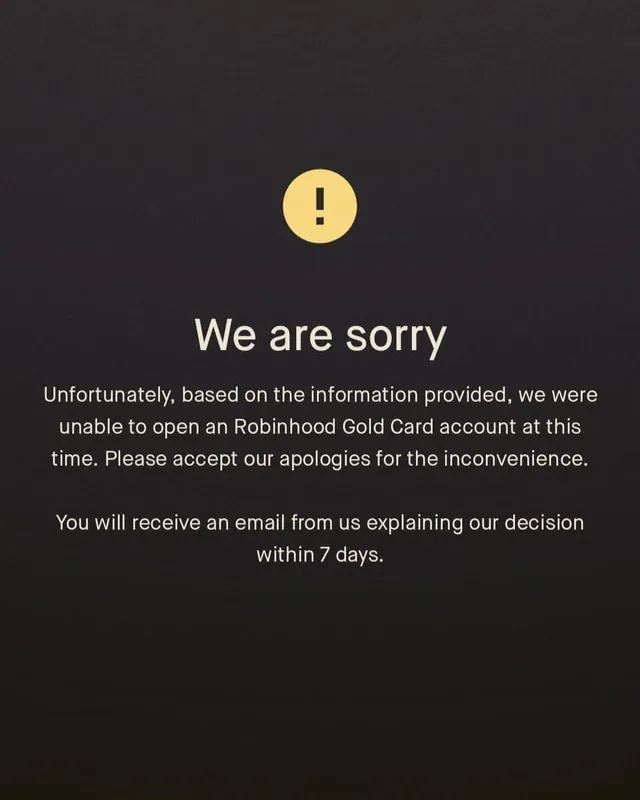
Most of the time, the reason for a robinhood identity verification not working is a simple mismatch between the data you entered and the official documents held by government agencies. This issue usually stems from small typos in your legal name, address, or social security number. You can quickly confirm this by checking your profile settings in the app against your physical government-issued identification card or passport. If your details are correct, the system may simply need a clearer photo of your documents to complete the process.
Why Robinhood verification isn’t working
| Cause | How common | How to confirm it | Fix it yourself? |
|---|---|---|---|
| Mismatched personal data | Very common | Review profile settings | Yes |
| Poor document image | Common | Check photo clarity | Yes |
| Expired identification | Frequent | Check document date | Yes |
| Account already exists | Occasional | Contact support team | No |
| Technical app error | Rare | Restart the application | Yes |
| Regulatory restrictions | Rare | Check regional availability | No |
Discrepancies in personal data often stem from minor typos in legal names or mismatched addresses between your utility bills and your profile. If your middle name appears on your ID but not on your application, the automated system will flag the account for manual review. Always ensure your data matches your government-issued documents character for character.
Blurry images are the leading cause of rejection for mobile uploads. If the text on your ID isn’t legible to the naked eye, the optical character recognition software will fail. Use natural lighting and a plain, dark background to prevent glare on plastic surfaces.
If you possess a previous account, don’t attempt to open a second one to bypass verification. Systems detect duplicate social security numbers or linked devices instantly. This triggers an automatic lockout that only human support can resolve.
When you face a technical error, check your internet connection before retrying. If the app stalls during the upload phase, clear your cache or update to the latest version. If the issue persists after a restart, don’t keep submitting the same file. You risk triggering a fraud alert that permanently restricts your identity verification attempts.
Discrepancies in Personal Information
The most frequent cause for a failed check is a slight difference between the information you typed into the app and the records held by the government. This often happens if you use a nickname, an old address, or if there’s a minor spelling error in your social security number. The system compares your input against official databases to ensure compliance with federal financial regulations.
Check your middle name first. If your ID includes a middle initial but you wrote the full name, or vice versa, the automated system will flag a mismatch. Ensure the order of your names matches your government-issued document exactly. If you have two last names, don’t hyphenate them unless your ID does so.
Even a single digit error in your date of birth or social security number will trigger a failure. Many users mistakenly enter the date in a different format than requested. If the field asks for MM/DD/YYYY, don’t use dashes or periods. A common mistake is transposing two digits in your social security number, which costs you an immediate rejection.
If your data is correct, verify that your address matches your utility bill or bank statement. The system often performs a secondary check against these files to confirm residency. If your address includes an apartment or unit number, ensure it’s on the same line as the street address. Don’t use abbreviations like “St.” Or “Ave.” Unless they appear exactly that way on your official mail.
Fixing this usually takes only a few minutes once you identify the error. If you can’t find a mistake, don’t keep trying the same input repeatedly. Doing so may cause the system to lock your account for security reasons after three failed attempts.
Instead, wait for a notification from the app that explains exactly which field failed. If the application continues to reject your information, reach out to their support team to ask for a manual review of your profile data.
Issues with Document Upload Quality
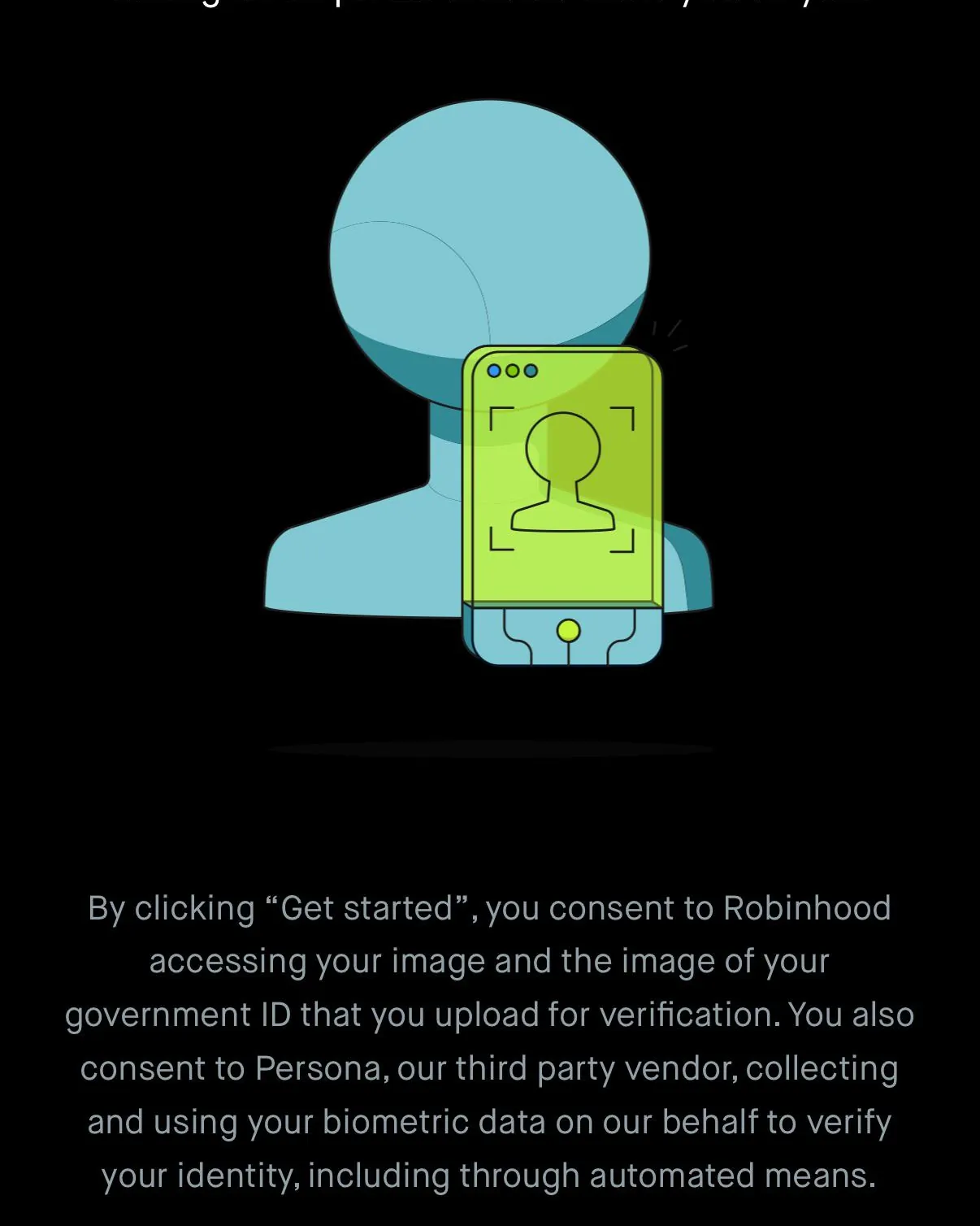
Sometimes the verification fails because the digital scan of your identification isn’t clear enough for the automated software to read. The system requires a high-resolution image where all four corners of the card are visible and the text is sharp. If your lighting is too dim, or if there’s a glare on the plastic surface of your ID, the software can’t process the required details.
You can tell this is the problem if the app returns an error message specifically regarding the “image quality” or “document readability.” To fix this, find a place with bright, natural light, such as near a window.
Place your identification card on a flat, dark surface to create high contrast. Ensure that you don’t have any fingers covering the text or the photo area of the ID. Take a new photo, ensuring the document is centered and the text is perfectly sharp.
Avoid using your camera’s flash, as it creates a white bloom on the plastic coating that hides the birth date or the document number. If the reflection persists, tilt your phone at a slight angle to move the glare away from the critical text zones.
If you’re using a passport, make sure the page is completely flat. If the document is wrinkled or damaged, the software might struggle to recognize the security features. This process takes only a few moments but requires patience to get the right angle. Once you upload the new, clear version, the system usually initiates a fresh review.
If you still see an error after three attempts with clear photos, the issue likely lies with the document type itself rather than the image quality. Check that your ID isn’t expired or a temporary paper printout, as the software is programmed to reject these immediately regardless of how crisp the image appears.
Expired or Unsupported Identification Documents
The system will reject any document that’s no longer valid or isn’t on the list of accepted forms of identification. Robinhood requires a current, government-issued photo ID, such as a driver’s license, state ID, or a valid passport. If your document has passed its expiration date, the automated system will flag it immediately.
You can confirm this by checking the expiration date printed on the front or back of the card you’re using. If the date has passed, you must use a different form of identification that’s currently valid. If you don’t have another form of ID, you’ll need to renew your current one through your local motor vehicle department before you can proceed with the application.
This is a strict requirement for all financial institutions to prevent identity theft and comply with the Customer Identification Program rules. If you’re using a document that’s valid but still getting rejected, ensure it isn’t a temporary paper license, which many automated systems can’t verify.
In such cases, you must wait for the permanent plastic card to arrive by mail. Trying to upload a temporary document will consistently result in a failure, as these documents often lack the necessary security features required for digital verification.
Check the edges of your document for damage before uploading. If the camera can’t capture the full expiration date or the holographic security strip, the system will treat the document as unverified. A common mistake is attempting to upload a scan of a photocopy. These lack the reflective properties of a real ID and will be rejected.
If your ID is damaged, don’t attempt to tape it back together. Use a secondary form of identification instead. If you have a passport, use that as your primary verification. It’s generally easier for the software to parse than a worn driver’s license.
Rare Causes for Verification Issues
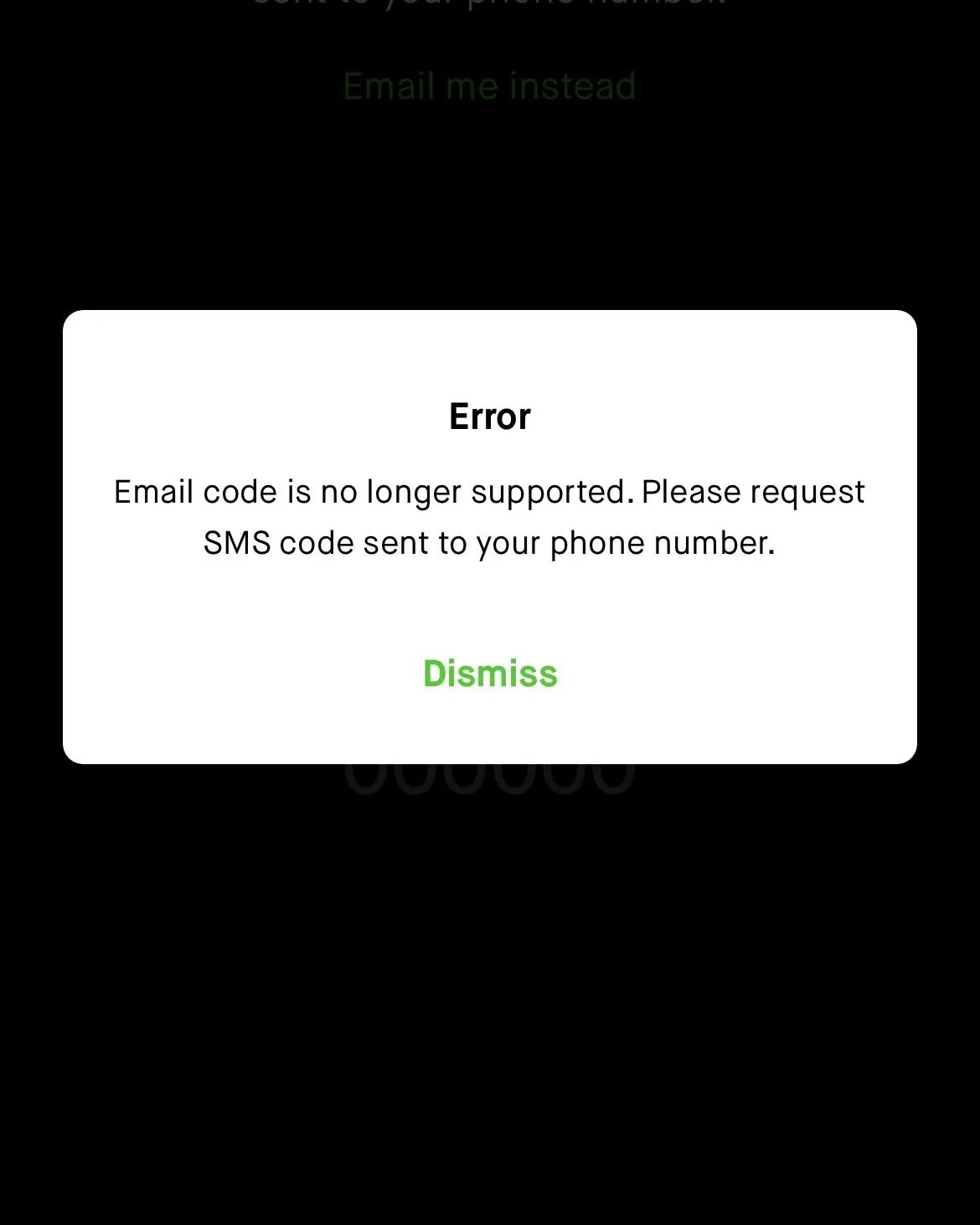
If you previously opened an account with a different email address, the system may block a new registration to prevent fraud. Check your inbox for older confirmation emails before starting a new application. If you find a legacy account, log in there first to close it or update your credentials.
Verification fails automatically if your current IP address originates from a country where the service isn’t supported. Don’t attempt to bypass this with a VPN, as the system flags mismatched location data during the document scan. This triggers an immediate, permanent lockout of your identity profile.
System maintenance often triggers generic error messages that look like document failures. If you receive an error, wait exactly four hours before trying again. If the issue persists beyond that window, the fault lies with your specific data rather than the server status.
Your account moves to manual review if your personal details match a record in a fraud database. This happens most often when a previous user lived at your current address or shared a similar name. If you’re stuck in this queue for more than three business days, contact support to provide a secondary utility bill. This proves your residency and clears the flag, allowing the automated system to resume your verification process.
What a Fix Usually Involves
Fixing your verification status typically requires a small amount of time and access to your physical documents. Most of the work involves verifying your own data against your legal papers, which costs nothing but your time. If you need to replace an expired ID, the cost depends on your local government’s fees for a new license or passport. You can find these fee schedules on your state’s official department of motor vehicles website.
If the issue requires manual support, there’s no cost to you, but it may add several days to the process while a human agent reviews your file. Always ensure you’re communicating through the official app or website to avoid scams. If you’re asked to pay a fee to “speed up” your verification, this is a sign of a fraudulent site. A legitimate financial service will never ask you to send money to resolve an identity check.
If these steps fail, contact the official support team via the app’s help section. Provide your full name and the specific error message received. They will determine if internal record issues exist or if you must submit additional documentation to verify your address.
