
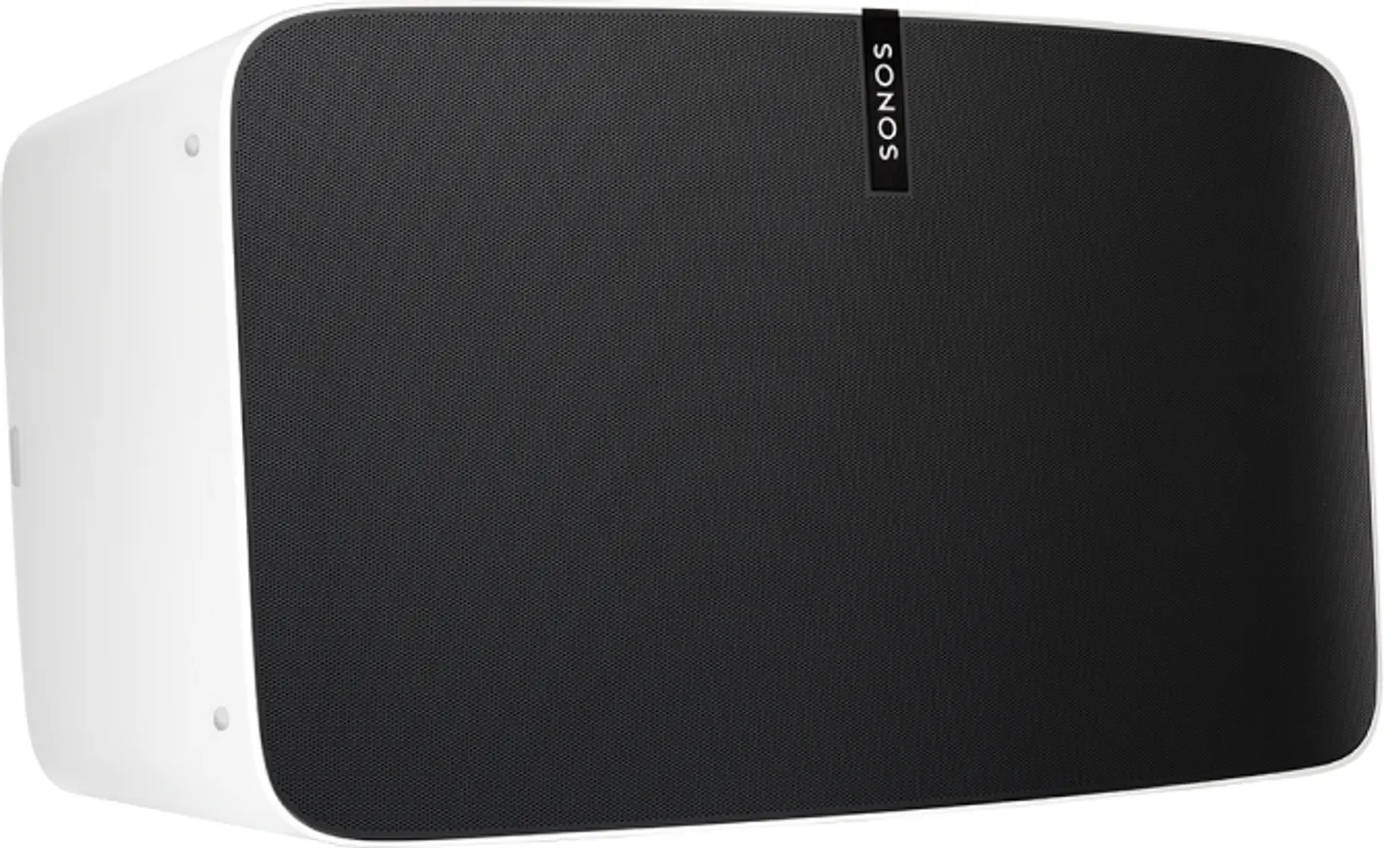
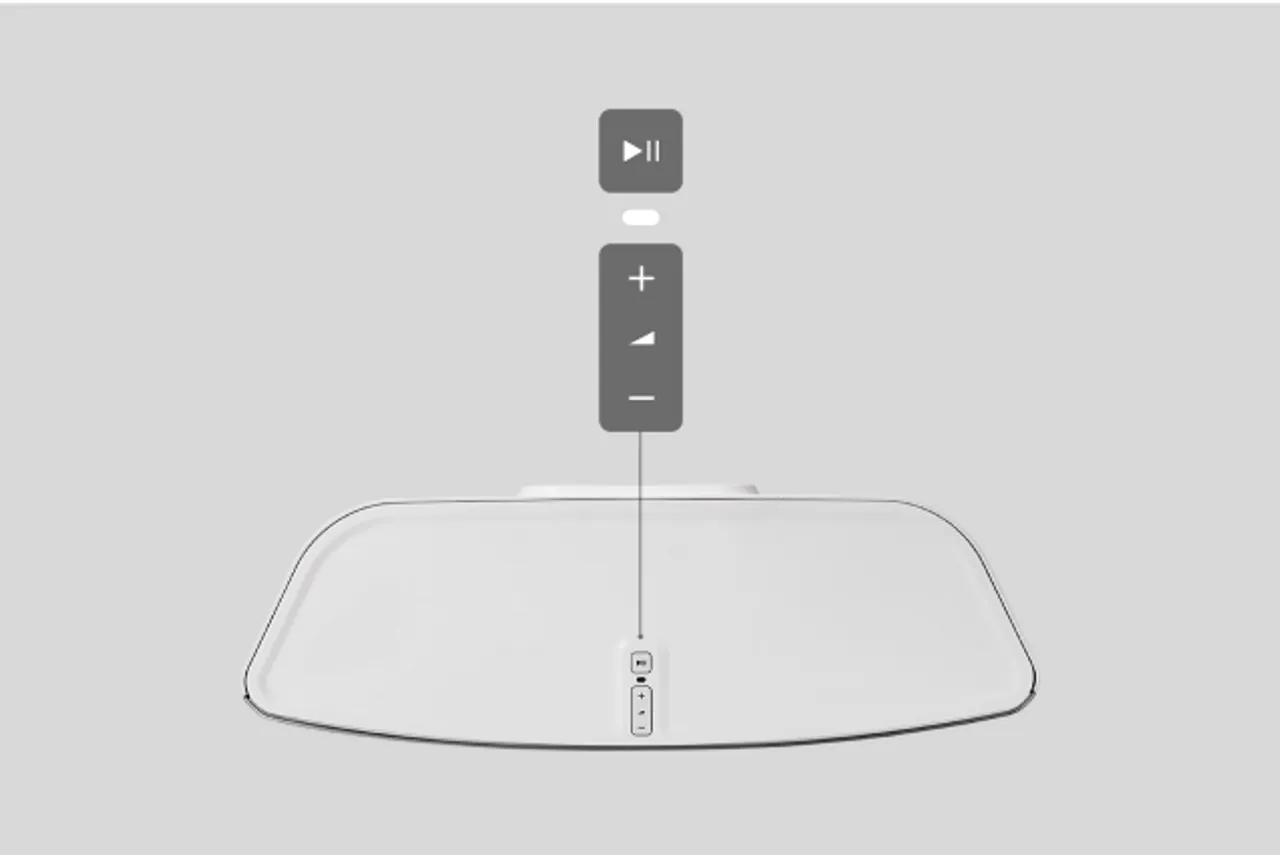
A factory reset of a sonos play 5 requires unplugging the power cord, holding the Play/Pause button while reconnecting the power, and waiting for the light to flash amber and white. This 30-second process clears all user data and account information. Only perform this reset if you intend to sell the speaker or if you cannot connect it to your network after troubleshooting.
What you need to reset Sonos Play 5
Before you begin the reset, you must have the following items ready to ensure the process goes smoothly. These tools and conditions are necessary for the hardware to enter its recovery mode correctly:
- The original power cable that came with your speaker.
- A stable power outlet located near your router or mobile device.
- Access to the Sonos app installed on a smartphone or tablet.
- Your home Wi-Fi network name and password.
Using a third-party power cable is a common mistake that often bricks the device during a firmware update. If you have lost the original, verify the replacement cable matches the voltage and amperage requirements of the speaker.
You can verify your signal quality by checking the app’s settings menu before you trigger the reset sequence.
If you’re using a dual-band router, ensure your mobile device is connected to the 2.4GHz band rather than the 5GHz band. Many older models fail to bridge the connection if the phone and speaker are on different frequency tiers.
If the status light flashes orange and white, the unit is in recovery mode. If it flashes solid red, the internal memory has failed to clear. In that case, unplug the device for sixty seconds to discharge the capacitors before trying again. If the red light persists, the hardware requires a factory service rather than a software reset.
Steps to Factory Reset Your Device
- Unplug the power cord from the wall outlet or the back of the device.
- Press and hold the Play/Pause button firmly while you plug the power cord back into the unit.
- Continue holding the Play/Pause button without releasing it, even when the light initially turns on.
- Watch the status light closely; it will begin to flash amber and white after about 10 to 15 seconds.
- Release the Play/Pause button once you see the flashing amber and white light pattern.
- Wait for the light to turn solid green, which signals that the device is reset and ready to be set up as a new product in your app.
Careful: Don’t let go of the button until you see the amber and white lights, or the device will simply reboot normally without clearing your data. If the light turns solid red, a hardware fault may have occurred, and you should disconnect the power for one minute before trying these steps again.
Situations Affecting Reset Time and Effort
The time it takes to restore your system depends on your specific network environment and the age of your hardware. Starting with a simple power cycle is often safer than a full factory reset, as it preserves your existing playlists and service connections.
| Situation | Time Required | Difference | What to Watch |
|---|---|---|---|
| Simple Restart | 2 Minutes | No data loss | Status light color |
| Factory Reset | 5-10 Minutes | Clears all data | Flashing amber/white |
| Network Change | 15 Minutes | Requires re-setup | App detection |
| Hardware Fault | 20+ Minutes | Manual re-pairing | Solid red light |
Always try a standard restart by unplugging the unit for 30 seconds before choosing a factory reset. It’s much safer to troubleshoot your network settings first than to delete all your saved data and account preferences on the first try.
If your status light remains a solid red after a power cycle, you’re likely dealing with a hardware failure rather than a software glitch. In this specific case, a factory reset won’t fix the issue and may actually prevent technical support from diagnosing the original fault. Don’t attempt a reset if the light is solid red; contact support instead.
When moving your device to a new router, don’t perform a factory reset immediately. First, attempt to update the Wi-Fi credentials through the mobile application settings. If the app fails to see the device after two attempts, then proceed with the reset. Most users mistakenly reset their units when the only real problem is a mismatch between the 2.4GHz and 5GHz network bands.
If you perform a factory reset, you must re-authenticate every streaming service individually. This process typically adds 15 minutes of manual labor after the initial system boot. Only trigger this process if the device is unresponsive to all other network commands for more than 10 minutes.
Confirming a Successful Reset
A successful reset is indicated by the status light glowing a solid green color after the flashing amber and white sequence ends. This green light means the device is in “out-of-box” mode and is actively broadcasting a signal for your smartphone app to find. If the light remains white or continues to flash, the unit hasn’t successfully wiped its internal memory.
The most common mistake is releasing the button as soon as the first light flickers. You’ll know you have failed if the app still recognizes the unit as “already registered” during the setup phase.
If the light stays solid amber after the sequence, the internal firmware has encountered a write error. In this case, unplug the power cable for thirty seconds before attempting the reset again. If the light turns solid red, the hardware has reached a critical fault state and requires a factory-level diagnostic.
Always check your smartphone’s Bluetooth settings before concluding the reset failed. If the device name appears in your list of available connections, the reset worked, but your app is experiencing a cache conflict. Simply force-close the app and reopen it to trigger a fresh scan.
Post-Reset Rules and Procedures
Following a factory reset, your device is essentially a new piece of hardware that requires a fresh registration through the official mobile application. You must re-add the speaker to your existing household or create a new system entirely to restore music playback. These standards are maintained to ensure that sensitive account data and streaming credentials remain isolated from previous owners or unauthorized users.
If the app fails to locate your device, check your phone’s Wi-Fi settings immediately. Many smart devices can’t complete the handshake process on a 5GHz band. If your router uses a single SSID for both frequencies, temporarily disable the 5GHz band in your router settings to force the device onto the 2.4GHz network.
Users often mistake a blinking amber light for a hardware failure, but this simply indicates the device is waiting for network credentials. If the light remains solid white but the app shows no device, your firewall is likely blocking the discovery protocol.
If you’re on a guest network or an enterprise system, the device may fail to connect if the network prevents peer-to-peer communication between wireless clients. In these cases, you must use a personal mobile hotspot to complete the initial setup. Once the device is registered to your account, it will retain those credentials even if you move it back to a restricted network.
Alternative Methods for System Management
Software-Based Removal
You can remove a device from your app without a physical reset by going into the system settings. This option is useful if you’re simply moving a speaker to a new room but want to keep its current settings and music service logins intact.
Network Reconfiguration
If the goal is to update your Wi-Fi settings, you can use the “Update Networks” tool inside the app. This avoids the need to factory reset, saving you from re-entering your music service credentials.
Wired Setup
Connecting your speaker directly to your router with an Ethernet cable can bypass Wi-Fi interference. This method is helpful if the unit refuses to join your wireless network during the standard setup process after a reset.
Frequently asked questions
How long does a factory reset take?
The physical reset process takes about 30 seconds of button holding, but the full setup including app configuration usually takes 5 to 10 minutes. This assumes you have your Wi-Fi credentials ready and your smartphone is already logged into your account.
Why is my status light flashing red?
A solid or flashing red light typically indicates a hardware error or a failed firmware update. You should unplug the device for at least 60 seconds and attempt the reset again; if it stays red, contact the manufacturer for a diagnostic check.
Can I reset the speaker without the app?
Yes, you can perform the physical reset using the buttons on the device itself without opening the app. However, you’ll eventually need the app to reconfigure the speaker and add it back to your existing music system.
Is it safe to reset my speaker?
Yes, it’s perfectly safe to reset your hardware, as it only clears the local data stored on the device. It doesn’t affect your actual music service accounts, such as Spotify or Apple Music, which are managed through the cloud.
What happens if the reset fails?
If the reset fails, the speaker will retain its previous settings and attempt to reconnect to the last known network. You should verify that you’re using the correct button and that the power cable is firmly seated before repeating the steps.
How do I know the reset worked?
The reset is successful when the status light transitions from flashing amber and white to solid green. This color change confirms the device has cleared its memory and is ready for a new connection command from your mobile device.
Conclusion
Once the light turns solid green, your speaker is ready for a fresh start. You’ll need to open the Sonos app on your phone to add it back to your system as a new device. It shouldn’t take long to get your music playing again, so enjoy your restored sound.
