
The quickest way to resolve a comcast router wifi not working is to power cycle your equipment by unplugging the power cord for 60 seconds. This action forces the device to clear its temporary memory and re-establish a fresh handshake with the service provider’s network. If your status lights remain red or blinking after two minutes of reconnection, you likely have a service outage or a damaged physical connection line.
Why your Comcast router wifi isn’t working
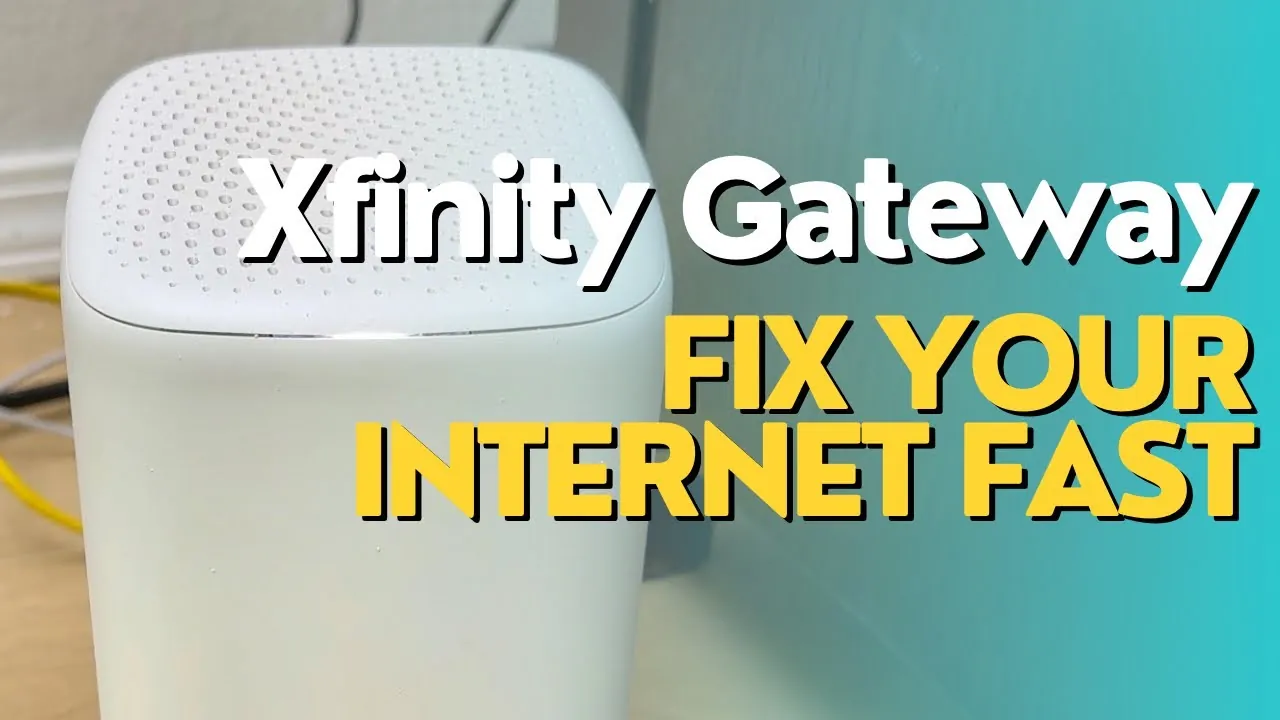
When your home network suddenly stops broadcasting, the cause is usually a temporary software error or a signal interruption from outside your home. Comcast, now known as Xfinity, manages thousands of nodes that connect neighborhoods to the internet. If the central node in your area is offline for maintenance or repairs, your modem won’t be able to pull an IP address regardless of how many times you restart it.
Another common cause is a loose or damaged coaxial cable. These cables carry the data signal from the street into your house. If the connector at the back of the wall plate or the router has loosened due to vibration or movement, the signal quality drops significantly. Even a slight turn can prevent the modem from locking onto the correct frequency channels needed for your data.
Finally, internal hardware failure can happen if the unit overheats or experiences a power surge. Modems and routers have small processors inside that run hot. If the vents are blocked by dust or if the device is tucked inside a closed cabinet, the internal temperature can rise past the safe operating limit. This causes the device to freeze or reboot itself repeatedly to prevent permanent damage to the circuit boards.
Power cycle the gateway hardware
To perform a full reset, unplug the power cable from the back of your Xfinity gateway. Leave it disconnected for a few seconds to ensure the device fully powers down. Plug the cable back into the wall outlet and wait for the lights to stabilize. This process allows the device to pull a fresh configuration file from the provider’s servers, which often fixes minor software glitches.
If the power light turns solid white or green, your device is likely back online. However, if the light stays yellow or orange, the unit is struggling to communicate with the network. You should check the Xfinity status center to see if there’s a known service outage in your specific neighborhood. This page provides real-time updates on local maintenance work that might be affecting your connection.
If you have performed this reset twice and the status light still indicates a connection error, stop and call support. Don’t attempt to open the device housing or manipulate internal components. These units are property of the service provider, and tampering with them can result in charges or a voided service agreement.
If you have a professional technician visit, they can test the signal levels coming from the street to see if the problem is inside your walls or at the main distribution box.
Inspect all physical cable connections
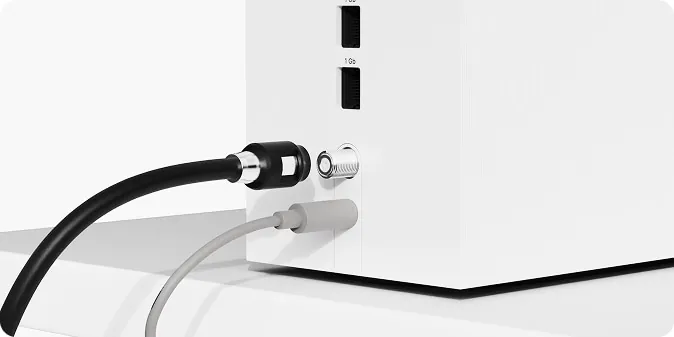
Ensure that the coaxial cable—the thick, round wire with a screw-on connector—is tightened firmly at both the wall outlet and the back of your router. Use your fingers to turn the metal sleeve clockwise until it’s snug. Don’t use pliers or tools, as overtightening can strip the threads or break the center pin inside the connector.
Check the entire length of the cable for any signs of sharp bends, fraying, or bite marks from pets. If the cable is pinched under furniture or bent at a sharp 90-degree angle, the internal copper shielding may be damaged. Even if the cable looks fine on the outside, the internal wire might be broken, preventing the signal from reaching the modem.
If you have a spare coaxial cable, swap the current one to see if the connection returns. If you don’t have a spare, check the wall plate itself. Sometimes, the plate can pull away from the wall, causing the internal wiring to disconnect.
If you find the wall plate is loose, don’t try to rewire it yourself. Contact your service provider to have a technician verify the integrity of your home wiring, as incorrect wiring can cause signal leakage that affects your neighbors’ services as well.
Relocate the router for better signal
If your router is working but the wifi signal is weak or dropping, the issue is often environmental interference. Move the router to an open, central location in your home, preferably on a shelf or table. Avoid placing the device inside media consoles, behind televisions, or near large metal objects like refrigerators. These items act as physical barriers that block or reflect the radio waves.
Electronic devices that operate on the 2.4GHz frequency, such as cordless phones and baby monitors, can also create “noise” that interferes with your wifi. If you have many devices connected, try to keep your router at least three feet away from other electronics. If you live in an apartment complex, your neighbors’ wifi networks might be competing for the same channels, which leads to slow speeds or dropped connections.
If you notice that your devices work fine when they’re in the same room as the router but fail when you move to another room, this is a range issue rather than a router failure. In this case, consider using a wifi mesh system or range extender.
This isn’t a hardware fix for a broken router, but rather a way to expand the coverage area for larger homes. If you must use an extender, place it halfway between the router and the area where you need a better signal.
Common troubleshooting myths
Pressing the factory reset button for 30 seconds is a common mistake that wipes your custom SSID and password. You’re left reconfiguring your entire network from scratch, which takes roughly 20 minutes of downtime. Only use this pinhole if you have forgotten your admin credentials and can’t access the gateway settings.
Wrapping your router in foil to boost signal is counterproductive. Metal acts as a Faraday cage, blocking radio waves rather than focusing them. If you struggle with coverage in a specific room, move the router to a central, elevated location instead.
Plugging your gateway into a power strip often causes random reboots. These devices draw inconsistent power, and strips frequently fail to provide the steady voltage required for stable operation. Always connect the power adapter directly to a wall outlet to avoid intermittent signal drops.
Manually updating firmware is unnecessary and risky. Xfinity gateways pull updates automatically during off-peak hours. Attempting to force a manual flash via the web interface often triggers a “bricked” state that requires a technician visit to resolve. If your internet is slow, check your signal levels in the app before assuming a software update is missing.
Prevent future connectivity issues
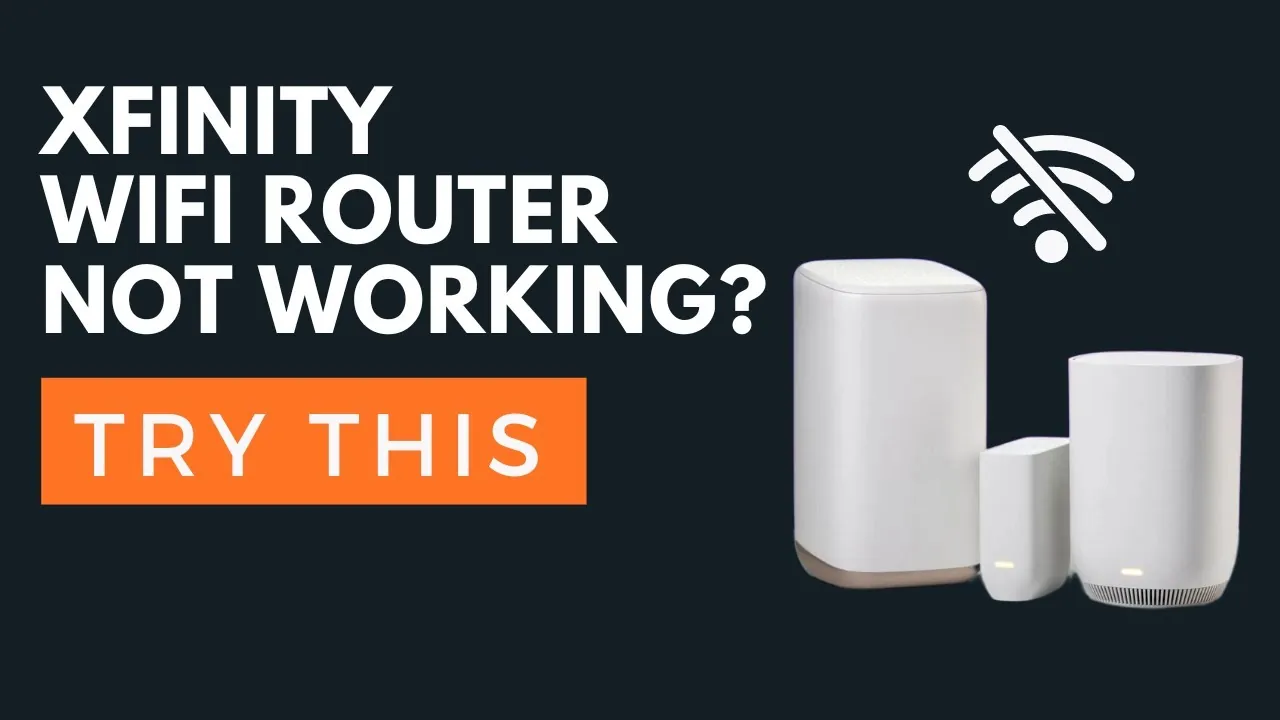
The best way to keep your connection stable is to ensure the router has proper airflow and a steady power supply. If you’re currently keeping your router in a closed cabinet, move it to an open surface to prevent thermal throttling.
Hiding your router in a box or behind books forces the hardware to work harder to dissipate heat, leading to intermittent signal drops. Place it on an open shelf instead.
Using a long, old ethernet cable often introduces latency. If your run exceeds 30 feet, replace it with a high-quality Cat6 cable to minimize signal degradation.
Many users plug their routers into cheap power strips that fluctuate under load. Plug the device directly into a wall outlet to ensure consistent voltage delivery. If you must use a surge protector, choose one rated for at least 2,000 joules.
Finally, secure loose cables with ties. A single snagged cord can cause a momentary power disconnect, forcing a five-minute reboot cycle that kills your productivity.
Frequently asked questions
How long should I leave the router unplugged?
You should leave the router unplugged for at least 60 seconds. This duration is necessary to allow the internal electrical components, specifically the capacitors, to fully discharge and clear any corrupted temporary data from the device’s memory. If you plug it back in too quickly, the device may simply resume the same error state it was in before, as the volatile memory won’t have had enough time to reset completely.
Is it safe to reset my router?
Yes, it’s safe to restart your router by unplugging the power cord, which refreshes your connection without erasing settings. Avoid the “Factory Reset” pinhole button unless you’re prepared to reconfigure your entire network from scratch.
Why is the light on my router blinking orange?
A blinking orange light indicates your router is updating firmware or failing to connect to the network. If the light persists for over 15 minutes, check your coaxial cable connections or search for local service outages using your mobile data.
How do I know if my router is broken?
Your router is likely broken if it fails to power on or remains in a constant reboot loop. If you notice physical damage or a burning smell, disconnect the device immediately and contact your provider to arrange for a professional exchange.
Can a bad cable cause wifi drops?
Yes, a damaged or loose coaxial cable is a leading cause of intermittent wifi drops. Even if the cable appears intact, internal shielding damage can cause signal interference; if connections are tight and issues persist, the cable may require professional replacement.
What happens if I move the router too much?
Moving the router frequently increases the risk of the coaxial connector coming loose or the internal wire snapping. The copper pin inside the coaxial connector is brittle and can break if the cable is bent sharply or pulled while connected. If the connection becomes loose, your internet speed will drop, or the modem will lose its ability to sync with the network entirely, leading to the “no internet” status light.
Conclusion
If these efforts don’t restore your internet, don’t worry. You should log into the Xfinity app on your phone to check for local maintenance work in your area. If the system shows everything is fine, it’s time to contact their support team directly so they can test your signal from afar.
