
The size of gaming monitor you should buy depends on your desk setup. For most desks, a 27-inch model offers the best balance between screen space and pixel density. If you sit closer than 2 feet, a 24-inch model is often better to keep images sharp, while those sitting further back or playing on a console might prefer 32 inches or larger.
Your desk depth and viewing distance are the main factors that change this choice. A small desk limits how far you can sit, which makes a massive screen feel overwhelming or hard to see in its entirety. If you have a deep desk, you can comfortably use a larger screen without straining your eyes or neck during long play sessions.
Finding the right screen for your setup
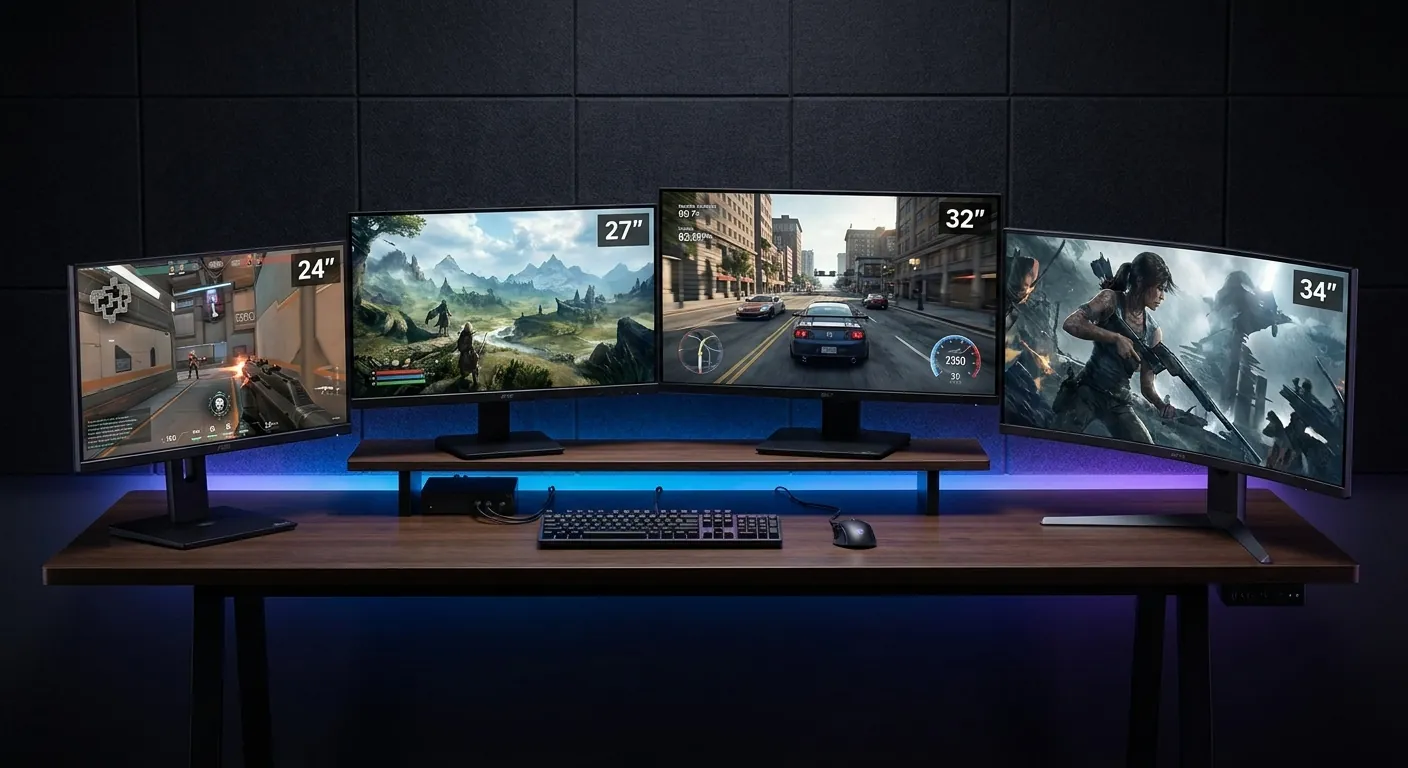
Most people looking for a new display fall into one of three categories based on their setup and goals. First, there are competitive players who prioritize speed and screen clarity above all else. They need a display that lets them see movement across the entire panel without moving their head. These users usually prefer 24-inch screens because they fit perfectly in a standard field of vision.
Second, there are casual players who want immersion and high image quality for story-driven titles. These users often choose 27-inch or 32-inch monitors to enjoy better graphics and larger, more detailed environments. They don’t mind a slightly slower response time if it means the world looks more realistic.
Finally, there are console gamers who often play from a couch or a chair further away from the screen. These users need larger displays, usually 32 inches or more, to ensure the text and fine details remain legible from a distance. This article serves those who want to optimize their desk-based PC gaming experience. It assumes you’re using a standard desk and chair setup where your eyes are roughly 20 to 30 inches from the monitor.
Factors that change your choice
The most important factor is your viewing distance, which is the space between your eyes and the glass. If you sit closer than 24 inches, a 24-inch monitor is the ideal choice because you can see every corner without moving your head. If you sit further than 30 inches, a 27-inch or 32-inch screen becomes much more useful.
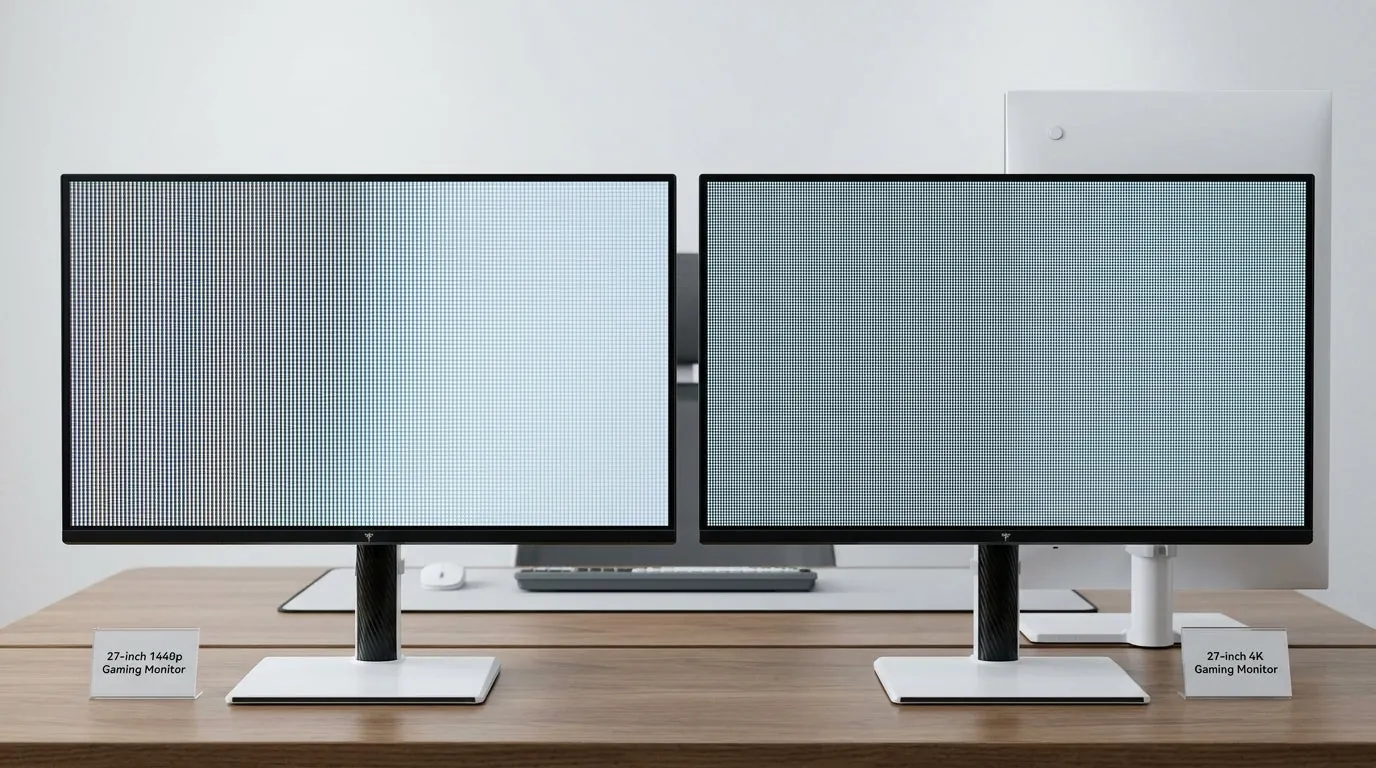
Resolution is the second factor, and it must match the screen size to keep images sharp. A 1080p resolution looks great on a 24-inch screen but appears blurry on a 27-inch or 32-inch display because the pixels are stretched too thin. For anything over 24 inches, you should look for 1440p or 4K resolution to maintain clear text and crisp game graphics.
Desk depth is the third factor that people often overlook when buying. If your desk is less than 24 inches deep, a 32-inch monitor will likely feel too close, causing eye strain and neck fatigue. You should measure your desk depth before buying to ensure you have enough room to push the monitor back far enough for a comfortable view.
Refresh rate is the fourth factor, though it’s more about performance than size. Higher refresh rates, like 144Hz or 240Hz, require a powerful computer to reach those frame rates. If your hardware can’t push enough frames, a massive, high-speed monitor won’t actually improve your gaming experience.
Steps to choose what size gaming monitor to buy
- Measure the depth of your desk in inches to confirm how much space you have available.
- Calculate your viewing distance by sitting in your normal gaming position and measuring from your eyes to the wall or back of the desk.
- Select a 24-inch monitor if your viewing distance is under 24 inches, as this keeps the screen within your natural field of view.
- Choose a 27-inch monitor if your viewing distance is between 24 and 30 inches, as this is the standard size for most modern desks.
- Opt for a 32-inch monitor only if your desk is at least 30 inches deep, allowing you to sit far enough back to see the whole screen.
- Verify the resolution matches your chosen size; 1080p for 24 inches, and 1440p or 4K for 27 inches or larger.
- Check your PC’s graphics card specifications to ensure it can handle the resolution you have selected for your new monitor.
- Compare the monitor’s stand footprint against your desk surface to ensure it fits securely without hanging over the edge.
The single judgement call that separates a good choice from a poor one is balancing pixel density with your sitting distance. If you buy a large screen with low resolution, you’ll see individual pixels, which makes games look dated regardless of how much you spent on the hardware.
Quick guide to monitor sizes
| Situation | Recommended Size | Target Resolution | Key Trade-off |
|---|---|---|---|
| Competitive play | 24 inches | 1080p | Smaller screen space |
| Balanced gaming | 27 inches | 1440p | Higher hardware cost |
| Immersive stories | 32 inches | 4K | Needs deep desk |
| Limited desk space | 24 inches | 1080p | Less multitasking room |
| Console at desk | 27 inches | 4K | Lower refresh rates |
A common mistake is buying a 32-inch panel at 1080p resolution. At that size, text and edges look visibly soft. You’ll notice it immediately in menus and HUD elements.
If your desk depth is under 24 inches, treat 27 inches as your ceiling. Sitting closer than two feet to a larger panel forces constant head movement during fast gameplay.
The balanced gaming row assumes a mid-range graphics card from the last two generations. If you still run older hardware, 1440p may drop your frame rate below your monitor’s refresh rate. In that case, stay at 1080p until you upgrade the GPU.
For console players, verify that your specific model supports 4K output before paying the premium. Older base consoles often upscale rather than render native 4K anyway.
Getting the most from your screen
Why pixel density matters
Pixel density, often measured in pixels per inch (PPI), determines how smooth images and text appear on your screen. A higher PPI means more pixels packed into the same space, leading to sharper edges and clearer textures in your games.
Beginners often make the mistake of buying a 32-inch monitor with 1080p resolution, which results in a low PPI and a blocky, pixelated image. You should aim for a PPI of at least 90 to 110 for a sharp desktop and gaming experience.
Positioning for comfort
The height and angle of your monitor play a major role in how long you can play without discomfort. According to the Occupational Safety and Health Administration, you should position your monitor so the top of the screen is at or slightly below eye level. This prevents you from tilting your neck up or down, which causes strain. If your monitor stand doesn’t adjust, you can use a monitor arm or a simple riser to reach the correct height.
Troubleshooting common issues
| What you notice | What it usually means | What to do first | How to stop it happening again |
|---|---|---|---|
| Blurry text | Low pixel density | Increase resolution | Buy higher resolution |
| Eye strain | Screen too close | Move monitor back | Measure desk depth |
| Neck pain | Screen too low | Raise the monitor | Use adjustable mount |
| Screen flickering | Refresh rate mismatch | Check display settings | Match refresh rate |
| Laggy input | High response time | Enable game mode | Choose faster panel |
Blurry text often comes from a scaling conflict rather than raw resolution. Windows defaults to 150 percent scaling on many modern displays. That stretches older applications into soft, unreadable blocks. Right-click the app shortcut and select properties. Go to the compatibility tab and override high DPI scaling behavior. Let the application handle it instead of the system.
Eye strain has a second cause people miss entirely. Your room lighting fights the screen brightness. If your monitor looks like a flashlight in a dark room, lower its brightness until it matches the wall behind it. A cheap USB light bar mounted behind the display removes this contrast problem for good.
Neck pain returns if you raise the monitor but ignore tilt. The top third of the screen should sit exactly at eye level. Any higher forces your eyes upward, drying them out over long sessions.
Screen flickering sometimes happens only when switching between specific applications. That points to adaptive sync fighting a windowed program. Turn off variable refresh rate for desktop work. Save it strictly for full-screen gaming.
Laggy input feels identical whether caused by the panel or a wireless mouse receiver plugged next to a noisy USB hub. Move the receiver to a front port before you blame the monitor.
Essential rules for monitor specs
Regulatory bodies like the International Organization for Standardization (ISO) provide guidelines for display quality in office and home environments. While these aren’t laws for your home, they represent the standard for visual clarity and ergonomic comfort. When choosing a monitor, always check the manufacturer’s official specifications page to confirm the panel type and native resolution.
Retailers often list a lower response time measured only between gray shades. This hides the true delay when pixels switch between different colors. Always look for the gray-to-gray measurement on the spec sheet instead.
Never attempt to modify the internal electronics of a monitor, such as the power supply or the panel itself. These components contain capacitors that can hold a dangerous electrical charge even when the monitor is unplugged. If your screen is flickering or failing to turn on, contact the manufacturer for a warranty repair or a certified electronics technician.
A common mistake is assuming any cable supports the advertised refresh rate. An older HDMI 1.4 cable will cap a 4K display at 30Hz. You need DisplayPort 1.4 or HDMI 2.1 for full bandwidth. Check your graphics card’s specifications on the manufacturer’s website to confirm which port versions it supports before buying the cable.
Understanding your investment
A monitor is a long-term investment that stays on your desk for years, so consider the cost beyond just the price tag. A larger, 4K monitor requires a much more powerful graphics card to run games at high settings. If you buy a high-resolution screen but your computer can’t handle it, you’ll have to lower the resolution, which makes the screen look worse than a native 1080p display.
The cost of a monitor varies widely based on size, refresh rate, and resolution. A 24-inch 1080p monitor is the most affordable, while a 32-inch 4K screen with high refresh rates will be significantly more expensive. Before you buy, check current prices on the manufacturer’s website to see how these features move the cost. Remember that a cheaper, smaller monitor is often a better purchase than an expensive, massive one that your PC can’t fully utilize.
Keeping your monitor in top shape
To keep your monitor looking new, clean the screen only with a dry microfiber cloth. Never use household cleaners, glass sprays, or paper towels. These can strip the anti-glare coating off the screen. If you have a stubborn spot, use a small amount of distilled water on the cloth. Never apply liquid directly on the monitor.
Watch for signs of dead pixels or screen burn-in. These usually appear as tiny black or stuck-color dots that don’t change with the game image. Most manufacturers have a specific policy on how many dead pixels are allowed before they will replace the unit. Check your warranty documentation to see your coverage. Keep a digital copy of your receipt in case you need to file a claim.
People often confuse dead pixels with stuck pixels, and that mistake costs them money. A dead pixel is permanently black because its transistor has failed. A stuck pixel shines one constant color, usually red, green, or blue. Stuck pixels sometimes respond to gentle pressure applied through a soft cloth. Dead pixels never recover.
Heat degrades LCD panels faster than anything else. Leave at least three inches of clearance behind the exhaust vents.
When to look for alternatives
If you’re a professional video editor or graphic designer, a standard gaming monitor might not be the right choice. Gaming monitors prioritize speed, but professional work often requires color accuracy that gaming panels lack.
The mistake people make here is trusting the “gaming” label for color work. A fast panel with poor factory calibration forces you to buy a separate hardware calibrator later. That adds cost and time you didn’t plan for.
In these cases, look for monitors labeled for “color-critical work” that cover 100% of the sRGB or Adobe RGB color space. Use this decision rule: if your final output goes to print, require Adobe RGB coverage. If it stays on screens, sRGB is enough.
If you’re playing fast-paced shooters exclusively, a massive 32-inch monitor is often a disadvantage. The screen is simply too large to scan quickly, which can slow down your reaction time in competitive matches.
For these games, stick to a 24-inch or 27-inch display with a high refresh rate of 144Hz or higher. Tournament players still prefer 24 inches because it fits entirely inside peripheral vision at a normal desk depth.
If you find yourself constantly moving your head to see the edges of the screen, you have chosen a size that’s too large for your specific playstyle.
Frequently asked questions
Can I use a 32-inch monitor for competitive gaming?
A 32-inch monitor is generally too large for competitive gaming because it forces you to move your eyes and head too much to track fast movement. Competitive players typically prefer 24-inch or 27-inch screens because they allow the entire display to stay within your central field of vision.
Is 1440p worth it for a 27-inch monitor?
1440p is absolutely worth it for a 27-inch monitor because it provides a significant jump in sharpness over 1080p. At 27 inches, 1080p resolution starts to look stretched and blurry, while 1440p maintains a high pixel density that makes game textures and text look crisp and clear.
How long does a gaming monitor usually last?
A gaming monitor will eventually show signs of wear from regular use, such as a dimming backlight or failing internal components. You can extend this lifespan by turning the monitor off when not in use and keeping the brightness at a moderate level instead of maximum.
What happens if my monitor resolution is too high for my PC?
If your monitor resolution is higher than what your graphics card can handle, your games will run at a low frame rate, causing stuttering and lag. You can fix this by lowering the game settings, but the image will look slightly blurry because it isn’t running at the monitor’s native resolution.
Is it safe to mount a monitor on the wall?
It’s safe to mount a monitor on the wall if you use a VESA-compatible mount that supports the weight and size of your specific display. Always ensure you’re mounting to a wall stud or using heavy-duty drywall anchors specifically rated for the weight of your monitor to prevent the unit from falling.
Does monitor size affect input lag?
Monitor size itself doesn’t affect input lag, but the panel technology and refresh rate used in larger monitors often do. Smaller monitors are more likely to be built with high-speed panels designed for low latency, while some larger, high-resolution monitors prioritize image quality over raw response speed.
Conclusion
Start by measuring your desk depth and your preferred sitting distance to narrow down your size options. Once you have those numbers, look for a monitor that matches your PC’s performance capabilities to ensure a smooth, clear picture. If you feel any physical discomfort or eye strain during your first week of use, consider adjusting your seating height or moving the monitor back to find a better balance.
Related guides