
Have you ever faced the frustrating “Bad Pool Caller Error” on your computer and wondered what it means or how to fix it? This error can suddenly stop your work or gaming session, leaving you stuck and confused.
Understanding why this happens and how to solve it quickly is key to getting your device back on track. You’ll discover simple, effective ways to tackle the Bad Pool Caller Error so you can avoid downtime and keep your system running smoothly.
Keep reading to learn exactly what you need to do next.
Causes Of Bad Pool Caller Error
The Bad Pool Caller Error occurs when Windows detects a problem with memory allocation. This error usually stops your computer from working properly. Understanding what causes this error helps in fixing it quickly. Various issues can trigger the Bad Pool Caller Error. These issues range from software to hardware problems.
Faulty Device Drivers
Device drivers control how hardware communicates with Windows. Faulty or outdated drivers can cause memory problems. This leads to the Bad Pool Caller Error. Updating or reinstalling drivers often solves this issue.
Corrupt System Files
System files keep Windows running smoothly. Corrupt or missing files disrupt normal operations. This corruption can cause the Bad Pool Caller Error. Running system scans can find and fix these corrupted files.
Hardware Issues
Defective hardware parts can cause serious errors. Problems with the hard drive, RAM, or motherboard can trigger this error. Hardware faults often need professional repair or replacement.
Software Conflicts
Conflicts between installed software can cause system crashes. Incompatible or poorly designed programs can cause memory allocation errors. Removing or updating problematic software can fix these conflicts.
Memory Problems
Memory errors often cause the Bad Pool Caller Error. Faulty RAM or incorrect memory settings can lead to this issue. Testing and replacing bad memory modules can resolve the problem.
Identifying The Error
Identifying the Bad Pool Caller error is the first step to fixing it. This error usually causes your computer to stop working properly. It shows up as a blue screen that interrupts your work.
Knowing how to spot this error helps you find the right solution faster. It involves checking the blue screen, reading the error code, and looking at system logs. These steps give clues about what caused the problem.
Recognizing The Blue Screen
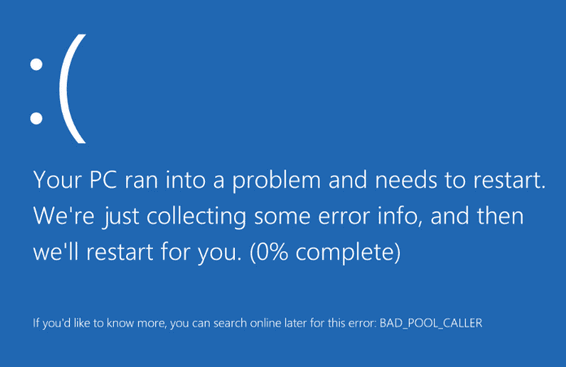
The Bad Pool Caller error appears on a blue screen. This screen shows a message with the error name. It often says “BAD_POOL_CALLER” in capital letters. The screen might also have a sad face icon.
This blue screen stops your computer from working. You cannot use your computer until it restarts. The screen also shows a code like “STOP 0x000000C2”. This code helps identify the problem.
Reading The Error Code
The error code on the blue screen gives important details. It usually starts with “STOP” followed by numbers and letters. This code tells what part of the system caused the error.
Write down the code exactly as it appears. This helps when searching for fixes online. Some codes point to memory issues. Others relate to hardware or drivers.
Checking Event Viewer Logs
Event Viewer logs store records of system events and errors. They can provide more information about the Bad Pool Caller error. Open Event Viewer from the Control Panel or search bar.
Look under “Windows Logs” and then “System”. Find entries marked as “Error” or “Critical”. These entries have timestamps matching the blue screen time.
Reading these logs can help pinpoint the cause. It might show a faulty driver or hardware failure. These details guide you in fixing the problem correctly.
Quick Fixes To Try First
The Bad Pool Caller error can stop your work suddenly. It is one of the common blue screen errors in Windows. This error usually means a problem with memory or device drivers. Some quick fixes can solve this issue fast. Try these steps before moving to complex solutions.
Restarting Your Pc
Turn off your computer completely. Wait for about 30 seconds. Then, turn it back on. Restarting clears temporary files and resets system processes. This simple step often fixes many errors. It is the easiest fix to try first.
Disconnecting External Devices
Remove all external devices like USB drives, printers, and cameras. Sometimes, faulty or incompatible devices cause the Bad Pool Caller error. After disconnecting, restart your PC. Check if the error still appears. Reconnect devices one by one to find the faulty one.
Running Windows Update
Open Windows Settings and go to Update & Security. Click on Check for updates. Windows will search for and install important fixes. These updates can repair bugs causing the error. Keeping your system updated is key to stability and security.
Credit: www.minitool.com
Driver Troubleshooting
Driver issues often cause the Bad Pool Caller error. Fixing or updating drivers can solve this problem quickly. This section guides you through simple driver troubleshooting steps. These steps help keep your system stable and avoid crashes.
Updating Drivers
Outdated drivers may cause system errors. Updating drivers can improve performance and fix bugs. To update, visit the device manufacturer’s website. Download the latest driver version for your hardware. Install the update and restart your computer. This often clears the Bad Pool Caller error.
Rolling Back Drivers
New driver updates might cause problems sometimes. Rolling back returns the driver to the previous version. This step helps if the error started after an update. Open Device Manager and find the faulty device. Select “Properties,” then “Driver” tab. Click “Roll Back Driver” and follow instructions. Restart your PC to apply changes.
Using Device Manager
Device Manager is a useful tool for driver management. Press Windows key + X and select Device Manager. Look for devices with a yellow warning sign. Right-click the device and choose “Update driver” to refresh it. Select “Uninstall device” to remove corrupted drivers. Restart your computer to reinstall drivers automatically.
System File Repair Methods
System file errors often cause the Bad Pool Caller error. Fixing these errors can stop the problem. Windows has built-in tools that scan and repair system files. Using these tools can help your PC run smoothly again.
Running Sfc Scan
The System File Checker (SFC) is a tool that checks for missing or damaged system files. It repairs corrupted files automatically. To run SFC, open Command Prompt as administrator. Type sfc /scannow and press Enter. The scan takes some time. Wait until it finishes. The tool will show a message about its results. Restart your computer after the scan completes.
Using Dism Tool
The Deployment Imaging Service and Management Tool (DISM) fixes deeper issues that SFC cannot. It repairs the Windows image used by SFC. Run Command Prompt as administrator. Type DISM /Online /Cleanup-Image /RestoreHealth and press Enter. This process can take several minutes. Let it complete without interruption. After the DISM scan, run the SFC scan again to fix remaining issues. Restart your PC once done for changes to take effect.
Memory And Hardware Checks
Memory and hardware problems often cause the Bad Pool Caller error. Checking these parts can help find the root of the issue. Simple tests can show if memory or hardware is faulty. Fixing these problems can stop the error from happening again.
Running Memory Diagnostics
Use a memory diagnostic tool to test your RAM. It scans for errors that might cause system crashes. Windows has a built-in tool called Windows Memory Diagnostic. Run it by typing “mdsched” in the search box and following the steps. The test will restart your computer and report any memory problems.
Inspecting Hardware Connections
Loose or faulty hardware connections can cause the error. Turn off your PC and unplug it from the power source. Open the case and check all cables and components. Make sure RAM sticks, hard drives, and graphics cards are firmly connected. Clean dust off the parts to avoid overheating and bad connections.
Testing Ram Modules
Test each RAM module separately to find the faulty one. Remove all modules but one, then run the memory test. Repeat this for each module. Replace any module that causes errors. This method helps avoid unnecessary replacement of working hardware.
Software And Application Fixes
Software and application problems often cause the Bad Pool Caller error. These errors appear when Windows faces trouble managing memory or system resources. Fixing these software issues can stop the error from showing up. The following steps focus on common software fixes that anyone can try.
Uninstalling Recent Apps
Newly installed apps may conflict with your system. These conflicts can cause the Bad Pool Caller error. Remove apps added just before the error began. Go to Settings, then Apps, and find the recent installations. Uninstall them one by one. Restart your PC after each removal. Check if the error still occurs. This method helps identify if a specific app causes the problem.
Performing Clean Boot
A clean boot starts Windows with only essential drivers and programs. This process can show if other apps cause the error. Press Win + R, type “msconfig,” and hit Enter. In the System Configuration window, select the Services tab. Check “Hide all Microsoft services,” then click Disable all. Next, go to the Startup tab and open Task Manager. Disable all startup items. Restart your computer. If the error stops, one of the disabled services or apps is the cause.
Checking For Malware
Malware can interfere with system processes and cause errors. Run a full system scan using trusted antivirus software. Remove any detected threats immediately. Use Windows Defender or a third-party antivirus tool. Regular scans keep your system safe and stable. Clean your PC of malware to prevent Bad Pool Caller errors from returning.

Credit: www.youtube.com
Advanced Solutions
Advanced solutions help fix the Bad Pool Caller error when basic steps fail. These methods are deeper and need careful action. They can restore your system’s health and stop the error from coming back.
Follow these advanced steps only if you feel comfortable with technical tasks. These options often solve complex problems linked to hardware or software conflicts.
Restoring System To Previous Point
System Restore rolls back your computer to a time before the error appeared. It removes recent changes that might cause the problem. This method does not affect your personal files.
Open System Restore from the Control Panel or search bar. Pick a restore point dated before the error started. Follow the instructions to complete the process. Your PC will restart and apply the changes. Check if the error still appears after the restore.
Resetting Windows
Resetting Windows reinstalls the operating system. It removes apps and settings but gives an option to keep personal files. This step fixes deep system issues causing Bad Pool Caller errors.
Go to Settings > Update & Security > Recovery. Select “Reset this PC” and choose to keep or remove files. Follow the on-screen steps to reset Windows. This process takes time but often resolves stubborn errors.
Seeking Professional Help
Some Bad Pool Caller errors need expert care. Professionals can diagnose hardware problems and fix complicated software issues. They have tools and skills for safe repairs.
Contact a certified technician or visit a trusted service center. Describe the error and the steps you tried. Professional help ensures your system is checked thoroughly and fixed correctly.
Preventing Future Errors
Preventing future Bad Pool Caller errors is key to a smooth computer experience. These errors often come from software or hardware issues. Taking simple steps can reduce the risk and keep your system stable. Focus on regular care and caution to avoid trouble.
Regular System Maintenance
Keep your computer clean and organized. Remove unused files and programs. Run disk cleanup and defragment your drive. Regular checks help spot problems early. This keeps your system running fast and error-free.
Keeping Drivers Updated
Outdated drivers often cause Bad Pool Caller errors. Check for updates from your device makers. Install the latest versions to fix bugs and improve performance. Updated drivers keep hardware and software working well together.
Avoiding Untrusted Software
Only install software from trusted sources. Avoid unknown websites or links. Untrusted software may contain harmful code. This can cause errors and harm your system. Stick to official stores and verified downloads for safety.
Credit: learn.microsoft.com
Frequently Asked Questions
What Does The Bad Pool Caller Error Mean?
The Bad Pool Caller Error is a Windows stop code. It shows when the system finds a problem with memory handling. This error often causes a blue screen.
What Causes The Bad Pool Caller Error In Windows?
It happens due to faulty drivers, hardware issues, or corrupted system files. Sometimes, software conflicts also trigger this error. Memory problems are a common cause.
How Can I Fix The Bad Pool Caller Error Easily?
Start by restarting your PC and updating drivers. Running a memory check and scanning for malware helps too. Removing recently installed software can also fix the problem.
Can Bad Pool Caller Error Damage My Computer?
This error itself doesn’t harm hardware. It stops your system to prevent further damage. But ignoring it may cause data loss or crashes.
Is Bad Pool Caller Error Related To Bad Ram?
Yes, bad or failing RAM can cause this error. Faulty memory affects data processing and triggers this stop code. Testing your RAM can help find the issue.
How To Check For Driver Issues Causing This Error?
Use Device Manager to update or uninstall suspicious drivers. Driver conflicts often lead to Bad Pool Caller errors. Keeping drivers updated is important.
Should I Seek Professional Help For Bad Pool Caller Error?
Yes, if basic fixes don’t work, see a technician. Complex hardware or software problems may need expert diagnosis. Don’t delay if errors persist or worsen.
Conclusion
Bad Pool Caller errors can disrupt your gaming experience. Fixing them often involves checking software and network settings. Restarting your device may solve the problem quickly. Keeping your apps updated helps avoid errors. Simple steps can save you time and frustration.
Stay patient and follow the troubleshooting tips carefully. Enjoy smooth and error-free gameplay again soon.