
If you’ve noticed a red light flashing on your Pentair ScreenLogic Interface Protocol Adapter, you’re probably wondering what it means and how to fix it. This little red light can be a sign of connection issues or other problems that affect your pool system’s performance.
Don’t ignore it—your pool’s comfort and convenience depend on a smooth-running setup. You’ll discover what that red light means, the common causes behind it, and simple steps you can take to get everything back on track quickly. Keep reading to make sure your pool stays ready whenever you are.
Pentair Screenlogic Interface Overview
The Pentair Screenlogic Interface allows users to control their pool and spa systems remotely. It connects your pool equipment to the internet. This lets you manage settings from a computer or smartphone.
This interface is designed to simplify pool maintenance. It provides real-time updates on system status. Users can monitor and adjust pumps, heaters, and lighting easily.
Purpose And Functionality
The main purpose is to offer remote control and monitoring. The interface sends data between your pool system and your device. It supports multiple types of Pentair equipment.
It helps users save time and effort. Settings can be changed without visiting the pool area. Alerts notify users of any issues or errors.
Common Setup Configurations
Most setups connect the interface to a home Wi-Fi network. The device then links to the Pentair automation system. Users enter network credentials to establish a secure connection.
Some setups use Ethernet cables for a direct link. This option offers stable and fast communication. The interface works best near the pool equipment for easy access.
Users often configure the interface through the ScreenLogic software. The software guides through the setup and customization steps. This ensures smooth operation and reliable control.
Credit: www.youtube.com
Identifying The Red Light Issue
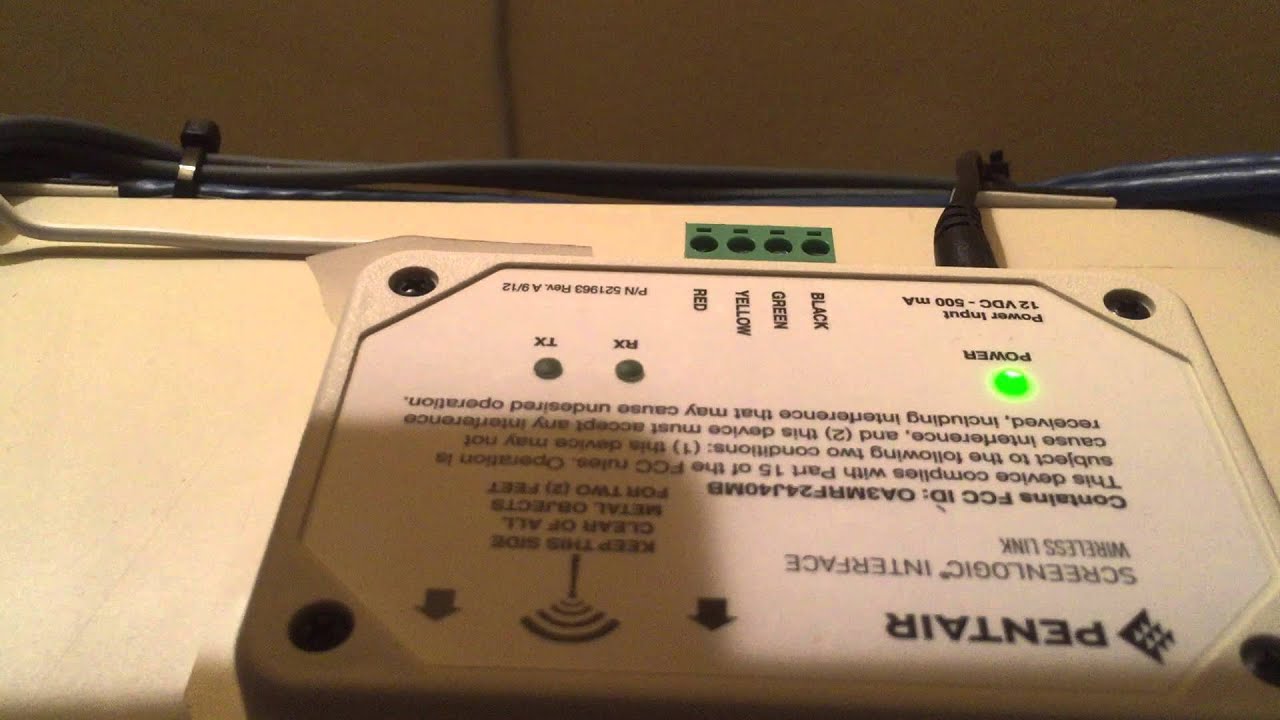
Identifying the red light issue on the Pentair Screenlogic Interface Protocol Adapter helps you troubleshoot quickly. This light signals that something needs your attention. Knowing what it means saves time and frustration. It guides you toward fixing the problem and getting your system back online.
What The Red Light Indicates
The red light on the adapter usually signals an error or connection problem. It means the device cannot communicate properly with your pool system. This could be due to a power issue, wiring fault, or network trouble. The red light acts as a warning to check the adapter’s status.
Typical Scenarios Triggering The Red Light
Common causes of the red light include loose cables or poor network connection. Power interruptions can also trigger this warning. Sometimes, outdated firmware causes communication errors. Environmental factors like moisture or heat may affect the adapter too. Watching for these triggers helps diagnose the problem early.
Quick Troubleshooting Steps
Seeing a red light on your Pentair Screenlogic Interface Protocol Adapter can be frustrating. It usually signals a connection or power problem. Quick troubleshooting can help fix the issue without much hassle. Follow these simple steps to get your system back online fast.
Power Cycle And Reset Methods
Start by unplugging the adapter from the power source. Wait for about 30 seconds to clear any temporary errors. Plug it back in and check the light again. If the red light stays on, try a factory reset. Use a small tool to press the reset button for 10 seconds. This can restore default settings and solve many issues.
Checking Network Connections
Check all cables connected to the adapter. Make sure the Ethernet cable is secure at both ends. Look for any signs of damage or loose connections. Restart your router or switch to refresh the network. Confirm the adapter is on the same network as your controller.
Inspecting Hardware Components
Examine the adapter for physical damage or dirt. Clean any dust from the ports using a soft cloth. Check the LED indicators on the device for clues. If the adapter feels hot, let it cool down before testing again. Replace any faulty cables or connectors found during inspection.
Advanced Troubleshooting Techniques
Advanced troubleshooting techniques help fix issues with the Pentair Screenlogic Interface Protocol Adapter red light. This light often signals a problem with communication or settings. Understanding detailed steps can save time and avoid costly repairs.
These techniques focus on checking firmware, using diagnostic tools, and verifying software settings. Each step is clear and straightforward. Anyone can follow these steps to identify and solve common problems.
Firmware Updates And Compatibility
Firmware controls how the adapter works. Old firmware may cause errors and red light warnings. Check the latest firmware version on the Pentair website.
Download and install updates using the official instructions. Make sure the firmware matches your adapter model. Incorrect firmware can worsen issues or block communication.
Keep the device connected to power during updates. Do not turn it off until the update finishes. Updated firmware improves stability and fixes known bugs.
Using Diagnostic Tools
Diagnostic tools help find hidden problems. Pentair offers software to test the adapter’s function. Run these tools from a connected computer or mobile device.
Look for error codes or abnormal readings. These codes point to hardware faults or network issues. Note down any messages for further help.
Reset the adapter and run diagnostics again. This checks if the problem is temporary or persistent. Use the tools regularly to maintain system health.
Verifying Software Settings
Incorrect software settings often cause communication failures. Open the Screenlogic software and review all connection settings. Confirm IP addresses and ports are correct.
Check user permissions and access controls. Improper permissions can block device communication. Adjust the settings to allow full access to the adapter.
Save all changes and restart the software. Watch for the red light during reconnection. Proper settings usually clear the red warning light fast.
Preventing Future Red Light Issues
Preventing future red light issues with the Pentair ScreenLogic Interface Protocol Adapter helps keep your pool system running smoothly. Red lights often signal communication or power problems. Staying ahead of these issues saves time and frustration. A few simple steps can reduce the chance of errors and keep your system online.
Regular Maintenance Tips
Check the adapter and its connections regularly. Clean the contacts to avoid dirt build-up. Look for any signs of wear or damage. Replace old cables and connectors as needed. Keep the adapter dry and away from harsh weather. Restart the system occasionally to refresh its settings. Update the firmware to the latest version. These small habits improve reliability and prevent malfunctions.
Best Practices For Network Stability
Place the adapter close to your router or network switch. Use high-quality Ethernet cables to ensure strong connections. Avoid running cables near electrical devices that cause interference. Assign a fixed IP address to the adapter. This prevents conflicts with other devices. Check your network speed and stability often. A stable network keeps the ScreenLogic adapter communicating well with your system.

Credit: machinevisiondirect.com
When To Seek Professional Help
The Pentair Screenlogic Interface Protocol Adapter red light can signal various issues. Some problems you can fix yourself. Others need expert help. Knowing when to get a professional saves time and prevents damage.
Small glitches or simple resets are easy to handle. But persistent or unclear errors often require specialized knowledge. Professional support ensures your system works safely and correctly.
Identifying Complex Problems
Some issues show as a steady red light or blinking patterns. These can mean hardware faults or communication errors. When basic troubleshooting steps fail, the problem might be complex. Problems involving wiring, firmware, or internal components usually need expert attention. Attempting advanced fixes without skills can cause more harm.
Contacting Pentair Support
Pentair offers support for technical issues beyond user fixes. Their team can guide you through diagnostics or arrange repairs. Prepare your device details and error descriptions before calling. This speeds up the help process. Professional assistance ensures accurate solutions and protects your equipment warranty.
Credit: partners.pentair.com
Frequently Asked Questions
What Does The Red Light On Pentair Screenlogic Mean?
The red light usually signals a connection or communication error. It means the adapter is not syncing properly with your system.
How Can I Fix The Red Light On My Screenlogic Adapter?
Check all cable connections and restart the adapter. If the light stays red, try resetting the device to factory settings.
Why Won’t My Screenlogic Adapter Connect To The Internet?
A red light may show if your adapter has no internet access. Verify your Wi-Fi or Ethernet network is working correctly.
Can Firmware Updates Solve The Red Light Issue?
Yes, outdated firmware can cause errors. Updating the adapter’s firmware often resolves connectivity problems and turns off the red light.
Is The Red Light A Sign Of Hardware Failure?
Not always. It often indicates software or network issues. But persistent red lights might mean the adapter needs repair or replacement.
What Does A Blinking Red Light On The Adapter Indicate?
A blinking red light often means the device is trying to establish a connection. Wait a few minutes; if it continues, troubleshooting is needed.
How Do I Reset The Pentair Screenlogic Interface Protocol Adapter?
Locate the reset button on the adapter. Press and hold it for 10 seconds until the lights flash, then release to reset the device.
Conclusion
The Pentair Screenlogic Interface Protocol Adapter red light signals an issue. It helps users identify connection or power problems quickly. Fixing the problem often restores normal function. Regular checks keep your system running smoothly. Understanding this light saves time and frustration.
Stay calm, follow the steps carefully, and your pool system will work fine again. Simple solutions often solve these small issues. Keep your pool control reliable and hassle-free.