
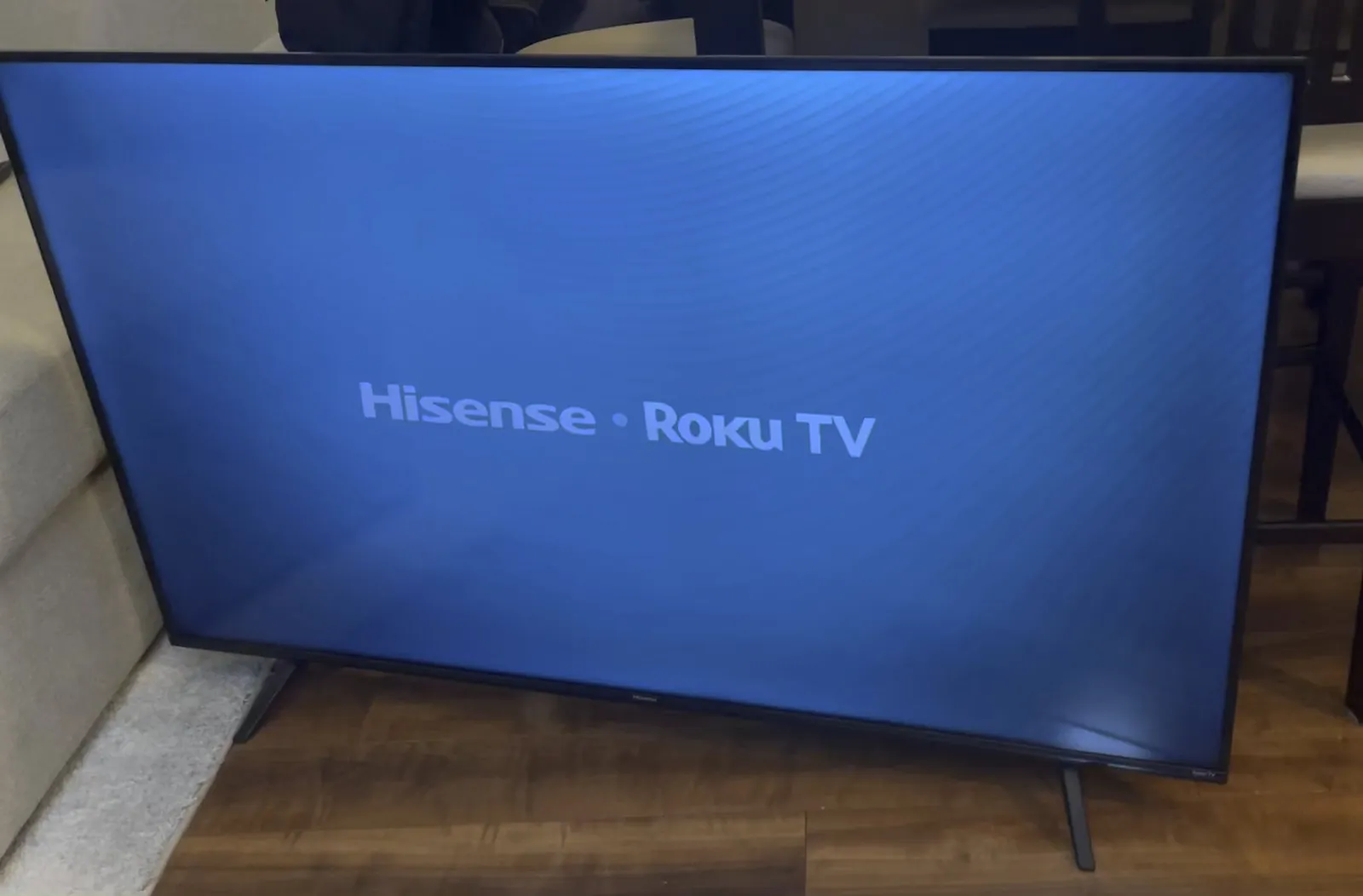
Finding your television active in the middle of the night can be unsettling, especially when you’re certain that you powered it down before heading to bed. If you have been searching for reasons why your hisense tv turns on by itself, you’re likely dealing with a conflict between software settings, peripheral hardware, or power fluctuations. This occurrence is often linked to features designed for convenience, such as wake-on-network signals or HDMI-CEC protocols, which can inadvertently trigger the display when they detect activity from a connected device.
Key Takeaways
- Disable HDMI-CEC settings to prevent connected consoles or players from waking the TV.
- Turn off network-based wake features to stop signals from mobile apps or casting devices.
- Perform a hard power cycle by unplugging the unit to clear temporary memory errors.
- Check for firmware updates to resolve bugs that cause spontaneous power-on events.
- Inspect remote controls for stuck buttons or low batteries that may send ghost signals.
Is Your TV Receiving Ghost Signals?
The most common culprit for a television waking up unexpectedly is the HDMI-CEC (Consumer Electronics Control) feature. This standard allows your TV to communicate with devices like gaming consoles, streaming sticks, or soundbars. If your Roku, PlayStation, or Apple TV sends a signal to the television, the TV interprets this as a command to switch on.
To resolve this, navigate to your TV’s settings menu under “Inputs” or “System” and locate the CEC control options. By disabling these, you effectively tell the television to ignore power-on commands from external hardware.
Identifying Triggers When Hisense TV Turns On
| Device Type | Likely Trigger Method | How to Mitigate |
|---|---|---|
| Gaming Consoles | Controller activity or updates | Disable “Power on via HDMI” |
| Streaming Sticks | Auto-update or casting request | Disconnect from HDMI port |
| Soundbars | ARC/eARC handshake signals | Toggle CEC settings to “Off” |
| Smart Home Hubs | Network polling or discovery | Remove from network temporarily |
Why Does Software Cause Spontaneous Power?
Your television runs on complex operating systems like Vidaa or Google TV. These platforms frequently perform background tasks, such as checking for firmware updates or synchronizing data with cloud services. If the system experiences a minor crash during a background process, it may force a reboot, which looks exactly like the TV turning on by itself.
Always ensure your software is current. Manufacturers release patches specifically designed to address stability issues and power management bugs. You can check for updates in the “Support” or “About” section of your settings menu. If an update is available, install it immediately, as it often contains the fix for the specific power behavior you’re observing.
Can Power Fluctuations Trigger Activation?
Sometimes, the issue isn’t the television, but the electrical current flowing into it. Power surges or “brownouts”—even those too small to notice—can cause the internal power supply board to reset. When the power stabilizes, the TV may default to an “On” state as a safety mechanism.
Pro Tip: Use a high-quality surge protector rather than a standard power strip to stabilize the voltage. If your home experiences frequent power flickering, this could be the primary cause of your TV’s erratic behavior.
How to Perform a Hard Reset
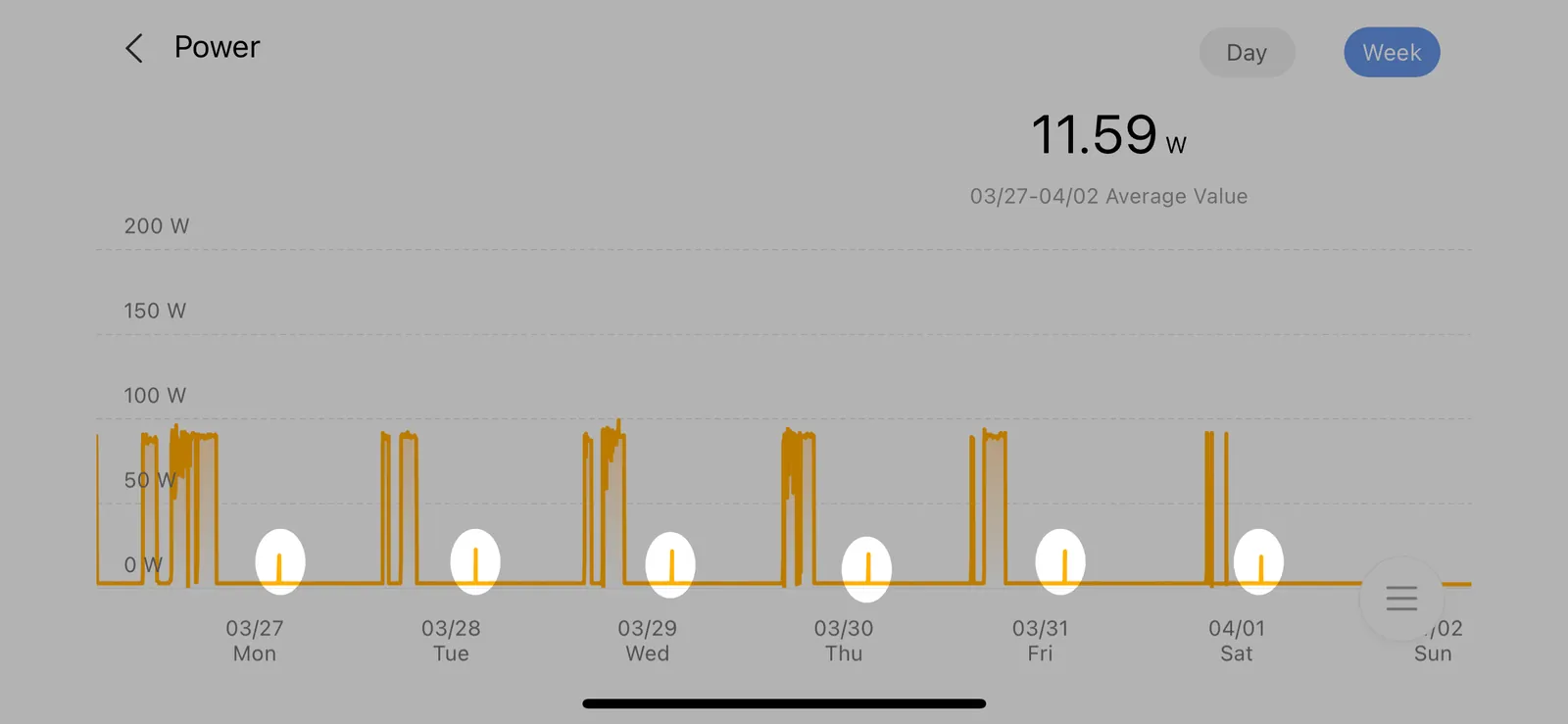
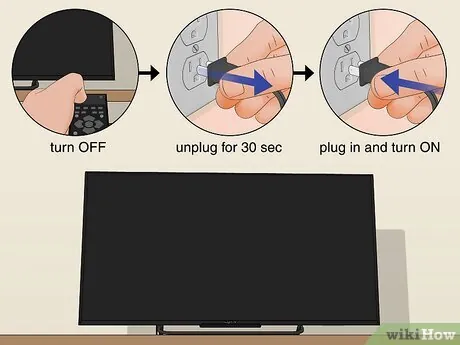
If the software is acting up, a simple remote-control shutdown isn’t enough. You must perform a hard power cycle to drain the residual electricity from the capacitors on the motherboard. This process forces the internal chips to clear their cache and reset to their original factory state.
- Turn the TV off using the power button.
- Unplug the power cord from the wall outlet.
- Wait for at least 60 seconds to ensure complete discharge.
- Plug the cord back into a dedicated wall outlet.
- Turn the television on to test if the issue persists.
Is Your Remote Acting Up?
A faulty remote control can send out random infrared signals that the TV interprets as a power command. If a button is physically stuck—perhaps due to a sticky spill or debris—it may be sending a constant stream of input that triggers the display.
Check your remote for any buttons that feel “mushy” or don’t click properly. Additionally, replace the batteries with fresh ones to ensure the signal strength isn’t erratic. You can verify if the remote is the issue by removing the batteries entirely for one full day; if the TV stays off, you have identified the culprit.
Network and Casting Vulnerabilities
Modern smart TVs are almost always connected to the internet. Features such as “Wake on LAN” or “Wake on Wireless” allow you to turn on your television using a mobile app or a voice assistant like Amazon Alexa or Google Home. If your network is busy or if a family member is accidentally tapping a “Cast” button on their phone, your television will respond by waking up.
Review your network-connected devices and disconnect any that you don’t use regularly. You can also disable the “Wake on LAN” feature within your network settings to restrict power control to the physical remote only.
Are Scheduled Timers Enabled?
It sounds simple, but many users accidentally set an auto-on timer without realizing it. These timers are often hidden deep within the “Time” or “System” menus. Check to see if there’s a recurring schedule that turns the television on at a specific time of day or night.
- Check the “Sleep Timer” settings to see if an “On Timer” is active.
- Verify the date and time settings, as an incorrect clock can trigger an event at the wrong hour.
- Look for “Eco” or “Energy Saving” modes that might have scheduled wake-up functions.
Evaluating Hardware Failure Symptoms
In rare cases, the issue is a failing power supply board or a corrupted mainboard. If the television turns on and off at random intervals, or if it makes a clicking sound before powering up, the internal electronics may be degrading. This is common in older units that have been running for several years.
If you have tried all software troubleshooting steps and the TV continues to turn on, you may need to consult ENERGY STAR guidelines regarding the energy efficiency and maintenance of televisions to determine if the hardware is nearing the end of its functional life.
Troubleshooting Table for Quick Fixes
| Step | Action | Potential Outcome |
|---|---|---|
| Step 1 | Disable HDMI-CEC | Stops external devices from waking TV |
| Step 2 | Remove Remote Batteries | Rules out ghost signals from remote |
| Step 3 | Perform Hard Reset | Clears temporary system memory errors |
| Step 4 | Update Firmware | Fixes known software power bugs |
| Step 5 | Check Timers | Removes accidental power schedules |
Related guides
- Aqua Genie Skimmer Problems: 3 Common Causes and Fixes in 2026
- Pentair Globrite Problems: Top 10 Issues and Complaints in 2026
- Pentair IntelliBrite 5G Problems: How to Spot and Fix Them in 2026
Frequently Asked Questions
Why does my TV turn on at 3 AM?
This is typically caused by background system updates or the television checking for server-side content synchronization. Many smart TVs are programmed to perform maintenance tasks during off-peak hours to avoid interrupting your viewing. Check your “Auto Update” settings and see if disabling them or changing the update schedule prevents the device from waking up in the middle of the night.
Can a neighbor’s remote turn on my TV?
It’s highly unlikely, as modern infrared and Bluetooth remotes are paired specifically to your device. However, if you’re using an older infrared remote, there’s a remote possibility of signal overlap if your neighbor has the exact same model of television and is standing close to your wall. If this is a concern, ensure your TV isn’t in a position to receive line-of-sight signals from outside.
Will a factory reset fix this?
A factory reset is often the most effective way to resolve persistent software-related power issues. It returns the television to its original out-of-the-box state, which clears out any corrupted configuration files or conflicting app data that might be causing the spontaneous power-on events. Be aware that you’ll need to re-login to your streaming accounts and re-configure your picture settings afterward.
What if the power cord is loose?
A loose power connection can cause the television to experience micro-power failures, which may trigger the device to reboot as soon as the connection stabilizes. Ensure the power cable is firmly seated in both the wall outlet and the back of your television. If the plug feels loose in the TV port, the internal socket may be damaged, necessitating a professional hardware repair.
Does Wi-Fi interference cause power-ons?
While Wi-Fi interference usually affects streaming quality, some smart features designed to wake the TV via a mobile app can be triggered by “noise” or signal spikes on your local network. If you suspect your network is the issue, try disconnecting the TV from Wi-Fi for 24 hours. If the TV stays off, you know the wake-on-network feature is the root cause of your frustration.
Conclusion
If the steps provided above haven’t resolved the issue, consider contacting the manufacturer’s support line with your model number ready. In many cases, a persistent hardware fault requires professional service or a replacement of the internal power board. Before taking that step, ensure your television is plugged directly into a wall outlet rather than a power strip to eliminate any potential interference from other connected electronics.

1 thought on “Hisense TV Turns On by Itself: 6 Fixes to Stop the Problem”