
Are you struggling to get your Pentair ScreenLogic to connect to your WiFi? It can be frustrating when your pool system won’t respond, especially when you rely on it to keep everything running smoothly.
You’re not alone, and the good news is there are simple fixes you can try right now. You’ll discover easy steps to solve your connection issues and get your Pentair ScreenLogic back online fast. Keep reading to take control of your pool system without the hassle.
Credit: partners.pentair.com
Common Causes Of Connection Issues
Many users face trouble connecting Pentair ScreenLogic to WiFi. Understanding common causes helps fix the problem faster. Connection issues often come from simple settings or hardware problems. Identifying the root cause avoids frustration and saves time.
Wifi Signal Strength Problems
Weak WiFi signals cause connection failures. Distance from the router can reduce signal strength. Walls and objects block signals and lower performance. Moving closer to the router can improve the connection. Interference from other devices may also affect the signal.
Incorrect Network Settings
Wrong network settings stop the device from connecting. Entering the wrong WiFi password is a common error. Using the wrong security type also causes issues. Make sure the device is set to the correct network name. Double-check all network details before trying again.
Device Compatibility
Not all devices support every WiFi network. Pentair ScreenLogic may need specific network types. Older routers might not work with newer devices. Check if the device supports 2.4 GHz or 5 GHz bands. Using the wrong band can prevent connection.
Firmware And Software Glitches
Outdated firmware or software can cause connection problems. Bugs or errors may stop the device from connecting properly. Regular updates fix many known issues. Check for the latest firmware on the Pentair website. Restarting the device can also clear temporary glitches.
Basic Troubleshooting Steps
Basic troubleshooting helps fix common connection problems quickly. It saves time and avoids extra technical help. Follow simple steps to check your Pentair ScreenLogic WiFi link.
Start with easy fixes. These often solve the issue. Each step focuses on a key part of the connection process.
Restarting The Screenlogic Controller
Turn off your ScreenLogic controller. Wait 10 seconds before turning it back on. This resets the device and clears minor errors. Restarting helps the controller try a fresh connection.
Power Cycling Your Wifi Router
Unplug your WiFi router from power. Wait 30 seconds. Plug it back in and wait for lights to stabilize. This resets the router and fixes network glitches. It often restores proper communication with devices.
Checking Wifi Network Credentials
Confirm the WiFi name (SSID) and password are correct. Enter them carefully on the ScreenLogic controller. Wrong details stop connection attempts. Double-check for typos or extra spaces.
Ensuring Device Proximity To Router
Place the ScreenLogic controller near your WiFi router. Distance or walls weaken signals. Strong signals help maintain a steady connection. Move closer if the connection keeps dropping.
Advanced Fixes For Connectivity
Advanced fixes can help solve Pentair Screenlogic WiFi issues. These steps go beyond basic checks. They focus on deeper network and device settings. Follow these fixes carefully to improve connection success.
Updating Firmware And Software
Old firmware or software can cause connection problems. Check for updates on your Pentair device and app. New versions fix bugs and improve network compatibility. Download and install updates from official sources only. Restart your device after updating for best results.
Resetting Network Settings
Resetting network settings clears old data that may block connection. This action removes saved WiFi networks and passwords. After reset, re-enter your WiFi details on the Screenlogic system. This step can fix hidden errors affecting connectivity.
Configuring Router Settings
Your router’s settings might block Screenlogic from connecting. Access your router’s admin panel to check security and firewall rules. Enable UPnP or open specific ports required by Pentair devices. Disable MAC address filtering if active. Adjust these settings to allow smooth communication.
Switching To 2.4 Ghz Network
Screenlogic often works better on 2.4 GHz bands than 5 GHz. 2.4 GHz has longer range and better wall penetration. Connect your device and router to the 2.4 GHz network. This switch can reduce interference and improve stability.

Credit: www.youtube.com
Using The Screenlogic App Correctly
Using the ScreenLogic app correctly is key to fixing WiFi connection issues. The app controls your Pentair system and needs proper setup. Small mistakes can stop it from working well.
Follow simple steps to ensure the app functions smoothly. This helps avoid common problems and keeps your system connected.
App Permissions And Updates
Make sure the app has all needed permissions on your phone. It needs access to WiFi and location to work properly. Without these, connection may fail.
Keep the app updated to the latest version. Updates fix bugs and improve performance. Check your app store for new versions often.
Pairing The Device Properly
Pair the ScreenLogic device with your phone carefully. Follow the instructions exactly. Start pairing close to the device for better signal.
Restart both the device and your phone before pairing. This clears temporary issues and helps a fresh connection.
Troubleshooting App Errors
Check for error messages in the app and note them. Restart the app if it freezes or crashes. Clear the app cache to remove corrupted data.
If problems continue, uninstall and reinstall the app. This resets settings and removes possible bugs.
When To Contact Support
Knowing when to contact support can save time and frustration. Some issues with Pentair Screenlogic connecting to WiFi need expert help. Early support contact helps avoid bigger problems. Below are key points to decide when to reach out.
Identifying Hardware Failures
Check if the device powers on normally. Look for unusual lights or no lights at all. Hardware failures often stop WiFi connection completely. Test the router and cables for any damage. If basic fixes don’t work, hardware might be the cause. This signals a good time to contact support.
Gathering Diagnostic Information
Before calling support, gather key details. Note error messages shown on the device. Write down your WiFi network name and signal strength. Check the device’s firmware version in settings. Document what troubleshooting steps you already tried. This information helps support diagnose quickly and accurately.
Pentair Support Options
Pentair offers phone, email, and chat support. Phone support is best for urgent issues. Email and chat suits non-urgent questions and follow-ups. Visit Pentair’s official website for contact details. Use their online resources for common problems. Support teams guide you through fixes and repair options.
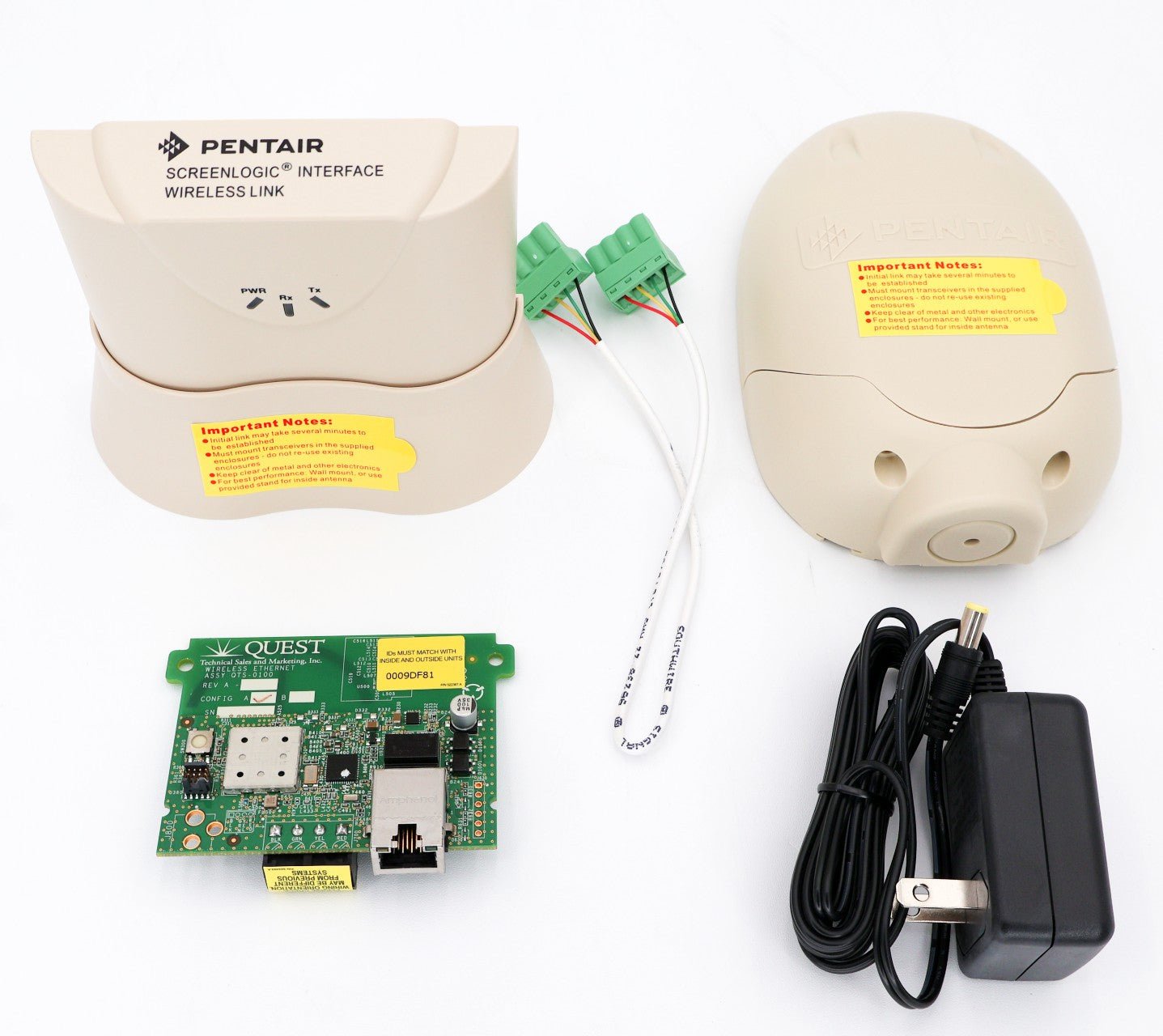
Credit: aquapoolsupply.com
Frequently Asked Questions
Why Won’t Pentair Screenlogic Connect To My Wifi?
Pentair ScreenLogic may not connect due to weak WiFi signals or incorrect network settings. Check your router and ensure the device is within range.
How Do I Reset Pentair Screenlogic Wifi Connection?
To reset, power off the ScreenLogic device, wait 30 seconds, and power it back on. Then, try reconnecting to your WiFi network.
Can Router Settings Affect Screenlogic Wifi Connection?
Yes, router settings like MAC filtering or firewall rules can block ScreenLogic. Make sure these features allow the device access.
What Wifi Frequency Does Pentair Screenlogic Support?
Pentair ScreenLogic typically supports 2. 4 GHz WiFi networks. It may not work well with 5 GHz-only routers.
How To Fix Screenlogic Connection Errors During Setup?
Check your WiFi password and network name carefully. Restart your router and the ScreenLogic device for a fresh connection.
Does Firmware Update Impact Screenlogic Wifi Connectivity?
Outdated firmware can cause connection issues. Updating your ScreenLogic device firmware often resolves WiFi problems.
Why Does Screenlogic Lose Wifi Connection Randomly?
Interference from other devices or network congestion can cause drops. Try moving your router or device to reduce interference.
Conclusion
Pentair ScreenLogic not connecting to WiFi can be frustrating. Check your network settings and signal strength first. Restart your router and the ScreenLogic device to refresh connections. Make sure the app and device firmware are updated. Keep your WiFi password handy and enter it carefully.
Try moving closer to the router for a stronger signal. These simple steps often fix connection issues quickly. Stay patient and follow each tip. Your ScreenLogic should connect soon and work smoothly again.