
Is your Eufy vacuum acting up or having trouble connecting to your WiFi? Updating the WiFi settings on your Eufy vacuum is easier than you think—and it can make a big difference in how smoothly your device works.
If you want to keep your vacuum running at its best and avoid frustrating connection issues, you need to know the simple steps to update its WiFi. Keep reading, and you’ll learn exactly how to do it quickly, so your vacuum stays smart, connected, and ready to clean whenever you are.

Credit: service.eufy.com
Check Your Vacuum’s Compatibility
Before updating the WiFi on your Eufy vacuum, check if your model supports it. Not all Eufy vacuums have WiFi capabilities. Knowing your vacuum’s compatibility saves time and avoids confusion. It helps to ensure the update process will work smoothly.
Check the user manual or the product box for WiFi support details. You can also find this information on the official Eufy website. The model number is key to finding the right information.
Locate Your Vacuum’s Model Number
Find the model number on the vacuum itself. Usually, it is on the back or bottom. Write it down or take a picture for easy reference. This number helps identify if your device supports WiFi updates.
Verify Wifi Capability In The Manual
Read the user manual carefully. Look for sections about WiFi or app connectivity. If the manual mentions connecting to the Eufy app or WiFi setup, your vacuum supports it.
Check The Eufy App Compatibility
Download the Eufy app on your phone. Open the app and check if your vacuum model appears in the device list. If it does, your vacuum can connect to WiFi and be updated.
Prepare Your Wifi Network
Preparing your WiFi network is an important step before updating your Eufy vacuum. A stable and strong connection helps the update process go smoothly. Taking a moment to check your network can save time and avoid errors during setup.
Focus on the network frequency and signal strength. Both affect how well your vacuum connects to WiFi. Let’s explore these key points to get your network ready.
Verify Network Frequency
Check if your router uses 2.4 GHz or 5 GHz bands. Eufy vacuums usually work best with 2.4 GHz networks. This frequency covers a wider area and penetrates walls better. Make sure your phone or device connects to the 2.4 GHz band before starting the update.
Using the wrong frequency can cause connection problems. Confirm your router settings or use the router’s app to see the active bands. Change your device connection if needed.
Ensure Strong Signal Strength
Place your vacuum and phone close to the router. A strong WiFi signal reduces the chance of interruptions. Avoid thick walls or large metal objects between devices and the router. These can weaken the signal.
Check signal strength on your phone or tablet. Aim for at least three bars of WiFi signal. If the signal is weak, try moving closer or repositioning your router. A strong connection helps the update complete without issues.
Download And Open The Eufyhome App
Downloading and opening the EufyHome app is the first step to update your Eufy vacuum’s WiFi. This app connects your vacuum to your home network. It also lets you control and monitor your vacuum easily.
The app works on both iOS and Android devices. You need a smartphone or tablet to use it. The app is free and quick to download from the official app stores.
Download The Eufyhome App From The App Store Or Google Play
Open the App Store on iPhone or Google Play on Android. Search for “EufyHome” in the search bar. Look for the app by Eufy Technology. Tap the download or install button. Wait a few moments for the app to download.
Open The Eufyhome App And Create An Account
Find the EufyHome app icon on your device. Tap it to open the app. You will see a welcome screen. Choose to create a new account. Enter your email and make a password. Follow the on-screen instructions to finish setup.
Log In To The Eufyhome App To Access Your Vacuum
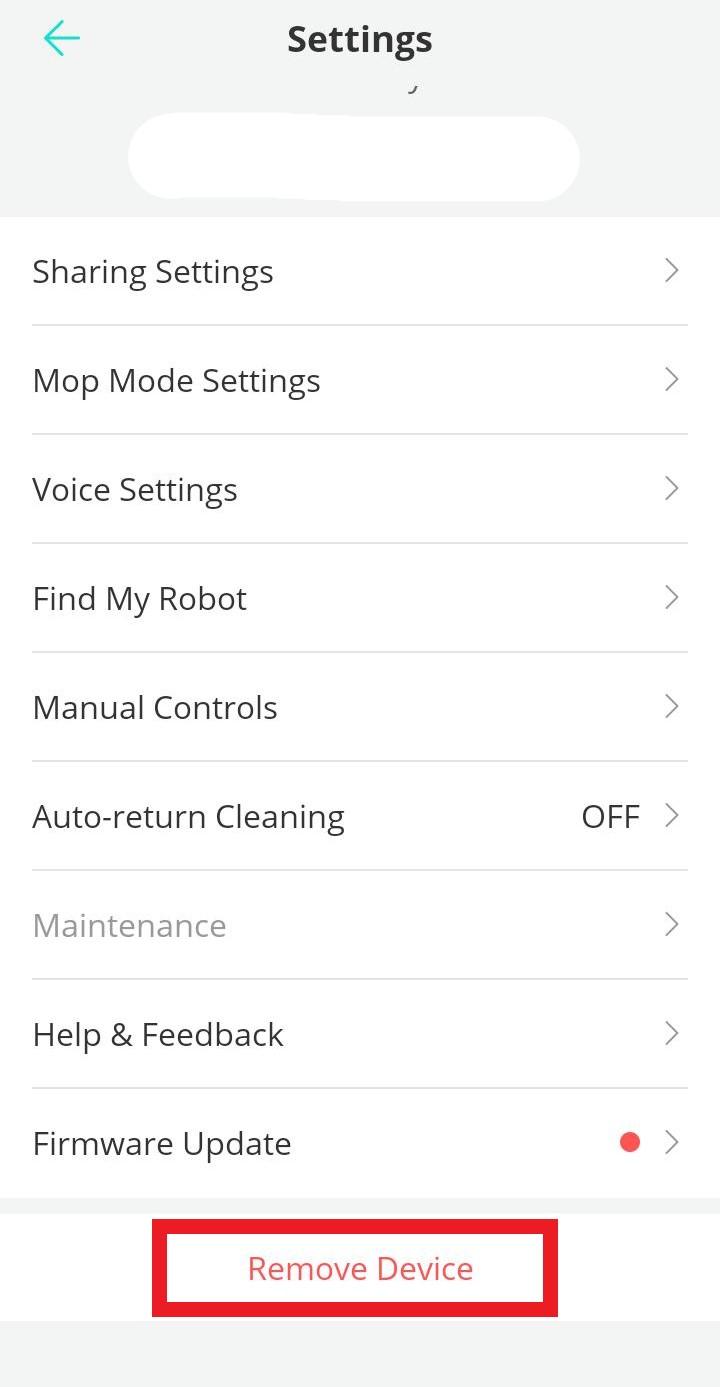
After creating an account, log in with your email and password. The app will show your devices if any are connected. If your vacuum is new, you can add it now. This connection lets you control WiFi settings from the app.
Credit: service.eufy.com
Connect Your Vacuum To The App
Connecting your Eufy vacuum to the app is the key to controlling it easily. The app lets you start, stop, and schedule cleaning right from your phone. It also helps update the vacuum’s WiFi settings. Follow simple steps to link your vacuum to the app and enjoy smart cleaning.
Power On The Vacuum
Press the power button on your Eufy vacuum. Wait for the vacuum to turn on completely. You will see lights or hear sounds showing it is ready. The vacuum must be on to connect to the app.
Enable Wifi Pairing Mode
Press and hold the WiFi button on the vacuum. Keep holding until the WiFi light blinks fast. This means the vacuum is in pairing mode. Open the Eufy app and follow the prompts to connect your vacuum to WiFi.
Update Wifi Settings In The App
Updating your WiFi settings on the Eufy vacuum is simple using the app. The app guides you through each step. It helps connect the vacuum to your new network quickly. Follow the instructions below to update your WiFi with ease.
Select Your Network
Open the EufyHome app on your smartphone. Go to the device settings for your vacuum. Find the WiFi update option and tap it. The app will show a list of available networks. Choose the correct WiFi network from the list. Make sure to pick the network with the strongest signal.
Enter Wifi Password
After selecting your network, the app asks for the password. Type the correct password carefully. Passwords are case sensitive. Double-check for any typing errors before proceeding. Once entered, tap the connect button. The vacuum will then try to join the new network. Wait a moment for confirmation that it’s connected.
Troubleshoot Common Issues
Sometimes, your Eufy vacuum may have trouble connecting to WiFi. This can stop it from working well. Troubleshooting common issues helps fix these problems quickly. It saves time and avoids frustration. Try simple steps to get your vacuum online again.
Reset Your Vacuum’s Wifi
Resetting the WiFi on your vacuum often solves connection problems. Start by turning off the vacuum. Wait for 10 seconds and turn it back on. Next, press and hold the WiFi button until you hear a sound. This clears old network settings. Then, reconnect your vacuum to your WiFi network using the app.
Reinstall The Eufyhome App
The app manages your vacuum’s WiFi settings. Sometimes the app may glitch or freeze. Delete the EufyHome app from your phone. Restart your phone to clear memory. Download and install the app again from your app store. Log in and try to connect your vacuum once more.
Check Router Settings
Your router controls your home WiFi network. Make sure it allows new devices to connect. Check if MAC address filtering is on; it can block your vacuum. Disable this feature or add your vacuum’s MAC address to allowed devices. Also, ensure the router uses a 2.4GHz band, as many vacuums don’t support 5GHz.
Verify Successful Wifi Update
Check your Eufy vacuum’s WiFi connection after updating to ensure it works properly. Confirm the device shows a stable connection. This helps the vacuum run smoothly without interruptions.
Check Connection Status On The Eufy App
Open the Eufy Home app on your smartphone. Look for the vacuum’s status on the main screen. It should show “Connected” or a similar message. This confirms the vacuum is linked to the new WiFi network. If the app shows “Disconnected,” try reconnecting the device.
Test The Vacuum’s Remote Features
Use the app to start or stop the vacuum remotely. If the commands work instantly, the WiFi update was successful. No response means the vacuum is not connected properly. This quick test ensures your device communicates with the app via WiFi.
Observe Vacuum Behavior During Cleaning
Start a cleaning session using the app or vacuum controls. Watch if the vacuum follows app commands like pause or return to base. Smooth operation signals a strong WiFi connection. Interruptions or errors may show connection issues.
Tips To Maintain Stable Wifi Connection
Maintaining a stable WiFi connection for your Eufy vacuum is key for smooth operation. A strong connection helps your vacuum respond quickly to commands and complete cleaning efficiently. Follow these simple tips to keep your WiFi signal steady and reliable.
Keep Your Router Close To The Vacuum
Place your router near the area where the vacuum cleans the most. Walls and furniture can block signals. A closer router means a stronger connection.
Limit Interference From Other Devices
Other electronics like microwaves or cordless phones can weaken WiFi signals. Keep these devices away from your vacuum’s cleaning path and router.
Update Your Router Firmware Regularly
Router updates improve performance and security. Check for updates often and install them to avoid connection problems.
Use A Dedicated Wifi Network
Set up a separate network for smart home devices. This reduces traffic and keeps your vacuum’s connection stable.
Restart Your Router And Vacuum Occasionally
Restarting clears temporary issues. Power off your router and vacuum, wait a few seconds, then turn them back on.
Credit: www.youtube.com
Frequently Asked Questions
How Do I Update Wifi On My Eufy Vacuum?
Open the EufyHome app and go to the device settings. Select WiFi settings and follow the prompts to connect to your new network.
Can I Change Wifi Without Resetting The Eufy Vacuum?
No. You must reset the vacuum to update the WiFi network. This clears old network data and allows new connection setup.
Why Won’t My Eufy Vacuum Connect To Wifi?
Check if your WiFi is 2. 4 GHz as Eufy vacuums do not support 5 GHz. Also, ensure the password is correct.
How Do I Reset My Eufy Vacuum For Wifi Update?
Press and hold the reset button on the vacuum for about 5-10 seconds. Wait for the light to blink, then reconnect via the app.
What Wifi Frequency Works Best With Eufy Vacuum?
Eufy vacuums work only with 2. 4 GHz WiFi networks. Make sure your router supports this frequency for a stable connection.
Will Updating Wifi Erase My Cleaning Schedule?
No, updating the WiFi does not erase your cleaning schedule. Your settings and history remain safe in the app.
How Often Should I Update My Eufy Vacuum’s Wifi?
Update WiFi only when you change your network or router. No need for frequent updates unless your WiFi details change.
Conclusion
Updating the WiFi on your Eufy vacuum keeps it working smoothly. Follow the steps carefully to connect it to your network. A strong WiFi signal helps your vacuum clean more efficiently. Regular updates can fix bugs and improve performance. Keep your vacuum’s app updated for the best results.
It only takes a few minutes but saves time later. Now, your Eufy vacuum is ready to clean smarter and easier. Simple steps make a big difference in your cleaning routine.