
Are you struggling to find the right System Controller for your ScreenLogic setup? You’re not alone.
Many users hit a wall when searching for the perfect device that ensures smooth, reliable control of their pool or spa system. You’ll discover exactly what to look for, where to search, and how to make sure your ScreenLogic system works flawlessly.
Keep reading to unlock the secrets to effortless system management and avoid costly mistakes. Your perfect System Controller is closer than you think.
Screenlogic System Controller Basics
Understanding the basics of the ScreenLogic System Controller is important for pool owners. This device helps manage many pool functions from one place. It makes pool care easier and more efficient.
The system controller connects your pool equipment to the ScreenLogic app. This lets you control the pool remotely using your phone or tablet. It offers convenience and better control over your pool settings.
What Is A System Controller?
A system controller is a device that controls pool equipment. It acts as the central hub for pool automation. The controller links pumps, heaters, lights, and other devices.
It communicates with the ScreenLogic app to allow remote access. This means you can change settings without being near the pool. The system controller simplifies pool management tasks.
Role In Pool Automation
The system controller automates daily pool functions. It can turn pumps on or off and adjust water temperature. The controller also manages lighting and water features.
This automation saves time and reduces energy use. You do not need to manually operate each device. The controller ensures your pool runs smoothly and efficiently.
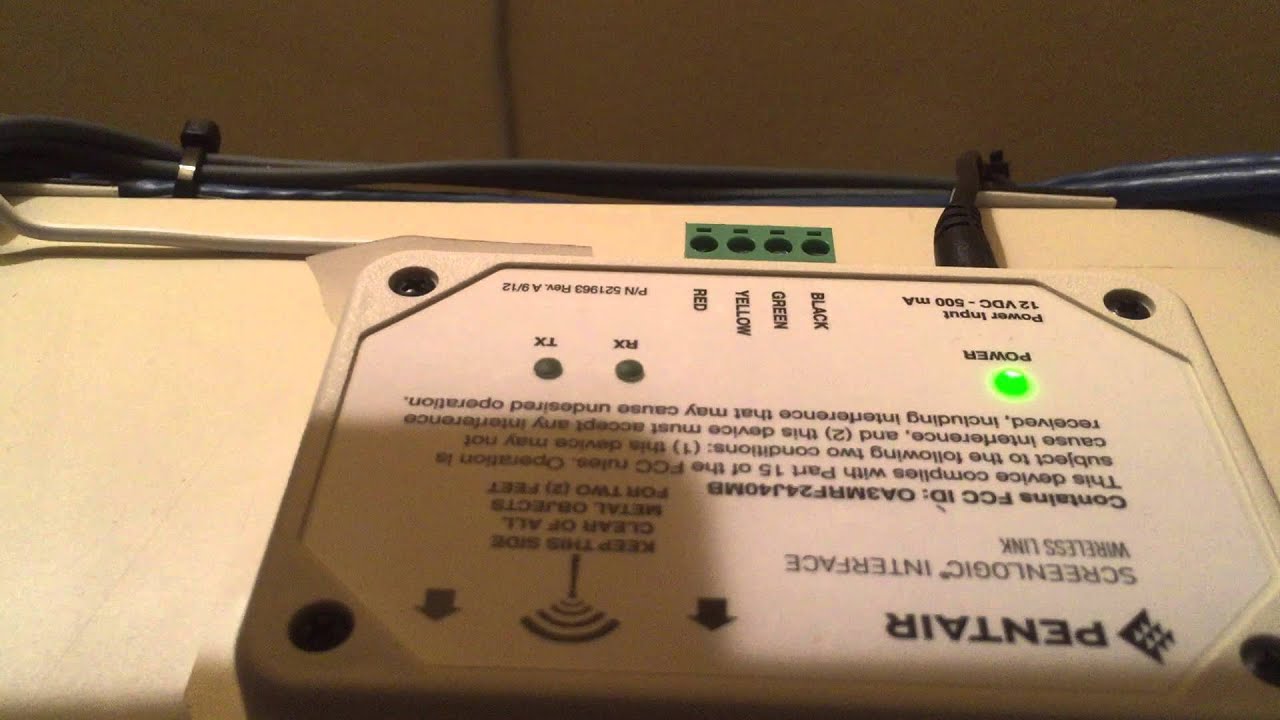
Credit: www.youtube.com
Common Issues Searching For The Controller
Searching for the Screenlogic system controller can sometimes be tricky. Various issues can stop your device from connecting properly. These problems often cause frustration and delay in using your system. Understanding common issues helps you fix them quickly.
Network Connectivity Problems
Network issues are the top reason for connection failure. The controller needs a stable Wi-Fi or wired connection. Weak signals or incorrect network settings can block communication. Routers may need a reset or firmware update. Check your network password to ensure it is correct. Devices on different networks cannot find each other easily.
Signal Interference
Signal interference can disrupt the controller search. Other electronic devices like microwaves or cordless phones cause interference. Thick walls or metal objects also weaken signals. Keep the controller and router in open spaces. Reducing nearby electronics can improve signal strength. Interference often causes delays or failed searches.
Controller Power Issues
Power problems affect the controller’s ability to connect. Loose cables or faulty power adapters can cause shutdowns. Ensure the controller is plugged in securely. Check for any visible damage to power cords. A controller without power cannot respond to search requests. Always verify power before troubleshooting further.
Effective Troubleshooting Steps
Effective troubleshooting steps help solve ScreenLogic system controller issues fast. These steps guide you through basic checks and fixes. They ensure the controller connects and works properly with your pool system.
Follow these clear instructions to identify and fix common problems. Each step targets a specific part of the system to narrow down the issue.
Checking Network Settings
Start by verifying the controller’s network settings. Make sure the controller is connected to the correct Wi-Fi network. Check if the network signal is strong near the controller. Weak signals can cause connection problems. Confirm the IP address is set properly. Sometimes, a wrong IP stops the controller from communicating.
Resetting The Controller
Resetting the controller can clear minor errors. Turn off the controller power and wait 30 seconds. Turn it back on and watch for normal startup lights. This simple reset can fix frozen screens or lost connections. Avoid frequent resets, as they may hide bigger issues.
Using Screenlogic App Tools
The ScreenLogic app includes tools to help troubleshoot. Use the app to check the controller status remotely. Run connection tests within the app to find network issues. The app can also update the controller firmware. Keeping software up to date avoids many common problems.
Optimizing Network Setup
Optimizing your network setup is key for the Screenlogic Searching For System Controller. A strong and stable network makes the system work smoothly. It helps avoid connection drops and slow responses.
Network setup affects how well the controller communicates with your devices. Small changes in settings can improve speed and reliability. Focus on the router, Wi-Fi signal, and connection type.
Router Configuration Tips
Set a strong password on your router to keep your network safe. Choose the best Wi-Fi channel to avoid interference from neighbors. Update your router’s firmware regularly for better performance. Enable Quality of Service (QoS) to prioritize your system’s traffic. Disable unused features that might slow down your network.
Improving Wi-fi Signal Strength
Place your router in a central, open spot in your home. Avoid walls and metal objects that block signals. Use Wi-Fi extenders or mesh systems to cover large areas. Change the router’s antenna angle for better signal reach. Reduce interference from other electronics like microwaves and cordless phones.
Wired Vs. Wireless Connections
Wired connections are faster and more stable than wireless. Use Ethernet cables for critical devices like the system controller. Wireless offers convenience but may face interference and signal loss. Choose wired connections for better reliability when possible. Use wireless when mobility is more important than speed.
Firmware And Software Updates
Firmware and software updates are crucial for ScreenLogic Searching For System Controller. They keep the system running smoothly and add new features. Updates also fix bugs and improve security. Regular updates help avoid problems and improve user experience.
Importance Of Keeping Updated
Updates fix known bugs that can cause errors. They improve system stability and performance. Security patches protect your system from threats. New features may be added to enhance functionality. Keeping firmware and software updated ensures the system works as intended.
How To Update Screenlogic Firmware
Start by connecting your device to the internet. Open the ScreenLogic app or system menu. Check for available firmware updates. Follow on-screen instructions to download and install updates. Ensure the device stays powered during the process. Restart the system after updating to apply changes.
App Version Compatibility
Use the latest app version with updated firmware. Older app versions might not work properly with new firmware. Check app store for updates regularly. Compatibility ensures smooth communication between app and system. Updating both prevents errors and improves control features.
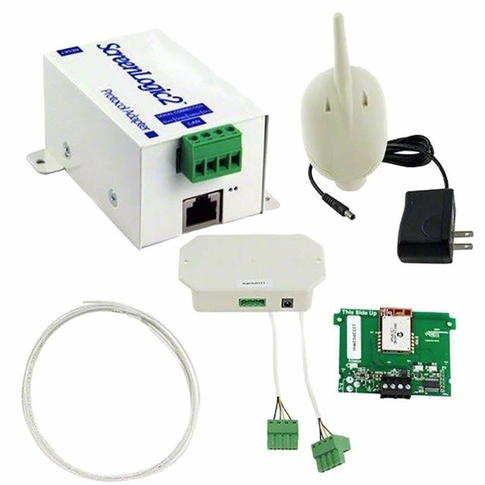
Credit: www.hydropool.com
When To Contact Support
Knowing when to contact support for Screenlogic Searching For System Controller can save time and frustration. Sometimes, issues resolve quickly on their own. Other times, problems persist and require expert help. Recognizing these moments helps maintain smooth operation.
Identifying Persistent Problems
Persistent problems often show repeated error messages or system freezes. The controller may fail to connect despite resets. Delays in response or inconsistent performance also signal issues. Tracking these signs helps decide when to seek support.
Preparing Information For Support
Gather details about the problem before contacting support. Note error codes, steps taken, and frequency of the issue. Include system version and recent changes made. Clear information helps support diagnose and resolve the problem faster.
Available Support Channels
Screenlogic offers multiple support options. Phone support connects you directly with technicians. Email support allows detailed descriptions and attachments. Online chat provides quick answers during business hours. Choose the channel that fits your needs best.
Credit: partners.pentair.com
Frequently Asked Questions
What Is Screenlogic Searching For System Controller?
Screenlogic Searching For System Controller is a tool to find your system’s controller device. It helps connect your device to the network for control and monitoring. This makes managing your system easier and faster.
How Does Screenlogic Identify The System Controller?
It scans the local network to detect the controller automatically. The tool uses network signals to locate the device. This avoids manual searching or entering IP addresses.
Can Screenlogic Searching Work On Any Network Type?
Yes, it works on most home and office Wi-Fi or wired networks. The system controller must be on the same local network. Different network settings might affect detection speed.
What Devices Support Screenlogic Searching For System Controller?
Screenlogic supports controllers used in pool and spa systems by its manufacturer. It works with common devices like PCs, tablets, and smartphones. Compatibility depends on the app or software version.
Why Can’t Screenlogic Find My System Controller?
Common issues include network problems or the controller being offline. Firewall or security settings may block detection. Restarting devices and checking connections often helps.
Is Screenlogic Searching For System Controller Free To Use?
Yes, the software or app is usually free to download and use. It comes with the system controller hardware or is available from the manufacturer. No extra cost for the search function itself.
How To Improve Screenlogic’s Controller Search Accuracy?
Ensure your device and controller are on the same network segment. Disable VPNs or proxies that may block detection. Keep the software updated for best performance.
Conclusion
ScreenLogic searching for system controller helps manage your pool easily. It connects devices for smooth control and better performance. This system saves time and reduces hassle. You get simple access to settings anytime, anywhere. Understanding how to find and use the controller is key.
It makes pool care less stressful and more efficient. Trust the right controller to keep your system running well. Small steps can lead to big improvements in pool management.