
You can fix an lg tv not recognizing hdmi input by performing a full power cycle on both your television and the connected device. If your screen remains blank, check if the cable is loose or damaged, as connection issues are the most frequent cause for this error. Ensure your television is set to the correct source, as TVs often default to the last active port instead of the one you’re currently using.
Troubleshooting HDMI input not recognizing
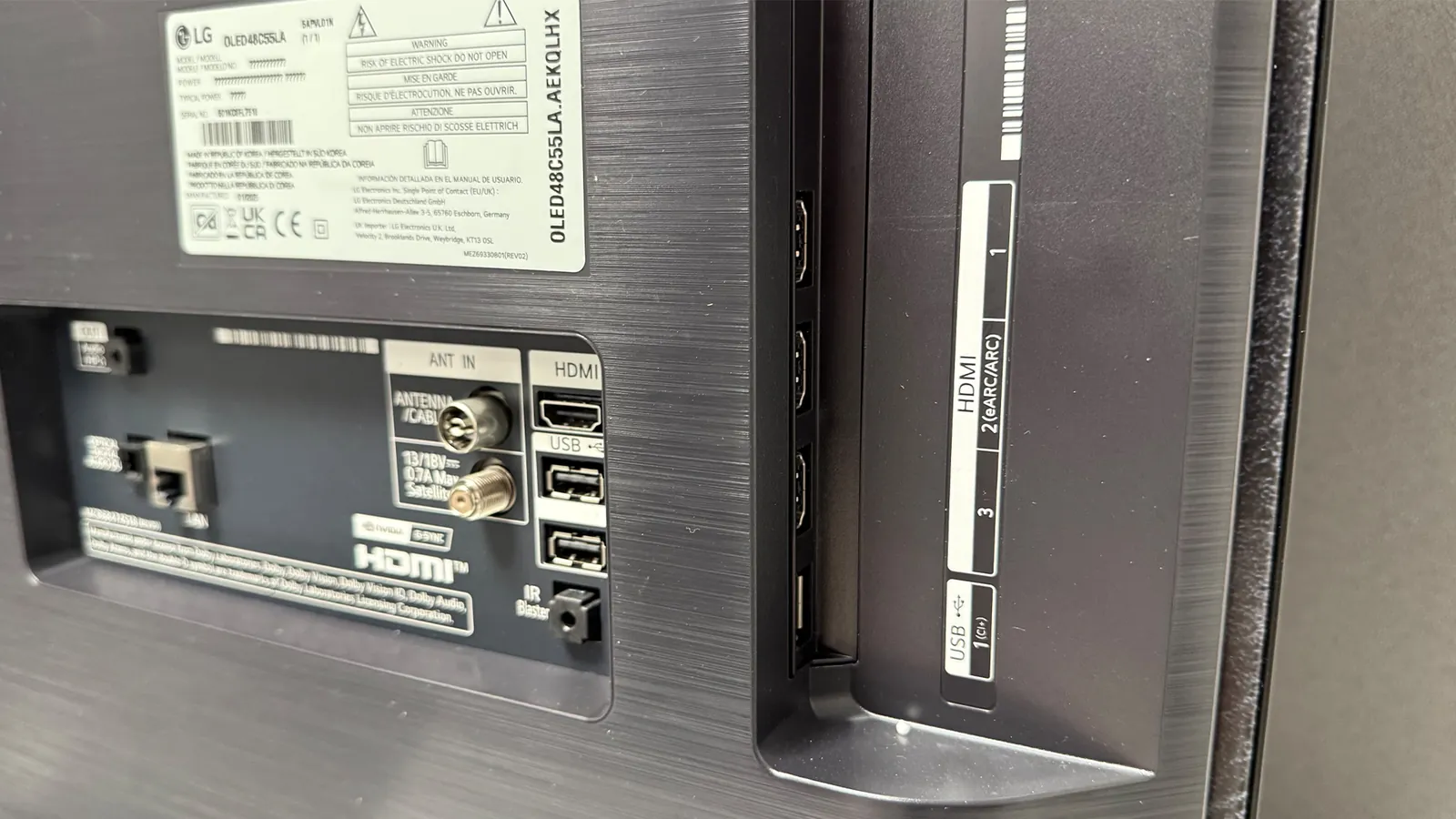
When your television fails to acknowledge a source, it usually stems from a communication error between the HDMI handshake protocols. This digital handshake verifies the connection before sending video data, and if the timing is off, the TV assumes nothing is plugged in. This happens most often when the TV is powered on before the external device has fully completed its own startup sequence.
To avoid this, power on your source device first and wait ten seconds before turning on the display.
Another common factor is the accumulation of static electricity in the internal components. Your TV’s mainboard might hold a charge that interrupts the detection of new signals. By disconnecting the power cable for one full minute, you allow the capacitors to discharge completely, which often resets the input recognition logic.
If the device still fails to detect a signal, swap the HDMI cable for one labeled “High Speed” or “Ultra High Speed.” Older cables often lack the bandwidth required for modern 4K or HDR handshake protocols.
Software bugs within the TV’s firmware can also cause input issues. If you have recently updated your television, the settings for specific HDMI ports might have shifted. You should verify that the specific port isn’t disabled in the “General” or “Input” menu settings of your television. If you see the input listed but greyed out, the TV is failing the handshake; if the input is missing entirely, you must manually re-enable the port in the connection manager menu.
Power cycle the devices
To perform a proper power cycle, turn off both your TV and the connected device, such as a gaming console or cable box. Unplug the power cords for both units from the wall outlet. Wait exactly 60 seconds before plugging them back in. This time frame is essential for the electrical components to reset fully.
Once the power is restored, turn on the external device first and wait for it to reach its home screen. Only after the device is fully active should you turn on the television. This ensures the TV receives a stable signal immediately upon startup. If you don’t see an image, try pressing the “Input” button on your remote to manually cycle through the available sources to see if the signal appears on a different channel.
Many users mistakenly skip the 60-second wait, attempting to plug the devices back in after only a few seconds. This shortcut prevents the capacitors from fully discharging, meaning the device retains its error state rather than clearing it. You must wait the full minute to ensure the hardware clears its memory.
This method works for most users, but it isn’t for those who have a faulty HDMI port on their TV hardware. If you notice the port itself feels loose or the metal housing is bent, a power cycle won’t fix the physical damage.
In such cases, contact a certified technician to inspect the port for repair or replacement. If your device still fails to display after a successful cycle, swap the HDMI cable before assuming the TV port is the problem.
Verify cables and ports
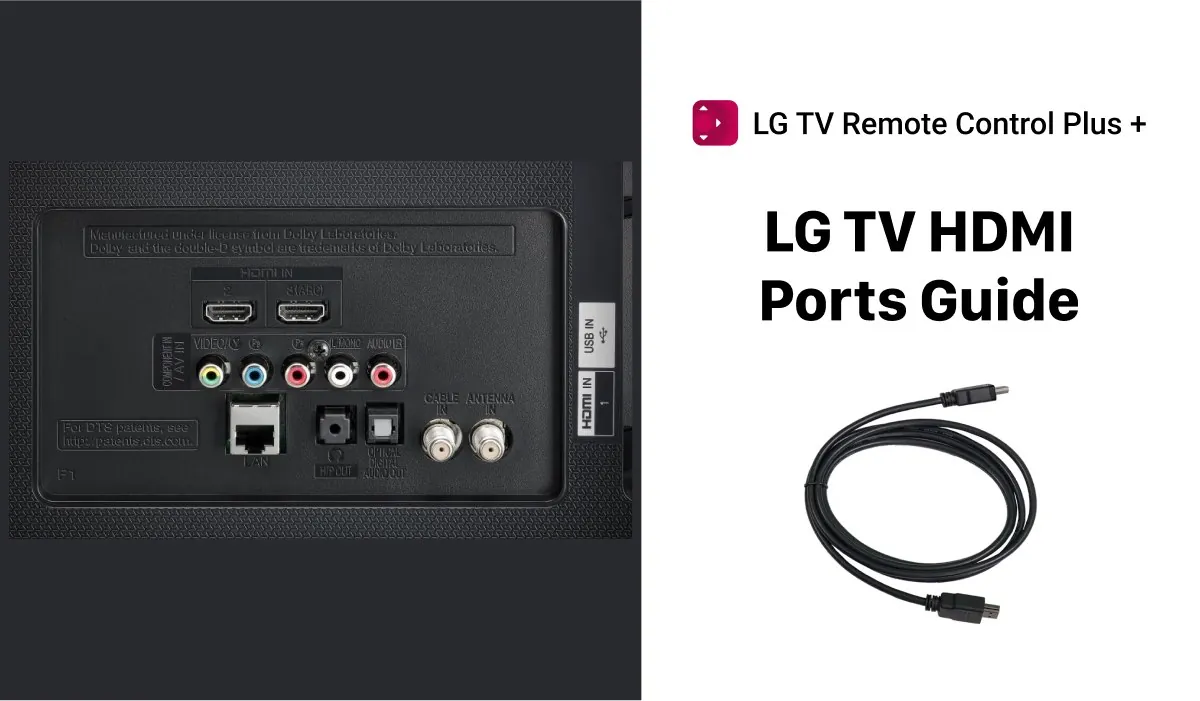
Inspect the physical condition of your HDMI cable to ensure there are no visible kinks, fraying, or bent pins at either end. Even a small tear in the outer shielding can disrupt the high-speed data transfer required for modern video signals. If you have a spare cable, swap it out to see if the connection issue follows the cable or stays with the port.
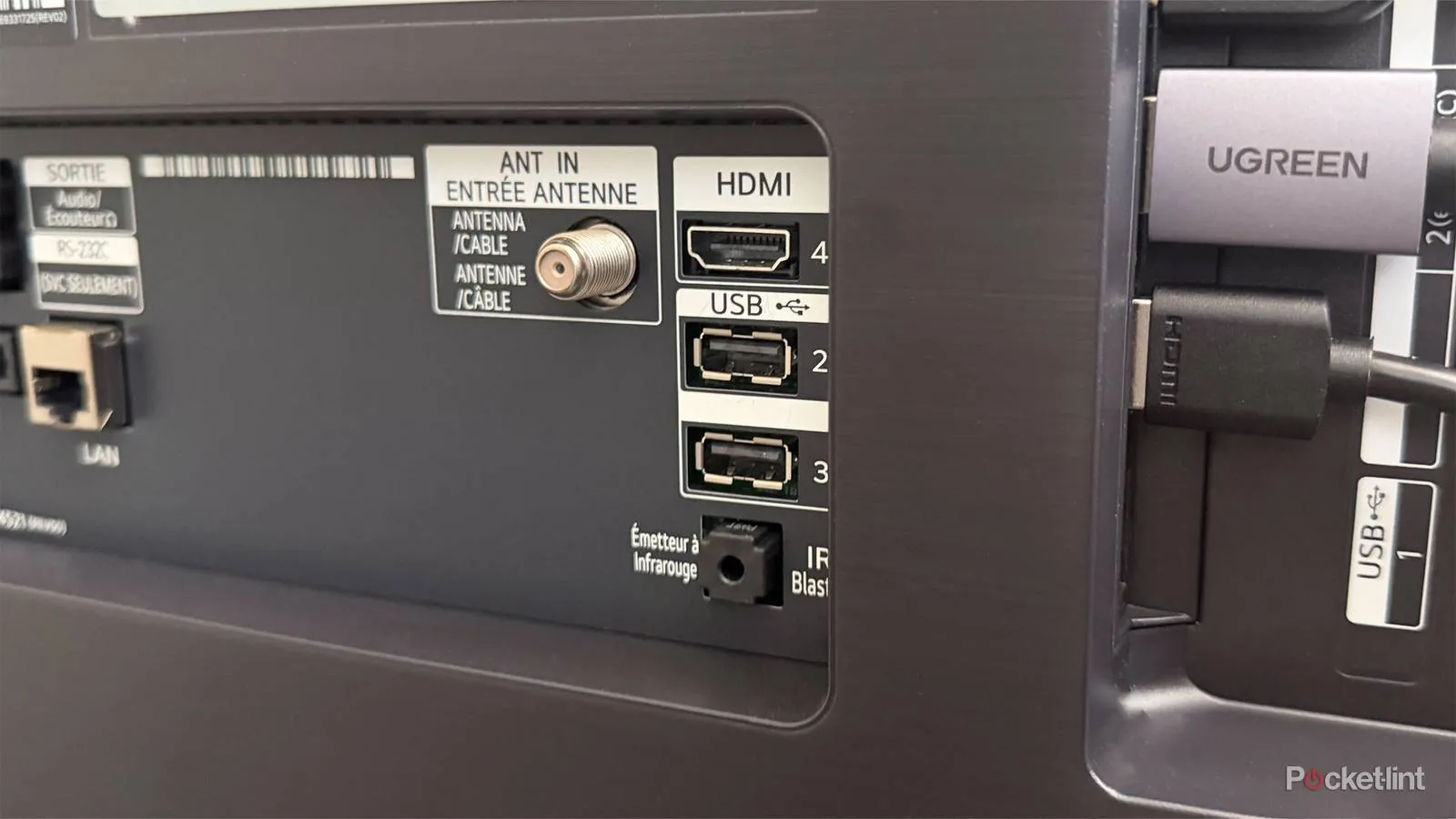
If the cable isn’t the problem, check the port on the back of your TV for dust or debris. You can use a can of compressed air to gently blow out the interior of the port. Don’t insert any metal objects like needles or screwdrivers into the port, as this can permanently damage the pins. If you find the port is physically loose or damaged, stop using it immediately to prevent a short circuit.
Most users mistakenly assume all HDMI ports on a television are identical. In reality, many displays designate specific ports for 4K at 120Hz or eARC audio return. If your device supports high-bandwidth features, check the label near the port to ensure it meets those requirements.
If you have multiple HDMI ports, move your device to a different one. If the device works on port 2 but not port 1, the issue is isolated to a single input. This helps you identify if the problem is with the television’s hardware or simply a configuration issue within the software menus. If the device fails across all ports, the fault likely lies with the source device, such as your console or streaming box.
Reset the television settings
If you still can’t see your device, you may need to perform a factory reset of the TV’s input settings. This process clears the cache of saved device names and handshake histories that might be causing a conflict. Note that this will revert your picture and sound settings to their original state, so you may want to write down your preferred adjustments before starting.
To initiate this, navigate to your TV’s “All Settings” menu and look for the “General” tab. Select “Reset to Initial Settings” or a similar option depending on your specific model year. This is a final step for software-related recognition errors.
Most users make the mistake of resetting before testing a different HDMI port or a known-working cable. If you skip these physical checks, you risk losing hours of personalized app logins and calibration data for no reason.
If your TV is older than five years, check if the firmware is updated before resetting. An outdated OS often fails to recognize newer 4K hardware, even after a factory wipe.
If the device still doesn’t show up after a reset, the issue is likely a hardware failure of the TV’s mainboard or the HDMI controller chip. This is a significant step that requires re-configuring your apps and network settings afterward. Only perform this if you have ruled out all cable and external device failures. If the issue remains after a full system reset, the television requires professional service to replace the internal hardware components.
Common myths about hdmi connections
Cleaning pins with alcohol creates a hidden hazard. Liquid trapped inside the port triggers oxidation on the delicate metal contacts, leading to intermittent signal drops that are nearly impossible to repair. If your connection flickers, use a dry, compressed air canister to clear dust instead.
Leaving cables plugged in during storms invites disaster. While the cable itself is inert, it acts as a bridge for power surges. A strike can fry your television’s HDMI controller, turning a functional port into a dead circuit. Unplug everything when lightning strikes nearby.
Use the shortest cable possible to reach your device. Cables exceeding 15 feet often struggle to maintain a stable handshake, causing “sparkles” or total blackouts on 4K screens. If you must span a long distance, switch to an active optical cable rather than a passive copper one.
Tight loops crush internal shielding. The cable may look pristine, but the internal data pairs are likely fractured. Always coil cables in wide, gentle loops to preserve their integrity.
Preventing future connection errors
Maintaining a clean setup ensures your devices communicate properly every time you turn them on. Avoid bending the cables at sharp angles behind the TV, as this puts stress on the connection points.
| If you’re doing this | Do this instead | Why |
|---|---|---|
| Leaving cables pulled tight | Use cables with extra slack | Tension causes the plug to wiggle and disconnect |
| Leaving the TV on all day | Power off when not in use | Reduces heat and prevents static buildup |
| Using cheap, thin cables | Use certified high-speed cables | Better shielding prevents signal interference |
| Plugging in while powered | Connect while powered off | Prevents electrical spikes during the handshake |
Related guides
Frequently Asked Questions
Can I fix a broken hdmi port myself?
No, you shouldn’t attempt to repair an HDMI port yourself because it’s soldered directly to the main circuit board. Opening the casing poses a risk of electric shock from internal capacitors. Attempting this repair will void your manufacturer warranty and could cause permanent damage.
How long should I wait for the handshake?
You should wait at least 5 to 10 seconds after turning on your device before switching the TV to that input. This delay allows the device to complete its boot process and send a “hot plug detect” signal to the television. If you switch too quickly, the TV may not recognize the connection.
Is it safe to use a third-party hdmi adapter?
Yes, it’s generally safe to use third-party adapters, provided they’re rated for your content’s resolution. Cheap adapters often lack the necessary shielding to prevent signal dropout. If you experience issues, remove the adapter to see if a direct connection resolves the problem.
Why does my tv lose the signal after a few minutes?
Your TV may lose the signal if the HDMI cable lacks the bandwidth to handle your content’s data rate. This often occurs when playing 4K video on older cables designed for 1080p. Try swapping to a newer, high-speed certified HDMI cable to see if the connection stabilizes.
What happens if I use a different hdmi port?
Nothing bad happens, and testing other ports is a recommended troubleshooting step to isolate the issue. Every HDMI port on your LG TV is capable of receiving the same signal, though some offer specific features like ARC. If the device works elsewhere, the original port may be faulty.
Conclusion
If these simple adjustments don’t get your screen working, there might be a deeper hardware fault. Reach out to the manufacturer’s support team or a local repair shop to see if your warranty covers a professional inspection. They’ll help you figure out if it’s time for a replacement instead.
